
Introduction
This manual provides comprehensive instructions for the Jedel WKL100 mechanical keyboard. It covers product features, setup procedures, operational guidelines, maintenance tips, troubleshooting steps, and detailed specifications. Please read this manual carefully to ensure proper use and longevity of your device.
The Jedel WKL100 is a compact mechanical keyboard designed for versatility and performance. It features triple-mode connectivity, hot-swappable switches, customizable RGB lighting, and an integrated TFT multimedia color screen.
Product Overview
The Jedel WKL100 keyboard measures approximately 142 × 42 × 330 mm (± 0.5 mm) and weighs 736g (±5%). Its compact design is suitable for various desktop environments and enhances portability.
Key Features:
- Triple-Mode Connectivity: Supports wired (USB-C), 2.4GHz wireless, and Bluetooth connections.
- Hot-Swappable Switches: Allows for easy switch replacement without soldering.
- RGB Backlighting: Features 18 dynamic RGB lighting effects.
- TFT Multimedia Color Screen: A 1.2-inch screen for customization, status display, and multimedia controls.
- Long Battery Life: Equipped with a 4000mAh built-in battery for extended wireless use.
- Wide Compatibility: Compatible with Windows (XP/7/8/10), Linux, and Mac/OS operating systems.
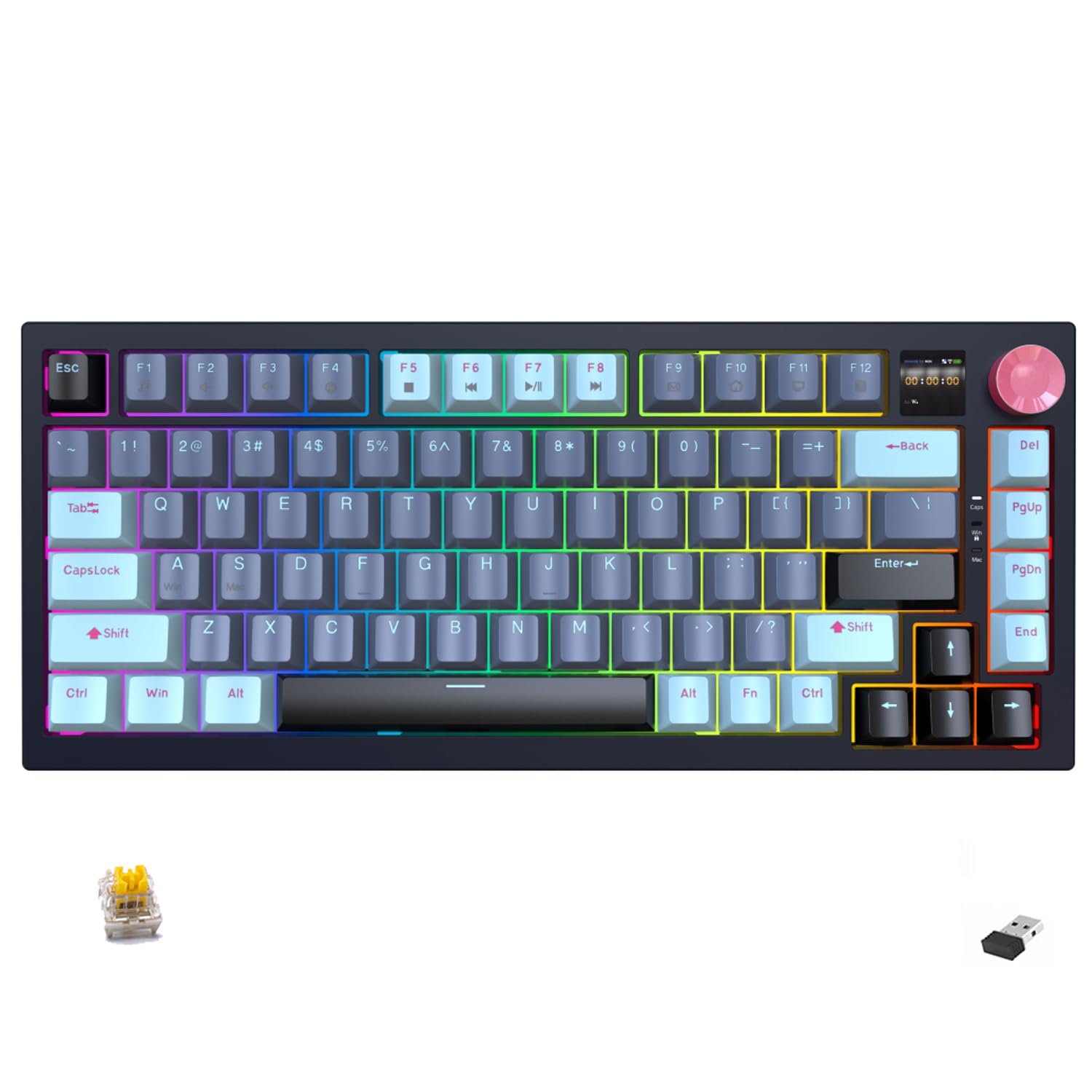
Figure 1: Jedel WKL100 Mechanical Keyboard, top-down view.

Figure 2: Front view of the Jedel WKL100 Mechanical Keyboard, showcasing the Jedel branding.
Setup
Package Contents:
- Jedel WKL100 Mechanical Keyboard
- USB-C Cable
- USB Dongle (for 2.4GHz wireless)
- User Manual (this document)
Initial Charging:
Before first use, it is recommended to fully charge the keyboard. Connect the provided USB-C cable to the keyboard's USB-C port and the other end to a powered USB port on your computer or a USB wall adapter.
Connecting the Keyboard:
The WKL100 supports three connection modes:
- Wired Mode: Connect the USB-C cable directly from the keyboard to your computer. The keyboard will automatically switch to wired mode.
- 2.4GHz Wireless Mode: Insert the USB dongle into an available USB port on your computer. Switch the keyboard to 2.4GHz mode using the designated switch or key combination (refer to the operating instructions for specific details). The keyboard should connect automatically.
- Bluetooth Mode: Switch the keyboard to Bluetooth mode. On your device (computer, tablet, or smartphone), search for Bluetooth devices and select "Jedel WKL100" to pair. Follow any on-screen prompts to complete the pairing process.
Operating Instructions
Switching Connectivity Modes:
The keyboard allows seamless switching between wired, 2.4GHz, and Bluetooth connections. Use the physical switch located on the keyboard or a specific key combination (often Fn + a designated key) to cycle through the modes. Consult the quick start guide included with your keyboard for exact key combinations.
Hot-Swappable Switches:
The WKL100 features hot-swappable switches, allowing you to change individual key switches without soldering. This enables customization of typing feel and sound. The keyboard is equipped with Philikey Yellow (Linear) switches, known for their smooth, consistent keystroke. You can replace them with other compatible 3-pin or 5-pin mechanical switches (e.g., Red, Blue, Brown types) to achieve different tactile feedback or actuation forces.

Figure 3: Detailed specifications and force-travel diagram for Philikey Yellow Switches.
RGB Lighting Control:
The keyboard offers 18 different RGB backlighting effects. Use the dedicated function keys (e.g., Fn + \| or similar) to cycle through these effects, adjust brightness, and change speed. Refer to the quick start guide for specific key combinations.
TFT Multimedia Color Screen:
The integrated 1.2-inch TFT screen provides various functionalities:
- Custom Image Upload: Personalize the screen with your own images.
- Interface Selection: Choose from different display interfaces.
- Lighting Effects: Control RGB lighting effects, color, brightness, and rate directly from the screen interface.
- Volume Adjustment: Adjust system volume.
- Language Switching: Change the display language of the screen.
Navigate the screen options using the rotary knob and associated function keys.

Figure 4: Exploded view of the keyboard structure and TFT screen customization options.
Macro Programming:
The keyboard supports macro programming, allowing you to assign complex sequences of commands to a single key. This feature can be configured via the keyboard's software (if available) or specific onboard key combinations. Refer to the quick start guide or manufacturer's website for detailed macro setup instructions.
N-Key Rollover:
The WKL100 features full N-Key Rollover (NKRO), which ensures that every key press is registered accurately, even when multiple keys are pressed simultaneously. This is particularly beneficial for fast typing and gaming.
Maintenance
Cleaning:
- To clean the keycaps, gently remove them using a keycap puller. Wipe them with a soft, damp cloth.
- Use compressed air to remove dust and debris from between the switches.
- Wipe the keyboard's surface with a soft, dry cloth. Avoid using harsh chemicals or abrasive materials.
Battery Care:
- Charge the keyboard regularly to maintain battery health.
- Avoid fully discharging the battery frequently.
- If storing the keyboard for an extended period, charge it to about 50% to prevent battery degradation.
Troubleshooting
Keyboard Not Responding:
- Wired Mode: Ensure the USB-C cable is securely connected to both the keyboard and the computer. Try a different USB port or cable.
- 2.4GHz Wireless Mode: Ensure the USB dongle is properly inserted and the keyboard is switched to 2.4GHz mode. Try re-pairing the dongle if necessary (consult quick start guide).
- Bluetooth Mode: Check if Bluetooth is enabled on your device and the keyboard is in pairing mode. Remove the keyboard from your device's Bluetooth list and attempt to re-pair.
- Battery: Ensure the keyboard has sufficient charge. Connect it via USB-C cable to charge.
Keys Not Registering or Double-Typing:
- This could indicate a faulty switch. Utilize the hot-swappable feature to replace the problematic switch.
- Clean around the switch with compressed air to remove any debris.
RGB Lighting Not Working:
- Check if the lighting is turned off or set to minimum brightness. Adjust using the function keys or the TFT screen.
- Ensure the keyboard firmware is up to date (if applicable).
TFT Screen Issues:
- If the screen is blank, ensure the keyboard is powered on and charged.
- Try resetting the keyboard (consult quick start guide for reset procedure).
Specifications
| Feature | Detail |
|---|---|
| Brand Name | Jedel |
| Model Number | WKL100 |
| Connectivity Technology | Wired (USB-C), 2.4GHz Wireless, Bluetooth |
| Keyboard Type | Mechanical |
| Special Features | 1.2-inch TFT Screen, Customizable Display Keys, Hot-Swappable Switches |
| Color (Variant) | Dark Blue |
| Backlight Support | RGB (18 effects) |
| Style | Gaming Keyboard |
| Included Components | User Manual, USB Dongle, USB Cable, Keyboard |
| Switch Type | Philikey Yellow (Linear) |
| Number of Keys | 75 |
| Battery Capacity | 4000 mAh |
| Item Weight | 1 Kilogram |
| Country of Origin | China |
| Compatibility | Windows (XP/7/8/10), Linux, Mac/OS |

Figure 5: Additional specifications for the Jedel WKL100 Keyboard.
Warranty
This product comes with a 30-day warranty from the date of purchase. Please retain your proof of purchase for any warranty claims. The warranty covers manufacturing defects but does not cover damage caused by misuse, accidents, unauthorized modifications, or normal wear and tear.
Support
For further assistance, technical support, or warranty inquiries, please contact the retailer or manufacturer directly. Refer to the product packaging or the manufacturer's official website for contact information.


