
Introduction
The EZAIoT WT702-WF-NH-FM is a smart 2-zone solar-powered water timer designed to automate your garden irrigation. Featuring Wi-Fi 6 connectivity, a built-in flow meter, and compatibility with popular smart home platforms, this device offers precise control and water-saving capabilities for your lawn and garden.
Important Safety Information
- This device is designed for outdoor use with standard garden hoses and faucets.
- Do not expose the device to extreme temperatures outside its operating range.
- Ensure all connections are tight to prevent leaks. Do not overtighten.
- Utilize the Child Lock feature to prevent unintended operation.
- The device is rated for water pressure up to 150 PSI. Do not exceed this pressure.
Package Contents
Verify that all items are present in your package:
- Smart Water Timer × 1
- Rubber Washer × 1
- Thread Seal Tape × 1
- 1/2" Faucet Adapter × 1
- Hose Quick Connectors × 2
- USB-C Charging Cable × 1
- Manual & Guide

Image: Package contents of the EZAIoT Smart Water Timer.
Product Overview
The EZAIoT water timer features a robust design with a solar panel for continuous power and two independent outlets for dual-zone control.

Image: EZAIoT 2-Zone Solar WiFi Water Timer.
Setup
1. Charging the Device
The water timer is equipped with a high-efficiency solar panel and a built-in backup battery. For initial use or if the battery is low, you can charge the device via the USB-C port using the provided cable.
- Solar Charging: Position the timer where the solar panel receives direct sunlight for optimal charging.
- USB-C Charging: Connect the USB-C cable to the charging port on the device and a standard USB power adapter (not included).

Image: Dual power options for the water timer (Solar and USB-C).
2. Physical Installation
- Connect to Faucet: Ensure the rubber washer is inside the brass inlet. Screw the timer onto a standard 3/4" outdoor faucet. If your faucet is 1/2", use the provided 1/2" faucet adapter. Hand-tighten firmly to prevent leaks. For extra security, apply thread seal tape to the faucet threads before attaching the timer.
- Connect Hoses: Attach your garden hoses to the two outlets (Zone A and Zone B) at the bottom of the timer. Use the provided hose quick connectors for easy attachment and detachment.
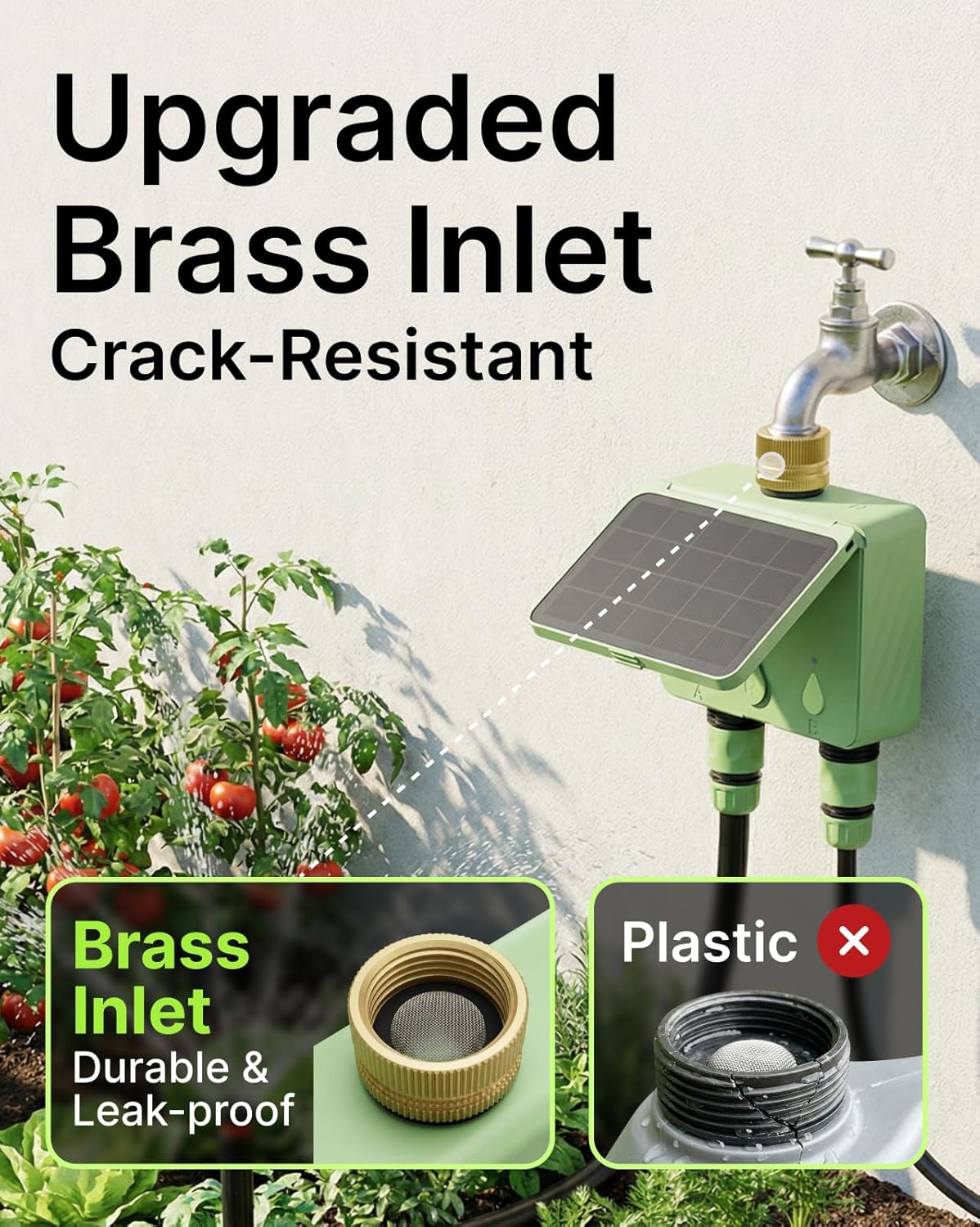
Image: The durable brass inlet connection to a faucet.
3. App Installation and Device Pairing
- Download the App: Search for the "Smart Life" app in your smartphone's app store (iOS or Android) and install it.
- Register/Log In: Open the app and create an account or log in if you already have one.
- Add Device: Follow the in-app instructions to add a new device. Ensure your phone is connected to a 2.4GHz Wi-Fi network. The EZAIoT timer uses Wi-Fi 6 and connects directly to your network without requiring a separate hub.
- Pairing Mode: The device will typically enter pairing mode automatically when first powered on or after a reset. Look for an indicator light on the timer.
- Complete Setup: Once the device is discovered, follow the prompts in the app to name your timer and assign it to a location.

Image: Smart App Control interface for managing the water timer.
Operation
1. Dual-Zone Control
The timer allows you to manage two separate watering zones (A and B) independently. Each zone can have its own customized watering schedule and settings.

Image: Independent dual-zone control for diverse watering needs.
2. Watering Modes
- Time Mode: Set a specific duration for watering. Ideal for low water flow applications or precise timing.
- Volume Mode: Set a specific volume of water to be dispensed. This mode is most accurate for flow rates greater than 0.2 GPM (gallons per minute), suitable for lawns or multiple drip emitters.
- Cycle & Soak Mode: Within a schedule, you can set the timer to water for a period, then pause, and repeat. This allows water to absorb into the soil, reducing runoff.
3. Scheduling
Create up to 10 customized watering schedules for each zone through the app. You can define start times, durations, volumes, and days of the week for each schedule.

Image: Smart scheduling options and flow meter details.
4. Rain Delay
Activate the smart Rain Delay feature via the app to pause your watering schedule for up to 30 days. The timer can sync with real-time weather information to automatically skip unnecessary watering sessions, preventing over-watering and saving water.

Image: Rain Delay feature to prevent overwatering.
5. Manual Watering
You can initiate immediate watering for either zone directly from the app. Select the desired zone, choose Time or Volume mode, set the duration/volume, and start watering instantly.
6. Flow Meter
The integrated flow meter tracks detailed water usage statistics for each zone. It also sends instant app alerts for leaks or blockages, helping you conserve water and identify issues promptly.
7. Voice Control
The EZAIoT water timer is compatible with Amazon Alexa and Google Assistant. Link your Smart Life account to your voice assistant app to control your sprinkler controller using simple voice commands.

Image: Compatibility with various smart home ecosystems.
8. Child Lock
The device includes a Child Lock feature to prevent accidental operation, ensuring your watering schedules remain undisturbed.
Maintenance
- Solar Panel: Periodically clean the solar panel with a soft, damp cloth to ensure maximum charging efficiency.
- Inlet Filter: Check the brass inlet filter for debris or sediment. Clean it as needed to maintain optimal water flow and prevent blockages.
- Weather Protection: The device has an IP65 weatherproof housing. While designed for outdoor use, consider bringing it indoors during extreme winter conditions to prolong its lifespan.
- Battery: The built-in backup battery is charged by the solar panel. If the device is stored indoors for extended periods, charge it via USB-C to maintain battery health.
Troubleshooting
- No Power/Not Charging:
- Ensure the solar panel is clean and exposed to direct sunlight.
- Connect the USB-C charging cable to charge the internal battery.
- No Wi-Fi Connection:
- Confirm your router is broadcasting a 2.4GHz Wi-Fi network.
- Ensure the timer is within range of your Wi-Fi router.
- Try re-pairing the device through the Smart Life app.
- Leaks at Connections:
- Check that rubber washers are properly seated in all connections.
- Ensure connections are hand-tightened firmly. Use thread seal tape if necessary.
- Inaccurate Flow Meter Readings:
- For optimal accuracy, ensure the water flow rate is above 0.5 liters per minute (approximately 0.13 GPM).
- Check for blockages in the hose or timer.
- Scheduling Issues:
- Verify all schedule settings (start time, duration/volume, days) within the Smart Life app.
- Ensure the device is connected to Wi-Fi for schedules to sync.
- Temperature Display in Celsius (App):
- Check the settings within the Smart Life app for unit preferences (e.g., temperature units). This setting is typically found in the app's general settings or device-specific settings.
Specifications
| Model Number | WT702-WF-NH-FM |
| Dimensions (D x W x H) | 1.83" x 5.18" x 4.45" |
| Water Pressure Rating | Up to 150 PSI |
| Connectivity | Wi-Fi 6 (2.4GHz network, no hub required) |
| Weather Resistance | IP65 |
| Power Source | Solar Powered, USB-C, Built-in Backup Battery |
| Number of Zones | 2 |
Warranty and Support
For warranty information, please refer to the documentation included with your purchase or contact EZAIoT customer support directly. If you encounter any issues or have questions regarding your EZAIoT water timer, please reach out to our support team for assistance.
Contact Information: Refer to the EZAIoT official website or the Smart Life app for the most current support contact details.


