
1. Introduction
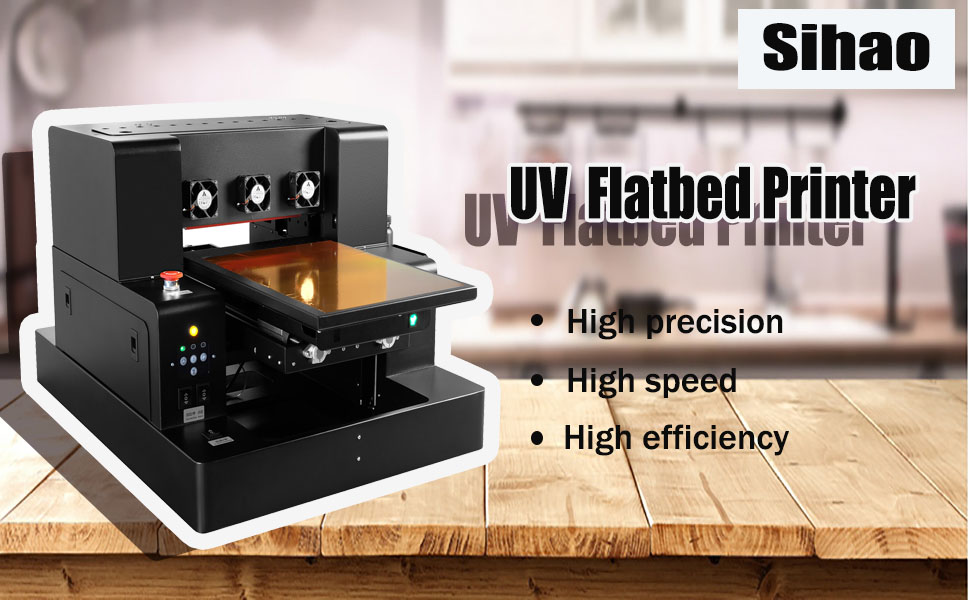
This manual provides essential information for the safe and efficient operation, maintenance, and troubleshooting of your Sihao A3 L1805 DTG & DTF UV Flatbed Printer. This versatile printer supports both Direct-to-Garment (DTG) and Direct-to-Film (DTF) printing, as well as UV flatbed printing for a wide range of materials. Please read this manual thoroughly before operating the device.
2. Product Overview & Key Features
The Sihao A3 L1805 printer is designed for high-quality, versatile printing on various substrates. Key features include:
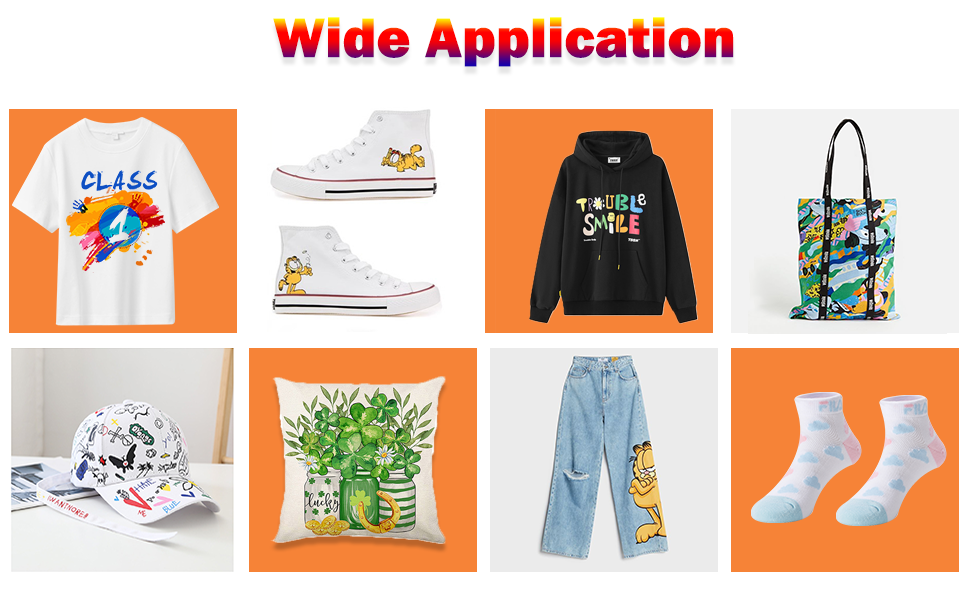
- DTG & DTF Printing Capability: This printer supports direct printing on clothing (DTG) and transfer printing via DTF film or PET/A/B film for items like T-shirts, hoodies, shoes, hats, pants, and handbags.
- High Precision & Speed: Achieve resolutions of 2880 x 1440dpi, ensuring bright colors and sharp details for exceptional precision and color accuracy.
- White Ink Mixing & Circulation System: Features an automatic cleaning function to prevent clogging and ensure even ink distribution, improving print quality, stability, and extending device lifespan.
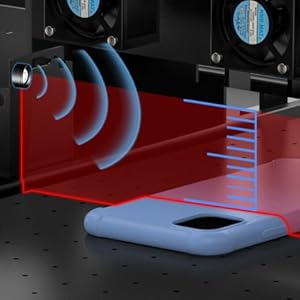
- Large Print Area & Automatic Adjustment: Equipped with a vacuum adsorption platform, offering a print area of 29.7 x 21 CM. An innovative infrared automatic height adjustment system allows printing on various materials, including mobile phone cases and leather.
The printer's design allows for a wide range of applications:

3. Package Contents
Verify that all items listed below are included in your package:
- 1x Clothing Holder
- 1x Ink Syringe
- 1x Heat Press
- 2x Ink Sacks
- 6x Ink Bottles
- Software and USB Drive
- 1x White Ink Stir Power Cable
4. Setup
- Unpacking: Carefully remove the printer and all accessories from the packaging. Retain packaging for future transport or storage.
- Placement: Place the printer on a stable, level surface in a well-ventilated area, away from direct sunlight and heat sources.
- Power Connection: Connect the power cable to the printer and a suitable power outlet.
- Ink Installation: Refer to the detailed instructions on the provided USB drive for proper ink installation. Note that textile ink is required for shirts, and UV DTF ink is required for other items. Do not mix ink types.
- Software Installation: Install the printer software from the provided USB drive onto your computer.
Important: The installation instructions and software are located on the included USB drive. If you encounter difficulties accessing or installing the content, please contact customer support for assistance.
5. Operating Instructions
5.1 General Operation
- Power On: Press the power button to turn on the printer.
- Material Loading: Place the item to be printed (e.g., T-shirt, phone case, DTF film) onto the vacuum adsorption platform. Ensure it is securely positioned.
- Height Adjustment: The printer features an infrared automatic height adjustment system. Ensure the material height is within the printer's operational range.
- Print Job Setup: Use the installed software on your computer to prepare your design and send the print job to the printer.
- Start Printing: Initiate the print job from the software.

5.2 Printing Demonstrations
Video 5.1: Demonstration of the DTG/DTF printer in operation, showing the printing process.
Video 5.2: A short demonstration of the DTG/DTF printer's functionality.
Video 5.3: Operational video showcasing the DTG/DTF printer's capabilities.
Video 5.4: Detailed video illustrating the use of the DTG/DTF printing machine.
Video 5.5: Comprehensive video guide on operating the DTG/DTF printer.
6. Maintenance
Regular maintenance ensures optimal performance and longevity of your printer:
- White Ink Circulation: The printer features an automatic white ink mixing and circulation system to prevent pigment settling and nozzle clogging. Ensure this system is functioning correctly.
- Automatic Cleaning: Utilize the automatic cleaning function regularly to maintain printhead health and prevent ink blockages.
- General Cleaning: Periodically clean the printer's exterior and print platform with a soft, damp cloth. Avoid using harsh chemicals.
- Printhead Maintenance: If print quality degrades, perform a nozzle check and printhead cleaning cycle through the printer software.
7. Troubleshooting
This section addresses common issues you might encounter:
| Problem | Possible Cause | Solution |
|---|---|---|
| Printer not powering on | Loose power cable, power outlet issue | Check power connections, try a different outlet. |
| Poor print quality (streaks, faded colors) | Clogged nozzles, low ink levels, incorrect print settings | Perform a nozzle check and printhead cleaning. Check ink levels. Verify print settings in software. |
| Ink clogging | Infrequent use, improper ink storage, white ink settling | Ensure regular use. Activate white ink circulation. Perform automatic cleaning cycles. |
| Installation issues from USB | Corrupted USB, incompatible system | Try accessing the USB on another computer. Contact customer support for alternative software access or installation guidance. |
8. Specifications
| Feature | Detail |
|---|---|
| Brand | Sihao |
| Model Name | A3 DTG (L1805) |
| Printing Technology | Inkjet |
| Connectivity Technology | Bluetooth |
| Printer Output | Color |
| Maximum Print Speed (Color) | 5.0 pages per minute |
| Maximum Media Size | 11.7 x 6.7 inches |
| Product Dimensions (D x W x H) | 26" x 26" x 20" |
| Special Feature | Portable |
| Built-In Media | Inkjet Cartridges |
| Manufacturer | SIHAO |
9. Warranty & Support
9.1 Warranty Information
This product comes with a 1-year warranty from the date of purchase. Please retain your proof of purchase for warranty claims. The warranty covers manufacturing defects and malfunctions under normal use conditions.
9.2 Customer Support
For any questions, technical assistance, or troubleshooting not covered in this manual, please contact the seller or manufacturer's customer support. You can typically find contact information on the product packaging or the seller's online store page.