
Introduction
Thank you for choosing the Goiaey C26 Smart Projector. This manual provides essential information for setting up, operating, maintaining, and troubleshooting your projector. Please read it thoroughly before use to ensure optimal performance and safety.
Safety Instructions
- Do not block the ventilation openings. Ensure adequate airflow around the projector to prevent overheating.
- Avoid direct eye exposure to the projector lens when the lamp is on.
- Keep the projector away from water, moisture, and extreme temperatures.
- Use only the power adapter provided with the projector.
- Do not attempt to disassemble or repair the projector yourself. Contact qualified service personnel for assistance.
- Place the projector on a stable, level surface to prevent it from falling.
Package Contents
Verify that all items are present in your package:
- Goiaey C26 Google TV Projector
- Bluetooth and Infrared Remote Control
- HDMI Cable
- Power Cord
- User Manual (this document)
Product Overview
The Goiaey C26 is a compact and versatile smart projector designed for various entertainment needs. It features a native 1080P resolution, 4K support, integrated Google TV system, Wi-Fi 6, and Google Voice Assistant.

Image: Goiaey C26 Smart Projector, front view showing the lens and ventilation.
Ports and Controls
Familiarize yourself with the various ports and controls on your projector for seamless operation.
- Power Button: Turns the projector on/off.
- HDMI Port: Connects to external devices like laptops, gaming consoles, or TV sticks. Supports ARC and CEC functions.
- USB Port: For connecting USB storage devices.
- Audio Out (3.5mm): Connects to external wired speakers or headphones.
- DC In: Power input port.
Setup
1. Placement
The Goiaey C26 projector offers flexible placement options:
- Table Mount: Place on a flat, stable surface.
- Tripod Mount: Use the standard 1/4 inch screw hole on the bottom for tripod attachment.
- Ceiling Mount: Securely mount to the ceiling using a compatible bracket.
- Wall Mount: Mount to a wall using a compatible bracket.
2. Power Connection
- Connect the power cord to the DC In port on the projector.
- Plug the other end of the power cord into a power outlet.
3. Initial Power On and Network Setup
- Press the power button on the projector or remote control to turn it on.
- Follow the on-screen instructions to select your language and connect to a Wi-Fi network. The projector supports Wi-Fi 6 for faster and more stable connections.
- Sign in with your Google account to access the full features of the Google TV system.
4. Focus and Keystone Adjustment
The C26 projector features electric focus and auto vertical keystone correction for a clear and properly shaped image.
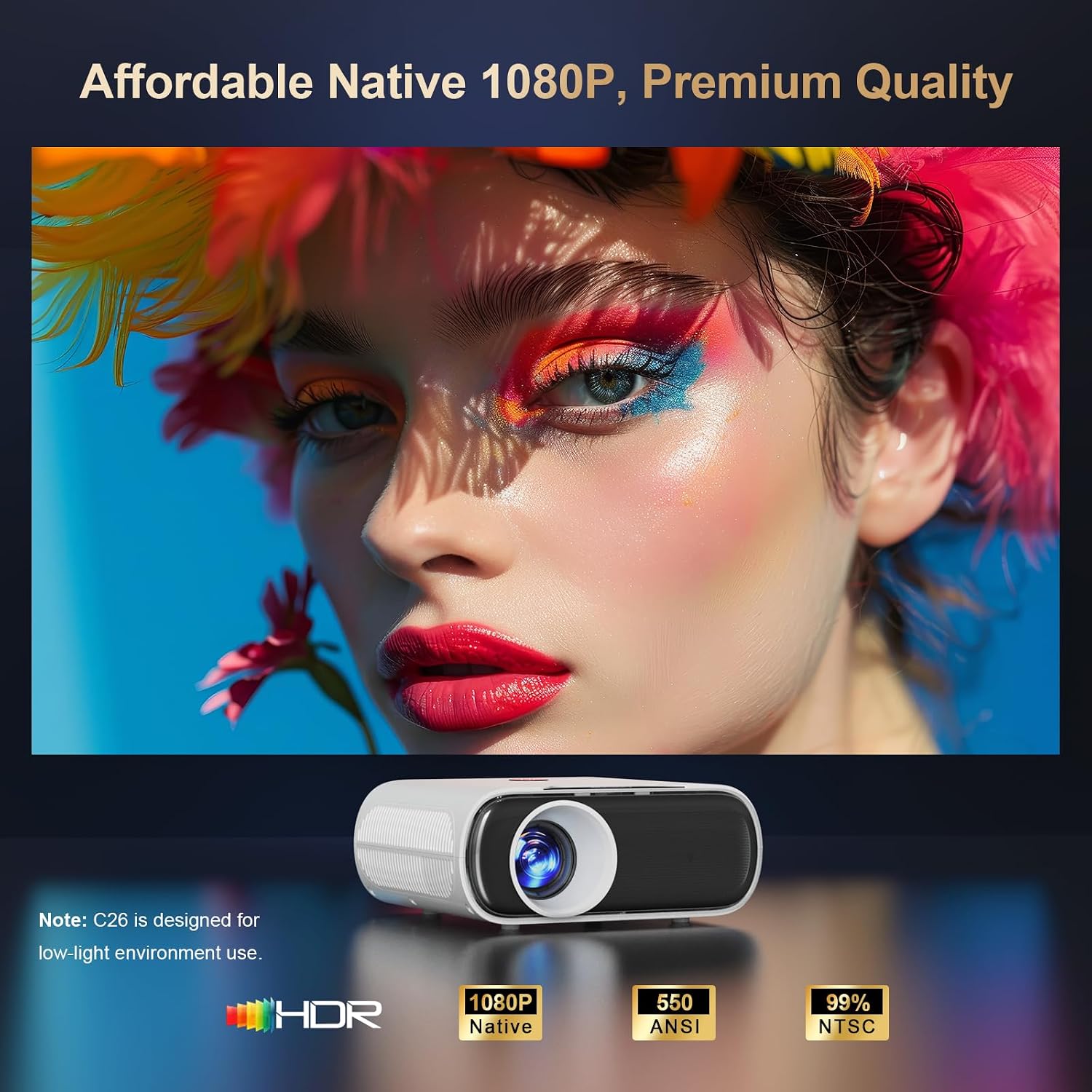
Image: Projector displaying image adjustment options including 4P Keystone Correction, Auto Vertical Keystone, Electric Focus, and Zoom.
- Electric Focus: Use the focus button on the remote control to adjust the image clarity. This ensures the entire image is sharp.
- Auto Vertical Keystone: The projector automatically corrects vertical image distortion within 15 degrees when moved.
- 4P Keystone Correction: For larger or horizontal corrections, navigate to the settings menu to manually adjust the 4-point keystone correction.
Operating the Projector
1. Google TV System
The Goiaey C26 comes with an official licensed Google TV system, providing direct access to thousands of apps without needing external streaming devices.

Image: Projector displaying the Google TV interface with icons for Netflix, YouTube, Prime Video, Disney+, Hulu, and other streaming applications.
- Access Apps: Navigate through the home screen to find pre-installed apps or download new ones from the Google Play Store.
- User-Friendly Interface: The on-screen menu is designed for easy navigation.
2. Google Voice Assistant
Control your projector with voice commands using the integrated Google Voice Assistant.
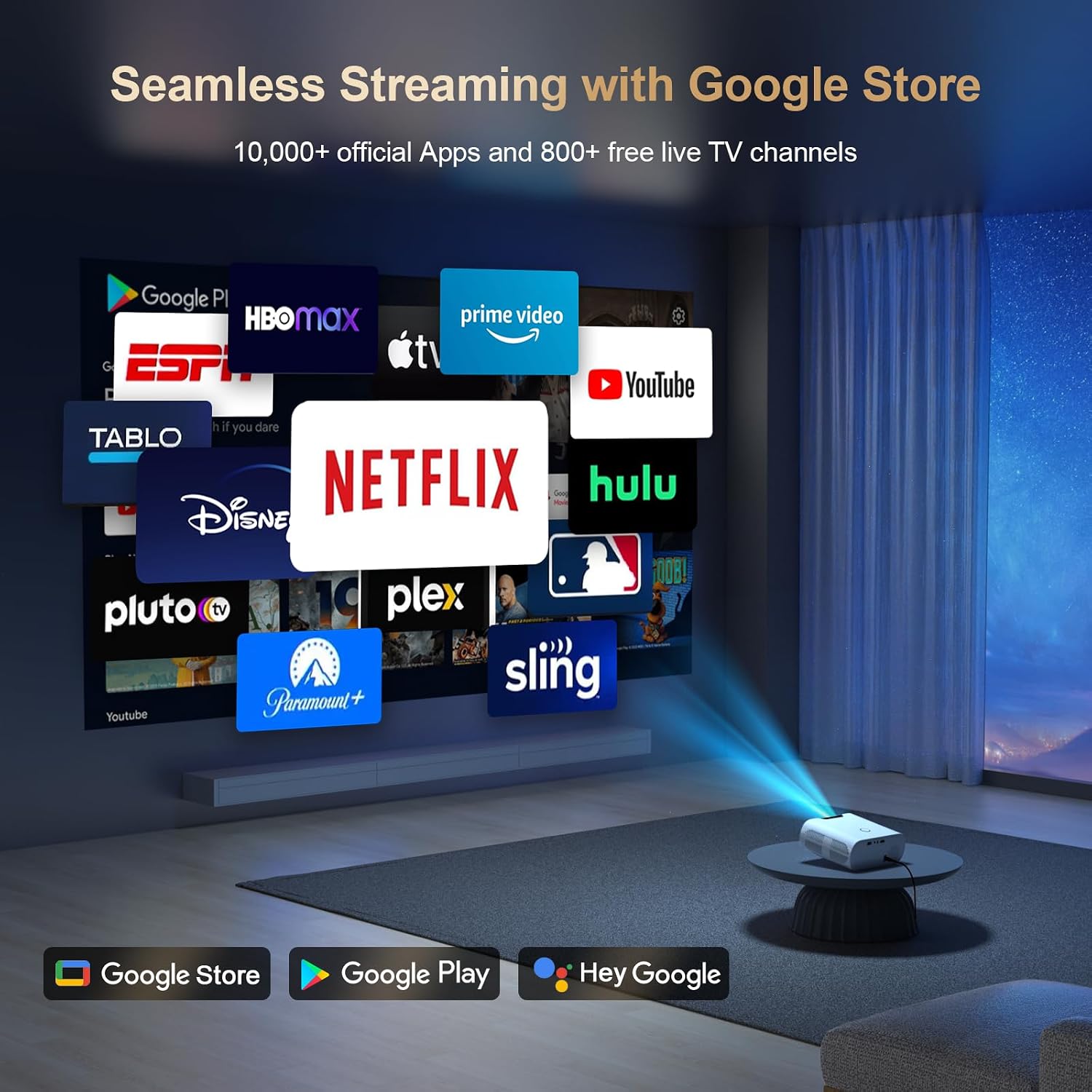
Image: Remote control with a microphone button, illustrating voice commands like "Open Netflix" or "Play Movies" being used with Google Assistant.
- Activate: Hold the voice button on your remote control.
- Commands: Speak commands such as "Open Netflix," "Play Movies," or "Turn up the volume."
3. Google Cast / Screen Mirroring
Seamlessly cast content from your phone or tablet to the projector using Google Cast.

Image: A smartphone displaying a game, with the same content being mirrored onto a large screen by the projector, indicating Google Cast functionality.
- Setup: Ensure your phone/tablet and projector are connected to the same Wi-Fi network.
- Casting: Use the cast function within compatible apps on your device.
- AirPlay: For iOS devices, download the AirPlay Cast app from the Google Play Store on the projector.
4. Connectivity
The projector supports various connectivity options:
- Wi-Fi 6: Provides fast and stable wireless internet and mirroring capabilities.
- Bluetooth: Connect external Bluetooth speakers or other audio devices.
- HDMI ARC/CEC: Connect external speakers via HDMI (ARC) and control multiple devices with one remote (CEC).
- USB: Play media directly from a USB stick.
5. Audio Output
The C26 projector includes built-in 15W speakers. For enhanced audio, you can connect external speakers.

Image: A projector casting a concert video, with sound being wirelessly transmitted to two external Bluetooth speakers, demonstrating Bluetooth 5.2 functionality.
- Built-in Speakers: Enjoy clear sound directly from the projector.
- Bluetooth Speakers: Pair external Bluetooth speakers for a more immersive audio experience. Note: Bluetooth functionality is available only after signing into your Google account.
- Wired Speakers/Headphones: Use the 3.5mm audio out port.
6. Remote Control
The included Bluetooth and Infrared remote allows for convenient control from anywhere in the room.

Image: A hand holding the remote control, with blue concentric circles emanating from it, illustrating wireless control of the projector across different rooms in a house layout.
- Bluetooth Pairing: Pair the remote with the projector for full functionality.
- IR Mode: The remote also functions via infrared for basic controls if Bluetooth is not paired.
7. Video Playback Example
Video: A demonstration of the Goiaey C26 projector displaying animated content, showcasing its image quality and smooth playback.
Maintenance
Proper maintenance ensures the longevity and performance of your projector.
- Cleaning: Regularly clean the lens with a soft, lint-free cloth. Use compressed air to clear dust from ventilation openings.
- Ventilation: Ensure the projector's vents are not obstructed during operation to prevent overheating.
- Shutdown: Always power off the projector correctly to allow proper cooling.
- Storage: When not in use, store the projector in a cool, dry place, protected from dust and direct sunlight.
Troubleshooting
If you encounter issues, refer to the following common problems and solutions:
| Problem | Possible Solution |
|---|---|
| No power | Check power cord connection. Ensure the power outlet is functional. |
| No image | Verify input source selection. Check HDMI/USB cable connections. Adjust focus. |
| Blurry image | Use the electric focus function on the remote. Adjust keystone correction. |
| No sound | Check volume settings. Ensure external speakers are connected correctly or Bluetooth is paired. |
| Remote not working | Check remote batteries. Ensure Bluetooth pairing is successful for full functionality. |
If the problem persists, please contact customer support for further assistance.
Specifications
| Feature | Detail |
|---|---|
| Model | C26 |
| Brand | Goiaey |
| Native Resolution | 1920 x 1080 (Full HD) |
| Display Resolution Maximum | 1920 x 1080 Pixels (4K Supported) |
| Brightness | 800 ANSI Lumen |
| Contrast Ratio | 20000:1 |
| Connectivity Technology | Bluetooth, USB, Wi-Fi (Wi-Fi 6) |
| Special Features | Built-in Google TV System, Google Voice Assistant, Google Cast, HDMI ARC/CEC, Electric Focus, 4P Keystone Correction, Portable |
| Light Source Operating Life | 100,000 Hours |
| Maximum Image Size | 300 Inches |
| Minimum Throw Distance | 1.5 Meters |
| Maximum Throw Distance | 7 Meters |
| Product Dimensions | 18.79 x 16 x 7.39 cm |
| Item Weight | 0.8 Kilograms (2.2 lb) |
| Power Consumption | 80 Watt-hours |
| Controller Type | Remote Control, Voice Control |
| Compatible Devices | Laptop, PC, PS5, USB Stick, TV Stick, Smartphone, Bluetooth Speakers, Tablet |
Warranty and Support
The Goiaey C26 Smart Projector comes with a comprehensive warranty and dedicated customer support.
- Warranty Period: 1 year free replacement and 2 years free repair from the order date. Total 3 years warranty.
- Contact Support: For any questions, troubleshooting assistance, or warranty claims, please refer to the official contact information provided in your product packaging or on the Goiaey official website. Our support team aims to reply within 24 business hours.