
Introduction
Welcome to your new Ducky OK-M 65% Wireless Mechanical Gaming Keyboard. This manual provides detailed instructions for setup, operation, maintenance, and troubleshooting to ensure optimal performance and a satisfying typing experience. Please read this manual thoroughly before using your keyboard.
Product Overview
The Ducky OK-M series offers a premium mechanical typing experience with versatile connectivity and customizable features. This 65% layout keyboard is designed for efficiency and comfort.
Video Description: An official overview video showcasing the Ducky OK-M Mechanical Keyboards, highlighting features such as the gasket-mount design, hot-swappable switches, multi-mode connectivity, and RGB lighting. The video demonstrates the keyboard's various layouts and customization options.
Package Contents
Ensure all items are present in the package:
- Ducky OK-M 65% Wireless Mechanical Gaming Keyboard
- USB-C Cable
- Keycap Puller
- Ducky Ducko Brush
- User Manual (this document)
Setup
Initial Connection
The Ducky OK-M keyboard offers multiple connection methods:
1. Wired Connection (USB-C)
- Connect the provided USB-C cable to the USB-C port on the keyboard.
- Plug the other end of the USB-C cable into an available USB port on your computer.
- The keyboard will be automatically detected and ready for use.
2. Wireless Connection (2.4GHz)
- Locate the 2.4GHz wireless dongle.
- Plug the 2.4GHz dongle into an available USB port on your computer.
- On the keyboard, locate the connectivity mode switch (often on the back or side) and set it to the 2.4G position.
- The keyboard should automatically connect to the dongle.
3. Bluetooth Connection
- On the keyboard, locate the connectivity mode switch and set it to the BT (Bluetooth) position.
- On your device (computer, laptop, tablet, or smartphone), navigate to the Bluetooth settings.
- Search for available devices and select "Ducky OK-M" to pair.
- Follow any on-screen prompts to complete the pairing process.

Image Description: A detailed view of the side of the Ducky OK-M keyboard, showing the physical switches for selecting between Windows/iOS compatibility, 2.4GHz wireless, and Bluetooth modes, alongside the USB-C port for wired connection and charging.
Operating Instructions
Key Customization (VIA Software)
The Ducky OK-M keyboard supports VIA software, allowing for comprehensive customization of key assignments, macro programming, and multi-layer configurations. VIA is a web-based application, providing a user-friendly interface for advanced settings.
- To access VIA, visit the official VIA website: https://www.caniusevia.com/
- Ensure your keyboard is connected (preferably wired for initial setup) and follow the instructions on the VIA website to detect and configure your keyboard.

Image Description: A close-up view of the Ducky OK-M keyboard's rotary volume knob, emphasizing its integration with VIA software for customizable functions beyond just volume control.
RGB Lighting
The keyboard features subtle side RGB lighting that enhances its aesthetic. Lighting modes and effects can be configured and adjusted through the VIA software. Refer to the VIA documentation for detailed instructions on customizing RGB settings.
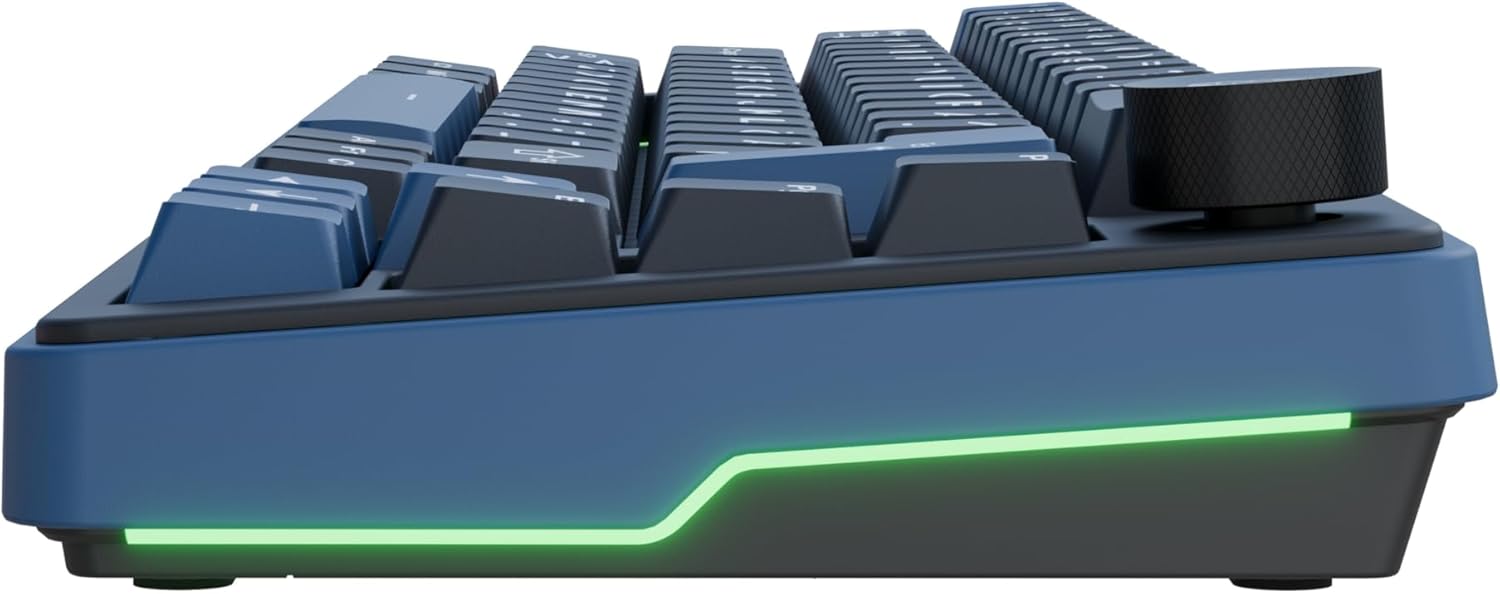
Image Description: A side profile of the Ducky OK-M keyboard, highlighting the vibrant green RGB lighting strip that runs along the lower edge of the keyboard chassis.
Volume Roller
The integrated volume roller provides convenient control over your audio output. Rotate the roller to adjust volume up or down. Pressing the roller typically mutes or unmutes the audio.
Maintenance
Cleaning
- Use the provided Ducky Ducko Brush to regularly remove dust and debris from the keycaps and between the keys.
- For deeper cleaning, use the included keycap puller to carefully remove keycaps. Clean the switches and plate with a soft, dry cloth or compressed air.
- Avoid using liquid cleaners directly on the keyboard. If necessary, dampen a cloth slightly with water or a mild cleaning solution and wipe gently.
Hot-Swappable Switches
The Ducky OK-M features hot-swappable switch sockets, allowing you to change mechanical switches without soldering. This provides flexibility to customize your typing feel.
- To remove a switch, use a switch puller (not included) to gently grip the top and bottom clips of the switch and pull upwards.
- To install a new switch, align the pins of the switch with the holes on the PCB and press down firmly until it clicks into place. Ensure the pins are not bent.

Image Description: A close-up comparison of two different types of hot-swappable mechanical keyboard switches: KTT Linear switches, which are pink, and Tactile switches, which are light blue, illustrating the ease of switch replacement.
Troubleshooting
Keyboard Not Responding
- Wired Connection: Ensure the USB-C cable is securely connected to both the keyboard and your computer. Try a different USB port or cable.
- 2.4GHz Wireless: Verify the 2.4GHz dongle is properly plugged into a USB port. Ensure the keyboard's mode switch is set to 2.4G. Check the keyboard's battery level.
- Bluetooth Connection: Confirm the keyboard's mode switch is set to BT. Ensure Bluetooth is enabled on your device and the keyboard is paired. If previously paired, try unpairing and re-pairing the device. Check the keyboard's battery level.
RGB Lighting Not Working
- Check the lighting settings within the VIA software.
- Ensure the keyboard is not in a low-power mode that might disable or dim the lighting.
Specific Keys Not Registering
- Carefully remove the keycap using the keycap puller.
- Gently remove the switch using a switch puller.
- Inspect the switch pins for any bends or damage. Straighten bent pins if possible, or replace the switch if damaged.
- Reinsert the switch and keycap, ensuring they are seated correctly.
Specifications
| Brand | Ducky |
| Model | OK-M-65 |
| Connectivity Technology | Bluetooth, RF (2.4GHz), USB-C |
| Keyboard Description | Mechanical |
| Recommended Uses | Everyday Use |
| Special Features | Backlit, Hot-Swappable, Portable, Volume Roller |
| Keyboard Backlighting | RGB |
| Switches | KTT Wine Red Switch |
| Item Weight | 2.22 pounds |
| Package Dimensions | 13.9 x 6.34 x 1.85 inches |
| Batteries | 1 Nonstandard Battery (included) |
Warranty and Support
For detailed warranty information, technical assistance, or to register your product, please visit the official Ducky website or contact your authorized retailer. Please retain your purchase receipt as proof of purchase for any warranty claims.
Ducky Official Website: https://www.duckychannel.com.tw/


