
1. Introduction
The FL·ESPORTS OG104 is a full-size mechanical keyboard designed with a retro aesthetic combined with modern technology. It features a gasket mount design, hot-swappable switches, and versatile tri-mode connectivity. This manual provides instructions for setting up, operating, and maintaining your keyboard.

Image: The FL·ESPORTS OG104 keyboard in a typical desktop setup, showcasing its retro design and full-size layout.
Key features include:
- Retro Design: Blends a classic aesthetic with modern mechanical performance.
- 5-Layer Acoustic Design: Incorporates sound-absorbing materials like sandwich cotton and bottom foam to reduce hollow noise and provide a solid typing feel.
- Tri-Mode Connectivity: Supports 2.4GHz wireless, Bluetooth 5.0, and wired USB-C connections for broad compatibility.
- Hot-Swappable PCB: Allows for easy customization of 3-pin and 5-pin switches without soldering.
- 4000mAh Battery: Provides extended usage time, with up to 400 days in power-saving mode.
2. Package Contents
Verify that all items are present in the package:
- FL·ESPORTS OG104 Mechanical Keyboard
- USB-C Cable
- 2.4G Receiver
- User Manual (this document)
3. Setup
3.1 Initial Charging
Before first use, connect the keyboard to a USB power source using the provided USB-C cable to ensure it is fully charged. The charging indicator will show the charging status.
3.2 Connectivity Modes
The OG104 keyboard supports three connection modes: wired USB-C, 2.4GHz wireless, and Bluetooth 5.0. Use the physical mode toggle switch located on the keyboard to select your desired connection type.

Image: Visual representation of the keyboard's three versatile connection modes.
3.2.1 Wired USB-C Connection
- Ensure the mode toggle switch on the keyboard is set to the wired (USB) position.
- Connect the provided USB-C cable to the keyboard's USB-C port and the other end to your computer's USB port.
- The keyboard will be automatically recognized by your operating system.
3.2.2 2.4GHz Wireless Connection
- Locate the 2.4G receiver (dongle) in its hidden storage compartment on the keyboard.
- Ensure the mode toggle switch on the keyboard is set to the 2.4GHz wireless position.
- Plug the 2.4G receiver into an available USB port on your computer.
- The keyboard should connect automatically.
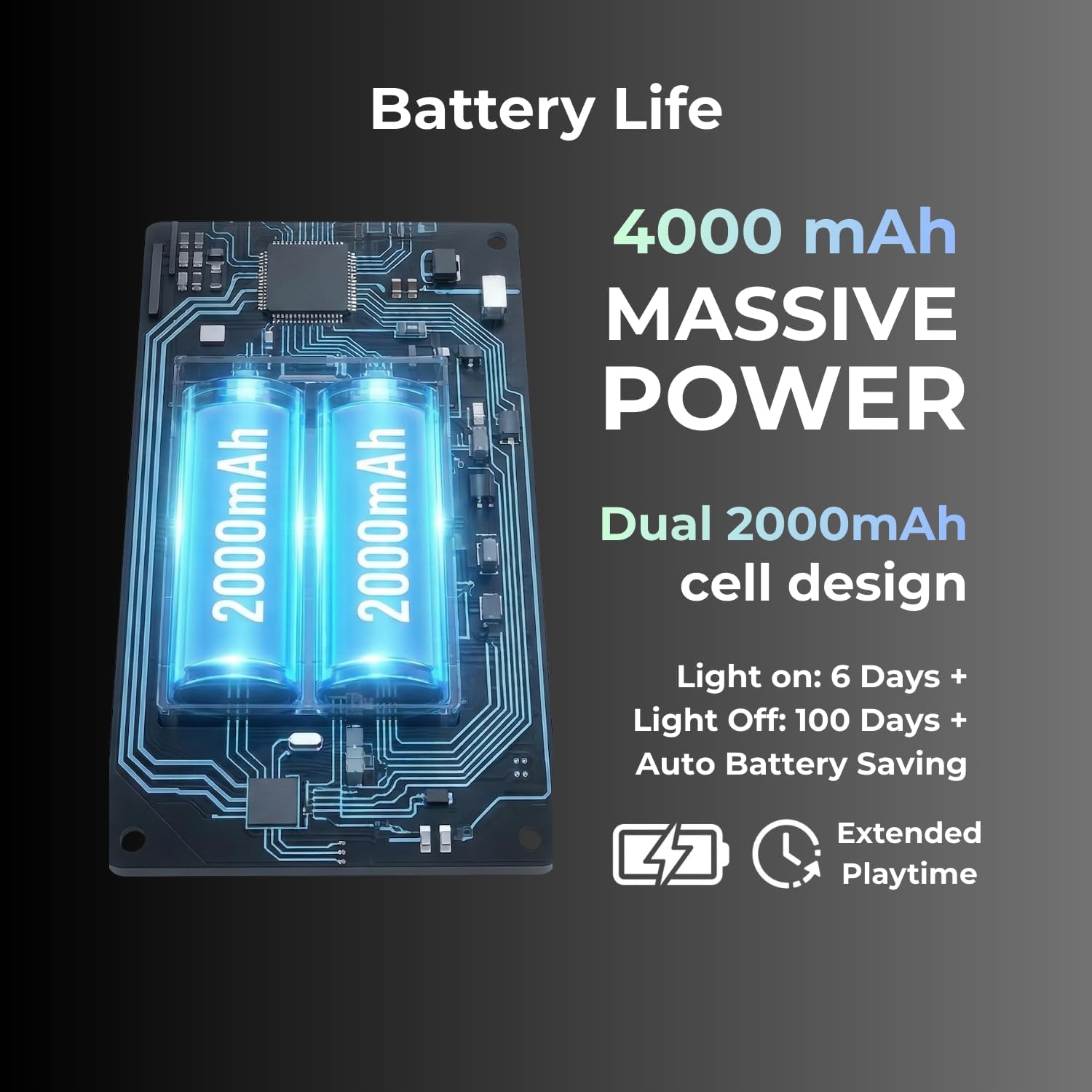
Image: Detailed view of the keyboard's physical mode toggle and the anti-loss dongle storage slot.
3.2.3 Bluetooth 5.0 Connection
- Ensure the mode toggle switch on the keyboard is set to the Bluetooth (BT) position.
- On your computer or device, enable Bluetooth and search for new devices.
- Select "FL·ESPORTS OG104" from the list of available devices to pair.
- Follow any on-screen prompts to complete the pairing process.
4. Operating Instructions
4.1 RGB Backlighting Control
The OG104 keyboard features dynamic 16.8 million color RGB backlighting. Specific key combinations (usually Fn + a designated key) control lighting effects, brightness, and color. Refer to the quick start guide included with your keyboard for detailed key combinations.

Image: The keyboard's keys illuminated with vibrant RGB backlighting, demonstrating the customizable lighting options.
4.2 Hot-Swappable Switches
The keyboard's PCB supports hot-swappable 3-pin and 5-pin mechanical switches, allowing for switch replacement without soldering. This enables customization of typing feel and sound.
- Removing a Switch: Use the provided switch puller tool to carefully grip the top and bottom of the switch. Gently pull upwards until the switch detaches from the PCB.
- Installing a Switch: Align the pins of the new switch with the holes on the PCB. Ensure the pins are straight. Gently press the switch down until it clicks into place. Do not force the switch; bent pins can damage the PCB.
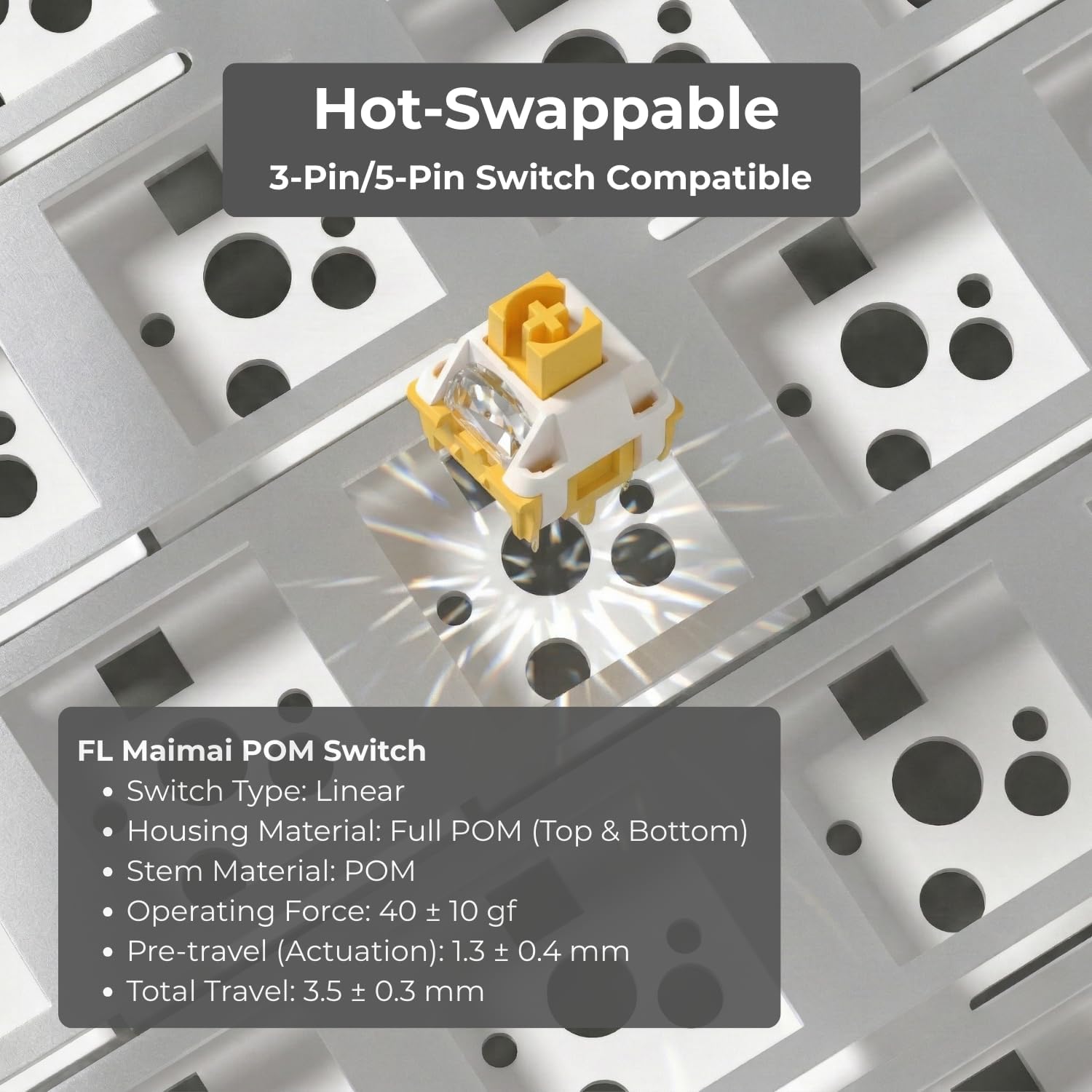
Image: Illustration of the hot-swappable feature, showing a switch being installed into the keyboard's PCB.
4.3 Adjustable Feet
The keyboard features two-stage adjustable feet on the underside, allowing you to set the typing angle to your preference for ergonomic comfort.
4.4 Battery Management
The OG104 is equipped with a 4000mAh battery. To maximize battery life, the keyboard includes an auto battery-saving mode. Recharge the keyboard when the battery indicator shows low power.

Image: Internal view highlighting the dual 2000mAh battery cells, indicating the keyboard's substantial power capacity.
4.5 Acoustic Design
The keyboard's 5-layer acoustic design, including Poron foams, IXPE switch pads, and a PET voice pad, is engineered to eliminate hollow resonance and provide a concentrated, satisfying typing sound.

Image: An exploded diagram illustrating the internal 5-layer acoustic structure, designed for optimal sound and feel.
5. Maintenance
- Cleaning Keycaps: Use a soft, damp cloth to wipe down keycaps. For deeper cleaning, keycaps can be removed using a keycap puller and washed with mild soap and water, then thoroughly dried before reattaching.
- Cleaning the Case: Wipe the keyboard case with a soft, dry cloth. Avoid abrasive cleaners or solvents.
- Dust Removal: Use compressed air to remove dust and debris from between the keycaps and switches.
- Switch Care: If switches feel sluggish, they can be carefully lubricated using specialized switch lubricant. This is an advanced maintenance step and should only be performed if comfortable.
6. Troubleshooting
- Keyboard not responding:
- Ensure the keyboard is charged.
- Check the connection mode (wired, 2.4GHz, Bluetooth) and ensure it matches your computer's connection.
- For wired connection, try a different USB port or cable.
- For 2.4GHz, ensure the dongle is securely plugged in and try a different USB port.
- For Bluetooth, ensure the keyboard is in pairing mode and your device's Bluetooth is enabled. Try unpairing and re-pairing the device.
- Bluetooth pairing issues with MacBook: Some users have reported difficulties pairing with MacBooks. Ensure your MacBook's Bluetooth drivers are up to date. Try restarting both the keyboard and the MacBook. If issues persist, consider using the 2.4GHz wireless dongle or wired connection.
- Keys not registering or double-typing:
- This could indicate a faulty switch. Utilize the hot-swappable feature to replace the problematic switch.
- Ensure the switch is fully seated in the PCB.
- RGB lighting not working:
- Check if the lighting is turned off via key combination.
- Ensure the keyboard has sufficient battery charge.
7. Specifications
| Feature | Detail |
|---|---|
| Model Number | OG104 |
| Product Dimensions | 18.39 x 6.65 x 1.57 inches |
| Item Weight | 4.11 pounds |
| Connectivity Technology | Bluetooth 5.0, 2.4GHz Wireless, USB-C Wired |
| Keyboard Description | Mechanical |
| Compatible Devices | Laptop, PC, Smart TV, Smartphone, Tablet (Windows, Mac, Android) |
| Special Features | Backlit (RGB), Hot-Swappable, Integrated Stand, Rechargeable |
| Battery | 4000mAh (1 Nonstandard Battery included) |
| Keycap Material | PBT (Dye-Sub) |
| Switch Type | Pre-lubed Creamy Linear Switches (variant specific) |
8. Warranty and Support
FL ESPORTS products are covered by a manufacturer's warranty. For specific warranty details, please refer to the warranty card included with your product or visit the official FL ESPORTS website. For technical support, troubleshooting assistance, or warranty claims, please contact FL ESPORTS customer service through their official channels.
Please retain your proof of purchase for warranty purposes.


