
1. Introduction
Thank you for choosing the AINAVI 6.36 Inch Single Din Touchscreen Car Stereo. This manual provides essential information for the proper installation, operation, and maintenance of your new car stereo. Please read this manual thoroughly before use to ensure optimal performance and safety.
2. Product Overview
The AINAVI 6.36 Inch Single Din Touchscreen Car Stereo is designed to enhance your in-car entertainment and connectivity. It features a high-definition capacitive touchscreen, wireless CarPlay and Android Auto support, Bluetooth for calls and music, and versatile connectivity options.

Image: AINAVI Single Din Touchscreen Car Stereo with Wireless CarPlay and Android Auto functionality. The image displays the stereo installed in a car dashboard, showing a smartphone connected wirelessly to display navigation and app icons on the stereo's screen. Voice commands like 'Hey Google, Call Jack' and 'Hey Siri, Go to gas station' are depicted, highlighting voice control capabilities.
3. Key Features
- Wired/Wireless CarPlay & Android Auto: Connect your smartphone to access navigation, contacts, notifications, and music via Siri or Google Assistant.
- 6.36-inch HD Capacitive Touch Screen: Highly responsive and accurate display supporting 1080P video playback for clear, intuitive control.
- Standard Single DIN Design: Compatible with most vehicle brands, featuring a Linux operating system.
- Versatile Connectivity: Includes 1 Type-C port, 1 USB port, AV-in, RCA output, backup camera input (CVBS), and steering wheel control support.
- Sound Balance & 6 Equalizer Modes: Adjust audio based on seating position and choose from presets like User, Jazz, Classic, Rock, Pop, and Soft.
4. What's in the Box
The package includes the following components:
- AINAVI 6.36 Inch Single Din Touchscreen Car Stereo
- Car Microphone
- Radio Antenna
- Power Cable
- Mounting Snaps (x4)
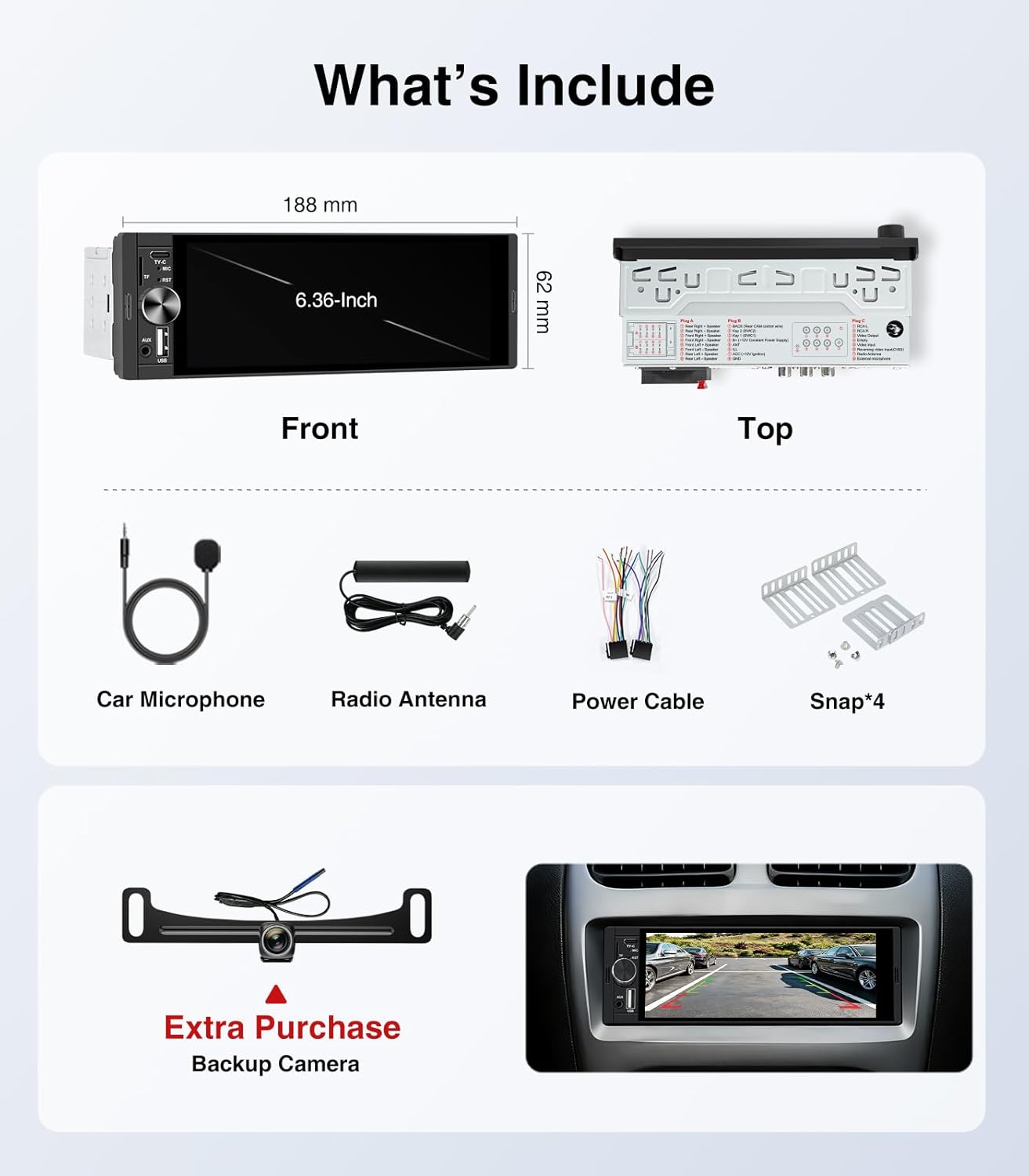
Image: Diagram showing the dimensions of the AINAVI 6.36-inch car stereo (front and top views) and all included accessories: car microphone, radio antenna, power cable, and four mounting snaps. It also indicates that a backup camera is an extra purchase.
5. Installation
Proper installation is crucial for the optimal performance of your car stereo. It is recommended to have the unit installed by a professional if you are unfamiliar with car audio wiring.
5.1. General Installation Steps
- Separate the short sleeve from the radio body.
- Insert the short sleeve into the car's radio mounting window.
- Press the iron piece on the short sleeve with mounting tools to fasten the iron piece to the car.
- Push the radio body into the short sleeve and let the radio snap into the short sleeve.

Image: A four-step visual guide demonstrating how to install the AINAVI Single Din Car Stereo into a vehicle's dashboard. Steps include separating the sleeve, inserting the sleeve, securing it with mounting tools, and sliding the radio into place.
5.2. Wiring Diagram

Image: A detailed diagram illustrating the cable definitions for the AINAVI Single Din Car Stereo. It shows Plug A (speaker wires), Plug B (power and control wires), and Plug C (RCA outputs, video input, radio antenna, external microphone). The diagram provides color codes and functions for each wire.
5.3. Backup Camera Installation (Optional)
If you have purchased a compatible CVBS format backup camera, follow these general wiring instructions:
- Connect the camera's red wire to the reverse light positive (+).
- Connect the camera's black wire to the reverse light negative (-).
- Connect the video cable from the camera to the CVBS input on the stereo.

Image: A diagram showing the wiring for a backup camera with the AINAVI car stereo. It illustrates connecting the camera to the car's reverse lights and then running a video cable to the stereo's CVBS input.
5.4. Installation Video
Video: An official seller video demonstrating the step-by-step process of how to install the AINAVI Single Din radio into a car dashboard, including wiring connections.
6. Operating Instructions
6.1. Power On/Off and Basic Controls
- Power Button: Press to turn the unit on or off.
- Volume Knob: Rotate to adjust the audio volume. Press to mute/unmute.
- Touchscreen: Navigate menus and control functions by tapping or swiping the 6.36-inch HD display.
6.2. CarPlay & Android Auto
Connect your smartphone wirelessly or via USB to activate CarPlay or Android Auto. This allows access to navigation, music, calls, and messages directly from the stereo's screen.

Image: The AINAVI car stereo displaying both Wireless CarPlay and Android Auto interfaces. Various app icons are visible, and a text overlay states, 'It automatically connects within 10s after you start the car.'
6.3. Bluetooth Functions
Pair your smartphone via Bluetooth for hands-free calling and wireless audio streaming. The built-in microphone supports clear phone conversations.

Image: A man driving a car, smiling, with the AINAVI car stereo displaying an incoming call screen. Icons for Bluetooth Music, Bluetooth Calls, and Sync Contacts are shown, emphasizing the hands-free communication features.
6.4. Radio Operation
Access FM radio stations. The touchscreen allows for easy tuning and saving of favorite stations.
6.5. Sound Settings (Equalizer)
Customize your audio experience with 6 equalizer presets (User, Jazz, Classic, Rock, Pop, Soft) and adjust sound balance based on seating position.
6.6. Steering Wheel Control (SWC)
The unit supports steering wheel controls for convenient operation without taking your hands off the wheel. Refer to the installation section for wiring details.

Image: A car interior showing the AINAVI car stereo and a diagram of various steering wheel control buttons (Volume, Mute, Power, Next/Previous Track, Play/Pause, Home, Back, Answer/Reject Call, Navi, Aux, Voice, Mode, Menu).
6.7. Voice Control
Utilize the built-in microphone to interact with Siri or Google Assistant for hands-free control of navigation, music, and communication.

Image: A driver interacting with the AINAVI car stereo using voice commands. Speech bubbles show examples like 'Hey Siri, Play music', 'Hey Google, Call Jack', 'Hey Siri, Play the video', and 'Hey Siri, Go to gas station', demonstrating hands-free operation.
6.8. Function Overview Video
Video: An official seller video providing a quick overview of the AINAVI Single Din Car Stereo's main functions and user interface.
7. Specifications
| Feature | Detail |
|---|---|
| Brand | AINAVI |
| Screen Size | 6.36 Inches |
| Operating System | Linux |
| Connectivity Technology | Bluetooth, USB, Wi-Fi |
| Special Feature | Bluetooth, Touchscreen |
| Vehicle Service Type | Car |
| Audio Output Mode | Stereo |
| Mounting Type | Dashboard Mount |
| Human-Interface Input | Dial, Touchscreen |
| Compatible Devices | Camera, Smartphone |
| Item Weight | 0.5 Pounds |
8. Troubleshooting
If you encounter any issues with your AINAVI car stereo, please refer to the following general troubleshooting tips:
- No Power: Check all power connections and fuses. Ensure the unit is properly grounded.
- No Sound: Verify speaker connections and volume levels. Check audio output settings.
- Bluetooth Connectivity Issues: Ensure Bluetooth is enabled on both the stereo and your smartphone. Try unpairing and re-pairing the devices.
- CarPlay/Android Auto Not Connecting: Ensure your smartphone is compatible and that the USB cable (if used) is functioning correctly. Try restarting both devices.
- Touchscreen Unresponsive: Perform a soft reset (if available) or power cycle the unit.
9. Warranty & Support
The AINAVI 6.36 Inch Single Din Touchscreen Car Stereo comes with a 1-year warranty.
For any issues such as missing accessories, music playback failure, or other malfunctions, please contact customer support immediately. The manufacturer is committed to providing prompt assistance and resolving all issues to your satisfaction.
