
1. Product Overview
The PUSOKEI 4K HD WiFi Action Camera is a versatile handheld video recorder designed for capturing high-quality footage in various environments, from sports activities to travel vlogs. It features a 180° rotating lens, a 1.31-inch display, and built-in WiFi for easy sharing and management of your recordings.
Key Features:
- 4K HD Video Quality: Records clear and vibrant moments in 4K resolution.
- Compact and Portable Design: Easy to carry for various recording needs.
- 1.31 Inch Screen: Intuitive interface for easy navigation and control.
- 180° Rotating Lens: Allows for unique angles and creative compositions.
- WiFi Connectivity: Enables quick sharing, storage, and editing of footage via a mobile app.
- Loop Recording: Continuously records, overwriting the oldest files when the memory card is full.
- LED Fill Light: Suitable for both day and night use, enhancing image quality in low light.
Package Contents:
- 1 x PUSOKEI Handheld Camera
- 2 x USB Cables
- 1 x Instruction Manual
Note: A Small Memory Card (up to 256GB) is required for recording and is not included in the package.

Image: PUSOKEI 4K HD WiFi Action Camera showcasing its main features like 4K HD resolution, 180° rotating lens, one-click recording, loop recording, business back clamp, ultra-low power consumption, and small memory card support.
2. Setup
2.1 Charging the Battery
The camera is equipped with a built-in high-capacity battery. Before first use, fully charge the camera using the provided USB Type-C cable.
- Connect one end of the USB Type-C cable to the camera's charging port.
- Connect the other end to a standard USB power adapter (not included) or a computer's USB port.
- The charging indicator light will illuminate. It will turn off or change color once charging is complete.

Image: The PUSOKEI Action Camera highlighting its Type-C charging port and indicating extended battery life.
2.2 Inserting a Memory Card
A small memory card (MicroSD card) is required to store recordings. The camera supports cards up to 256GB.
- Locate the memory card slot on the side of the camera.
- Gently insert the MicroSD card with the gold contacts facing down until it clicks into place.
- To remove, push the card in slightly until it springs out.

Image: The PUSOKEI Action Camera illustrating the insertion of a small memory card, emphasizing support for up to 256GB for secure data transmission and storage.
2.3 Powering On/Off
- To Power On: Press and hold the Power button (usually marked with a power symbol) for a few seconds until the screen illuminates.
- To Power Off: Press and hold the Power button again until the screen turns off.
3. Operating Instructions
3.1 Basic Controls and Screen Navigation
The camera features a 1.31-inch screen for live view and menu navigation. Use the physical buttons on the device to navigate through menus and select options.

Image: The PUSOKEI Action Camera displaying its 1.3-inch HD screen, illustrating its adjustable recording angle for wider viewing and ease of use.
3.2 Recording Video
- Ensure a formatted memory card is inserted.
- Press the Record button (often marked with a red dot or camera icon) to start recording.
- Press the Record button again to stop recording.
- The camera records in 4K HD resolution by default, providing high-quality footage.

Image: Comparison showing the difference between standard quality and 4K quality footage captured by the PUSOKEI Action Camera, highlighting its 4K Ultra HD display capabilities.
3.3 Using the 180° Rotating Lens
The camera's lens can be manually rotated 180 degrees to capture footage from various angles, including forward-facing, backward-facing, or any angle in between.
- Gently rotate the lens module to your desired angle.
- The screen display will adjust automatically to the lens orientation.
- This feature is ideal for vlogging, self-recording, or capturing unique perspectives.
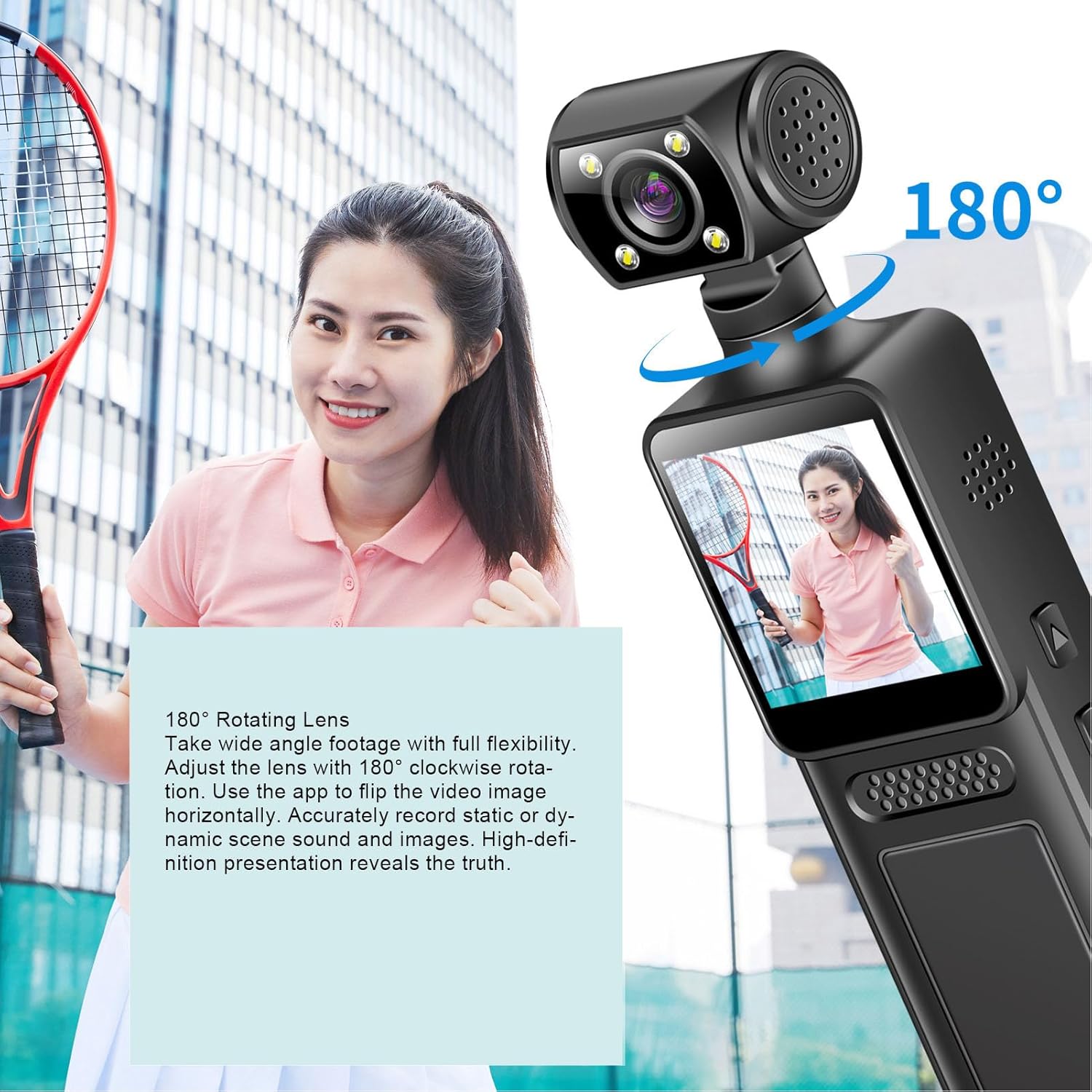
Image: The PUSOKEI Action Camera demonstrating its 180° rotating lens, allowing for wide-angle footage with full flexibility and the ability to flip video images horizontally via the app.
3.4 WiFi Connectivity and App Usage
The camera features built-in WiFi for wireless connection to your smartphone or tablet. This allows for real-time viewing, downloading, and sharing of your footage.
- Download the official PUSOKEI camera app from your device's app store (iOS/Android).
- Turn on WiFi on your camera via the settings menu.
- On your smartphone, connect to the camera's WiFi network (SSID and password usually displayed on the camera screen).
- Open the app to automatically connect and view real-time footage, or download recordings to your phone.

Image: The PUSOKEI Action Camera demonstrating mobile wireless connectivity, showing how to connect to a smartphone app to view real-time footage or download recordings.
3.5 Loop Recording
The loop recording feature allows the camera to continuously record. When the memory card is full, the oldest files will be automatically overwritten by new recordings.
- Access the camera's settings menu.
- Locate the "Loop Recording" option and enable or disable it as desired.
- Set the desired loop recording duration (e.g., 1, 3, 5 minutes) if available.
3.6 Using the LED Fill Light
The integrated LED fill light provides additional illumination for recording in low-light conditions, ensuring clear image quality.
- Locate the button or menu option to activate the LED fill light.
- Toggle the light on or off as needed for your recording environment.

Image: The PUSOKEI Action Camera demonstrating its LED fill light, suitable for both day and night use, ensuring clear video in dark environments and vivid color during daylight.
3.7 Body-Worn Camera Usage
The compact design and included back clamp allow the camera to be worn on clothing, making it suitable for sports, travel, or security applications.
- Attach the camera securely to your clothing using the integrated back clamp.
- Ensure the lens is oriented correctly for the desired recording angle.
- Verify the camera is recording before engaging in activities.
4. Maintenance
Proper maintenance ensures the longevity and optimal performance of your PUSOKEI Action Camera.
4.1 Cleaning the Camera
- Lens: Use a soft, lint-free cloth specifically designed for camera lenses. Avoid harsh chemicals.
- Screen: Wipe gently with a microfiber cloth. Do not press hard.
- Body: Use a soft, dry cloth to wipe the camera body. If necessary, slightly dampen the cloth with water, then wipe dry immediately.
- Ensure all ports are free of dust and debris.
4.2 Battery Care
- Avoid fully discharging the battery frequently.
- Store the camera with a partially charged battery (around 50%) if not used for extended periods.
- Do not expose the camera to extreme temperatures.
4.3 Storage
- Store the camera in a cool, dry place away from direct sunlight and moisture.
- Use a protective case to prevent scratches and impacts.
5. Troubleshooting
If you encounter issues with your camera, refer to the following common troubleshooting steps.
| Problem | Possible Cause | Solution |
|---|---|---|
| Camera does not power on. | Low battery; faulty battery; power button issue. | Charge the battery fully. Try a different charging cable/adapter. If problem persists, contact support. |
| Cannot record video. | No memory card; memory card full; memory card error; incorrect settings. | Insert a memory card. Format the memory card (this will erase all data). Check available storage. Verify recording settings. |
| Poor video quality. | Dirty lens; low light conditions; incorrect resolution settings. | Clean the lens. Activate the LED fill light in low light. Ensure 4K resolution is selected in settings. |
| WiFi connection issues. | WiFi not enabled; incorrect password; app issues; interference. | Ensure camera WiFi is on. Re-enter WiFi password. Restart camera and phone. Try connecting in a different location. |
| Camera freezes or becomes unresponsive. | Software glitch; memory card issue. | Perform a soft reset by holding the power button until it turns off. If unresponsive, use a pin to press the reset button (if available). Remove and reinsert the memory card. |
6. Specifications
| Feature | Detail |
|---|---|
| Model Number | PUSOKEIpqi950c8n7 |
| Video Resolution | 4K HD |
| Screen Size | 1.31 inches |
| Lens Rotation | 180 degrees |
| Connectivity | WiFi, USB Type-C |
| Battery Type | Built-in Li Battery |
| Battery Capacity | 1000mAh |
| Memory Card Support | Up to 256GB (MicroSD, not included) |
| Item Weight | 6.1 ounces |
| Package Dimensions | 6.3 x 3.15 x 1.97 inches |
| Manufacturer | PUSOKEI |
7. Warranty and Support
For warranty information and customer support, please refer to the documentation provided with your purchase or contact the retailer/manufacturer directly.
- Manufacturer: PUSOKEI
- Contact: Please refer to the official PUSOKEI website or your purchase platform for specific support contact details.