
1. Introduction
This manual provides detailed instructions for the installation, operation, and maintenance of your OFAPLFKUR 2355-tuya Smart Door Lock. This advanced electronic lock offers multiple unlocking methods including fingerprint, password, RFID card, Bluetooth via Tuya App, and mechanical keys. It is designed for various door types including steel, wooden, brass, and stainless steel doors, with a reversible handle direction for versatile installation.
2. Product Components
Carefully unpack your smart door lock and verify that all components are present. The package typically includes the main keypad unit, the rim bolt lock mechanism, RFID cards, and mechanical keys.
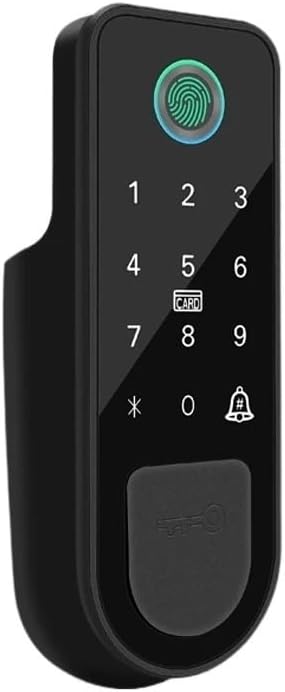
Image 2.1: Overview of the OFAPLFKUR 2355-tuya Smart Door Lock components, showing the keypad, rim bolt lock, two RFID cards, and a set of mechanical keys.
3. Specifications
| Feature | Specification |
|---|---|
| Model Number | 2355-tuya |
| Power Supply | Dry Battery |
| Suitable Door Thickness | 20-55mm |
| Suitable Door Types | Steel, Wooden, Brass, Stainless Steel |
| Unlocking Methods | Fingerprint, Password, RFID Card, App (Bluetooth), Mechanical Key |
| Connectivity | Bluetooth |
| Smart Home Platform | Tuya |
| Material | Aluminium Alloy & ABS |
| Handle Direction | Direction Reversible |
4. Safety Information
- Read all instructions carefully before installation and use.
- Do not expose the lock to water or excessive moisture, as it is not waterproof.
- Use only the specified battery type and ensure correct polarity during installation.
- Keep mechanical keys in a safe location outside the property.
- Avoid using abrasive cleaners or solvents on the lock's surface.
5. Setup and Installation
5.1 Physical Installation
Follow the included installation template for drilling holes and mounting the lock. Ensure the rim bolt mechanism aligns correctly with the door frame strike plate. The handle direction is reversible; adjust as needed during installation.
5.2 Battery Installation
- Remove the battery cover on the interior unit.
- Insert the specified dry batteries, observing the correct polarity (+/-).
- Replace the battery cover. The lock will typically emit a startup sound.
5.3 Tuya App Pairing and Administrator Setup
To fully utilize the smart features, pair your lock with the Tuya Smart App. This process typically involves creating an account, adding a new device (select 'Lock' or 'Smart Lock'), and following the in-app instructions to connect via Bluetooth. The first fingerprint, password, or RFID card registered through the app will automatically be designated as the administrator.

Image 5.1: Detailed view of the smart lock's keypad and integrated fingerprint sensor, essential for initial setup and daily operation.
6. Operating Instructions
6.1 Unlocking the Door
- Fingerprint: Place your registered finger on the fingerprint sensor. The lock will unlock if the fingerprint is recognized.
- Password: Enter your registered password on the keypad, followed by the '#' key.
- RFID Card: Present a registered RFID card to the 'CARD' area on the keypad. The lock will unlock upon recognition.

Image 6.1: A hand demonstrating the use of an RFID card to unlock the smart door lock by placing it over the designated card reader area.
- Tuya App (Bluetooth): Open the Tuya Smart App, select your lock, and tap the unlock button. Ensure your phone is within Bluetooth range.
- Mechanical Key: Insert the mechanical key into the emergency keyhole (usually located at the bottom or front of the exterior unit) and turn to unlock.
6.2 Locking the Door
The lock typically auto-locks after a few seconds. You can also manually lock it by pressing the '#' key on the keypad or through the Tuya App.
6.3 User Management (via Tuya App)
The Tuya App allows you to add, modify, or delete user fingerprints, passwords, and RFID cards. Refer to the app's interface for specific steps on managing users, setting temporary passwords, and viewing access logs.
7. Maintenance
7.1 Battery Replacement
When the battery level is low, the lock will typically provide an audible or visual warning. Replace all batteries simultaneously with new ones of the same type to ensure optimal performance.
7.2 Cleaning
Wipe the lock's surface with a soft, dry cloth. Do not use harsh chemicals or abrasive materials, as these can damage the finish and electronic components.
7.3 Firmware Updates
Periodically check the Tuya Smart App for available firmware updates. Keeping your lock's firmware up-to-date ensures the latest features and security enhancements.
8. Troubleshooting
- Lock not responding: Check battery level and replace if necessary. Ensure the lock is properly installed and all cables are connected.
- Fingerprint not recognized: Ensure your finger is clean and dry. Try re-registering your fingerprint if the issue persists.
- Password not working: Verify the correct password is being entered. Ensure the keypad is clean and free from obstructions.
- App connectivity issues: Ensure Bluetooth is enabled on your phone and you are within range of the lock. Restart the app or your phone if needed.
- Lock beeps continuously: This may indicate a low battery warning or a system error. Refer to the app for specific error codes or replace batteries.
9. Warranty and Support
This product comes with a standard manufacturer's warranty. Please refer to your purchase documentation for specific warranty terms and conditions. For technical support, troubleshooting assistance beyond this manual, or warranty claims, please contact the retailer or manufacturer directly.