
1. Introduction
Thank you for choosing the FJLKGDSP Tuya Smart Wireless Irrigation Water Timer. This device allows you to automate your garden watering system with convenience and precision using Bluetooth and Wi-Fi connectivity. Please read this manual carefully before installation and operation to ensure proper use and optimal performance.
2. Product Overview and Components
The FJLKGDSP Smart Water Timer (Model HCT-611 HCG-001) is designed for outdoor garden watering systems. It features a durable plastic construction and supports both Bluetooth and Wi-Fi connectivity for flexible control.

Image 2.1: Main components of the FJLKGDSP Smart Water Timer, including the timer unit and the WiFi-Bluetooth Gateway. The gateway displays model HCG-001, WiFi 2.4 GHz, Bluetooth 4.2/5.0, Power Supply 100-240V AC 50/60 Hz, and Working Temperature -10°C to 55°C.
Package Contents:
- Smart Water Timer Unit (Model HCT-611)
- WiFi-Bluetooth Gateway (Model HCG-001)
- User Manual
- Required connectors (3/4" and 1/2" adapters)
3. Specifications
| Feature | Specification |
|---|---|
| Model Numbers | POP3-611UN-001US, HCT-611 (Timer), HCG-001 (Gateway), OKCCWABBO |
| Material | High-quality Plastic |
| Connectors | 3/4" and 1/2" |
| Protection Rating | IPX5 (Water Resistant) |
| WiFi Connectivity | 2.4 GHz |
| Bluetooth Connectivity | 4.2 / 5.0 |
| Power Supply (Timer) | 2 x 1.5V AA Alkaline Batteries |
| Power Supply (Gateway) | 110-240V AC 50/60 Hz |
| Working Pressure | 0.05 - 0.8 MPa |
| Working Temperature (Gateway) | -10°C to 55°C |
| Timer Unit Weight | 310 ± 10g |
| Bluetooth Module Net Weight | 80 ± 5g |
| Product Dimensions | 1 x 1 x 1 cm (approximate, as per listing) |
4. Setup and Installation
4.1. Battery Installation (Water Timer Unit)
- Locate the battery compartment on the water timer unit.
- Open the battery compartment cover.
- Insert two (2) 1.5V AA alkaline batteries, ensuring correct polarity (+/-).
- Securely close the battery compartment cover to maintain IPX5 water resistance.
4.2. Physical Installation (Water Timer Unit)
- Ensure your outdoor faucet is turned off.
- Thread the water timer unit onto your outdoor faucet. Use the appropriate 3/4" or 1/2" adapter if necessary to ensure a tight, leak-free connection.
- Connect your garden hose or irrigation system to the outlet of the water timer unit.
- Turn on your outdoor faucet. Check for any leaks.
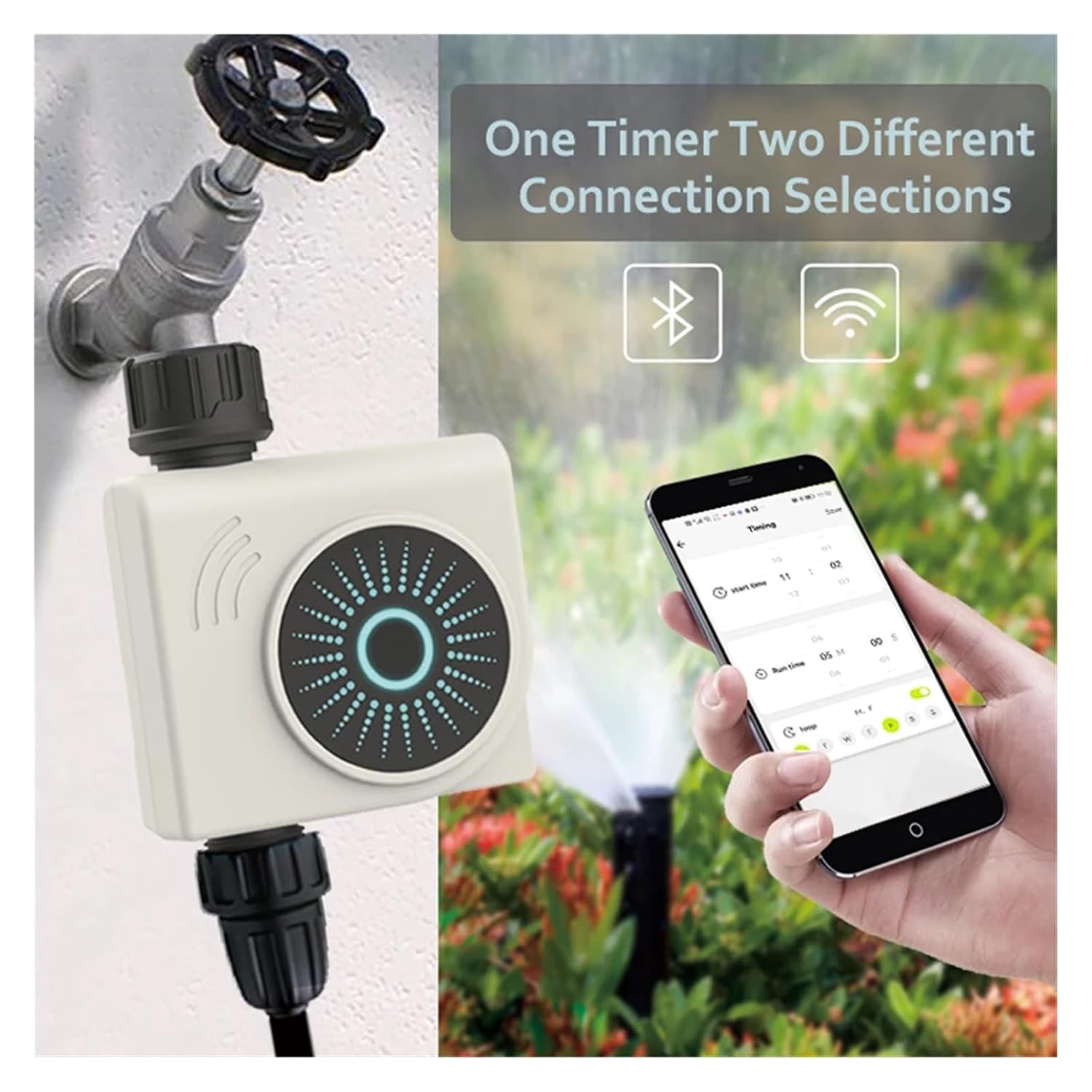
Image 4.1: The water timer unit connected to an outdoor faucet, demonstrating its integration into a garden watering system and control via a smartphone application.
4.3. Gateway Setup and App Pairing
- Download the App: Search for "Tuya Smart" or "Smart Life" in your smartphone's app store (iOS or Android) and download the application.
- Register/Login: Open the app and register a new account or log in with an existing one.
- Plug in Gateway: Plug the WiFi-Bluetooth Gateway (Model HCG-001) into a standard 110-240V AC power outlet within range of your water timer and your home Wi-Fi network.
- Add Gateway to App:
- In the app, tap "+" to add a new device.
- Select "Gateway" or "Bridge" from the device categories.
- Follow the on-screen instructions to connect the gateway to your 2.4 GHz Wi-Fi network. The gateway's indicator light will typically blink during pairing and become solid once connected.
- Add Water Timer to App:
- Once the gateway is connected, ensure Bluetooth is enabled on your smartphone.
- In the Tuya Smart app, navigate to the gateway device you just added.
- Select "Add Sub Device" or similar option. The app will scan for nearby Bluetooth water timers.
- Select your water timer (e.g., "Smart Water Valve") from the discovered devices.
- Follow any further prompts to complete the pairing process.
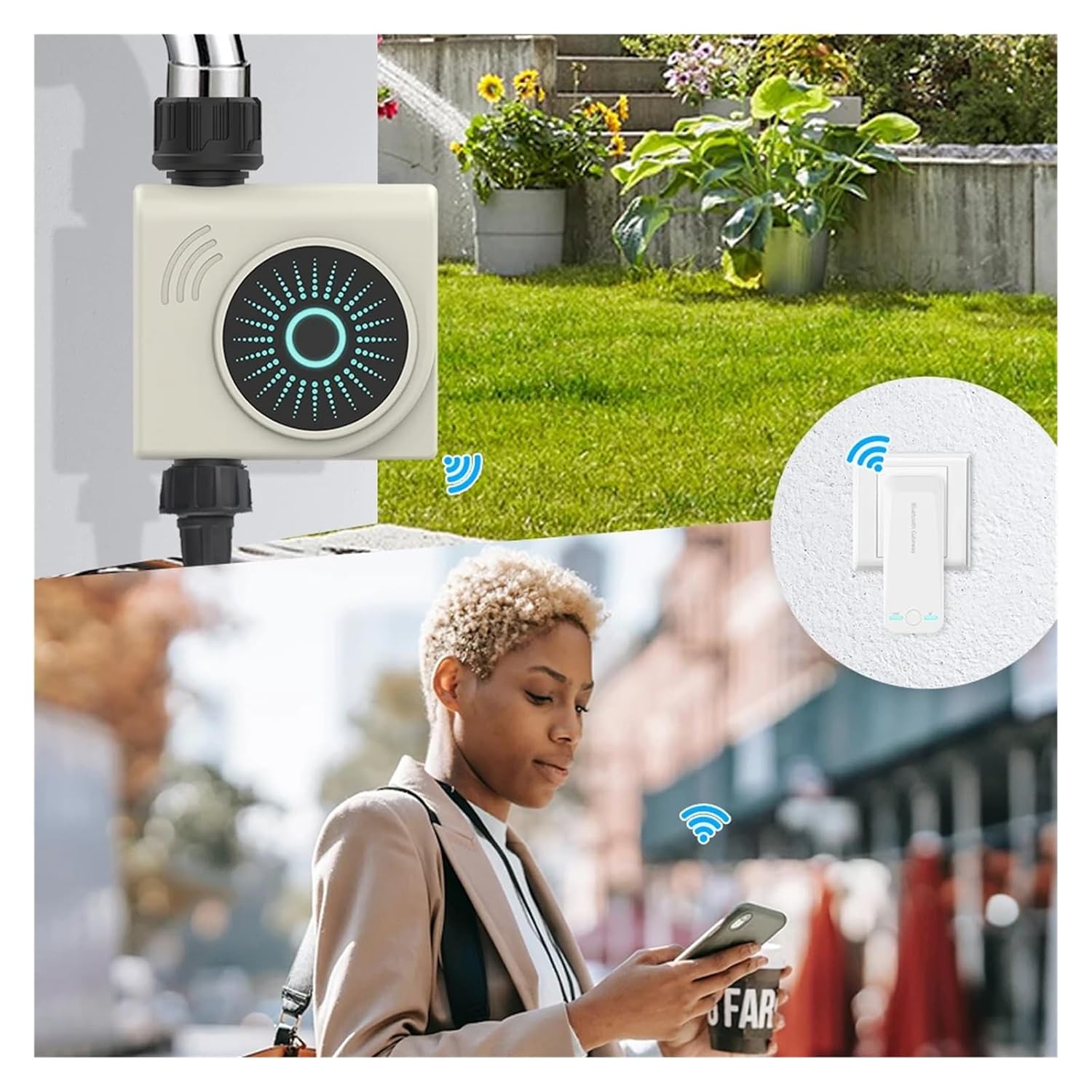
Image 4.2: Illustrates the complete setup, showing the water timer connected to the faucet, the WiFi-Bluetooth gateway plugged into an outlet, and a user controlling the system via a smartphone app.
5. Operating Instructions
The FJLKGDSP Smart Water Timer offers flexible control options through the Tuya Smart app.
5.1. Manual Control
- Open the Tuya Smart app and select your water timer device.
- Look for a "Manual" or "On/Off" button.
- Tap to manually turn the water flow on or off. You may also be able to set a duration for manual watering.
5.2. Scheduling Automatic Watering
The primary function of the smart water timer is to automate your watering schedule.
- In the Tuya Smart app, select your water timer device.
- Navigate to the "Schedule" or "Timer" section.
- Tap to add a new schedule.
- Set the desired start time, duration of watering, and frequency (e.g., specific days of the week, daily, or every X days).
- Save the schedule. You can create multiple schedules for different zones or plant types.

Image 5.1: A smartphone screen showing the Tuya Smart application interface, highlighting the mobile control capabilities for convenient and accurate watering.
5.3. Smart Features and Integrations
- Delay Watering: Some app versions may allow you to temporarily pause or delay scheduled watering due to rain or other conditions.
- Voice Control: If integrated with smart home platforms like Amazon Alexa or Google Assistant, you may be able to control the timer using voice commands. Refer to the app's integration settings for details.
6. Maintenance
- Battery Replacement: Replace AA batteries in the water timer unit when the app indicates low battery or if the unit stops responding. It is recommended to replace batteries annually or before the start of each watering season.
- Cleaning: Periodically check the inlet filter for debris and clean it if necessary to ensure unobstructed water flow. Wipe the exterior of the timer with a damp cloth; do not use harsh chemicals.
- Winterization: Before freezing temperatures, disconnect the water timer from the faucet and store it indoors in a dry, frost-free location. Remove batteries before storage.
- Firmware Updates: Keep the Tuya Smart app updated and check for any available firmware updates for the gateway and water timer to ensure optimal performance and security.
7. Troubleshooting
| Problem | Possible Cause | Solution |
|---|---|---|
| Timer not responding/no water flow. | Low or dead batteries; Faucet off; Timer valve stuck; App connection issue. | Replace batteries. Ensure faucet is fully open. Check for debris in the timer. Re-pair with the app. |
| Gateway not connecting to Wi-Fi. | Incorrect Wi-Fi password; 5GHz Wi-Fi network; Gateway too far from router. | Verify Wi-Fi password. Ensure you are connecting to a 2.4 GHz network. Move gateway closer to the router. Reset gateway and try again. |
| Timer not pairing with Gateway/App. | Bluetooth off on phone; Timer out of range; Batteries low; App glitch. | Ensure phone Bluetooth is on. Move phone closer to timer. Replace timer batteries. Restart app/phone. |
| Water leaking from connections. | Loose connection; Missing washer; Damaged threads. | Tighten connections. Ensure rubber washers are properly seated. Inspect threads for damage. |
| Scheduled watering not activating. | Schedule not saved; Timer offline; Low batteries; App/firmware issue. | Verify schedule in app. Check timer's connection status. Replace batteries. Check for app/firmware updates. |
8. Warranty and Support
For warranty information and technical support, please refer to the documentation provided with your purchase or contact FJLKGDSP customer service through the retailer's platform where the product was purchased. Please have your model number (POP3-611UN-001US) and purchase date ready when contacting support.