
1. Introduction
The GameSir Pocket Taco is a vertical mobile gaming controller designed to transform your Android smartphone into a retro handheld gaming device. It offers a compact, lightweight design with Bluetooth connectivity and a built-in rechargeable battery, providing an authentic arcade experience for mobile gaming.
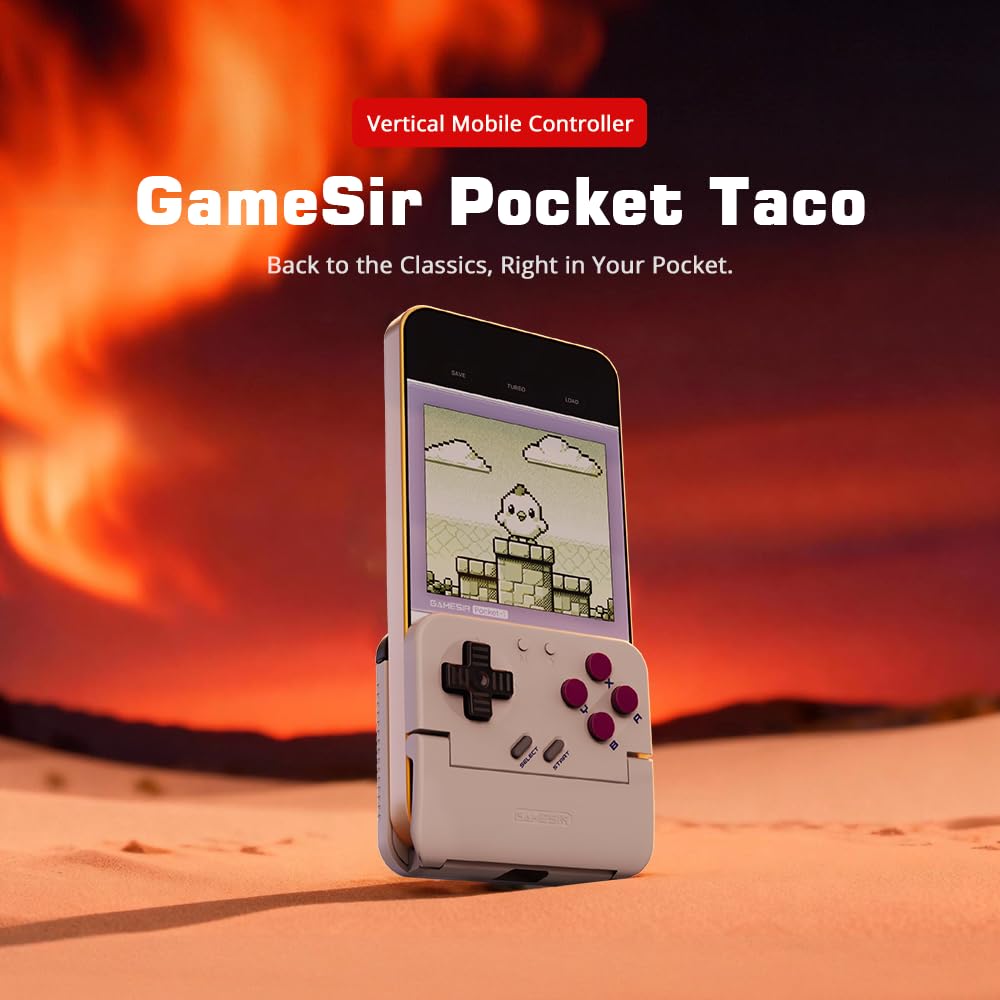
Figure 1: GameSir Pocket Taco attached to a smartphone, ready for vertical gaming.
Video 1: Overview of the GameSir Pocket Taco Vertical Mobile Gaming Controller, showcasing its design and features.
2. Key Features
- Vertical Retro Arcade Design: Transforms your phone into a classic vertical handheld gaming device, ideal for retro titles and vertical shoot 'em ups.
- Ultra-Portable & Lightweight: Weighing only 62.2g, this compact Bluetooth controller is easy to carry and includes a durable PP storage box for protection.
- Smart Power & Seamless Bluetooth Connectivity: Automatically powers on when unfolded and off when closed. Offers low-latency wireless gaming on Android and other compatible devices.
- Long-Lasting 600 mAh Battery & Pass-Through Charging: Provides hours of gameplay on a single charge. The hollow-bottom design allows simultaneous phone charging while gaming.
- Customizable Controls via GameSir App: Remap buttons, enable D-pad diagonal lock, switch to keyboard mode, and access G-Touch/V-Touch support for precise inputs.
- Phone-Friendly Silicone Protection: Soft silicone pads in the clamp area protect your phone from scratches and ensure a secure fit during intense gaming sessions.

Figure 2: Experience vertical handheld gaming by attaching your smartphone to the GameSir Pocket Taco.
3. Setup and Connection
3.1 Initial Setup
- Unpack: Carefully remove the GameSir Pocket Taco from its packaging.
- Inspect: Check for any visible damage or missing components.
- Charge: Ensure the controller is sufficiently charged before first use. Connect the USB-C cable to the charging port on the controller.
- Insert Phone: Gently open the controller's clamp and insert your smartphone. The silicone pads will secure your device and prevent scratches.
3.2 Bluetooth Connection
The GameSir Pocket Taco supports multiple connection modes for various platforms. Follow the steps below for your specific device:

Figure 3: The GameSir Pocket Taco offers seamless Bluetooth connectivity across various compatible devices.
3.2.1 iOS Connection (DS4 Mode)
- Press and hold the Home button and the default A button simultaneously for 2 seconds until the indicator light turns solid and flashes rapidly.
- On your iOS device, open Bluetooth settings.
- Select "DUALSHOCK 4 Wireless Controller" from the available devices to connect.
- A solid indicator light on the controller confirms a successful connection.
3.2.2 Android Connection (Android Mode)
- Press and hold the Home button and the default B button simultaneously for 2 seconds until the indicator light turns solid and flashes rapidly.
- On your Android device, open Bluetooth settings.
- Select "GameSir-Pocket 1" or "GameSir-Pocket 1_G" from the available devices to connect.
- A solid indicator light on the controller confirms a successful connection.
3.2.3 Switch Connection (Switch Mode)
- Press and hold the Home button and the default X button simultaneously for 2 seconds until the indicator light flashes up and down rapidly.
- On your Nintendo Switch, go to the Home Menu, then select "Controllers", and then "Change Grip/Order" to enter pairing mode.
- Wait for the connection to be established. A solid indicator light on the controller confirms a successful connection.
3.2.4 G-Touch Mode Connection
- Press and hold the Home button and the default Y button simultaneously for 2 seconds until the indicator light turns solid and flashes rapidly.
- On your Android device, open Bluetooth settings.
- Select "GameSir-Pocket 1_G" from the available devices to connect.
- A solid indicator light on the controller confirms a successful connection.
4. Operating Instructions
4.1 Power On/Off
- Power On: Unfold the controller to automatically power it on.
- Power Off: Close the controller to automatically power it off.
4.2 Charging
The GameSir Pocket Taco features a 600mAh battery. To charge, connect a USB-C cable to the charging port located on the top of the controller. The hollow-bottom design allows you to charge your phone simultaneously while playing.

Figure 4: Key features of the GameSir Pocket Taco, including pass-through charging and protective silicone pads.
4.3 Customizable Controls (GameSir App)
Download the official GameSir App to unlock advanced customization options:
- Button Remapping: Assign functions to different buttons for personalized gameplay.
- D-pad Diagonal Lock: Enable or disable diagonal input for the D-pad.
- Keyboard Mode: Switch to keyboard mode for a more flexible control experience.
- G-Touch/V-Touch Support: Utilize advanced touch mapping features for specific games.
- Firmware Updates: Keep your controller up-to-date with the latest software enhancements.

Figure 5: Customize your GameSir Pocket Taco settings and update firmware using the dedicated GameSir App.
5. Care and Maintenance
- Cleaning: Use a soft, dry cloth to clean the controller. Avoid abrasive cleaners or solvents.
- Storage: When not in use, store the GameSir Pocket Taco in its durable PP storage box to protect it from dust, scratches, and impacts.
- Handling: Do not apply excessive force when opening or closing the controller to prevent damage to the hinge mechanism.
- Temperature: Avoid exposing the controller to extreme temperatures or direct sunlight for prolonged periods.
6. Troubleshooting
6.1 Connection Issues
- Controller not connecting: If the connection fails, press and hold the 'M' button and the 'Home' button on the controller for 2 seconds to re-enter pairing mode. Ensure Bluetooth is enabled on your device and the correct mode (iOS, Android, Switch, G-Touch) is selected.
- Intermittent connection: Ensure the controller is within range of your device and there are no significant obstructions. Fully charge the controller and your device.
6.2 Button Responsiveness
- Buttons not responding: Ensure the controller is properly connected. Check for firmware updates via the GameSir App.
- D-pad issues: Some users have reported issues with D-pad responsiveness. Ensure firmware is up-to-date. If issues persist, contact GameSir support.
6.3 Charging Issues
- Controller not charging: Use the provided USB-C cable or a compatible cable. Ensure the cable and power adapter are functioning correctly.
7. Specifications
| Feature | Detail |
|---|---|
| Model Name | GameSir Pocket Taco |
| Brand | GameSir |
| Compatible Devices | Android (also supports iOS, Switch, PC via specific modes) |
| Controller Type | Gamepad |
| Connectivity | Wireless (Bluetooth) |
| Battery Capacity | 600 mAh |
| Charging Port | USB-C (Pass-Through Charging for phone) |
| Item Weight | 0.2 Kilograms (approx. 62.2g) |
| Color | White |
| Hardware Platform | Smartphone |
8. Warranty and Support
For warranty information, technical support, or service inquiries, please refer to the documentation included with your product or visit the official GameSir website. Keep your purchase receipt as proof of purchase for warranty claims.


