
1. Introduction
This manual provides detailed instructions for the installation, operation, and maintenance of your Surakey 7-inch car stereo radio. Please read this manual thoroughly before using the product to ensure proper function and safety. This unit is designed for specific Ford Focus MK2 models from 2005 to 2008.
2. Product Overview
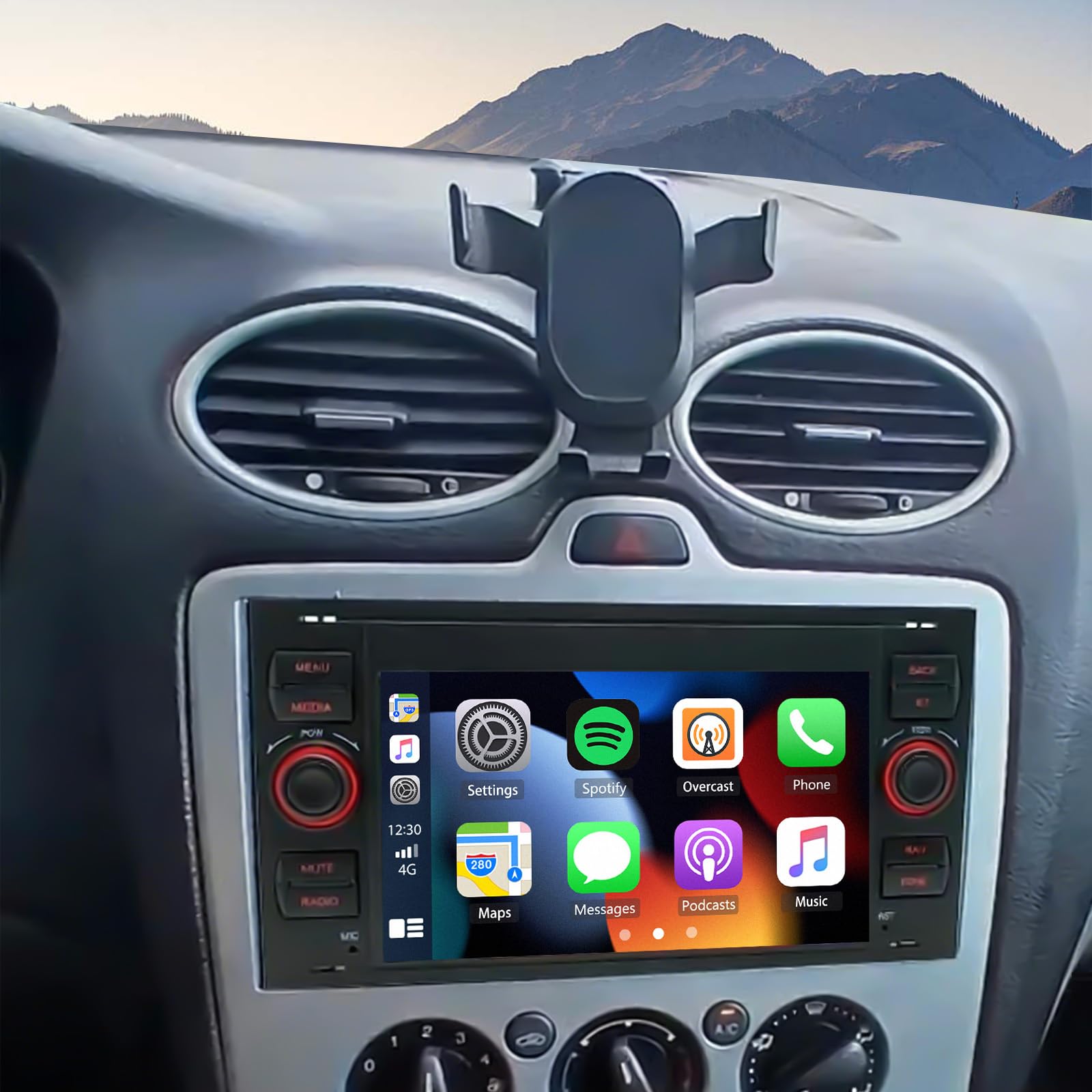
Image: Front view of the Surakey 7-inch car stereo radio, highlighting its key features such as a 7-inch IPS screen, Android 13 operating system, 2GB RAM + 64GB ROM, and support for CarPlay, Android Auto, GPS, Bluetooth, WiFi, RDS, and Steering Wheel Control (SWC).
The Surakey 7-inch car stereo radio is an advanced multimedia head unit featuring Android 13, a responsive IPS touch screen, and comprehensive connectivity options. It integrates seamlessly with your smartphone via Wireless CarPlay and Android Auto, offers precise GPS navigation, and supports hands-free communication through Bluetooth. With its user-friendly interface and robust features, it enhances your driving experience.
3. Safety Information
- Always ensure the vehicle is parked and the engine is off before performing any installation or wiring.
- Consult a professional for installation if you are unsure about any steps. Incorrect installation can damage the unit or your vehicle.
- Do not operate the device in a way that distracts you from driving. Always prioritize road safety.
- Avoid exposing the unit to extreme temperatures, direct sunlight for prolonged periods, or excessive moisture.
- Use only specified power cables and accessories to prevent damage or fire.
4. Package Contents
Verify that all items listed below are included in your package:
- 1 x Car Stereo Radio Unit
- 1 x Power Cable
- 1 x RCA Input/Output Cable Set
- 2 x USB Cables
- 1 x Camera Input Cable
- 1 x GPS Antenna
- 1 x Instruction Manual (this document)
- 1 x Radio Adapter
- Installation Tools (keys for removal)

Image: Overview of the car stereo unit, its dimensions (220mm/8.6in width, 111mm/4.3in height, 50mm/1.9in depth), and included accessories such as power cable, RCA cables, USB cables, camera input, GPS antenna, instruction manual, radio adapter, and installation keys.
5. Compatibility and Pre-Installation Check
This car stereo is compatible with the following Ford models:
- Ford Focus MK2 (2005-2008)
- Ford Transit MK7 (2005-2014)
- Ford Transit Connect MK7 (2005-2012)
- Ford Transit Connect (2011)
- Ford Transit Crew Cab Tipper MK7 (2014)
Important: Before installation, carefully measure your dashboard opening to ensure proper fit. Compare your vehicle's dashboard with the provided images to confirm compatibility. If your dashboard resembles the incompatible example, additional modifications or adapters may be required.

Image: An example of a Ford Focus MK2 dashboard (circa 2005-2008) with a red dashed box indicating an incompatible center console layout for this stereo unit. This image helps users identify if their vehicle's dashboard requires modifications or is not suitable.
6. Installation Guide
6.1 Wiring Diagram
Refer to the following diagram for proper wiring connections. Ensure all connections are secure before powering on the unit.

Image: Rear view of the car stereo unit showing various input and output ports, including the main power harness, RCA audio/video inputs/outputs, USB ports, camera input, and the GPS antenna connection. This diagram is crucial for correct wiring during installation.
6.2 General Installation Steps
- Disconnect Battery: Before starting, disconnect the negative terminal of your vehicle's battery to prevent electrical shorts.
- Remove Old Unit: Carefully remove your existing car stereo unit using appropriate tools.
- Connect Wiring:
- Connect the main power harness to your vehicle's wiring.
- Connect the GPS antenna and position it for optimal signal reception (e.g., on the dashboard).
- Connect USB cables for external devices.
- If installing a rearview camera, connect the camera input cable.
- Connect RCA cables for external amplifiers or video outputs if applicable.
- Test Connections: Briefly reconnect the battery and turn on the ignition to test basic functions (power, audio, display) before fully securing the unit.
- Secure Unit: Mount the new car stereo into the dashboard opening. Ensure it is securely fastened.
- Reassemble Dashboard: Reinstall any removed trim panels or components.
- Final Check: Reconnect the battery fully and perform a comprehensive test of all functions.
7. Operating Instructions
7.1 Basic Operations
- Power On/Off: Press the POW button to turn the unit on or off.
- Volume Control: Use the rotary knob or on-screen controls to adjust volume.
- Mute: Press the MUTE button to silence audio.
- Menu: Press the MENU button to access the main application menu.
7.2 Radio (FM/RDS)
Select the "Radio" application from the main menu. You can manually tune frequencies or use the seek function to find stations. RDS (Radio Data System) provides additional information like station name and traffic announcements where available.
7.3 Bluetooth Connectivity
Pair your mobile device via Bluetooth to enable hands-free calling and audio streaming.
- Go to the "Bluetooth" settings on the car stereo.
- Enable Bluetooth on your mobile device and search for available devices.
- Select the car stereo (e.g., "CarBT") from your device's list and confirm pairing.
- Once paired, you can make/receive calls and play music through the car speakers.
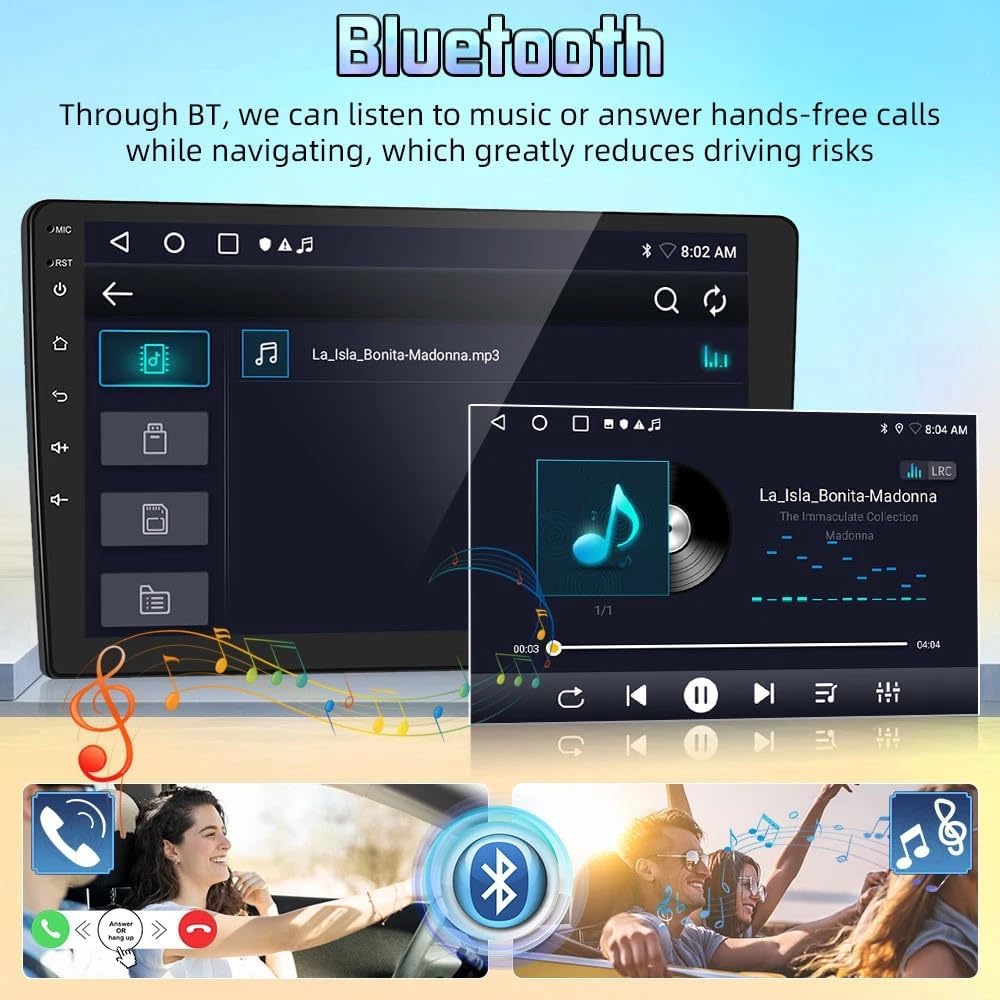
Image: Screen display showing the Bluetooth interface with options for music playback and hands-free calling. The image illustrates how Bluetooth connectivity allows users to listen to music and manage calls safely while driving, reducing distractions.
7.4 Wireless Apple CarPlay & Android Auto
Connect your smartphone for an integrated in-car experience, accessing navigation, music, messages, and more.
- Wireless Connection: Ensure your phone's Wi-Fi and Bluetooth are enabled. Connect your phone to the car stereo's Bluetooth. Follow on-screen prompts to initiate CarPlay or Android Auto.
- Wired Connection: Connect your phone to one of the USB ports using a high-quality USB cable. The system should automatically detect and launch CarPlay or Android Auto.
- Use voice commands (e.g., "Hey Siri" or "OK Google") for hands-free control.

Image: Split screen showing the user interfaces for Apple CarPlay (left) and Android Auto (right) on the car stereo. It highlights the ability to connect via USB or Bluetooth for both platforms, enabling access to phone apps, navigation, and voice control.
7.5 GPS Navigation
The unit supports both offline and online navigation.
- Offline Navigation: The included GPS module allows for offline navigation. Ensure the GPS antenna is properly installed and positioned.
- Online Navigation: Connect the unit to Wi-Fi/WLAN to download and use online navigation applications.
- The system provides real-time road conditions and accurate positioning.

Image: A visual representation of the GPS navigation system on the car stereo screen, showing a map with vehicle position, satellite signals, and various navigation app icons. This illustrates the unit's capability for accurate, real-time navigation.
7.6 Mirror Link
Mirror Link allows you to display your smartphone screen directly on the car stereo.
- For iOS devices: Connect via Wi-Fi.
- For Android devices: Connect via USB data cable or Wi-Fi.
- Follow the on-screen instructions on the car stereo and your phone to establish the connection.

Image: The car stereo screen displaying a mirrored smartphone interface, showing various apps. Below, two smartphone screens (iOS and Android) illustrate the connection methods: iOS via Wi-Fi, and Android via Wi-Fi/USB, demonstrating the Mirror Link functionality.
7.7 Steering Wheel Control (SWC)
If your vehicle supports it, you can configure the steering wheel controls to operate the car stereo, allowing you to answer calls, change music tracks, and adjust volume without taking your hands off the wheel.
- Access the "Steering Wheel Control" settings in the unit's menu.
- Follow the on-screen instructions to map your vehicle's steering wheel buttons to the desired functions on the stereo.
7.8 Split Screen Function
The split-screen feature allows you to run two applications simultaneously, such as navigation on one side and music playback on the other. To activate, long-press the recent apps button or follow specific gestures as indicated in the system settings.
8. Maintenance
- Cleaning: Use a soft, dry cloth to clean the screen and unit exterior. Do not use abrasive cleaners or solvents.
- Software Updates: Periodically check for software updates to ensure optimal performance and access to new features. Updates can usually be found on the manufacturer's website or through the unit's system settings if connected to Wi-Fi.
- Avoid Liquids: Keep liquids away from the unit to prevent damage.
9. Troubleshooting
| Problem | Possible Cause | Solution |
|---|---|---|
| Unit does not power on. | Incorrect wiring; Blown fuse; Vehicle battery issue. | Check power connections and fuses. Ensure battery is charged. Consult wiring diagram. |
| No sound. | Volume too low; Mute activated; Speaker wiring issue; Incorrect audio output settings. | Increase volume. Check if mute is active. Verify speaker connections. Check audio settings. |
| Bluetooth not connecting. | Bluetooth not enabled on device/stereo; Device not in pairing mode; Interference. | Ensure Bluetooth is on for both devices. Put stereo in pairing mode. Try restarting both devices. |
| GPS signal weak or inaccurate. | GPS antenna improperly placed or disconnected; Obstructions. | Ensure GPS antenna is securely connected and placed in an open area (e.g., dashboard) with a clear view of the sky. |
| Touch screen unresponsive. | System freeze; Dirt on screen. | Restart the unit. Clean the screen with a soft cloth. If issue persists, perform a factory reset (refer to system settings). |
10. Specifications
| Feature | Specification |
|---|---|
| Operating System | Android 13 |
| Screen Size | 7-inch IPS Capacitive Touch Screen |
| Screen Resolution | 1024x600 |
| CPU | Cortex-A53 1.3GHz (Quad-core) |
| Memory (RAM) | 2GB |
| Storage (ROM) | 64GB |
| Radio Band | FM (87.5M-108M) with RDS |
| Output Power | 4 x 45W |
| Bluetooth Version | 4.1 |
| Supported Audio Formats | MP3, FLAC, APE, WMA, WAV, AAC, AMR |
| Supported Video Formats | AVI, ASF, MP4, MOV, MPG, MPEG1/2/4, VOB, MKV, FLV, TS, WMV, RMVB, 3GP |
| Working Voltage | 12V |
| Connectivity | Wireless CarPlay, Wireless Android Auto, GPS, WiFi, Bluetooth, USB |
| Dimensions (Approx.) | 220mm (W) x 111mm (H) x 50mm (D) |
| Item Weight | 1.6 ounces |
11. Warranty and Support
For warranty information, technical support, or service inquiries, please refer to the contact information provided with your purchase or visit the official Surakey website. Keep your purchase receipt as proof of purchase for warranty claims.