
Introduction
This manual provides detailed instructions for setting up, operating, and maintaining your aikeec 6-Key Mini Mechanical Gaming Keypad. This device is a versatile, programmable macro keypad designed for gaming and office use, featuring customizable keys, RGB backlighting, and onboard memory for settings.

The aikeec 6-Key Mini Mechanical Gaming Keypad, showcasing its compact design and RGB lighting.
Setup
- Connect the Keypad: The aikeec 6-Key Mini Mechanical Gaming Keypad uses a USB interface and is HID standard, allowing for plug-and-play functionality without requiring additional drivers for basic operation. Connect the keypad to your computer using the provided 1.5m data cable.
- Software Installation: For advanced customization and programming, download the dedicated setting software from dl.sayobot.cn/setting.zip. If you encounter an error regarding 'MSVCP140.dll not found', please install the runtime from dl.sayobot.cn/vcx86.exe.
- Mac Compatibility: If you intend to use the keypad with a Mac operating system, perform the initial setup and programming on a Windows computer first. Once programmed, the settings are saved on the keypad's onboard storage, allowing it to function on Mac without further software interaction.

The aikeec 6-Key Mini Mechanical Gaming Keypad connected via USB, ready for use.
Software Overview Video
This video provides a detailed overview of the Sayodevice software, demonstrating how to connect and program the macro keypad for various functions.
Operating Instructions
Key Customization
The primary feature of this keypad is its extensive customization options. Using the Sayodevice software, you can assign various functions to each of the 6 keys. Settings are stored directly on the keypad, eliminating the need for software to be running after initial programming.
- Standard Key Assignment: Assign any single character or combination of keys (e.g., Ctrl+C, Alt+Tab).
- Multiple Modes: The keypad supports various modes including Multimedia Control, Game Controller, One-key Password, and Mouse Mode.
- Two-Step Keys: Program a key to perform different actions based on a short press or a long press.
- Layer Switching: Utilize function layers (Fn0, Fn1) to effectively double the number of programmable keys.

Visual representation of the keypad's multiple operational modes, including multimedia control and game controller functions.
RGB LED Backlighting
The keypad features colorful RGB LED backlighting. You can individually adjust the on/off state and key press action display mode for each key. The default mode is 'irradiation mode', which displays constantly bright and slowly changing colors.
- Static Color: Set a fixed color for each key.
- Wave Mode: Configure the LEDs to cycle through colors in a wave pattern.
- Breathing Mode: Set the LEDs to slowly fade in and out with a chosen color.
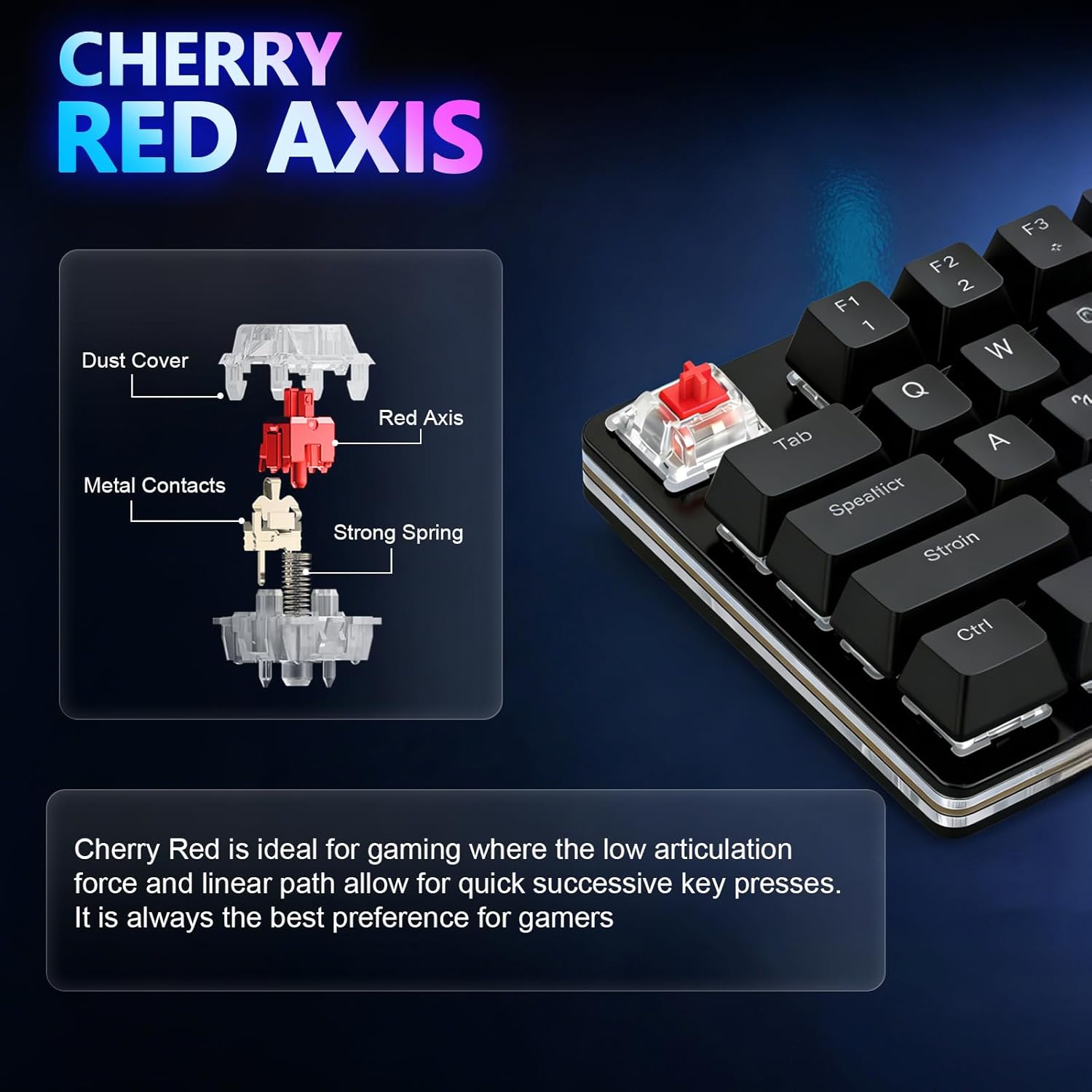
Detail of the Cherry MX Red mechanical switches, known for their linear feel and responsiveness.
Maintenance
To ensure the longevity and optimal performance of your aikeec 6-Key Mini Mechanical Gaming Keypad, follow these maintenance guidelines:
- Cleaning: Use a soft, dry cloth to wipe down the keypad. For deeper cleaning, you may carefully remove the keycaps. Avoid using harsh chemicals or abrasive materials.
- Key Switches: The keypad features hot-swappable Cherry MX Red mechanical switches. This allows for easy replacement of individual switches if they become faulty or if you wish to customize the typing feel. Use a keycap puller and switch puller (not included) for safe removal and installation.
- Cable Care: Avoid sharp bends or excessive pulling on the USB cable to prevent damage.

Illustration of the keypad's components, highlighting the durable ABS keycaps, 59-inch data cable, and non-slip feet.
Troubleshooting
- Software Installation Error (MSVCP140.dll): If the setting software fails to run due to 'MSVCP140.dll not found', download and install the Visual C++ Redistributable for Visual Studio from dl.sayobot.cn/vcx86.exe.
- Keypad Not Responding: Ensure the USB cable is securely connected to both the keypad and your computer. Try connecting to a different USB port.
- Settings Not Applying: After making changes in the Sayodevice software, ensure you click the 'Save' button to write the settings to the keypad's onboard memory.
- Mac Specific Issues: Remember that programming must be done on a Windows machine first. If issues persist on Mac, verify the settings on a Windows PC.
Specifications
| Feature | Description |
|---|---|
| Brand | aikeec |
| Model Name | 6 Key |
| Number of Keys | 6 |
| Connectivity Technology | Mini USB |
| Keyboard Description | Mechanical |
| Switch Type | Cherry MX Red |
| Keyboard Backlighting | RGB |
| Special Features | Customizable Display Keys, Hot-Swappable, Portable, Programmable Keys |
| Compatible Devices | Android, Linux, PC, Windows |
| Minimum Required OS | Windows 7 |
| Material | Plastic |
| What's in the Box | Key Keyboard, 1.5m Data Cable |
Warranty and Support
Warranty: This aikeec product comes with a half-year warranty from the date of purchase. Please retain your proof of purchase for warranty claims.
Technical Support: For further assistance with software, programming, or any other technical inquiries, please refer to the official Sayodevice programming link and tutorial:
- Sayodevice Programming Link: https://sayodevice.com/
- Programming Tutorial Link: https://manual.sayodevice.com
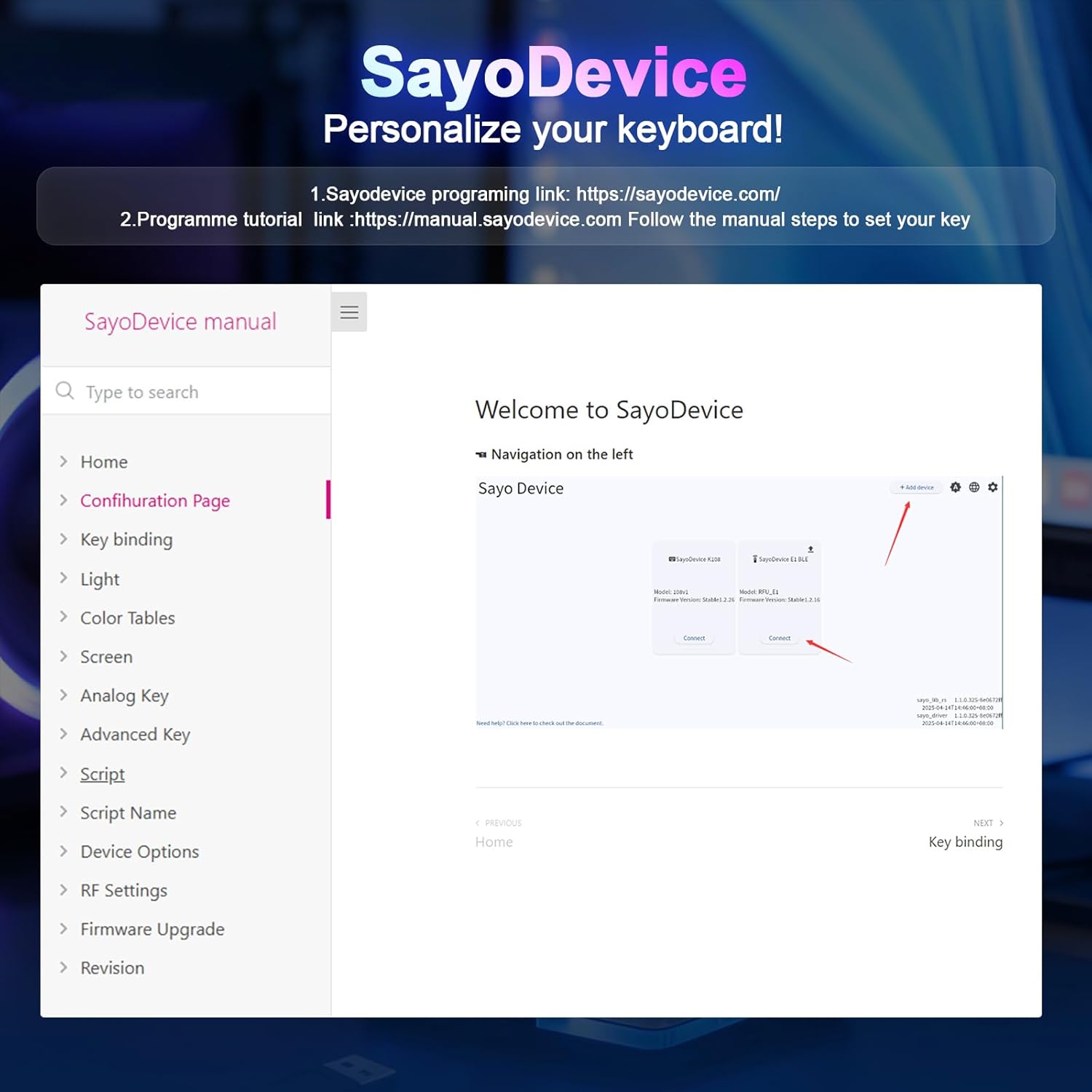
Screenshot of the Sayodevice software interface, showing options for personalizing your keyboard.