
Introduction
This manual provides essential information for the safe and efficient operation of your Generic 7-Channel DJ Mixer Audio Console. Please read this manual thoroughly before using the device and retain it for future reference.
Safety Information
To prevent electric shock, fire, or damage to the unit, please observe the following safety precautions:
- Do not expose the unit to rain or moisture.
- Do not open the casing. Refer all servicing to qualified personnel.
- Ensure the power supply voltage matches the requirements specified on the unit.
- Keep the unit away from heat sources and direct sunlight.
- Always disconnect the power cable before cleaning or when not in use for extended periods.
- The built-in fuse provides overload protection. Do not attempt to bypass or replace it with an incorrect rating.
Product Overview
The Generic 7-Channel DJ Mixer Audio Console is designed for professional audio mixing in various applications, including streaming, podcasts, live performances, and studio recording. It features versatile connectivity and user-friendly controls to enhance your audio experience.
Key Features:
- 7-Channel Inputs: Includes five mono/line inputs, stereo inputs, and balanced XLR microphone input jacks.
- Bluetooth Connectivity: Wireless range up to 10m for connecting smartphones, computers, and other Bluetooth-enabled devices.
- 3-Band Equalizer: Independent control for high, mid, and low frequencies on the main channel.
- High-Fidelity Sound Processing: Minimizes external noise and ensures excellent sound quality.
- +48V Phantom Power: Supports condenser microphones for clear and efficient sound capture.
- 6 Music Modes: Nature, Pop, Rock, Jazz, Classic, and Country for diverse audio experiences.
- Durable Construction: Robust metal housing designed for longevity and impact resistance.

Image: The Generic 7-Channel DJ Mixer Audio Console in a studio setup, connected to a computer monitor and headphones, demonstrating its use in a professional environment.
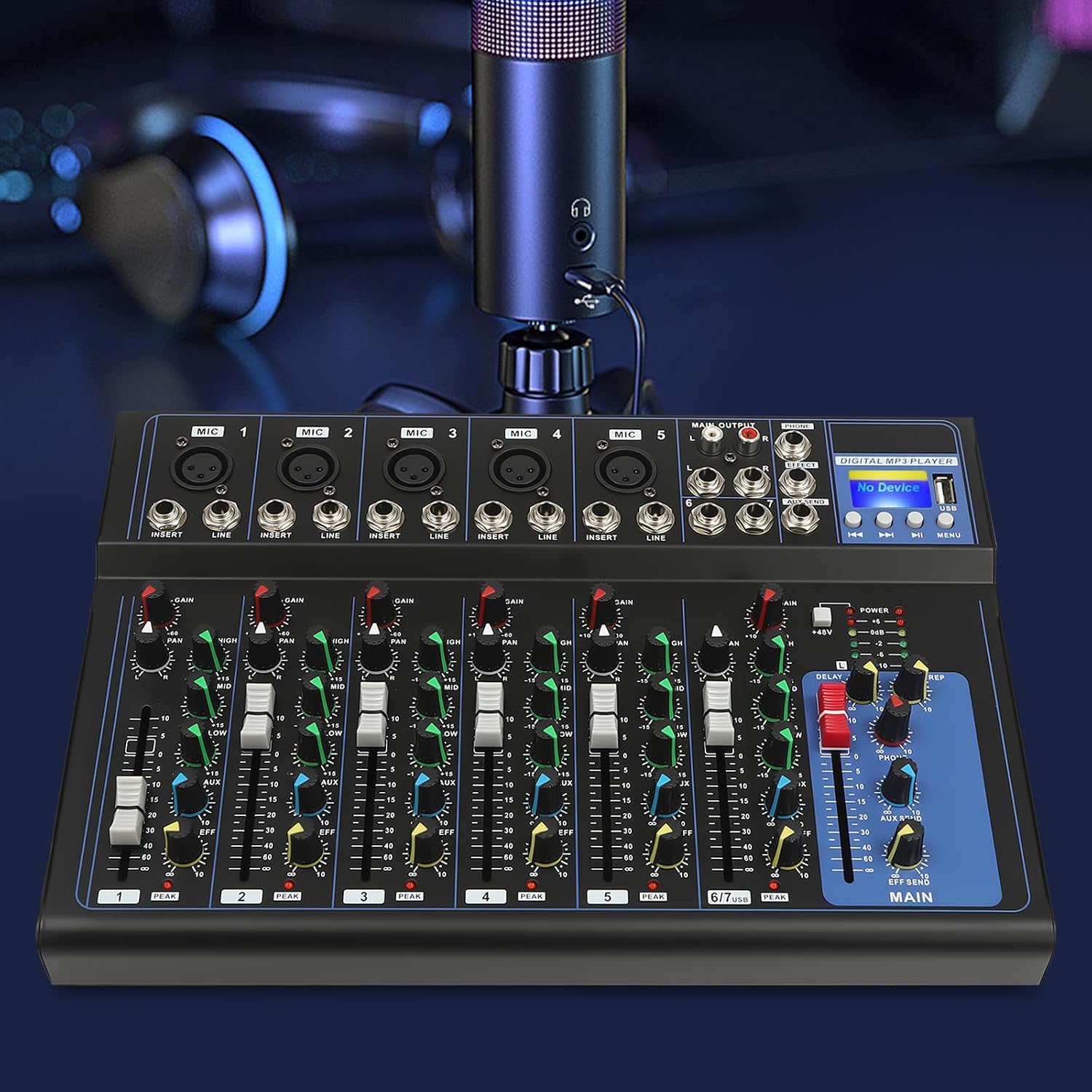
Image: A detailed view of the Generic 7-Channel DJ Mixer Audio Console, highlighting the various input jacks for microphones and line-level devices, along with the control knobs for each channel.
Setup
- Unpacking: Carefully remove the mixer and all accessories from the packaging. Verify that all components are present, including the mixer, power adapter, and this manual.
- Power Connection: Connect the provided power adapter to the mixer's power input and then plug it into a standard 230V 50Hz AC outlet. Ensure the mixer's power switch is in the OFF position before connecting.
- Input Connections:
- Microphones: Connect microphones to the XLR or 1/4" TRS input jacks (MIC 1-5). For condenser microphones requiring phantom power, ensure the +48V phantom power switch is engaged after connecting the microphone.
- Line-Level Devices: Connect instruments (keyboards, guitars with preamps) or other audio sources to the LINE input jacks.
- Stereo Inputs: Use channels 6/7 for stereo line-level devices.
- Output Connections: Connect the MAIN OUTPUT (L/R) to your amplifier, powered speakers, or recording interface using appropriate cables.
- Headphones: Connect headphones to the PHONES jack for monitoring.
- Bluetooth Pairing: To connect a Bluetooth device, power on the mixer, activate Bluetooth on your device, and select "Generic Mixer" (or similar name) from the available devices list.
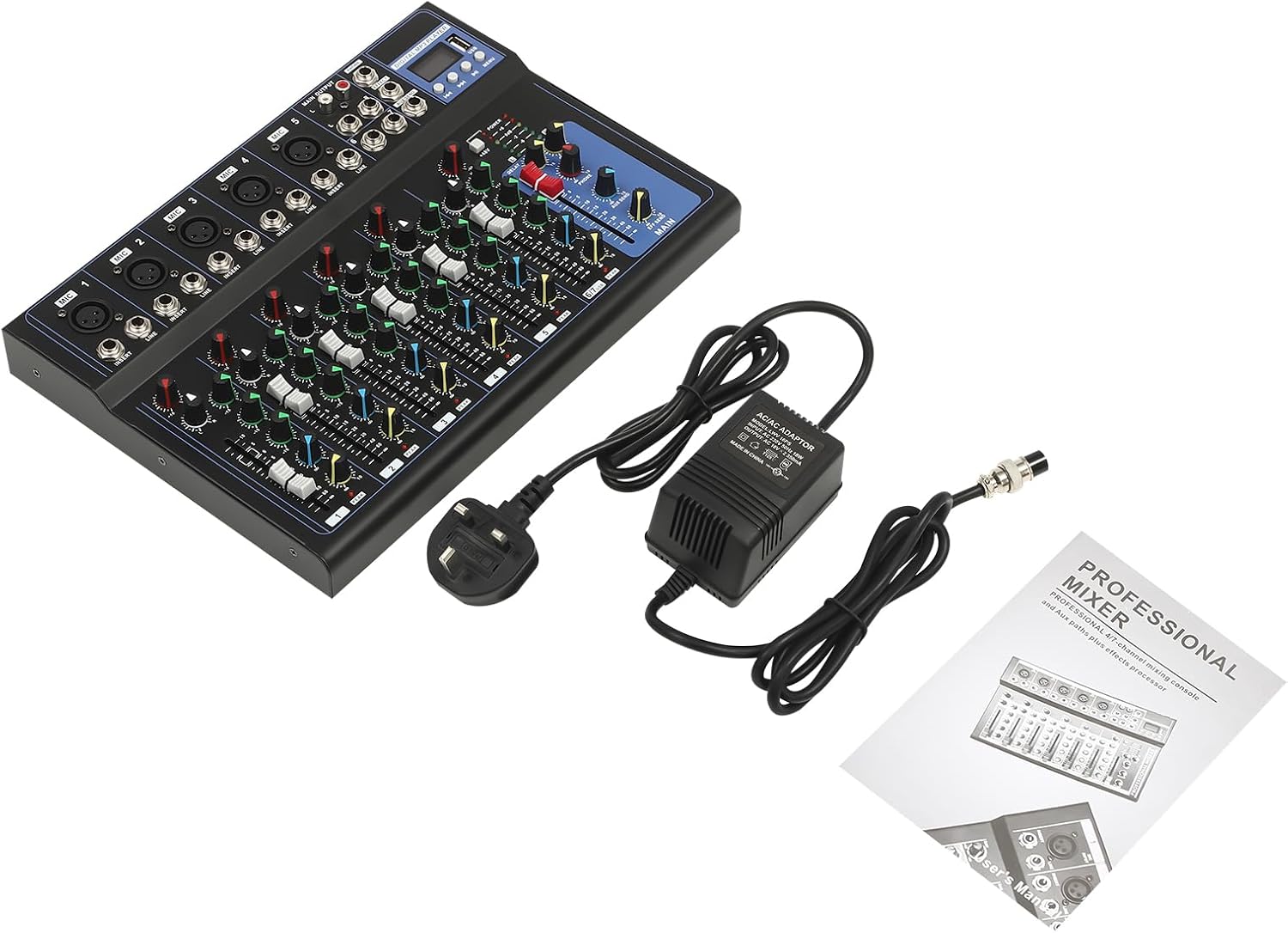
Image: The Generic 7-Channel DJ Mixer Audio Console displayed alongside its power adapter and the included user manual, illustrating the contents of the product package.
Operating Instructions
Basic Operation:
- Power On: After all connections are made, switch the mixer's power button to the ON position.
- Gain Control: Adjust the GAIN knob for each input channel to set the input level. Aim for a strong signal without clipping (distortion). The PEAK LED should only flash occasionally.
- Equalization (EQ): Use the HIGH, MID, and LOW knobs on each channel to adjust the tonal characteristics of the input signal.
- Pan Control: The PAN knob adjusts the stereo position of the channel's signal.
- Channel Faders: Use the channel faders to control the volume of individual input channels.
- Main Output: Adjust the MAIN fader to control the overall output volume.
- Headphone Monitoring: Use the PHONES level knob to adjust the volume for headphone monitoring.
Advanced Features:
- +48V Phantom Power: Engage the +48V switch when using condenser microphones. Ensure microphones are connected before activating and disconnected after deactivating.
- Bluetooth Audio: Once paired, audio from your Bluetooth device will be routed through the mixer. Control its volume via the dedicated Bluetooth channel fader.
- Music Modes: Utilize the built-in music modes (Nature, Pop, Rock, Jazz, Classic, Country) to apply different audio presets to your mix, enhancing the listening experience. Refer to the digital display for mode selection.

Image: A singer performing with a microphone connected to the Generic 7-Channel DJ Mixer Audio Console, illustrating its application in vocal performances.
Maintenance
- Cleaning: Use a soft, dry cloth to clean the exterior of the mixer. Do not use liquid cleaners or solvents.
- Storage: Store the mixer in a cool, dry place away from direct sunlight and extreme temperatures.
- Cable Care: Regularly check all cables for damage. Replace frayed or damaged cables immediately.
Troubleshooting
| Problem | Possible Cause | Solution |
|---|---|---|
| No sound output |
|
|
| Distorted sound |
|
|
| Bluetooth not connecting |
|
|
| Microphone not working (condenser) |
|
|
Specifications
| Feature | Detail |
|---|---|
| Model Number | A-1 |
| Part Number | KM-SBloVa |
| Brand | Generic |
| Channels | 7 (5 mono/line, 1 stereo) |
| Bluetooth Range | Up to 10 meters |
| Phantom Power | +48V |
| Power Supply | 230V 50Hz, 18W |
| Dimensions (approx.) | 33cm (L) x 23cm (W) x 3.7cm (H) / 13in (L) x 9in (W) x 1.45in (H) |

Image: The Generic 7-Channel DJ Mixer Audio Console with its physical dimensions clearly marked, showing a length of 33cm (13in), a width of 23cm (9in), and a height of 3.7cm (1.45in).
Warranty and Support
This product is manufactured by Generic. For warranty information and technical support, please refer to the documentation provided at the time of purchase or contact your retailer. Keep your proof of purchase for any warranty claims.
For further assistance, please visit the manufacturer's website or contact their customer service department. Contact details are typically found on the product packaging or in supplementary materials.


