
Introduction
Thank you for choosing the EAYBLLY KG820-B Wireless Keyboard and Mouse Combo. This manual provides essential information for setting up, operating, and maintaining your new wireless peripheral set. Please read these instructions carefully before use to ensure optimal performance and longevity of your product.
Package Contents
Please check the package for the following items:
- 1 x Wireless Keyboard
- 1 x Wireless Mouse
- 1 x USB Receiver (stored inside the mouse battery compartment)
- 1 x User Manual

Image: Contents of the EAYBLLY KG820-B package, showing the keyboard, mouse, USB receiver, and user manual.
Setup Guide
1. Battery Installation
The keyboard requires one (1) AAA battery, and the mouse requires one (1) AA battery (batteries are not included).
- For the Keyboard: Open the battery compartment cover on the underside of the keyboard. Insert one AAA battery, ensuring correct polarity (+/-). Close the cover.
- For the Mouse: Open the battery compartment cover on the underside of the mouse. Insert one AA battery, ensuring correct polarity (+/-). The USB receiver is typically stored in this compartment. Remove it before closing the cover.
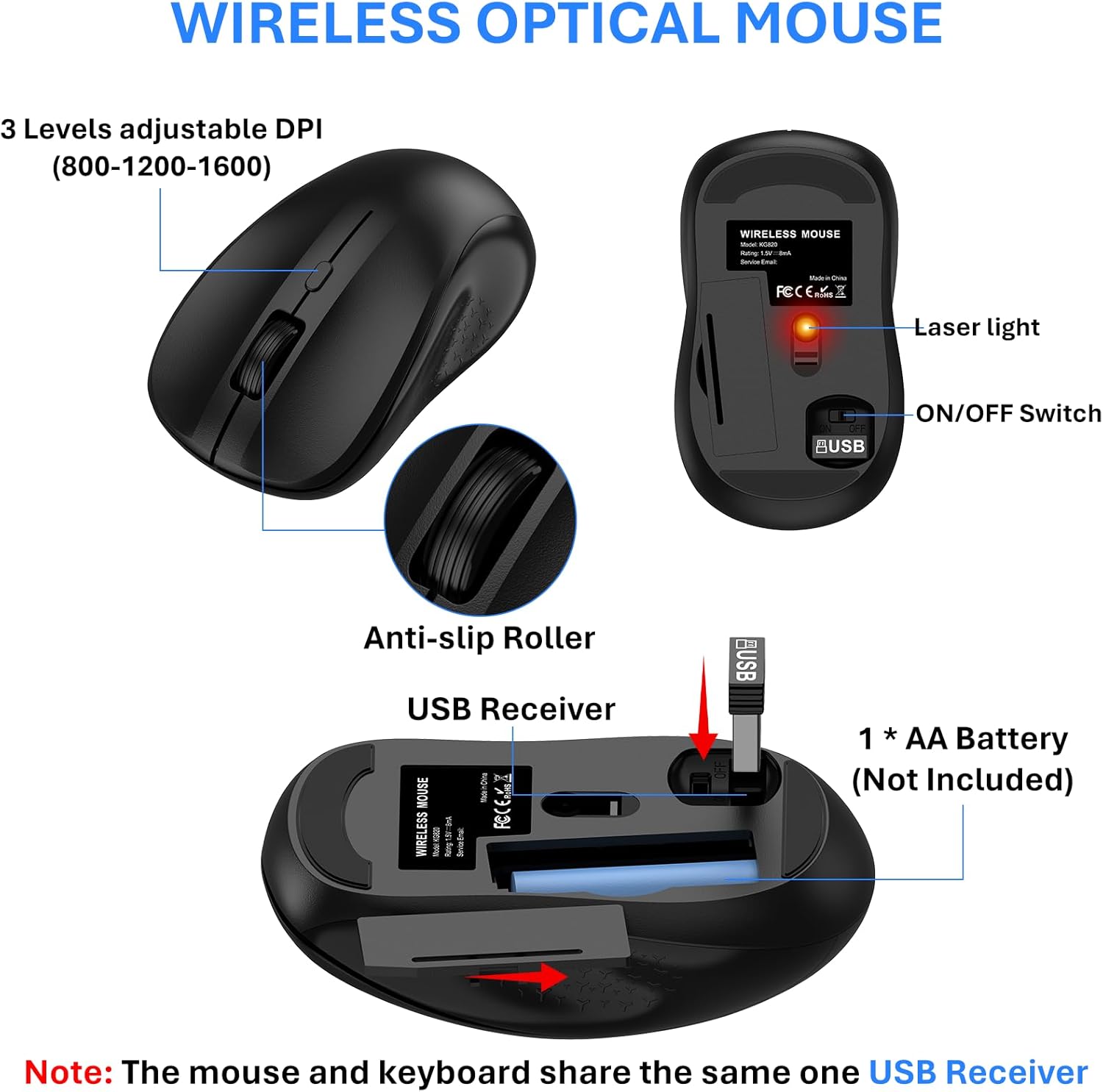
Image: Detailed view of the wireless mouse's underside, illustrating the battery compartment for an AA battery and the storage slot for the USB receiver.

Image: Visual guide for installing AAA battery in the keyboard and AA battery in the mouse.
2. Connect the USB Receiver
The keyboard and mouse share a single 2.4G USB receiver.
- Locate the USB receiver, which is typically stored in the battery compartment of the mouse.
- Plug the USB receiver into an available USB port on your computer, laptop, or compatible device.

Image: The wireless keyboard and mouse in use, demonstrating the 2.4G wireless connection via a single USB receiver plugged into a laptop.
3. Power On
- For the Keyboard: Locate the ON/OFF switch on the top right side of the keyboard. Slide it to the 'ON' position.
- For the Mouse: Locate the ON/OFF switch on the underside of the mouse. Slide it to the 'ON' position.
Your computer should automatically detect and install the necessary drivers. No additional software is required.
Operating Instructions
2.4G Wireless Connection
The combo utilizes a stable 2.4G wireless connection, offering a range of up to 10 meters (33 feet). Ensure the USB receiver is within this range for optimal performance.
Adjustable DPI for Mouse
The wireless mouse features 3 adjustable DPI levels (800/1200/1600 DPI) to suit various tasks and preferences.
- To change the DPI, press the DPI button located on top of the mouse, behind the scroll wheel.
- Each press will cycle through the DPI settings (800, 1200, 1600).

Image: The wireless mouse highlighting the DPI adjustment button and illustrating the three available DPI settings (800, 1200, 1600).
Multimedia Keys
The keyboard includes 12 multimedia function keys (F1-F12) for quick access to common functions. These keys are activated by pressing the Fn key simultaneously with the desired F-key.
| Key Combination | Function |
|---|---|
| Fn + F1 | Screen Brightness (-) |
| Fn + F2 | Screen Brightness (+) |
| Fn + F3 | Conversion Window |
| Fn + F4 | Home Page |
| Fn + F5 | My Computer |
| Fn + F6 | Search |
| Fn + F7 | Previous Track |
| Fn + F8 | Play/Pause |
| Fn + F9 | Next Track |
| Fn + F10 | Mute |
| Fn + F11 | Volume (-) |
| Fn + F12 | Volume (+) |

Image: The keyboard layout, visually indicating the multimedia function keys (F1-F12) and the dedicated number pad.
Sleep Mode for Power Saving
To conserve battery life, both the keyboard and mouse feature an automatic sleep mode:
- If idle for 10 minutes, the keyboard and mouse will enter sleep mode.
- To wake the devices, simply press any key on the keyboard or move/click the mouse.

Image: Illustration of the automatic sleep mode feature, showing how the keyboard and mouse enter sleep after 10 minutes of inactivity and how to reactivate them.
Ergonomic Adjustable Stand
The keyboard is designed with an adjustable stand to provide an ergonomic typing angle, reducing wrist strain and enhancing comfort during extended use.
- Flip out the integrated feet on the underside of the keyboard to raise the typing angle.
- Fold the feet back in for a flatter typing position.

Image: The wireless keyboard demonstrating its adjustable stand, showing both the flat and elevated typing positions for ergonomic comfort.
Maintenance
Cleaning
To clean your keyboard and mouse:
- Ensure both devices are turned off.
- Use a soft, damp cloth to wipe the surfaces. Avoid harsh chemicals or abrasive materials.
- For dust between keys, use compressed air.
Battery Replacement
When the devices become unresponsive or performance degrades, it may be time to replace the batteries. Follow the battery installation steps in the Setup Guide.
Splash-Proof Design
The keyboard features a splash-proof design, allowing for easy cleaning of accidental water splashes. However, it is not waterproof; avoid submerging the device in liquid.

Image: The keyboard with water droplets on its surface, demonstrating its splash-proof capability for easy cleaning.
Troubleshooting
| Problem | Solution |
|---|---|
| Keyboard/Mouse not responding |
|
| Lag or intermittent connection |
|
| Mouse cursor moves erratically |
|
Specifications
| Feature | Detail |
|---|---|
| Brand | EAYBLLY |
| Model Number | KG820-B |
| Color | Black |
| Connectivity Technology | 2.4GHz USB Wireless |
| Special Features | Ergonomic, Spillproof, Full Size, Silent Typing, Adjustable DPI |
| Compatible Devices | Laptop, Television, Personal Computer |
| Compatible Operating Systems | Windows, Linux, Chrome OS, Mac OS |
| Keyboard Layout | QWERTY, Multimedia Keys |
| Keyboard Battery | 1 x AAA (not included) |
| Mouse Battery | 1 x AA (not included) |
| Mouse DPI Levels | 800/1200/1600 DPI |
| Wireless Range | Up to 10m (33ft) |
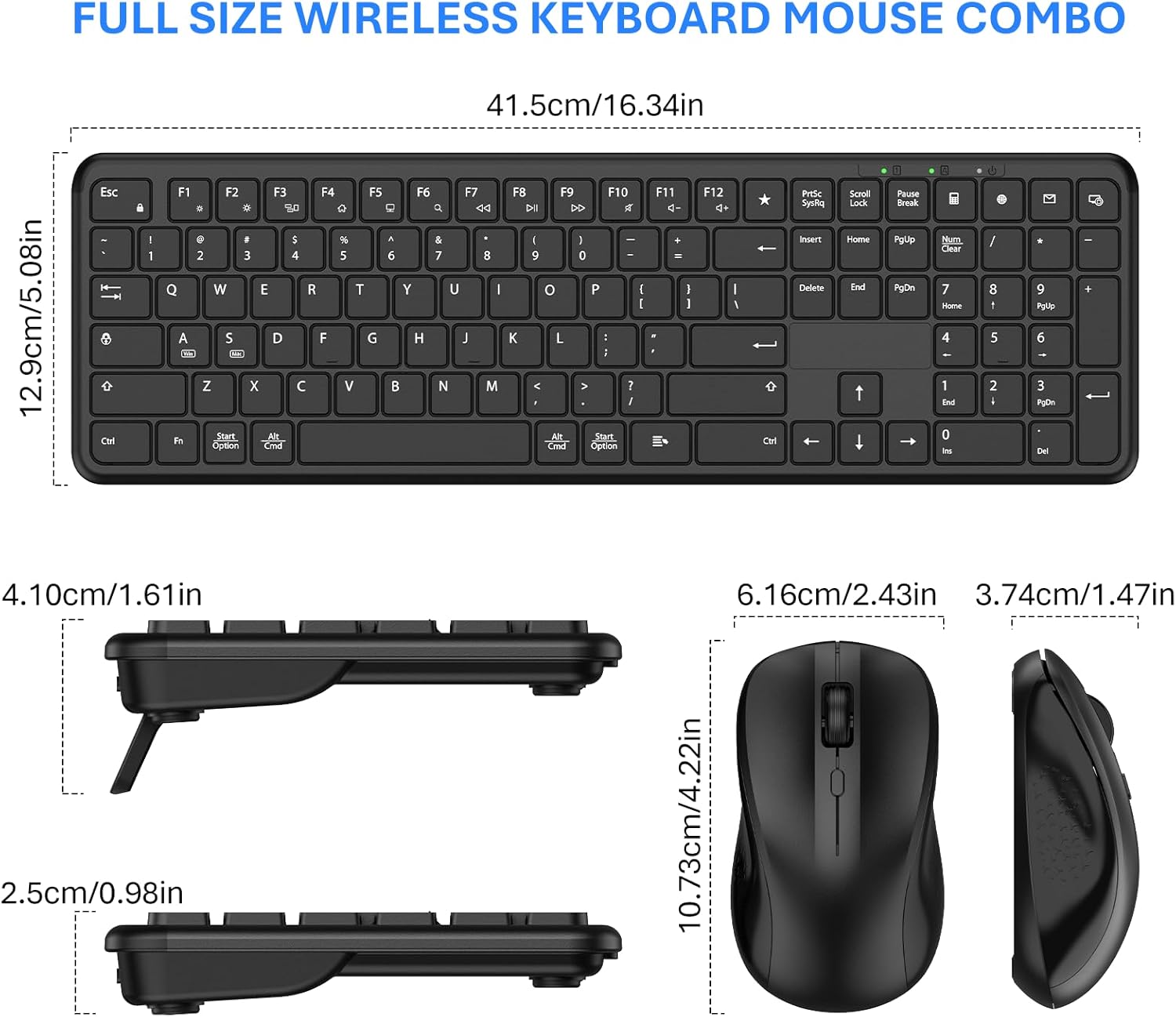
Image: Technical drawing showing the dimensions of the wireless keyboard and mouse in centimeters and inches.
Warranty and Support
Warranty Information
This EAYBLLY product comes with a 12-month warranty from the date of purchase. This warranty covers manufacturing defects and workmanship under normal use. It does not cover damage caused by misuse, accidents, unauthorized modifications, or natural disasters.
Customer Support
For technical assistance, warranty claims, or any questions regarding your EAYBLLY KG820-B Wireless Keyboard and Mouse Combo, please contact our customer support team. Refer to the contact information provided on the product packaging or our official website.
Safety Information
- Keep the device away from water, fire, high temperatures, and corrosive substances.
- Do not attempt to disassemble or repair the device yourself.
- Dispose of batteries according to local regulations. Do not dispose of batteries in fire.
- Keep out of reach of children.

