
1. Introduction
The HP MC400 is an ultra-compact mini portable smart projector designed for versatile entertainment and presentation needs. This manual provides essential information for setting up, operating, and maintaining your projector to ensure optimal performance and longevity.
2. Safety Information
- Read all instructions before using the projector.
- Do not look directly into the projector lens when the lamp is on. The bright light can cause eye damage.
- Ensure proper ventilation. Do not block ventilation openings.
- Use only the power adapter supplied with the projector.
- Keep the projector away from water or other liquids.
- Avoid placing the projector on unstable surfaces.
- Do not attempt to open or repair the projector yourself. Refer all servicing to qualified personnel.
3. What's in the Box
Verify that all items are present in the packaging:
- HP MC400 Projector (x1)
- Power Adapter (x1)
- Power Plug (x1)
- Remote Control (x1)
- Quick Start Guide (x1)
- HP Warranty Card (x1)
- Product Notice (x1)
- OE Clean Kit (x1)
4. Product Overview
The HP MC400 features a compact design with a premium LED optical engine, offering clear and colorful images. It supports various projection angles and connectivity options.
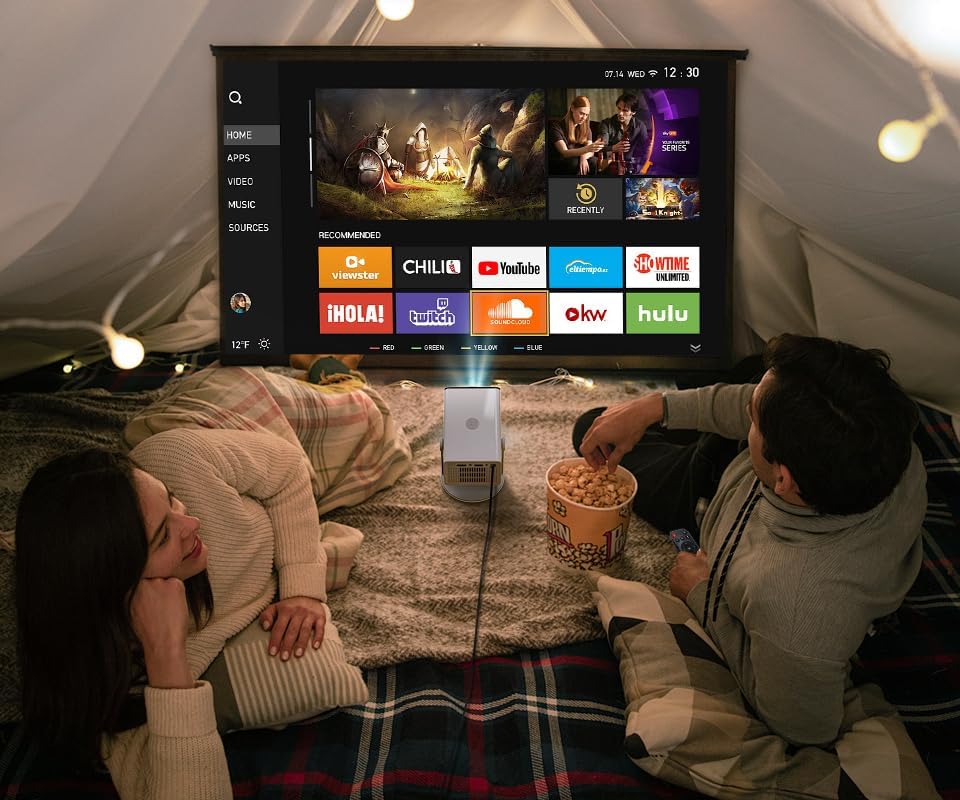
Figure 4.1: Front view of the HP MC400 projector.

Figure 4.2: Back view of the HP MC400 projector, highlighting the HDMI, USB, and audio ports.

Figure 4.3: Internal view illustrating the premium LED optical engine of the HP MC400.
5. Setup
5.1 Powering On
- Connect the supplied power adapter to the projector's USB-C PD 3.0 port.
- Plug the power adapter into an electrical outlet.
- Press the power button on the projector or the remote control to turn it on.
5.2 Initial Placement and Adjustment
The MC400 features a 0.9 short throw ratio, allowing for large screen projection in small spaces. Its 90° rotation design supports flexible placement for wall or ceiling projection.

Figure 5.1: The projector's 90° rotation allows for ceiling projection, ideal for bedrooms.
5.3 Focus and Keystone Correction
The projector features auto-focus and auto keystone correction for quick image adjustment.
- Auto Focus: The projector automatically adjusts the image clarity.
- Auto Keystone + 4-Point Correction: The projector automatically corrects distorted images. Manual adjustments can be made via the remote control if needed.
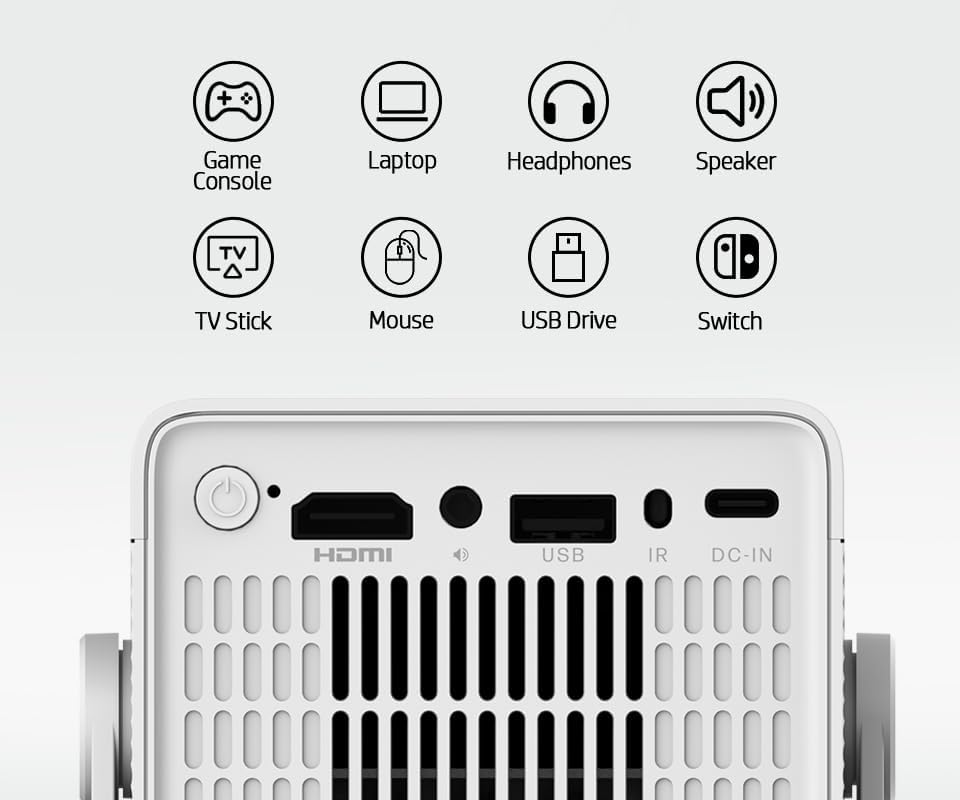
Figure 5.2: Automatic keystone correction ensures a rectangular image even when the projector is placed at an angle.
6. Operating Instructions
6.1 Smart Streaming and Built-in Apps
The HP MC400 includes a built-in App Store and WiFi projection capabilities. Connect the projector to your home WiFi network (Dual Band 2.4G / 5G) to access streaming applications directly.

Figure 6.1: Access popular streaming services directly from the projector's built-in app store.
6.2 Wireless Screen Mirroring
Mirror content from your iOS or Android devices wirelessly to the projector.
- Ensure your mobile device and the projector are connected to the same WiFi network.
- Select the screen mirroring option on your mobile device (e.g., Screen Mirroring, Smart View, Cast).
- Select the HP MC400 from the list of available devices.
6.3 Connecting External Devices
The projector offers multiple ports for connecting external devices:
- HDMI: Connect gaming consoles, laptops, TV sticks, or other HDMI-enabled devices.
- USB: Connect USB drives for media playback or a mouse for navigation.
- 3.5mm Audio: Connect external headphones or speakers.

Figure 6.2: Connect external speakers via Bluetooth for an enhanced audio experience.
6.4 USB-C Power Bank Compatibility
For portable use, the MC400 can be powered by a compatible 45W USB-C PD 3.0 power bank (not included).
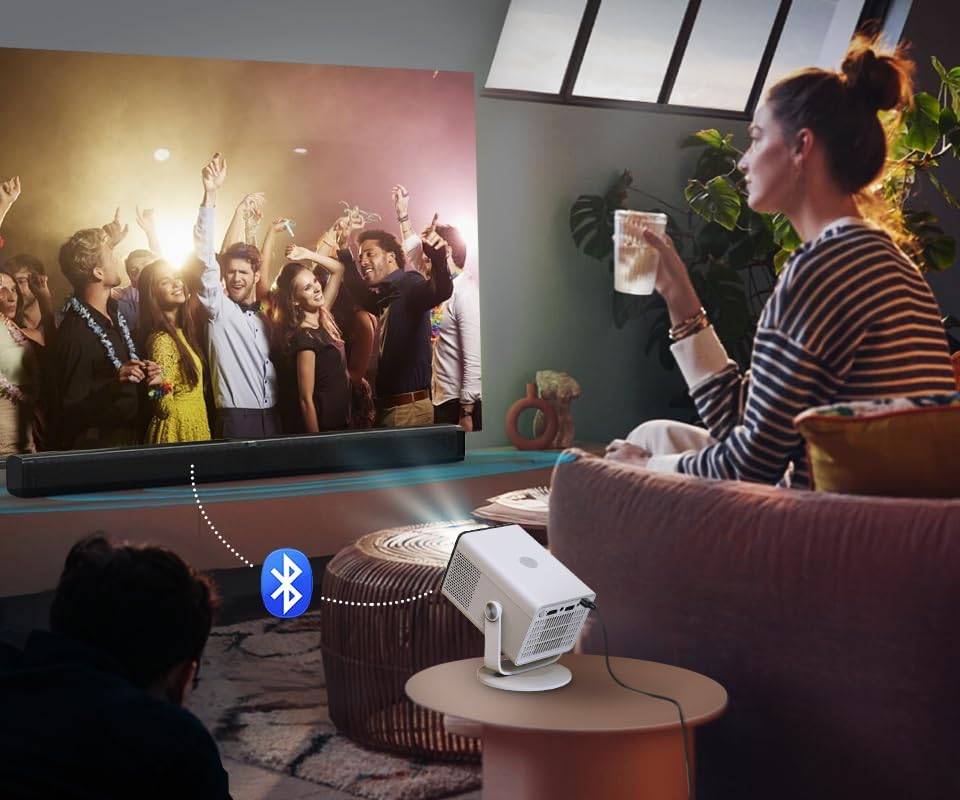
Figure 6.3: The projector can be powered by a compatible USB-C power bank for outdoor or portable use.
6.5 Low Noise ECO Mode
Activate ECO mode for quieter operation (≤32dB), suitable for bedrooms and late-night viewing.
Figure 6.4: The low-noise ECO mode ensures a quiet viewing environment.
7. Maintenance
7.1 Cleaning the Lens
Use the provided OE Clean Kit or a soft, lint-free cloth specifically designed for optical lenses. Do not use abrasive cleaners or solvents.
7.2 Cleaning the Projector Body
Wipe the exterior with a soft, dry cloth. Avoid spraying liquids directly onto the projector.
7.3 Storage
When not in use, store the projector in a cool, dry place, away from direct sunlight and extreme temperatures. Use the original packaging for protection during storage or transport.
8. Troubleshooting
- No Power: Ensure the power adapter is securely connected to both the projector and a working power outlet. If using a power bank, confirm it is sufficiently charged and compatible (45W USB-C PD 3.0).
- No Image: Check that the correct input source (HDMI, App, Screen Mirroring) is selected. Verify all cables are securely connected.
- Blurred Image: The projector has auto-focus. If the image remains blurry, try repositioning the projector or manually adjusting focus via the remote if available.
- Distorted Image: The projector features auto keystone correction. If the image is still distorted, check for obstructions or try adjusting the projector's angle.
- No Sound: Ensure the volume is not muted or set too low. Check if external speakers are connected via Bluetooth or the 3.5mm audio jack and are functioning correctly.
- Screen Mirroring Issues: Ensure both the projector and your mobile device are connected to the same 2.4G or 5G WiFi network. Restart both devices and try again.
9. Specifications
Detailed technical specifications for the HP MC400 Mini Portable Smart Projector:
| Feature | Description |
|---|---|
| Display Technology | 1LCD |
| Light Source | LED, lifespan > 20,000 hours |
| Native Resolution | HD 1280 × 720 (Supports 4K input) |
| Brightness | 150 ISO Lumens |
| Aspect Ratio | 16:9 |
| Throw Ratio | 0.9:1 (Short Throw) |
| Focus | Auto Focus |
| Keystone Correction | Auto Keystone + 4-Point Correction |
| CPU | H726 Quad-Core (A53) |
| Memory | 1GB RAM + 16GB Storage |
| System Platform | Built-in App Store & WiFi Projection |
| WiFi | Dual Band 2.4G / 5G |
| Bluetooth | Bluetooth 5.4 (Audio Output) |
| Speaker | 3W × 1 |
| Ports | HDMI × 1, USB × 1, 3.5mm Audio × 1 |
| Power Input | USB-C PD 3.0, 20V / 2.25A |
| Power Consumption | Approx. 40W |
| Dimensions (without stand) | 91 × 82 × 138 mm (3.58 x 3.23 x 5.43 inches) |
| Weight | 490g (1.08 pounds) |

Figure 9.1: Feature comparison of HP MC400 with a standard projector.
10. Warranty and Support
Your HP MC400 Mini Portable Smart Projector comes with a limited warranty. Please refer to the included HP Warranty Card for detailed terms and conditions, including warranty period and coverage.
For technical support, troubleshooting assistance, or service inquiries, please visit the official HP support website or contact HP customer service using the information provided in your product documentation.


