
Introduction
This manual provides detailed instructions for the installation, operation, and maintenance of your Zerodis Smart Door Lock, model Zefy2uo6rzb1-12. Please read this manual carefully before installation and use to ensure proper function and safety. Keep this manual for future reference.
Product Overview
The Zerodis Smart Door Lock offers multiple secure entry methods, including fingerprint, password, RFID card, mechanical key, and WiFi connectivity. Constructed from high-quality aluminum alloy, it is designed for durability and suitable for various environments, including outdoor and courtyard use, with waterproof and anti-theft features. It accommodates door thicknesses ranging from 40mm to 120mm.

Image: Front and back view of the Zerodis Smart Door Lock.
- Multiple Unlock Methods: Fingerprint, Password, RFID Card, Mechanical Key, and WiFi.
- High Capacity: Stores up to 100 fingerprints, 100 passwords, and 100 RFID cards.
- Durable Construction: Made from high-quality aluminum alloy for enhanced durability and security.
- Wide Compatibility: Designed for doors with a thickness of 40mm to 120mm.
- Power Source: Operates on 4 x AAA batteries, providing long-lasting performance.
Specifications
| Brand | Zerodis |
| Model Name | Zefy2uo6rzb1-12 |
| Product Dimensions | 45 x 20 x 12 cm |
| Color | Silver |
| Material | Aluminum Alloy |
| Unlock Methods | Fingerprint, Password, Card, Key, WiFi |
| Fingerprint Capacity | 100 |
| Password Capacity | 100 |
| Magnetic Card Capacity | 100 |
| Battery Type | 4 x AAA Batteries (not included) |
| Compatible Door Thickness | 40-120 mm |
| Lock Body Type | 3585 |
| Country of Origin | China |
Package Contents
Please verify that all components are present before beginning installation.
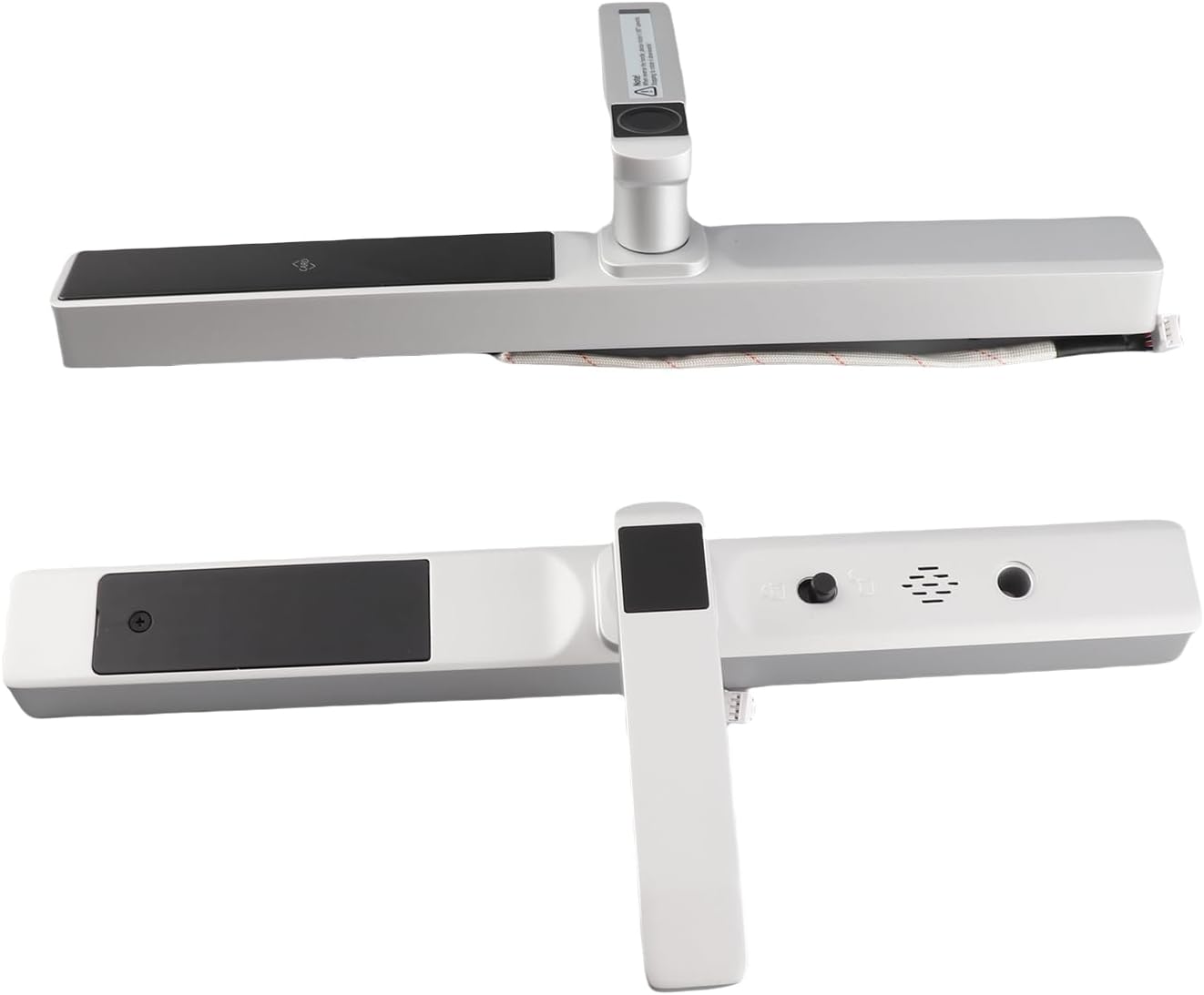
Image: All components included in the Zerodis Smart Door Lock package, along with the instruction manual.
- 1 x Front Panel
- 1 x Rear Panel
- 1 x 3585 Lock Body
- 1 x Door Buckle Plate (Strike Plate)
- 1 x Square Bar (Spindle)
- 2 x Sleeves (Spindle Covers)
- 2 x Cross Screws
- 2 x Silicone Pads
- 2 x Magnetic Cards (RFID Cards)
- 1 x Gasket
- 2 x Mechanical Keys
- Installation Hardware (various screws and pins)
Setup and Installation
Proper installation is crucial for the security and functionality of your smart lock. It is recommended to consult a professional if you are unsure about any steps. Ensure your door thickness is between 40mm and 120mm.
1. Prepare the Door
- Remove any existing lock hardware from your door.
- Verify the door's bore holes and backset measurement match the lock body specifications. Adjust if necessary.
- Ensure the door frame is prepared for the strike plate.
2. Install the Lock Body
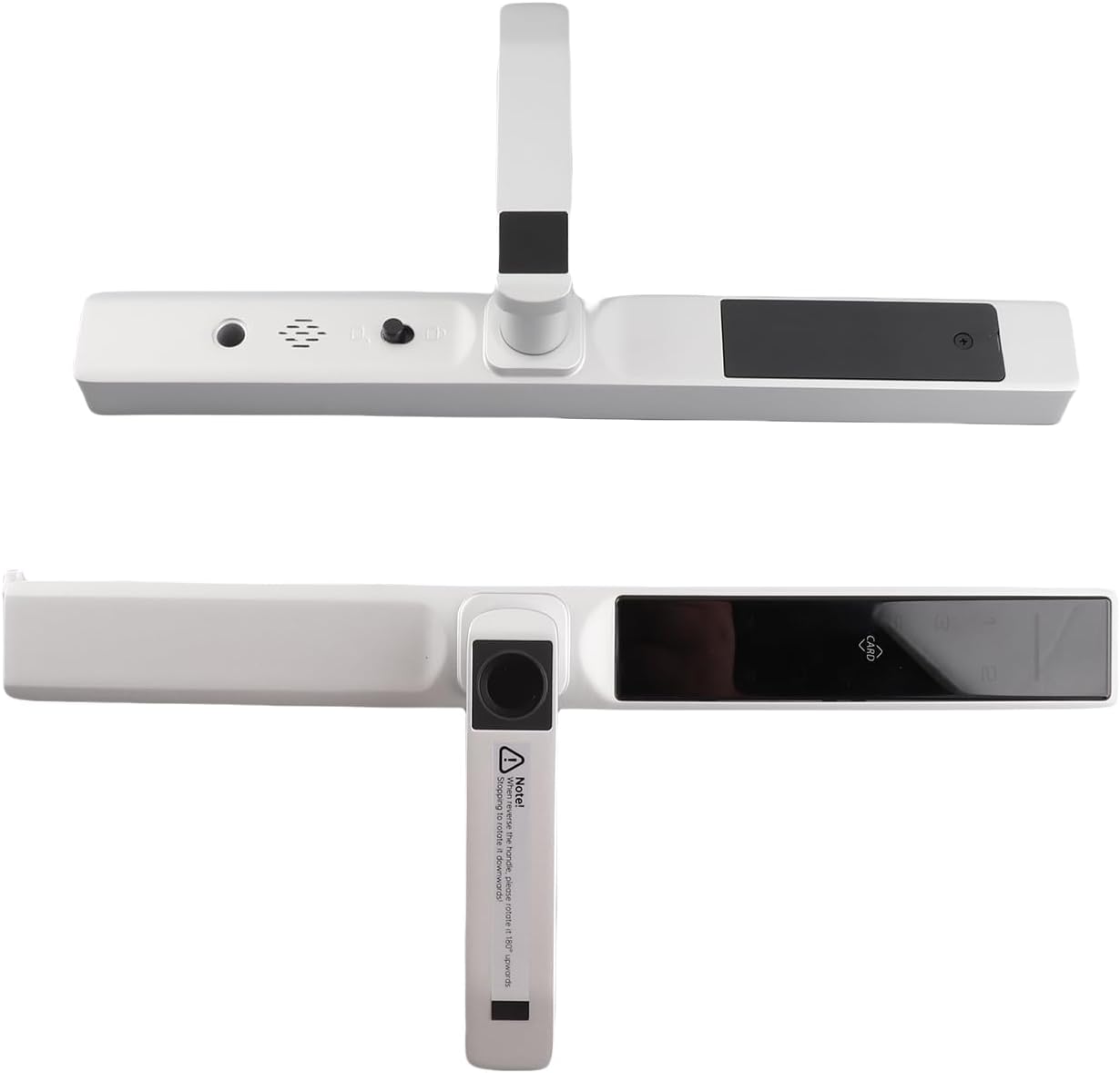
Image: The internal lock body mechanism of the Zerodis Smart Door Lock.
- Insert the 3585 lock body into the edge of the door.
- Secure it with the provided screws.
- Install the door buckle plate (strike plate) on the door frame, aligning it with the lock body.
3. Install the Front and Rear Panels

Image: The front and rear panels of the Zerodis Smart Door Lock, showing the handle and sensor areas.
- Insert the square bar (spindle) through the lock body.
- Connect the wiring from the front panel to the rear panel. Ensure connections are secure.
- Attach the silicone pads to the panels to protect the door surface.
- Mount the front panel and rear panel onto the door, ensuring the square bar engages correctly with both handles.
- Secure the panels using the provided cross screws and other hardware.
4. Insert Batteries
- Open the battery compartment on the rear panel.
- Insert 4 x AAA batteries, ensuring correct polarity.
- Close the battery compartment.
5. Initial Setup and Calibration
- Follow the on-screen prompts or voice guidance from the lock for initial setup.
- Calibrate the lock if prompted, ensuring the latch operates smoothly.
Operating Instructions
Your Zerodis Smart Door Lock offers multiple ways to unlock and manage access.
User Management (Admin Setup)
Before regular use, you must set up an administrator fingerprint or password. Refer to the specific instructions in the included "App Instructions" manual for detailed steps on adding and managing users via the mobile application or directly on the lock's keypad.
Unlocking Methods
- Fingerprint: Place your registered finger on the fingerprint sensor. The lock will unlock if the fingerprint is recognized.
- Password: Enter your registered password on the keypad, followed by the '#' key (or equivalent confirmation key).
- RFID Card: Present your registered RFID card to the card reader area on the lock. The lock will unlock upon recognition.
- Mechanical Key: In case of emergency or battery depletion, insert the mechanical key into the keyhole and turn to unlock.
- WiFi (Remote Access): If configured with the mobile application, you can remotely unlock the door via your smartphone. Refer to the app's instructions for setup and usage.
Locking the Door
The lock typically auto-locks after a few seconds once the door is closed. You can also manually lock it by lifting the handle or pressing a dedicated lock button, depending on the configuration.
Maintenance
Regular maintenance ensures the longevity and optimal performance of your smart door lock.
- Cleaning: Wipe the lock's surface with a soft, dry cloth. Avoid using abrasive cleaners, solvents, or harsh chemicals, as these can damage the finish and electronic components.
- Battery Replacement: When the battery low warning is indicated (audible alert or visual indicator), replace all four AAA batteries promptly. Do not mix old and new batteries or different battery types.
- Mechanical Parts: Periodically check the mechanical components (handles, latch, deadbolt) for smooth operation. Do not lubricate with oil-based products; use a graphite-based lubricant if necessary for internal mechanisms, but generally, smart locks are designed to be maintenance-free in this regard.
- Firmware Updates: If using the mobile application, check for available firmware updates for your lock to ensure you have the latest features and security enhancements.
Troubleshooting
If you encounter issues with your Zerodis Smart Door Lock, refer to the following common solutions:
| Problem | Possible Cause / Solution |
|---|---|
| Lock does not respond. |
|
| Fingerprint not recognized. |
|
| Password not working. |
|
| RFID card not recognized. |
|
| Door does not lock/unlock smoothly. |
|
If the problem persists after trying these solutions, please contact customer support.
Warranty and Support
For warranty information and customer support, please refer to the documentation provided at the point of purchase or contact your retailer. You may also visit the official Zerodis website for further assistance and contact details.
Online Support: Visit the Zerodis Store on Amazon