
1. Product Overview
The CAMECHO Car Stereo Radio is an advanced head unit designed to upgrade your vehicle's infotainment system. It features a 9-inch 1280*720 touch screen, Android 15 OS, and 4GB RAM with 64GB ROM for smooth performance. Key functionalities include wireless Apple CarPlay and Android Auto, GPS navigation, Bluetooth 5.0, FM RDS radio, and a 32-band equalizer.
Key Features:
- Wireless Apple CarPlay & Android Auto: Seamlessly integrate your smartphone for navigation, calls, messages, and music.
- GPS Navigation & WiFi Connection: Built-in GPS for online/offline navigation and WiFi for app downloads and internet access.
- Bluetooth 5.0 & FM RDS Radio: Hands-free calling, wireless audio streaming, and 18-station FM/RDS presets.
- 32-Band EQ: Customize audio output for enhanced sound quality.
- Steering Wheel Control Support: Retain factory steering wheel controls for convenience.
- High-Resolution Touch Screen: 9-inch 1280*720 display for clear visuals and responsive interaction.
2. Setup and Installation
2.1 Vehicle Compatibility
This head unit is compatible with Volkswagen VW Jetta models from 2006 to 2015. It also supports other VW models including EOS (2007-2014), Rabbit (2006-2009), Golf (2006-2013), Golf GTI (2010-2012), Jetta GLI (2006-2015), Passat (2006-2015), Passat Wagon (2007-2013), Tiguan (2009-2015), and Beetle (2012-2015).
Note: This unit does not support OEM backup cameras or original radio antennas. If your vehicle requires a different power cable, please contact customer support.

Image: Visual guide for compatible Volkswagen models and years, showing dashboard configurations.
2.2 Included Components
Before installation, verify all components are present:
- 1 x Android Head Unit
- 1 x Protocol Box (Canbus)
- 1 x GPS Antenna
- 1 x Radio Antenna
- 2 x Power Cables
- 1 x RCA Cable
- 1 x Rear Camera Input Cable
- 2 x USB Cables
- 1 x User Manual

Image: Diagram showing the head unit dimensions and all included accessories.
2.3 Wiring and Canbus Connection
Determine if your car requires a Canbus connection. If your original car has steering wheel controls, door information displays, a large screen, or a reversing track, it likely needs a Canbus. Otherwise, it does not.
For cars using Canbus:
- Disconnect all existing wiring.
- Select the correct power cable according to your vehicle's interface.
- Connect the small black plug AB.
- Connect the Canbus protocol box (white plug).
- Choose the correct protocol for your car model in Settings > Factory Setup (Password: 8888) > Vehicle > Automotive type > Xinpu - VW - VW PQ.
For cars not requiring Canbus:
- Disconnect all existing wiring.
- Select the correct power cable according to the original vehicle interface.
- Disconnect the white plug.
- Connect the small black plug AB.

Image: Wiring diagrams illustrating Canbus and non-Canbus connections.
2.4 Reversing Camera Installation (Optional)
The reversing input must be plugged in even if a camera is not used.
- Connect the camera's positive power wire to the positive pole of the car's reversing light.
- Connect the camera's negative power wire to the negative pole of the car's reversing light.
- The reversing trigger is controlled by the stereo; no separate trigger wire connection is required.
If the camera does not function correctly, adjust the backup camera resolution via: Settings > Factory Mode > Password: 8888 > Camera.

Image: Detailed diagram for connecting an aftermarket reversing camera.
3. Operating Instructions
3.1 Wireless Apple CarPlay & Android Auto
Connect your smartphone wirelessly to access navigation, calls, messages, and music through the head unit.
For Wireless Apple CarPlay:
- Click the "ApplePlay" app on the head unit.
- Turn on Bluetooth on your iPhone and select the car radio's Bluetooth name to pair.
- Allow access to Contacts and Favorite Sync when prompted.
- Wait for a moment; the unit will enter CarPlay mode.
For Wireless Android Auto:
- Click the "Android Auto" app on the head unit.
- Turn on Bluetooth on your Android phone and select the car radio's Bluetooth name to pair.
- Wait for a moment; the unit will enter Android Auto mode.

Image: Step-by-step instructions for connecting Wireless Apple CarPlay and Android Auto.
3.2 GPS Navigation & WiFi Connection
The head unit includes a built-in GPS module for both online and offline navigation. Connect to a WiFi hotspot from your phone to access online maps, download third-party apps from the Google Play Store, and browse the internet.

Image: Display of the GPS navigation interface showing map details.
3.3 Bluetooth 5.0 & FM RDS Radio
Utilize Bluetooth 5.0 for stable hands-free calls and high-quality wireless audio streaming from your smartphone. The integrated FM RDS radio allows you to tune into local stations with 18-station presets.
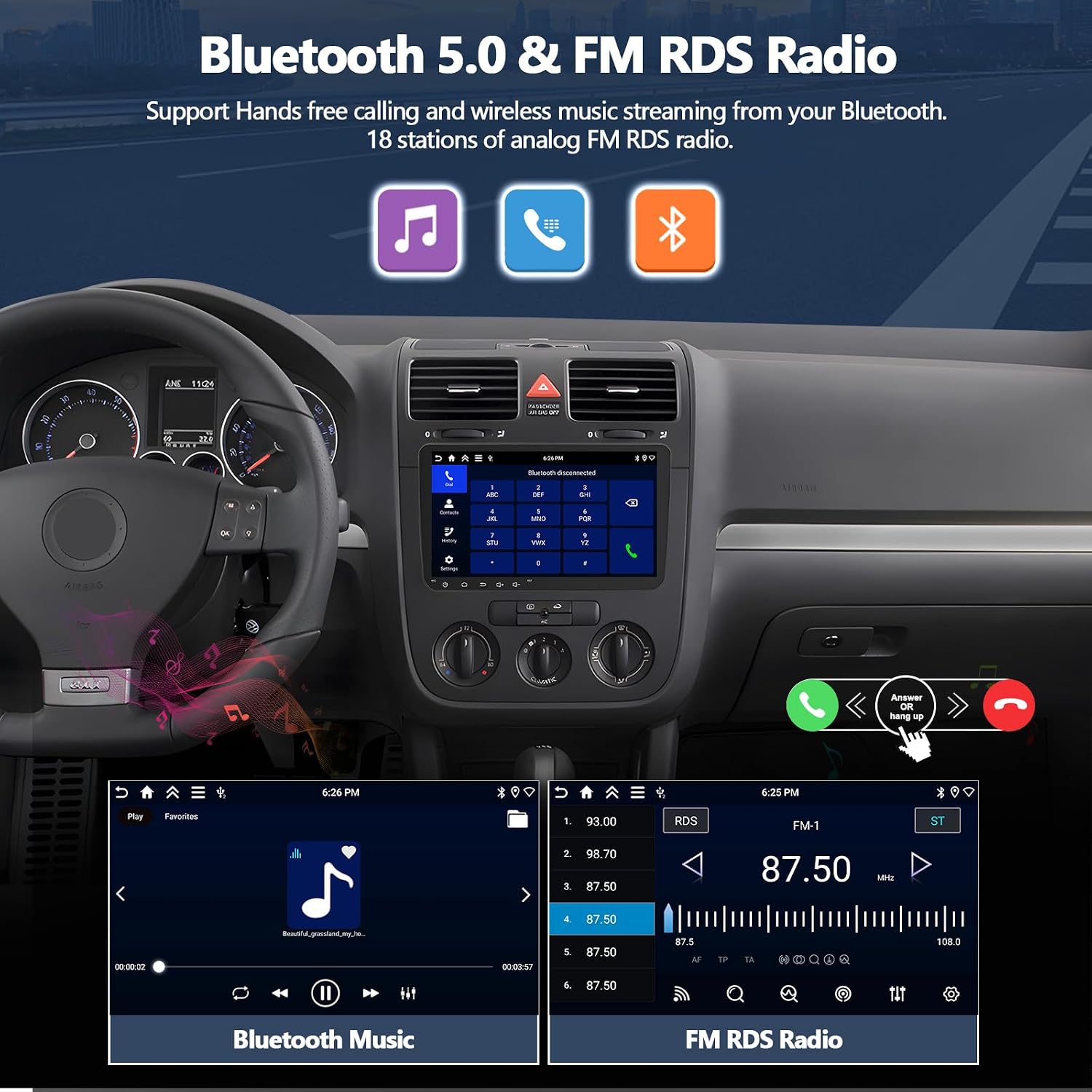
Image: Screenshots of the Bluetooth calling interface and FM RDS radio display.
3.4 32-Band Equalizer (EQ)
Fine-tune your audio experience with the built-in 32-band equalizer. Adjust frequency levels to match your musical preferences and optimize sound quality.

Image: Screenshot of the 32-band equalizer interface with adjustable frequency bands.
3.5 Steering Wheel Control
The unit supports your vehicle's factory steering wheel controls. After connecting the Canbus (if required), you can configure the buttons to control various functions like volume, track skipping, and answering calls, ensuring a safer driving experience.

Image: Interface for programming steering wheel control buttons.
3.6 Split Screen Functionality
The split-screen feature allows you to run two applications simultaneously, such as navigation and music playback, enhancing multitasking capabilities while driving.
4. Maintenance
To ensure optimal performance and longevity of your CAMECHO Car Stereo Radio, follow these general maintenance guidelines:
- Screen Cleaning: Use a soft, lint-free cloth to gently wipe the touch screen. Avoid abrasive cleaners or solvents that could damage the display.
- Software Updates: Periodically check for available software updates to ensure you have the latest features and bug fixes. Updates can typically be performed via a WiFi connection.
- Environmental Conditions: Avoid exposing the unit to extreme temperatures, direct sunlight for prolonged periods, or excessive moisture.
- Cable Connections: Ensure all cables are securely connected. Loose connections can lead to intermittent issues.
5. Troubleshooting
5.1 Power Consumption Issues (If Media Player Experiences Issues)
If your car media player experiences power consumption issues, consider the following solutions:
- Confirm that the Canbus and the A&B ports of the power line are connected simultaneously. Do not connect them separately.
- If Canbus is connected, try unplugging it to see if the issue is related to the Canbus.
- After turning off the engine, if the ACC red wire of the power supply still has electricity, confirm if there is a wiring error. If the ACC red wire still has electricity after turning off the engine, it is necessary to reconnect it properly.
- If your Canbus is not from Simple Soft, consider replacing it with a Simple Soft Canbus.
5.2 No Sound Output
If you experience no sound from the unit, check the following connections and settings:
- Connect the AUX IN R/L (or AUDIO OUT R/L) from the RCA cable to AUX IN R/L from the power harness.
- For power amplifiers, connect the power cable of the amplifier to the ACC cable of the Power harness.
- Open the "Car Amplifier" option on the drag-down page of the top bar on the head unit.
- Connect the AMP cable to the ACC cable of the Power harness.

Image: Visual guide for troubleshooting no sound issues, showing cable connections and settings.
5.3 General Connectivity Issues
- Bluetooth/CarPlay/Android Auto not connecting: Ensure Bluetooth is enabled on your phone and the head unit. Try forgetting the device on both ends and re-pairing.
- GPS signal loss: Ensure the GPS antenna is securely connected and has a clear line of sight to the sky (e.g., mounted on the dashboard).
- Touch screen unresponsiveness: Restart the unit. If the issue persists, perform a factory reset (note: this will erase all user data).
6. Specifications
| Feature | Specification |
|---|---|
| Brand | CAMECHO |
| Screen Size | 9 inches |
| Display Resolution | 1280 x 720 |
| Operating System | Android 15 |
| RAM | 4GB |
| Memory Storage Capacity | 64 GB |
| Connectivity Technology | Bluetooth 5.0, WiFi |
| Special Features | Wireless Apple CarPlay & Android Auto, GPS Navigation, 32-Band EQ |
| Mounting Type | Dashboard Mount |
| Product Dimensions | 8.6"L x 2"W x 5.2"H |
| Human-Interface Input | Microphone, Touchscreen |
7. Warranty Information
The CAMECHO Car Stereo Radio comes with a 1-year warranty from the date of purchase. This warranty covers manufacturing defects and malfunctions under normal use. Please retain your proof of purchase for warranty claims.
The warranty does not cover damage caused by improper installation, misuse, accidents, unauthorized repairs, or normal wear and tear.
8. Customer Support
For technical assistance, installation queries, or any other support needs, please contact CAMECHO customer service.
Email: CAMECHOVIP@126.com

Image: Customer support contact details, including email address.


