
1. Introduction
Thank you for choosing Auxmir Smart A19 RGB+CCT LED Light Bulbs. These smart bulbs offer a wide range of colors and tunable white light, controllable via Wi-Fi, Bluetooth, remote, or voice commands through Amazon Alexa and Google Assistant. This manual provides essential information for safe installation, operation, and maintenance of your smart light bulbs.
2. Safety Information
- Indoor Use Only: These bulbs are designed for indoor use. Do not install in wet or humid locations.
- Power Off Before Installation: Always turn off the power to the fixture before installing or removing the bulb.
- Proper Voltage: Ensure the fixture's voltage is compatible with the bulb (AC100-130V).
- Dimmer Compatibility: Do not use with standard dimmer switches. Dimming is controlled via the app or voice commands.
- Avoid Enclosed Fixtures: Do not install in fully enclosed fixtures, as this can trap heat and shorten the bulb's lifespan.
- Keep Away from Water: Avoid exposure to water or other liquids.
3. Package Contents
- Auxmir Smart A19 RGB+CCT LED Light Bulb (2-Pack)
- Remote Control (1)
- User Manual (This document)
4. Product Features
- RGB+CCT Color Changing: 16 million RGB colors and tunable white light (2700K warm white to 6500K cool daylight).
- Dual Connectivity: Supports both Wi-Fi (2.4GHz only) and Bluetooth for flexible control.
- Multiple Control Methods: Control via Briturn App, included remote, or voice commands with Alexa and Google Home.
- No Hub Required: Connects directly to your 2.4GHz Wi-Fi network.
- Music Sync: Lights change color and brightness in rhythm with music.
- Scene Modes: Pre-set scenes and customizable DIY effects (fading, flashing, breathing).
- Scheduling & Timer: Set schedules for automatic on/off and brightness adjustments.
- Energy Efficient: 9W power consumption, equivalent to a 60W incandescent bulb, delivering 800 lumens.
- Long Lifespan: Up to 20,000 hours of operation.
5. Setup
5.1 Physical Installation
- Ensure the power to the light fixture is turned off at the switch before installation.
- Carefully screw the Auxmir Smart Light Bulb into a standard E26 base socket.
- Turn on the power to the light fixture. The bulb should flash, indicating it is in pairing mode.
5.2 App Download and Pairing (Briturn App)
The Briturn App is required for full smart functionality. Ensure your mobile device is connected to a 2.4GHz Wi-Fi network.
- Download the App: Search for "Briturn" in the Apple App Store or Google Play Store, or scan the QR code provided in the product packaging.
- Register/Log In: Open the Briturn App and create a new account or log in if you already have one.
- Add Device: Tap the "+" icon or "Add Device" button in the app.
- Select Device Type: Choose "Lighting" or "Light Source (Wi-Fi)" from the device list.
- Confirm Pairing Mode: Ensure your bulb is flashing rapidly. If not, turn the bulb off and on 3 times (on-off-on-off-on) until it flashes.
- Connect to Wi-Fi: Enter your 2.4GHz Wi-Fi network name and password in the app.
- Pairing: The app will begin searching for the bulb. Once found, the bulb will stop flashing and remain steadily lit.
- Rename Device: You can rename the bulb for easier control (e.g., "Living Room Light").
Bluetooth Control: If your Wi-Fi is unavailable, you can still control the bulb directly via Bluetooth within a 40-meter (130 feet) range using the Briturn App. Ensure Bluetooth is enabled on your phone.
5.3 Voice Assistant Integration (Alexa & Google Home)
To enable voice control, link your Briturn account to Amazon Alexa or Google Assistant.
- Open Voice Assistant App: Open the Amazon Alexa app or Google Home app on your mobile device.
- Add Device/Skill: Navigate to the "Skills & Games" section (Alexa) or "Works with Google" section (Google Home).
- Search for Briturn: Search for the "Briturn" skill/service.
- Enable Skill/Link Account: Enable the Briturn skill and link it to your Briturn account using your Briturn login credentials.
- Discover Devices: Once linked, ask your voice assistant to "Discover devices" or manually initiate device discovery in the app.
- Voice Commands: You can now use voice commands such as:
- "Alexa, turn on Living Room Light."
- "Hey Google, dim Bedroom Light to 50%."
- "Alexa, change Kitchen Light to blue."
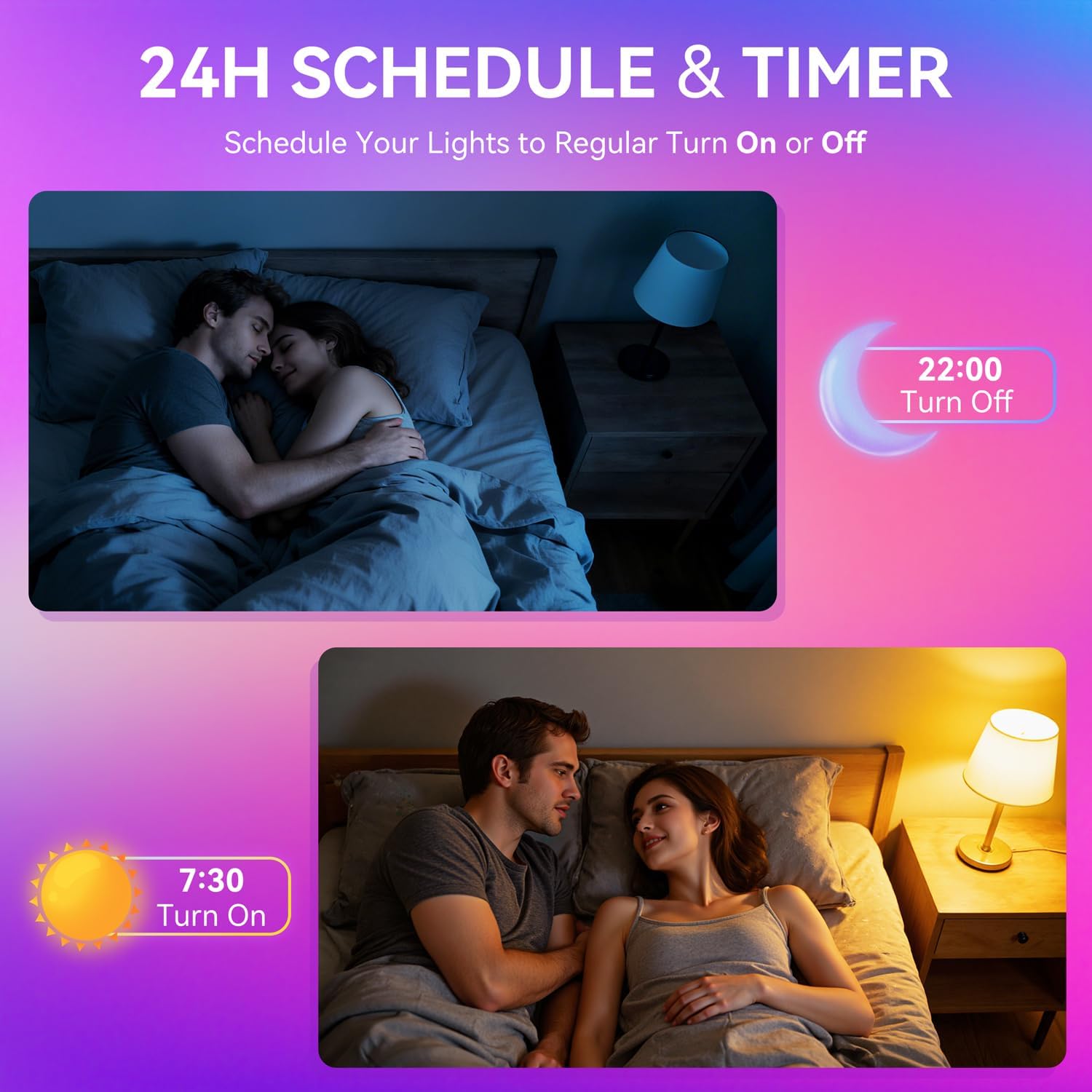
Image: A woman interacting with a smart speaker to control her Auxmir smart light bulb, demonstrating voice control functionality.
6. Operating Instructions
6.1 Color and Brightness Control
- Color Selection: In the Briturn App, select your bulb and choose from 16 million RGB colors using the color wheel.
- Tunable White: Adjust the white light temperature from 2700K (warm white) to 6500K (cool daylight) to suit your preference.
- Dimming: Use the brightness slider in the app or voice commands to adjust brightness from 1% to 100%.

Image: Three Auxmir smart bulbs showcasing their ability to display a wide range of RGB colors and tunable white light, from warm to cool.
6.2 Scene Modes
The Briturn App offers various pre-set scenes and allows you to create custom lighting effects.
- Pre-set Scenes: Select from modes like Movie, Sleep, Festival, and more to instantly change the ambiance of your room.
- DIY Scenes: Create your own custom lighting effects by adjusting colors, brightness, and transition styles (fading, flashing, breathing). Save these as personal scenes for quick access.

Image: An example of a living space transformed by Auxmir smart lighting, demonstrating various scene modes and their impact on room ambiance.
6.3 Music Sync
Synchronize your lights with music playing on your phone or through the phone's microphone.
- In the Briturn App, select the Music Sync feature.
- Choose from modes like Party, Dynamic, Calm, or Auto Rhythm.
- The bulbs will change colors and brightness according to the rhythm and beat of the music detected by your phone's microphone.

Image: A visual representation of the music sync feature, where Auxmir smart bulbs change colors and patterns in response to music, creating a dynamic atmosphere.
6.4 Scheduling and Timer
Automate your lighting with schedules and timers.
- In the Briturn App, navigate to the "Schedule" or "Timer" section for your bulb.
- Set specific times for the bulb to turn on or off.
- Customize brightness and color for scheduled events (e.g., a warm light to wake up, a dim light for bedtime).
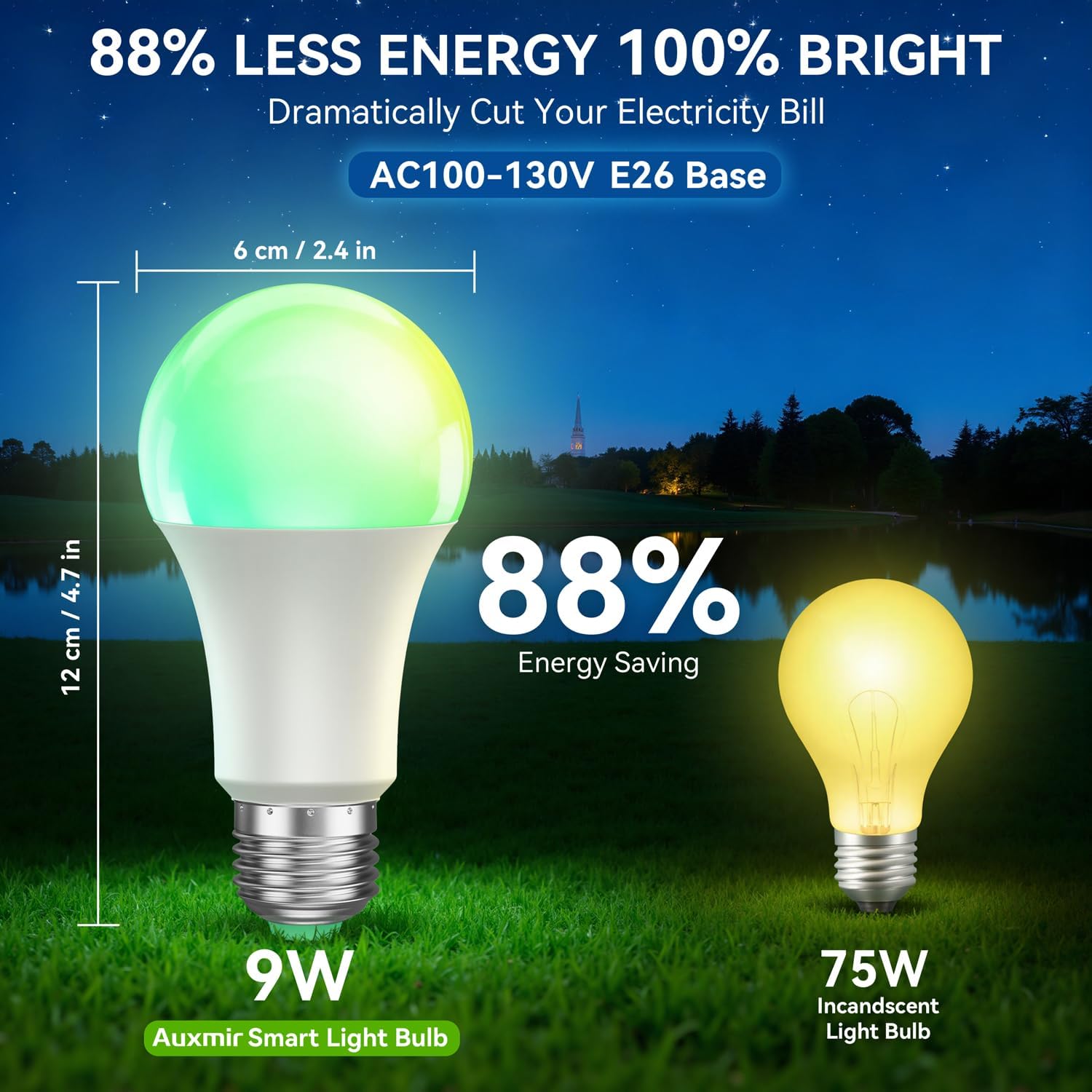
Image: Illustrations depicting the scheduling feature, where Auxmir smart bulbs can be programmed to turn on and off at specific times, such as for waking up or going to bed.
6.5 Group Control
Control multiple Auxmir smart bulbs simultaneously.
- In the Briturn App, go to the device list.
- Select the option to create a "Group."
- Add the desired bulbs to the group (e.g., "Living Room Lights").
- You can now control all bulbs in the group with a single command or tap, adjusting their color, brightness, and scenes together.

Image: A diagram illustrating how Auxmir smart bulbs can be grouped and controlled across different rooms in a home, enabling synchronized lighting for various activities.
7. Maintenance
- Cleaning: Ensure the bulb is off and cool before cleaning. Wipe with a soft, dry cloth. Do not use liquid cleaners.
- Replacement: When the bulb reaches the end of its lifespan, replace it with another Auxmir Smart A19 LED Light Bulb or a compatible E26 LED bulb.
- Storage: If storing the bulb, keep it in a cool, dry place away from direct sunlight and extreme temperatures.
8. Troubleshooting
| Problem | Possible Cause | Solution |
|---|---|---|
| Bulb not turning on | No power to the fixture; Bulb not screwed in properly; Bulb is faulty. | Check power switch and circuit breaker. Ensure bulb is securely screwed in. Test bulb in another fixture. |
| Bulb not connecting to Wi-Fi | Incorrect Wi-Fi password; Not a 2.4GHz network; Bulb not in pairing mode; Router too far. | Verify Wi-Fi password. Ensure you are on a 2.4GHz network. Reset bulb to pairing mode (on-off-on-off-on). Move bulb closer to router. |
| Voice control not working | Briturn skill not enabled/linked; Incorrect device name; Voice assistant not connected to internet. | Ensure Briturn skill is enabled and linked in Alexa/Google Home app. Use the exact device name. Check internet connection of your voice assistant device. |
| Remote control not working | Battery depleted; Obstruction between remote and bulb; Remote not paired. | Replace remote battery. Ensure clear line of sight. Refer to remote pairing instructions (if applicable, usually automatic). |
| Bulb flickering or unstable light | Loose connection; Electrical interference; Faulty bulb. | Check bulb connection. Ensure no other devices are causing interference. If problem persists, contact support. |
9. Specifications
| Feature | Specification |
|---|---|
| Model Number | ZJ-BWBL1L-RGBWW-2PP-BT |
| Bulb Shape Size | A19 |
| Bulb Base | E26 |
| Wattage | 9 Watts |
| Incandescent Equivalent | 60 Watts |
| Brightness | 800 Lumens |
| Light Color | Multicolor (RGB) + Tunable White (2700K-6500K) |
| Dimmable | 1% - 100% via App/Voice |
| Connectivity | Wi-Fi 2.4GHz, Bluetooth |
| Control Method | App, Remote, Voice (Alexa, Google Assistant) |
| Input Voltage | AC100-130V |
| Lifespan | 20,000 Hours |
| Indoor/Outdoor Usage | Indoor Only |
| Dimensions (W x H) | 2.4" x 4.7" (6 cm x 12 cm) |
| Material | Glass |
10. Warranty and Support
10.1 Warranty Information
Auxmir Smart Light Bulbs come with a 3-year warranty from the date of purchase. This warranty covers manufacturing defects and malfunctions under normal use. It does not cover damage caused by misuse, accidents, unauthorized modifications, or improper installation.
10.2 Customer Support
If you encounter any issues or have questions regarding your Auxmir Smart Light Bulbs, please contact our customer support team:
- Email: [Insert Customer Support Email Here]
- Phone: [Insert Customer Support Phone Number Here]
- Website: Visit the official Auxmir website for FAQs and additional resources.
Please have your model number (ZJ-BWBL1L-RGBWW-2PP-BT) and purchase details ready when contacting support.