
1. Introduction
Thank you for choosing the SABLUTE MAM6 Wireless Mouse. This ergonomic mouse offers versatile connectivity options, advanced scrolling features, and customizable controls to enhance your productivity across various devices and operating systems. Please read this manual carefully to ensure proper setup and optimal use of your new mouse.
2. Package Contents
- SABLUTE MAM6 Wireless Mouse
- USB-C Charging Cable
- 2.4G USB Receiver
- User Manual
3. Product Overview
The SABLUTE MAM6 mouse is designed for right-handed users, featuring a contoured shape with a thumb groove for comfortable palm grip. It includes multiple buttons and scroll wheels for enhanced functionality.

Image: The ergonomic design of the SABLUTE MAM6 mouse, showing how it fits comfortably in a right hand with a natural palm grip.

Image: Diagram illustrating the dimensions of the SABLUTE MAM6 mouse (12.4L x 7.4W cm) and a hand size guide recommending it for medium to large hands (A > 6.9 inches).
Key Features:
- Tri-Mode Connectivity: Supports 2.4G wireless, Dual Bluetooth, and Wired USB-C connections.
- Dual Scroll Wheels: Main scroll wheel with standard and ultra-fast fly scroll modes, plus a side scroll wheel for horizontal navigation.
- Customizable Buttons: 7 programmable buttons via software (app may be restricted on macOS).
- High DPI: Adjustable DPI up to 8000 for precise control.
- Ergonomic Design: Right-hand contoured shape for comfort during extended use.
- Rechargeable Battery: Built-in 800mAh battery with Type-C charging.
- Quiet Clicks: Designed for reduced click noise.
4. Setup
4.1 Charging the Mouse
Before first use, or when the battery is low, connect the mouse to a power source using the provided USB Type-C cable. The mouse can be used in wired mode while charging.
4.2 Connecting via 2.4G Wireless
- Insert the 2.4G USB receiver into an available USB port on your computer.
- Turn on the mouse.
- Press the connection mode switch button on the bottom of the mouse until the indicator light for 2.4G mode illuminates.
- The mouse should automatically connect to your device.
4.3 Connecting via Bluetooth
The mouse supports two Bluetooth channels (BT1 and BT2).
- Turn on the mouse.
- Press the connection mode switch button on the bottom of the mouse to select either BT1 or BT2. The corresponding indicator light will flash slowly.
- Press and hold the connection mode switch button for 3-5 seconds until the BT1 or BT2 indicator light flashes rapidly. This indicates pairing mode.
- On your device (computer, laptop, tablet), open Bluetooth settings and search for new devices.
- Select "SABLUTE MAM6" from the list of available devices to pair.
- Once paired, the indicator light will stop flashing and remain solid for a few seconds before turning off.
4.4 Connecting via Wired Mode
Connect the mouse to your computer using the USB Type-C cable. The mouse will automatically switch to wired mode and function without needing a receiver or Bluetooth connection.

Image: The SABLUTE MAM6 mouse demonstrating seamless switching between a laptop (2.4G), a desktop monitor (Bluetooth 1), and a tablet (Bluetooth 2).
5. Operating Instructions
5.1 Switching Connection Modes
Use the connection mode switch button on the bottom of the mouse to cycle between 2.4G, Bluetooth 1, and Bluetooth 2 channels. This allows you to quickly switch control between up to three different devices.
5.2 Main Scroll Wheel (Standard / Fast Scroll)
The main scroll wheel offers two modes:
- Standard Mode: Provides segmented, precise scrolling for controlled navigation.
- Fast Scroll Mode: Allows for rapid movement through long documents or web pages.
To switch between these modes, press the button located directly below the main scroll wheel.

Image: The SABLUTE MAM6 mouse's main scroll wheel in action, illustrating its ability to quickly navigate through large spreadsheets or documents.
5.3 Side Scroll Wheel (Horizontal Scrolling)
The thumb-operated side scroll wheel is designed for horizontal navigation. This is particularly useful for wide documents, spreadsheets, video editing timelines, and large dashboards, allowing you to scroll left and right effortlessly.

Image: The SABLUTE MAM6 mouse's side scroll wheel being used for horizontal navigation within video editing software.
5.4 Customizing Buttons and DPI (Software)
The SABLUTE MAM6 mouse features 7 programmable buttons. You can customize these buttons, adjust DPI settings, and create macros using the dedicated software. Please note that the software's functionality may be restricted on macOS.

Image: A diagram of the SABLUTE MAM6 mouse highlighting its 5 programmable buttons and illustrating customization options for key response time, DPI, and macros.
5.5 DPI Adjustment
The mouse supports DPI adjustment up to 8000. You can change the DPI sensitivity through the customization software to match your preference and task requirements.

Image: The SABLUTE MAM6 mouse with a visual representation of its adjustable DPI settings, ranging from 500 to 8000 DPI.
5.6 Quiet Clicks
The MAM6 wireless mouse is designed with quiet click technology, reducing click noise by 90%. This feature is beneficial for maintaining a focused work environment and avoiding disturbance to others.
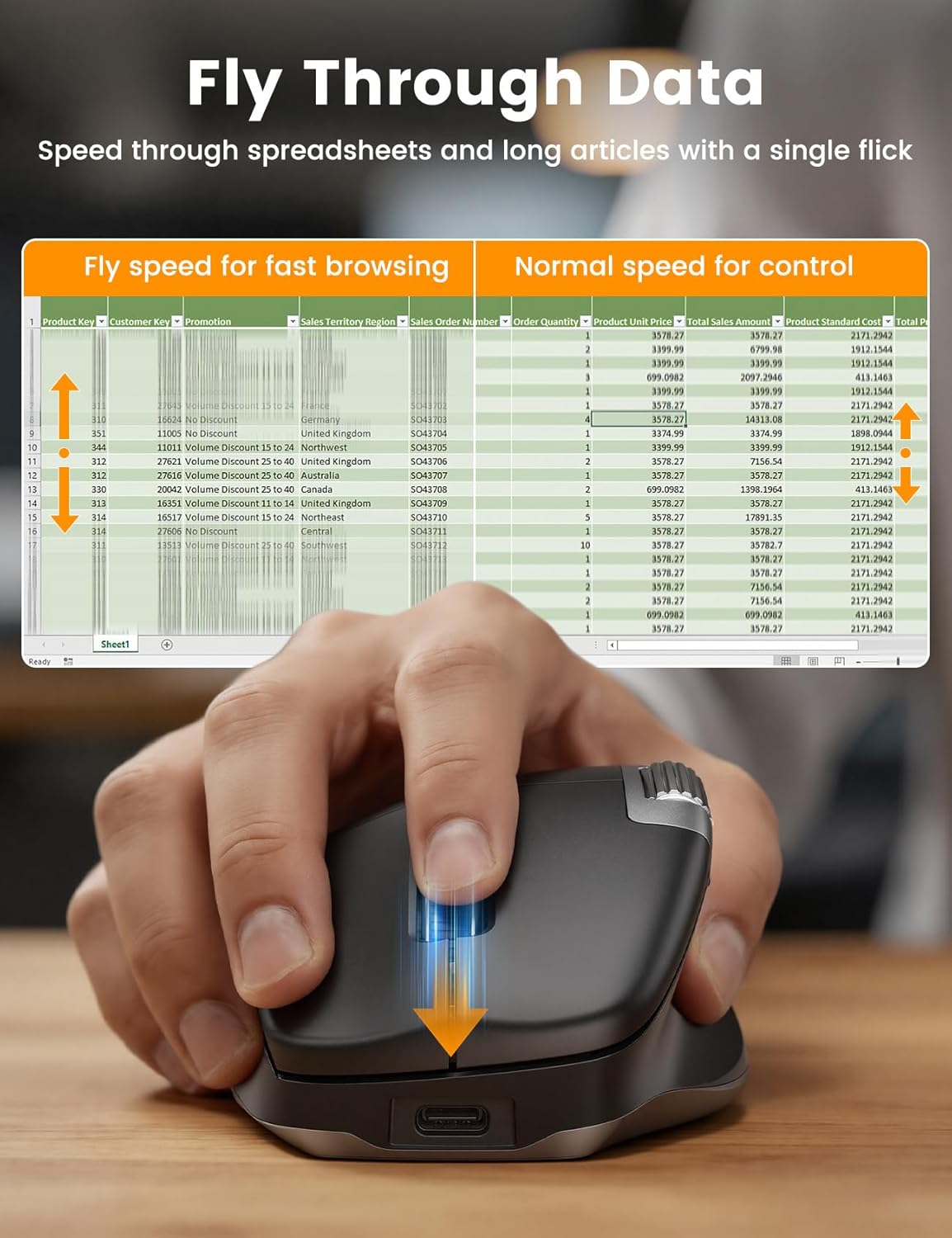
Image: The SABLUTE MAM6 mouse being used in an office environment, illustrating its quiet click feature with a decibel comparison chart.
6. Maintenance
6.1 Cleaning
To clean your mouse, gently wipe its surface with a soft, damp cloth. Avoid using harsh chemicals or abrasive materials, as these can damage the mouse's finish or internal components.
6.2 Battery Care
The mouse features a built-in 800mAh rechargeable battery. To prolong battery life:
- Avoid fully discharging the battery frequently.
- Charge the mouse using the provided USB Type-C cable.
- Store the mouse in a cool, dry place when not in use for extended periods.
7. Troubleshooting
| Problem | Possible Solution |
|---|---|
| Mouse not responding |
|
| Lag or intermittent connection |
|
| Scroll wheel not working correctly |
|
| Buttons not responding or customizing |
|
8. Specifications
| Feature | Detail |
|---|---|
| Model Name | MAM6 |
| Brand | SABLUTE |
| Connectivity Technology | Bluetooth, Radio Frequency (2.4G), USB (Wired) |
| Movement Detection | Optical |
| DPI Sensitivity | Up to 8000 Dots per Inch (Adjustable) |
| Special Features | Ergonomic Design, Fly Scroll, Side Scroll, Programmable Buttons, Rechargeable, Quiet Clicks |
| Hand Orientation | Right |
| Compatible Devices | Laptop, Personal Computer, Tablet |
| Operating System | Multi OS (Windows, macOS) |
| Power Source | Battery Powered (800mAh Rechargeable) |
| Charging Port | USB Type-C |
| Item Dimensions (L x W) | 12.4L x 7.4W centimetres |
| Enclosure Material | Plastic |
9. Warranty and Support
SABLUTE stands behind the quality of its products. For warranty information, technical support, or any inquiries regarding your MAM6 Wireless Mouse, please refer to the contact information provided on the product packaging or visit the official SABLUTE website. Keep your purchase receipt for warranty claims.


