
1. Getting Started
1.1 Package Contents
Ensure all items are present in the package:
- Ulefone Armor Watch Pro x 1
- Charging Cable x 1
- Straps x 2
1.2 Initial Charging
Before first use, fully charge your Ulefone Armor Watch Pro. Connect the magnetic charging cable to the charging points on the back of the watch and to a USB power adapter (not included).
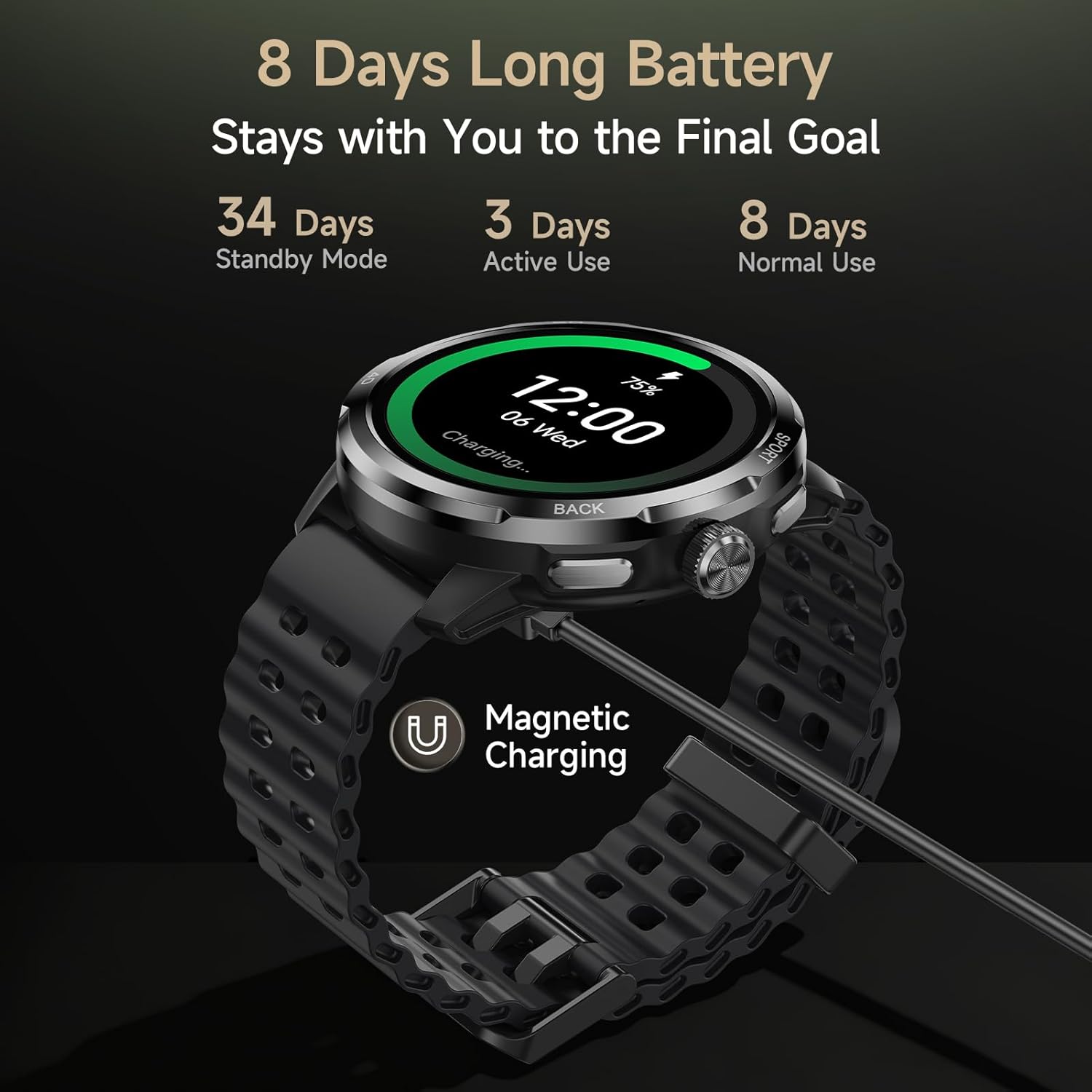
Image: Ulefone Armor Watch Pro connected to its magnetic charging cable, illustrating the charging process and battery life.
1.3 Pairing with Your Smartphone
- Download the Armor Watch Sync app from your smartphone's app store (available for Android and iOS devices).
- Ensure Bluetooth is enabled on your smartphone.
- Open the Armor Watch Sync app and follow the on-screen instructions to search for and pair with your Ulefone Armor Watch Pro.
- Confirm the pairing request on both your watch and smartphone.

Image: The Ulefone Armor Watch Pro smartwatch, ready for pairing and use.
2. Operating Your Smartwatch
2.1 Basic Navigation
- Touchscreen: Swipe left/right, up/down to navigate menus and notifications. Tap to select.
- Side Buttons: Use the physical buttons on the side for quick access to functions like sports modes or to return to the home screen.
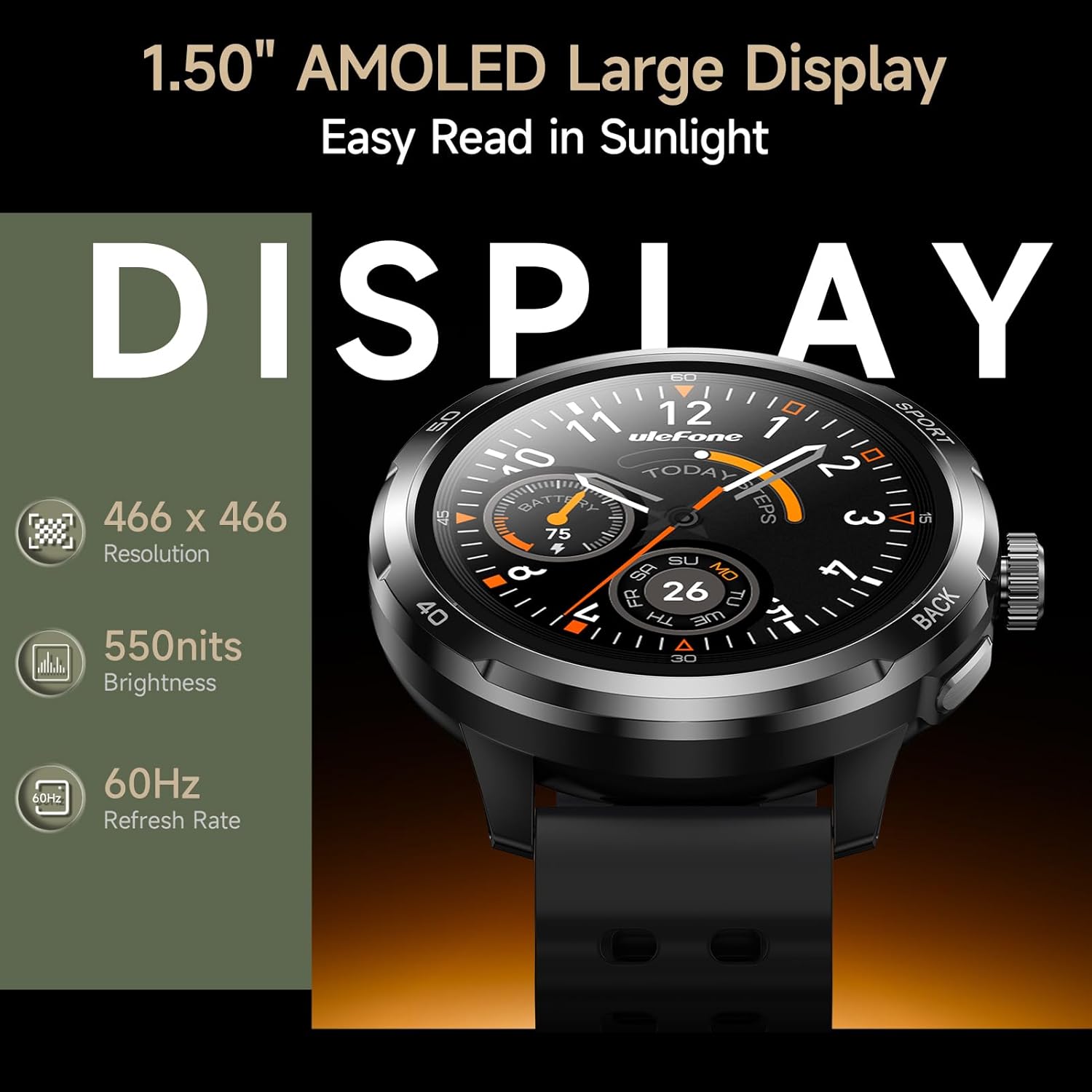
Image: The 1.50" AMOLED display of the Ulefone Armor Watch Pro, highlighting its clarity and resolution.
2.2 Health Monitoring
The Armor Watch Pro provides comprehensive 24/7 health tracking:
- Heart Rate Monitoring: Continuously tracks your heart rate.
- Blood Oxygen (SpO2) Monitoring: Measures blood oxygen levels.
- Stress Tracking: Monitors stress levels throughout the day.
- Sleep Quality Analysis: Records sleep stages (Light, Deep, REM) and detects naps.
- Sedentary Alerts: Reminds you to move after periods of inactivity.
- Women's Health Management: Provides dedicated tracking features.

Image: Health monitoring features on the Ulefone Armor Watch Pro, showing heart rate, activity, and blood oxygen data.
2.3 Sports Modes and GPS
Choose from over 100 sports modes to accurately track your workouts. The built-in GPS provides precise location tracking for outdoor activities without needing your phone.

Image: A person running outdoors, with the Ulefone Armor Watch Pro displaying GPS tracking information.

Image: The Ulefone Armor Watch Pro displaying a workout screen, surrounded by icons representing over 100 sports modes.
2.4 AI Q&A and AI Watch Faces
Utilize the integrated AI assistant (ChatGPT) by raising your wrist and speaking your question. The watch also supports AI-generated watch faces, allowing for personalized designs based on voice commands.

Image: A user interacting with the AI Q&A feature on the Ulefone Armor Watch Pro, asking questions via voice.
2.5 Additional Features
The Ulefone Armor Watch Pro includes a variety of other useful functions:
- Bluetooth 5.3: For stable connectivity.
- Notifications & Calls: Receive alerts and answer calls directly from your wrist.
- Motion Sensing Games: Engage in interactive games.
- Music Control: Manage music playback on your paired phone.
- Weather: Get real-time weather updates.
- Compass: For navigation assistance.
- Find Phone: Locate your misplaced smartphone.
- Calculator, Alarm, Timer, World Clock, Stopwatch: Essential utility tools.
- Cover Lock: Prevents accidental touches.

Image: A visual representation of various additional features available on the Ulefone Armor Watch Pro.
2.6 Product Overview Video
Video: Official Ulefone Armor Watch Pro overview, demonstrating key features like sports tracking, GPS, AI assistant, health monitoring, water resistance, and Bluetooth calls.
3. Maintenance and Care
3.1 Durability and Water Resistance
The Ulefone Armor Watch Pro is built to withstand harsh conditions, certified with military-grade MIL-STD-810H and rated 5ATM, IP68, and IP69K. This means it is resistant to dust, dirt, sand, and submersion in water up to 50 meters. It can be worn while washing hands, running in the rain, or swimming. Note: This device is not designed for diving.
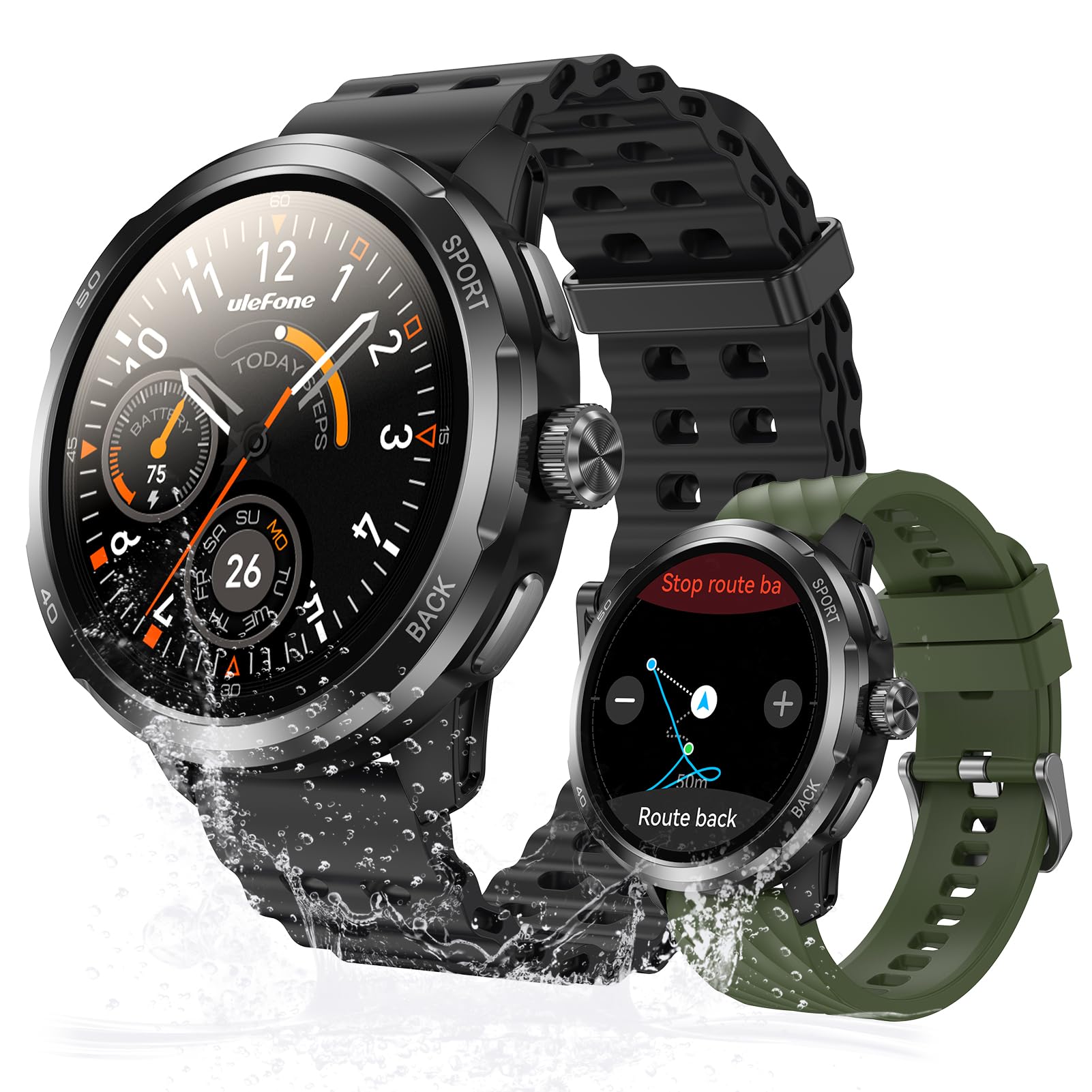
Image: The Ulefone Armor Watch Pro on a wrist, covered in sawdust, highlighting its MIL-STD-810H and IP68/IP69K durability.
3.2 Cleaning Your Watch
To maintain optimal performance and appearance, regularly clean your watch. Wipe the screen and body with a soft, damp cloth. For the straps, use mild soap and water if necessary, then rinse thoroughly and dry completely before wearing.
3.3 Battery Life
The Armor Watch Pro offers up to 8 days of battery life under normal use, 3 days under heavy use, and an impressive 34 days in standby mode. For best battery longevity, avoid extreme temperatures and fully charge the device when prompted.
4. Troubleshooting
If you encounter issues with your Ulefone Armor Watch Pro, refer to the following common solutions:
- Watch not turning on: Ensure the watch is fully charged. Connect it to the charging cable and a power source for at least 30 minutes.
- Cannot pair with phone: Make sure Bluetooth is enabled on your phone and the watch is within range. Restart both the watch and your phone, then try pairing again through the Armor Watch Sync app.
- Inaccurate health data: Ensure the watch is worn snugly on your wrist, not too tight or too loose. Clean the sensors on the back of the watch.
- GPS not tracking: Ensure you are in an open outdoor area with a clear view of the sky. Wait for the watch to acquire a GPS signal before starting your activity.
- Notifications not appearing: Check the notification settings in the Armor Watch Sync app and your phone's system settings to ensure permissions are granted for the app to display notifications.
For persistent issues, consult the official Ulefone support resources or contact customer service.
5. Specifications
| Feature | Detail |
|---|---|
| Model Name | Ulefone Armor Watch Pro |
| Screen Size | 1.5 Inches AMOLED |
| Display Brightness | Up to 550 Nits |
| Screen Protection | Corning Gorilla Glass 3 |
| Waterproof Rating | 5ATM, IP68, IP69K |
| Durability Standard | MIL-STD-810H |
| GPS | Built-in GPS |
| Health Monitoring | Heart Rate, Blood Oxygen, Stress, Sleep |
| Sports Modes | 100+ |
| AI Assistant | ChatGPT integration |
| Connectivity | Bluetooth 5.3 |
| Battery Life (Normal Use) | Up to 8 Days |
| Battery Life (Standby) | Up to 34 Days |
| Weight | 42 Grams |
| Compatible Devices | Android Devices, iOS Devices |
6. Warranty and Support
6.1 Product Warranty
The Ulefone Armor Watch Pro comes with a 1-Year Standard Warranty from the date of purchase. This warranty covers manufacturing defects and malfunctions under normal use. It does not cover damage caused by misuse, accidents, unauthorized modifications, or normal wear and tear.
Please retain your proof of purchase for warranty claims.
6.2 Customer Support
For further assistance, technical support, or warranty inquiries, please visit the official Ulefone website or contact their customer service department. Refer to the contact information provided with your product packaging or on the official Ulefone support page.

