
1. Introduction
This manual provides detailed instructions for the installation, operation, and maintenance of your Enbrighten 800 Series Z-Wave On/Off Paddle Switch, Model 76591. This device is designed to control lighting and other fixtures, integrating with compatible Z-Wave hubs for smart home automation. It supports Z-Wave Plus Long Range (800LR) for extended wireless communication and is compatible with voice assistants like Amazon Alexa and Google Home when connected through a compatible Z-Wave hub.
2. Safety Information
WARNING: RISK OF ELECTRIC SHOCK.
- Always turn off power at the circuit breaker or fuse box before installation.
- Ensure all wiring connections are secure and comply with national and local electrical codes.
- If you are unsure about any part of these instructions, consult a qualified electrician.
- Do not use this switch to control a receptacle.
- Do not use this switch to control a motor-driven appliance.
- Indoor use only.
3. Package Contents
- 1 x Enbrighten Z-Wave In-Wall Smart Paddle Switch
- 1 x White Paddle (pre-installed)
- 1 x Light Almond Paddle (optional replacement)
4. Setup and Installation
4.1 Pre-installation Checklist
- Turn OFF power to the switch box at the circuit breaker or fuse box.
- Remove the wall plate and existing switch.
- Identify the following wires: Line (Hot), Load, Neutral, Ground, and Traveler (if applicable for 3-way/multi-switch setups). A neutral wire is required for this switch.
4.2 Wiring Instructions
The Enbrighten 800 Series switch features SimpleWire™ technology with patented auto-detecting line/load terminals, eliminating guesswork during wiring. It also incorporates QuickFit™ design for easier installation in crowded switch boxes with a 20% reduced housing depth and no break-off tabs.
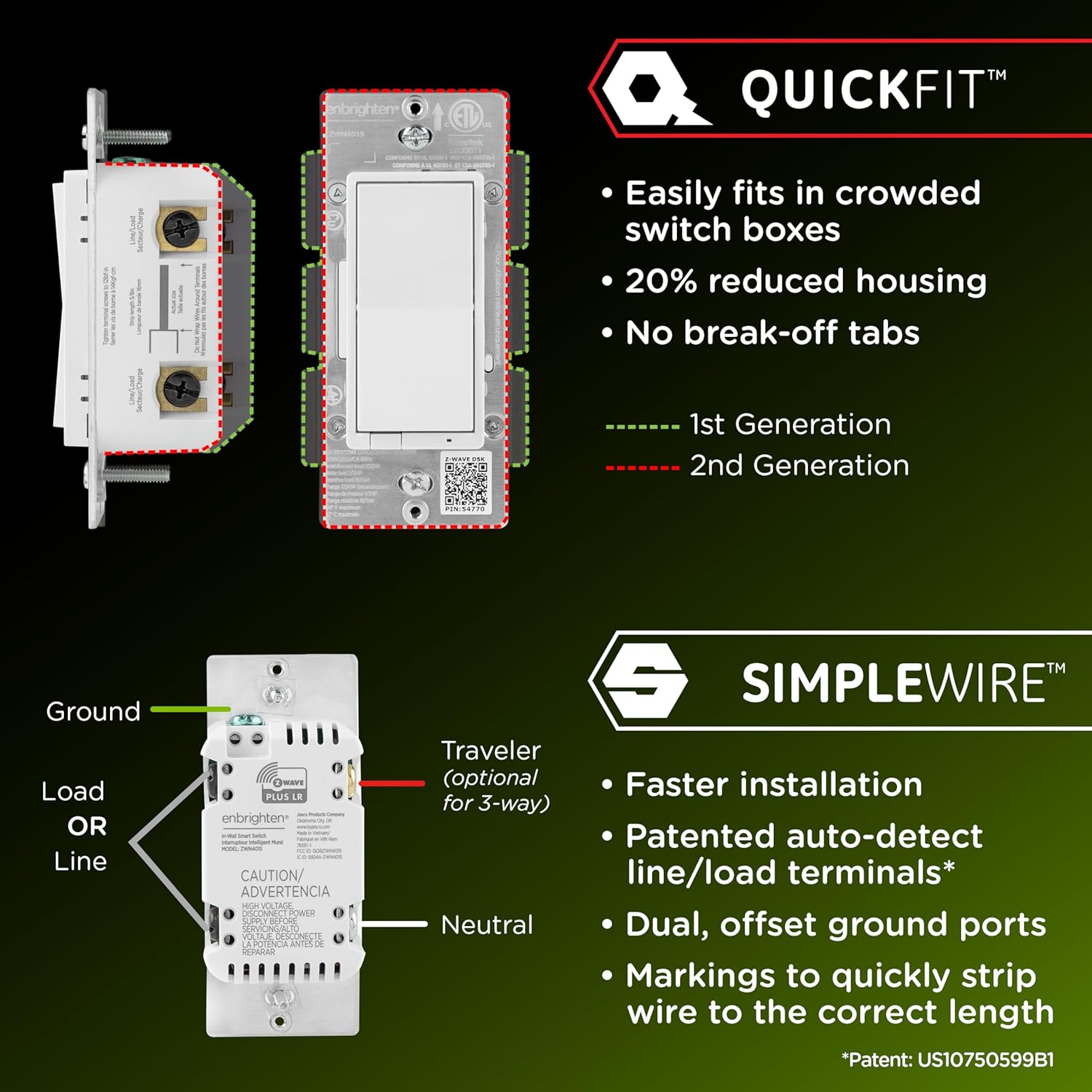
Image: QuickFit and SimpleWire features. QuickFit allows for easier installation in crowded boxes with reduced housing depth. SimpleWire features auto-detecting line/load terminals and dual ground ports.
- Connect the Line (Hot) wire to one of the switch's line/load terminals.
- Connect the Load wire to the other line/load terminal.
- Connect the Neutral wire to the switch's neutral terminal.
- Connect the Ground wire to the switch's ground terminal.
- For 3-way or multi-switch setups, connect the Traveler wire to the designated traveler terminal.
The switch includes both white and light almond paddles, allowing you to match your existing decor. The housing depth is approximately 1.18 inches (29.9mm).

Image: Dimensions of the smart switch, showing a housing depth of 1.18 inches. It also indicates that white and light almond paddles are included.
4.3 Multi-Switch Configuration
This switch supports single-pole or multi-switch configurations. It can work with up to four compatible Enbrighten add-on switches for full functionality from all locations, or with one standard 3-way switch for basic ON/OFF control.
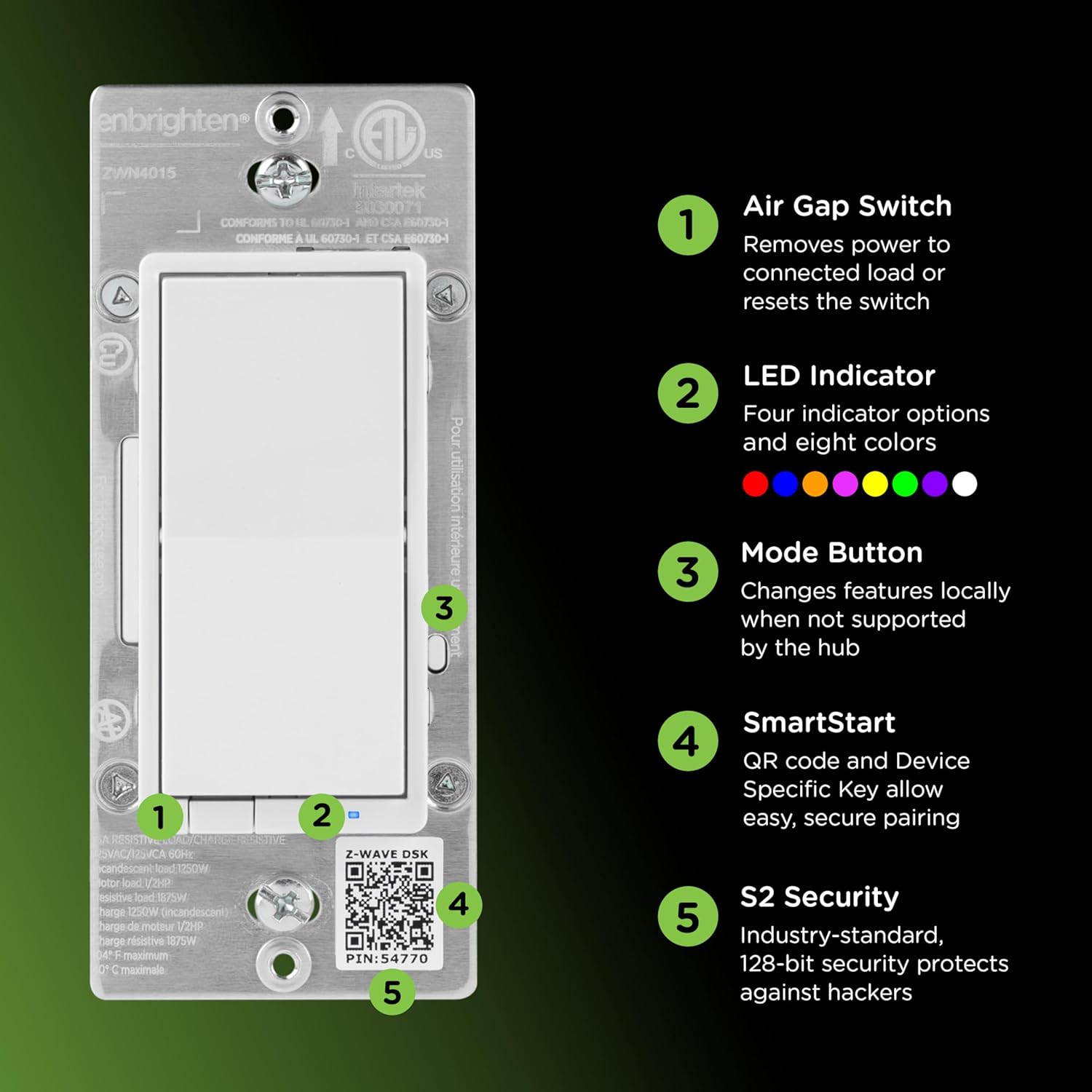
Image: The switch is 3-way ready, working with a standard 3-way switch or up to four add-on switches. It is compatible with LED, CFL, incandescent, and halogen bulbs.
5. Z-Wave Network Inclusion/Exclusion
The Enbrighten 800 Series Z-Wave switch features an Air Gap Switch, LED Indicator, Mode Button, SmartStart QR code, and S2 Security.

Image: Product features include (1) Air Gap Switch to remove power, (2) LED Indicator with four operation options and eight colors, (3) Mode Button for local feature changes, (4) SmartStart QR code for easy pairing, and (5) S2 Security for enhanced protection.
5.1 Adding to a Z-Wave Network (Inclusion)
- Follow the instructions for your Z-Wave certified hub to add a new device.
- When prompted by your hub, press the top or bottom of the paddle switch once.
- The hub will confirm successful inclusion.
- SmartStart: If your hub supports SmartStart, scan the QR code (DSK) on the switch or packaging. The device will automatically include within 10 minutes of being powered on and within range of the hub.
- The switch supports S2 Security, providing industry-standard, 128-bit security against hackers.
5.2 Removing from a Z-Wave Network (Exclusion)
- Follow the instructions for your Z-Wave certified hub to remove a device.
- When prompted by your hub, press the top or bottom of the paddle switch once.
- The hub will confirm successful exclusion.
6. Operating Instructions
6.1 Manual Control
- Press the top of the paddle to turn the connected light/fixture ON.
- Press the bottom of the paddle to turn the connected light/fixture OFF.
6.2 LED Indicator
The LED indicator can be personalized with eight colors and four operation modes. Refer to your Z-Wave hub's advanced settings or the product's full manual for configuration options.
6.3 Mode Button
The mode button allows for local changes to features when not supported by the hub. Consult the full product manual for specific functions accessible via the mode button.
6.4 Voice Control
Once paired with a compatible Z-Wave hub (e.g., SmartThings, Ring Alarm, Wink, ADT Pulse, ADT Command, Trane, Vivint, Nexia, Honeywell, HomeSeer, Ezlo) that supports Amazon Alexa or Google Assistant integration, you can control your switch using voice commands.
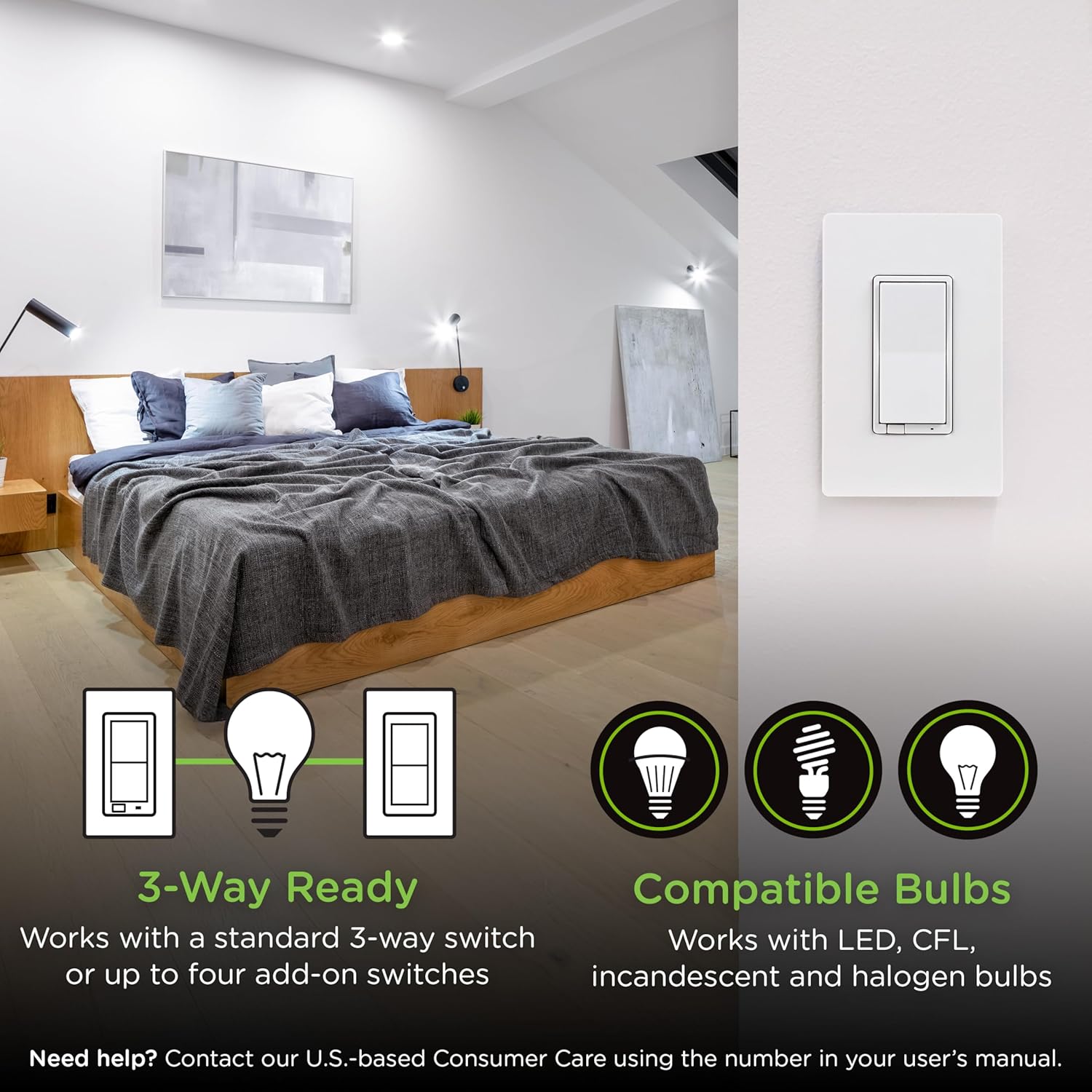
Image: The Enbrighten switch supports voice control through Amazon Alexa and Google Home when connected to a compatible Z-Wave gateway.
6.5 Z-Wave Plus Long Range (800LR)
The switch supports Z-Wave Plus Long Range, offering an extended wireless range of up to 1,300ft. (400m) from the controller when paired with a Z-Wave LR compatible hub. This technology is ideal for larger homes, condos, or commercial installations, and it improves signal penetration through walls, reducing interference. If paired as a Z-Wave Classic device, it extends the mesh network range by up to 150ft. from the nearest device or hub.

Image: The switch supports Z-Wave Long Range, providing enhanced signal reach suitable for multi-dwelling units (MDUs), commercial installations, and large complexes.
7. Maintenance
To clean the switch, gently wipe the surface with a soft, damp cloth. Do not use harsh chemicals or abrasive cleaners. Ensure power is off before cleaning.
8. Troubleshooting
- Device Not Responding: If the switch becomes unresponsive, first check the circuit breaker to ensure power is supplied. Verify all wiring connections are secure. If the issue persists, try performing a Z-Wave exclusion and then re-inclusion.
- Cannot Pair with Hub: Ensure the switch is within range of your Z-Wave hub. Confirm your hub is in inclusion mode. Try moving the hub closer temporarily or adding other Z-Wave devices to strengthen the mesh network.
- LED Indicator Not Working: Check the switch's configuration settings within your Z-Wave hub to ensure the LED indicator is enabled and configured as desired.
- Lights Flicker or Don't Turn On: Verify that the connected bulbs are compatible (LED, CFL, incandescent, halogen). Ensure the total wattage does not exceed the switch's maximum rating.
9. Specifications
| Specification | Value |
|---|---|
| Model | 76591 |
| Operation Mode | ON-OFF |
| Current Rating | 15 Amps |
| Operating Voltage | 120 Volts |
| Wattage | 1800 watts |
| Connectivity Protocol | Z-Wave |
| Circuit Type | 3-way |
| Mounting Type | Wall Mount |
| Item Dimensions (L x W x H) | 4.2 x 1.7 x 1.56 inches |
| Housing Depth | 1.18 inches (29.9mm) |
| Lower Temperature Rating | 32 Degrees Fahrenheit (0°C) |
| Upper Temperature Rating | 104 Degrees Fahrenheit (40°C) |
| Material | Plastic, Metal |
| Color | White (Light Almond paddle included) |
| Certification | ETL |
10. Warranty Information
Warranty information for the Enbrighten 800 Series Z-Wave On/Off Paddle Switch is typically provided with the product packaging or available on the manufacturer's official website. Please refer to those resources for details regarding warranty coverage and terms.
11. Support
For additional assistance, troubleshooting, or to inquire about specific features, please contact Enbrighten customer support. You can often find contact information on the product packaging or by visiting the official Enbrighten website: Enbrighten Store on Amazon.


