
Introduction
This instruction manual provides detailed guidance for the installation, setup, and operation of your Nivian Smart Home DIN Rail WiFi Switch with Consumption Meter. This device allows you to remotely control your electrical circuits, monitor energy consumption, and implement smart home automations, enhancing both convenience and safety in your home or business. Please read this manual thoroughly before installation and use to ensure proper functioning and to prevent any electrical hazards.
Product Overview
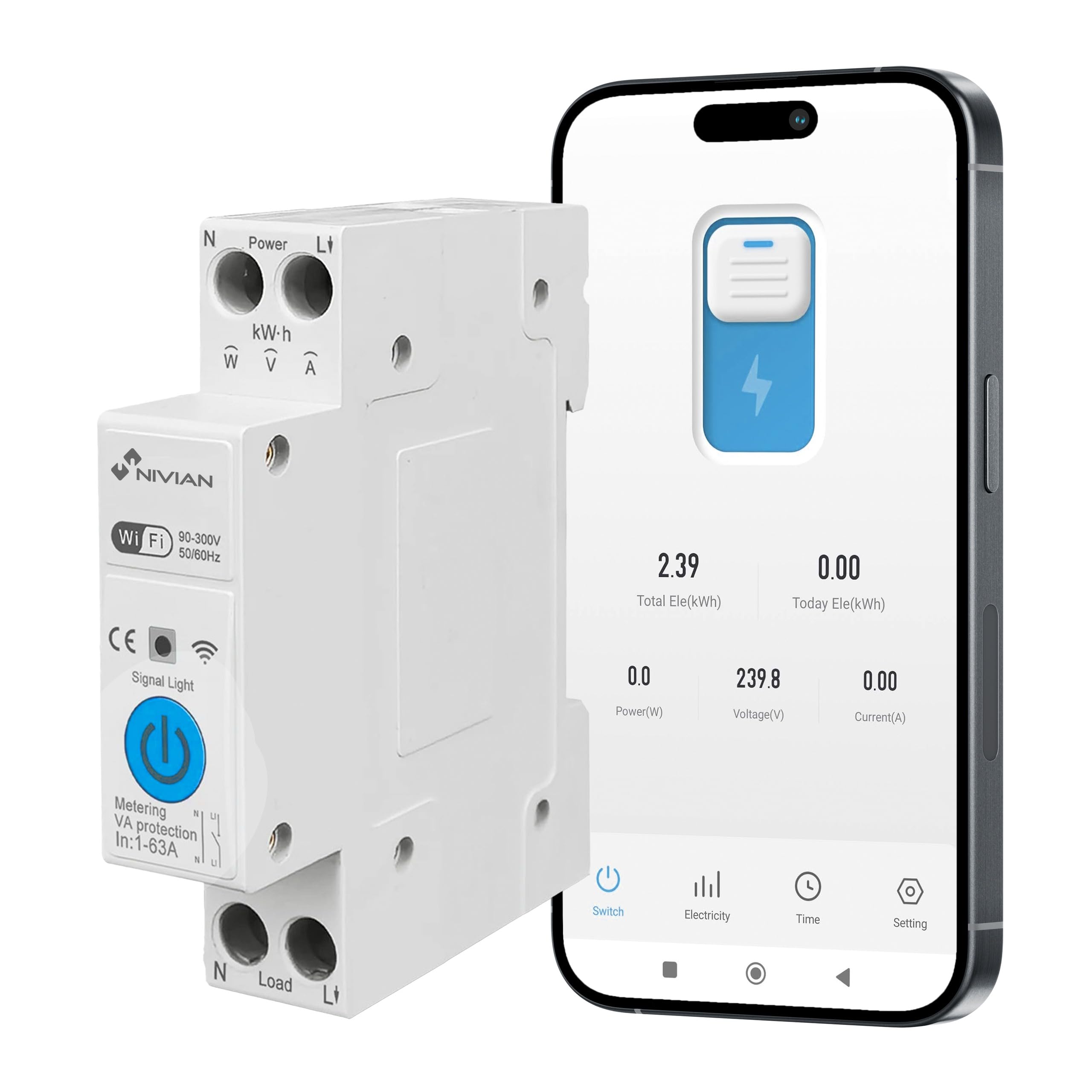
The Nivian Smart Home DIN Rail WiFi Switch is a versatile device designed for intelligent electrical management. It integrates a WiFi-enabled switch with an energy consumption meter, offering comprehensive control and monitoring capabilities.
Key Features:
- Remote Control: Turn circuits on/off from anywhere via the mobile app.
- Energy Monitoring: Real-time and historical data on electricity consumption.
- Smart Automations: Program schedules, timers, and smart scenes.
- Voice Control: Compatible with Alexa and Google Assistant.
- Electrical Protection: Automatic protection against overload, overvoltage, undervoltage, and current limits.
- DIN Rail Installation: Designed for easy integration into electrical panels.
- Fire Retardant Material: V0 grade fire-retardant casing for enhanced safety.
Components Included:
- Nivian Consumption Control Device (NVS-ENERGYMETER65DIN-W)

Safety Information
WARNING: Electrical installation should only be performed by qualified personnel. Incorrect installation can lead to electric shock, fire, or other hazards.
- Always disconnect power at the main circuit breaker before installing or servicing the device.
- Ensure all wiring connections are secure and comply with local electrical codes.
- Do not exceed the maximum current rating of 63A.
- Keep the device away from water and high humidity environments.
- Do not attempt to disassemble or modify the device.
Installation
The Nivian Smart Home DIN Rail WiFi Switch is designed for easy installation on a standard DIN rail within your electrical distribution board.
Installation Steps:
- Power Disconnection: Before starting, ensure the main power supply to the electrical panel is completely disconnected.
- Mounting: Clip the device onto a standard 35mm DIN rail in your electrical panel. Ensure it is securely fastened.
- Wiring:
- Connect the incoming Live (L1) and Neutral (N) wires to the "Power" terminals at the top of the device.
- Connect the outgoing Live (L1) and Neutral (N) wires to the "Load" terminals at the bottom of the device, leading to the circuit you wish to control.
- Ensure all connections are tight and correct to prevent loose contacts or short circuits.
- Power Restoration: Once wiring is complete and verified, restore power to the electrical panel. The device's signal light should illuminate.

Setup
To utilize the smart features of your Nivian device, you need to connect it to the Nivian Smart Home app (or a compatible app like Tuya Smart or Smart Life).
App Pairing Steps:
- Download the App: Download the "Nivian Smart Home" app from your smartphone's app store (available for iOS and Android). Alternatively, you can use the Tuya Smart or Smart Life app.
- Register/Log In: Open the app and register for a new account or log in with an existing one.
- Add Device: In the app, tap the "+" icon to add a new device.
- Bluetooth Pairing: The device supports quick configuration via Bluetooth. Ensure Bluetooth is enabled on your smartphone. The app should automatically detect the device or guide you through a discovery process.
- WiFi Connection: Follow the in-app instructions to connect the device to your 2.4GHz WiFi network. Enter your WiFi password when prompted.
- Confirmation: Once successfully paired, the device will appear in your app's device list. You can then rename it for easier identification.

Operating
After successful setup, you can control and monitor your electrical circuits using the Nivian Smart Home app or voice commands.
Remote Control:
Open the Nivian Smart Home app, select your device, and use the on-screen toggle to switch the connected circuit on or off from anywhere with an internet connection.
Energy Monitoring:
The app provides real-time energy consumption data (kWh, Amps, Volts, Watts). You can view daily, monthly, and yearly statistics, helping you identify energy usage patterns and potential savings.

Smart Automations:
Create custom automation rules within the app:
- Schedules: Set specific times for the circuit to turn on or off (e.g., lights on at sunset).
- Timers: Set countdown timers for temporary control.
- Smart Scenes: Trigger actions based on conditions like location, weather, or other smart devices (e.g., turn off power when leaving home).
- Presence Simulation: Automate lights or devices to turn on/off randomly to simulate occupancy when you are away.

Voice Control:
Integrate your Nivian device with Amazon Alexa or Google Assistant for hands-free control.
- Link Account: In the Alexa or Google Home app, enable the "Nivian Smart Home" skill/service and link your Nivian account.
- Discover Devices: Ask Alexa or Google Assistant to discover new devices.
- Voice Commands: Use commands like "Alexa, turn on [device name]" or "Hey Google, turn off [device name]".
Protection Functions
The device includes intelligent electrical protections to safeguard your installation and connected equipment.
- Overload Protection: Automatically cuts power if the current exceeds a set limit (up to 63A).
- Overvoltage Protection: Protects against damage from excessively high voltage.
- Undervoltage Protection: Prevents equipment damage from excessively low voltage.
- Current Limit Protection: Allows setting a maximum current threshold.
- Leakage Current Protection: Detects and protects against hazardous leakage currents.
You can configure custom limits and receive alerts via the app if any protection is triggered, enhancing safety and preventing damage.

Maintenance
The Nivian Smart Home DIN Rail WiFi Switch requires minimal maintenance.
- Cleaning: Periodically wipe the device with a dry, soft cloth. Do not use abrasive cleaners or solvents.
- Connection Check: Occasionally, verify that all electrical connections are secure, especially after initial installation or if the device has been moved.
- Firmware Updates: Keep the Nivian Smart Home app updated to ensure you receive the latest firmware for your device, which may include performance improvements and new features.
Troubleshooting
If you encounter issues with your Nivian Smart Home DIN Rail WiFi Switch, refer to the following common problems and solutions:
| Problem | Possible Cause / Solution |
|---|---|
| Device not connecting to WiFi / App |
|
| Device not responding to app commands |
|
| No energy consumption data |
|
| Cannot connect with Alexa/Google Assistant |
|
| Device trips frequently |
|
Specifications
| Feature | Detail |
|---|---|
| Model Number | NVS-ENERGYMETER65DIN-W |
| Brand | NIVIAN |
| Dimensions (L x W x H) | 8 x 3 x 2 cm (3.15 x 1.18 x 0.79 inches) |
| Weight | 110 g (0.24 lbs) |
| Max Current Rating | 63A |
| Voltage Range | 90-300V |
| Frequency | 50/60Hz |
| Mounting Type | DIN Rail |
| Connectivity | WiFi (2.4GHz), Bluetooth for quick setup |
| Material | V0 Fire Retardant |
| Included Components | Nivian Consumption Control Device |
Warranty and Support
For detailed warranty information, technical support, and additional resources, please visit the official Nivian Home website or their social media channels.
- Official Website: Nivian Home
- Instagram: @nivianhome_es
- YouTube: Nivian Official Channel
These platforms offer tutorials, tips, and direct support to help you maximize your device's potential.


