
Introduction
The Wooask A9 AI Translator Earbuds are designed to provide seamless global communication and connectivity. This device integrates instant translation, 4G calling, mobile hotspot capabilities, and an AI assistant into a single, portable unit. It supports both online and offline translation across numerous languages, making it an essential tool for international travel, business, and daily interactions.
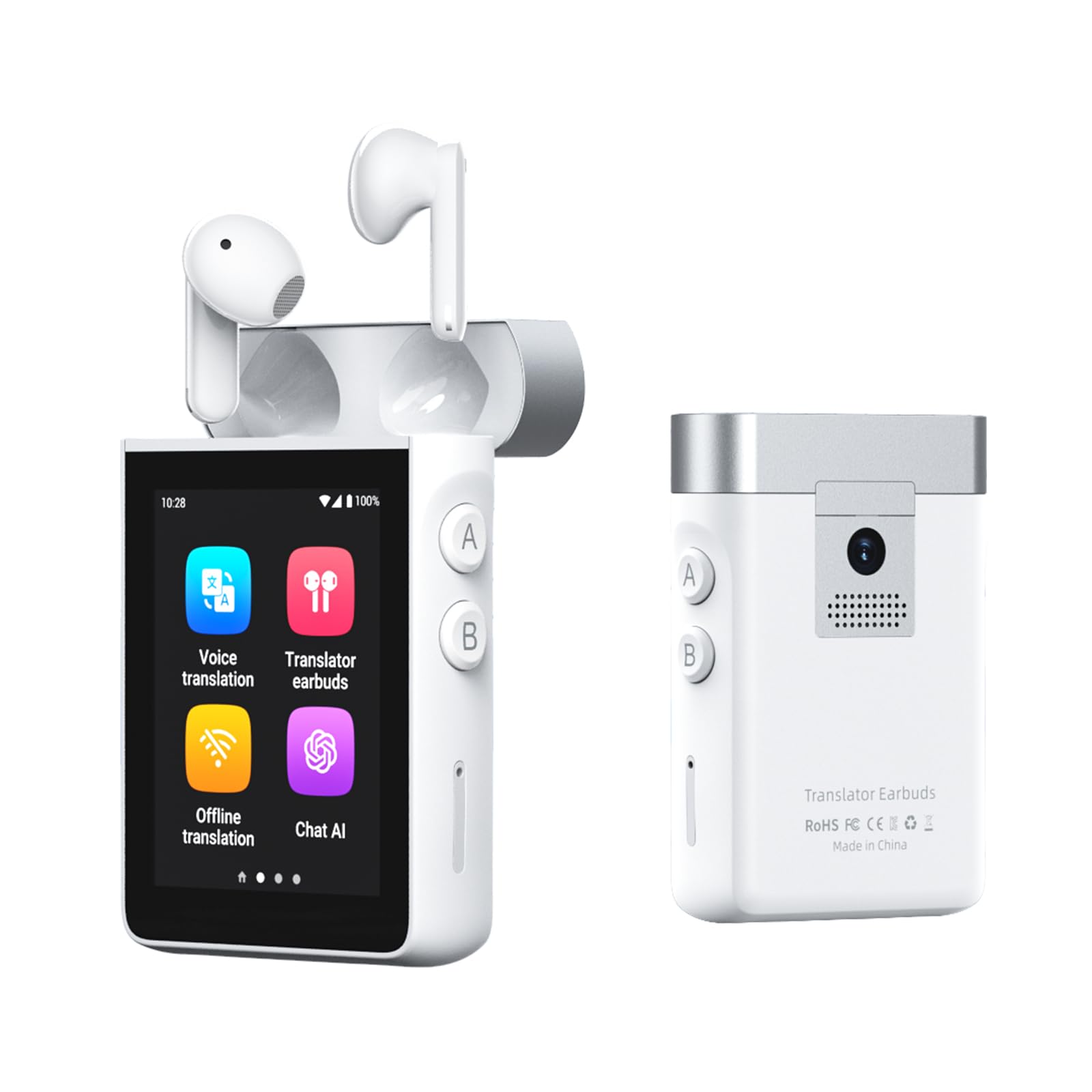
Image: The Wooask A9 AI Translator Earbuds device with its charging case, showcasing its compact design.
What's in the Box
- 2 x A9 Translation Earbuds (Left & Right)
- 1 x A9 Charging Case (Supports 4G + WiFi)
- 1 x USB-C Charging Cable
- 1 x SIM Card Ejector Tool
- 1 x User Manual

Image: A visual representation of all items included in the Wooask A9 product package.
Setup
Initial Power On
- Press and hold the power button on the side of the A9 device until the screen illuminates.
- Follow the on-screen prompts to select your preferred system language and initial settings.
Earbud Pairing
- Ensure the earbuds are placed inside the charging case.
- Open the charging case. The earbuds will automatically connect to the A9 device. A confirmation message will appear on the screen.
- For first-time use, navigate to the 'Translator Earbuds' application on the A9 screen and confirm pairing.

Image: The Wooask A9 device displaying a 'Connected' status for the earbuds, illustrating the instant pairing feature.
SIM Card Insertion (Optional for 4G/Hotspot/Calls)
- Locate the SIM card slot on the side of the A9 device.
- Use the provided SIM card ejector tool to open the SIM tray.
- Place a local Nano-SIM card into the tray, ensuring correct orientation.
- Gently push the tray back into the device until it clicks into place.
- The device will detect the SIM card and enable 4G connectivity, calling, and hotspot features.

Image: A step-by-step visual guide on inserting a SIM card into the Wooask A9 to unlock advanced features.
Operating Modes
1. Voice Translation Mode
For direct, real-time spoken translation using the device's built-in microphone and speaker.
- Select 'Voice Translation' from the main menu.
- Choose your native language (e.g., English) and the target language (e.g., Spanish).
- Press and hold the corresponding language button (A or B) on the side of the device while speaking. Release the button to hear the translation.

Image: The Wooask A9 device showing a real-time translation of spoken words, highlighting its speed and accuracy.
2. Translator Earbuds Mode
Enables discreet, two-way communication through the included earbuds, ideal for private conversations or noisy environments.
- Select 'Translator Earbuds' from the main menu.
- Ensure earbuds are paired and worn by both participants.
- Speak naturally. The device will translate and deliver audio to each person's earbud in their native language.

Image: Two people engaged in a conversation, each wearing a Wooask A9 earbud for private, real-time translation.
3. Offline Translation Mode
Translate without an internet connection. Supports 16 widely spoken languages.
- Select 'Offline Translation' from the main menu.
- Choose from the available offline language pairs.
- Proceed with voice translation as described above.

Image: A man and a flight attendant communicating using the Wooask A9 for offline translation during a flight.
4. Photo Translation Mode
Translate text from images using the built-in 8MP camera.
- Select 'Photo Translation' from the main menu.
- Point the camera at the text you wish to translate (e.g., menu, sign, document).
- Tap the screen to capture the image. The translated text will appear instantly.

Image: The Wooask A9 device using its integrated 8MP camera to translate text from a sign in a foreign language.
5. 4G Calling & Hotspot (with SIM card)
With a SIM card inserted, the A9 can function as a standalone phone and a mobile hotspot.
- Making Calls: Select 'Telephone' from the main menu, dial the number, and make calls directly from the device.
- Sharing Hotspot: Go to 'Settings' > 'Hotspot and network sharing' to activate the 4G mobile hotspot.

Image: The Wooask A9 device acting as a mobile hotspot, providing internet connectivity to a laptop, phone, and tablet.
6. ChatGPT AI Assistant
Access lifetime-free ChatGPT for intelligent queries, travel planning, and more.
- Select 'Chat AI' from the main menu.
- Speak your questions or commands into the device. ChatGPT will provide real-time responses.

Image: The Wooask A9 screen showing an interaction with the built-in ChatGPT AI assistant, providing information about the Eiffel Tower.
7. Media Playback & Recorder
Enjoy online music and video playback, or use the 16GB voice recorder.
- Music/Video: Select 'Music' or 'Video' from the main menu to access media files or streaming services.
- Recorder: Select 'Recorder' to start, pause, and save voice recordings. The device has 16GB of internal storage.

Image: The Wooask A9 device displaying its recording function during a business meeting, highlighting its 16GB storage.
Maintenance
Cleaning
- Wipe the device and earbuds with a soft, dry, lint-free cloth.
- Do not use abrasive cleaners, alcohol, or chemical solvents.
Battery Care
- Charge the device regularly, even if not in use, to maintain battery health.
- Avoid extreme temperatures, which can degrade battery performance.

Image: Visual representation of the Wooask A9's long-lasting battery life, including single charge, total with case, and standby times.
Troubleshooting
Device Not Powering On
- Ensure the device is fully charged. Connect it to a power source using the provided USB-C cable.
- Press and hold the power button for at least 10 seconds to attempt a forced restart.
Translation Inaccuracy
- Speak clearly and at a moderate pace. Avoid speaking too quickly or with heavy accents.
- Ensure you have selected the correct source and target languages.
- For online translation, check your Wi-Fi or 4G connection strength.
- Ensure the microphone is not obstructed.
Earbuds Not Connecting
- Place both earbuds back into the charging case and close it for a few seconds, then reopen.
- Check the Bluetooth settings on the A9 device to ensure Bluetooth is enabled and the earbuds are listed as a paired device.
- Ensure earbuds are charged.
Specifications
| Feature | Detail |
|---|---|
| Brand | Wooask |
| Model Number | Wooask-A9 |
| Color | White |
| Ear Placement | In Ear |
| Form Factor | In Ear |
| Impedance | 60 Ohms |
| Noise Control | Adaptive Noise Cancellation |
| Camera | 8MP for Photo Translation |
| Connectivity | 4G, Wi-Fi, Bluetooth |
| Offline Languages | 16 (English, Spanish, Simplified Chinese, Traditional Chinese, French, German, Japanese, Arabic, Portuguese, Russian, Korean, Thai, Hindi, Vietnamese, Italian, Indonesian) |
| Online Languages | 144 |
| Battery Life (Continuous) | Up to 5 hours |
| Battery Life (Total with Case) | Up to 36 hours |
| Standby Time | 30 days |
| Weight | 118g (device) |
Warranty and Support
Warranty
The Wooask A9 AI Translator Earbuds come with a 2-Year Global Warranty, ensuring peace of mind for your purchase.
Customer Support
Wooask provides 24/7 Customer Support for any inquiries or assistance you may need.
Returns
A 30-Day Refund policy is available for eligible returns.
Software Updates
Benefit from Lifetime Free Updates (OTA updates) to ensure your device always has the latest features and language improvements.

Image: The Wooask A9 device highlighting its comprehensive support features: Lifetime Free Updates, 2-Year Global Warranty, 24/7 Support, and 30-Day Refund.


