
Introduction
Thank you for choosing the SIXWIN Android 15 Car Radio. This manual provides detailed instructions for the installation, operation, and maintenance of your new car multimedia system. Designed specifically for Renault Megane 3 models from 2009 to 2014, this unit features a 9-inch HD screen, Android 15 operating system, Wireless CarPlay/Android Auto, GPS navigation, Bluetooth 5.0, Wi-Fi, and FM/RDS radio capabilities. Please read this manual thoroughly before installation and use to ensure proper function and safety.

Image: The SIXWIN Android 15 Car Radio seamlessly integrated into the dashboard of a Renault Megane 3, showcasing its 9-inch display with various application icons.
Package Contents
Please verify that all items listed below are included in your package. If any items are missing or damaged, contact customer support.

Image: A visual representation of the car radio unit's dimensions and a comprehensive list of included accessories and cables.
- SIXWIN Car Radio Unit (9-inch screen)
- AHD Rear Camera
- 80cm Keypad Cable
- Power Cable
- Installation Tool
- Rear Camera Input Cable
- GPS Antenna
- Accessories (various connectors)
- Microphone
- USB Cable
- Radio Antenna Canbus
- User Manual
- RCA Cable
Compatibility
This car radio system is specifically designed for Renault Megane 3 models manufactured between 2009 and 2014. Ensure your vehicle's central control panel matches the supported configurations before proceeding with installation.

Image: This image illustrates different types of original car radio panels. This product supports configurations similar to Option A (indicated by green checkmarks). If your vehicle has a panel like Option B (indicated by red crosses), this product may not be directly compatible. Please consult customer service for recommendations if your panel matches Option B.
Setup and Installation
Professional installation is recommended. Disconnect the vehicle's battery before starting the installation process to prevent electrical damage.
1. Removing the Original Unit
- Carefully remove the small screen from the original vehicle's dashboard.
- Disconnect all corresponding wires from the original screen.
- Reinstall the small screen back into the vehicle, ensuring all wires are correctly connected.
Note: If the small screen on the center console (labeled '1' in the diagram) is difficult to place back, it can be stored in the passenger-side trunk (labeled '2'). After replacing the original car CD unit, the airbag display function will still be supported.

Image: Detailed views of the vehicle's interior dashboard illustrating the process of removing the original screen and options for its placement, along with confirmation of airbag display support.
2. Connecting the Rear Camera
Follow these steps to connect the AHD rear camera for enhanced safety and parking assistance:

Image: A technical diagram showing the wiring connections for the rear camera, including power and video input to the car radio unit. The diagram highlights clear image, waterproof, 170° wide angle, and night vision features.
- Connect the red wire (1) to the positive pole of the car's reversing light.
- Connect the black wire (2) to the negative pole of the car's reversing light.
- Connect the pink wire (3), labeled "Reverse / Parking Sensor Control / Back in", to the power cable.
- Connect the yellow RCA video cable (4) from the camera to the "Camera Input" port on the car radio unit.
3. Steering Wheel Control Connection
The unit supports steering wheel controls for convenience and safety.
- Without CANBUS Decoder: Connect the Key1/Key2 wires in the power cable to the corresponding steering wheel control wires of your original car. Then, access the "Steering Wheel Key" manual settings in the unit to program the buttons.
- With CANBUS Decoder: Connect the CANBUS decoder before powering on the unit. Navigate to Apps > Car Settings > Factory Settings (1234) > Protocol settings. Choose the CANBUS brand and car style to ensure proper functionality.

Image: An illustration detailing the connection methods for steering wheel controls, differentiating between setups with and without a CANBUS decoder, and showing the interface for button programming.
Operating Instructions
1. System Overview
The SIXWIN car radio operates on Android 15, featuring a quad-core processor, 4GB RAM, and 128GB ROM for smooth performance and ample storage. The 9-inch In-Cell screen offers a clear resolution of 1280*720 pixels, providing vibrant colors and responsive touch control.

Image: This graphic highlights the 4GB RAM and 128GB ROM, emphasizing stable speed and storage capacity for applications, music, and videos. It also shows a comparison of operating speeds, indicating faster performance with 4G+128G configuration.
2. Wireless Connectivity (CarPlay, Android Auto, Mirror Link)
Enjoy seamless integration with your smartphone through wireless CarPlay, Android Auto, and Mirror Link functionalities.
- Wireless CarPlay & Android Auto: Connect your iOS or Android smartphone via Bluetooth for hands-free calls, messaging, music streaming, and navigation.
- Mirror Link: Project your phone's screen onto the car radio display via Wi-Fi for full access to apps like Google Maps or Spotify.

Image: An illustration demonstrating how to connect Android and iOS devices for Android Auto, CarPlay (via Bluetooth), and Mirror Link (via USB or WiFi), displaying the car radio screen with various app icons.
3. Bluetooth 5.0
Connect your Android or iOS devices easily for hands-free calls, music streaming, and voice control with clear sound quality. Customize your audio experience with EQ settings.
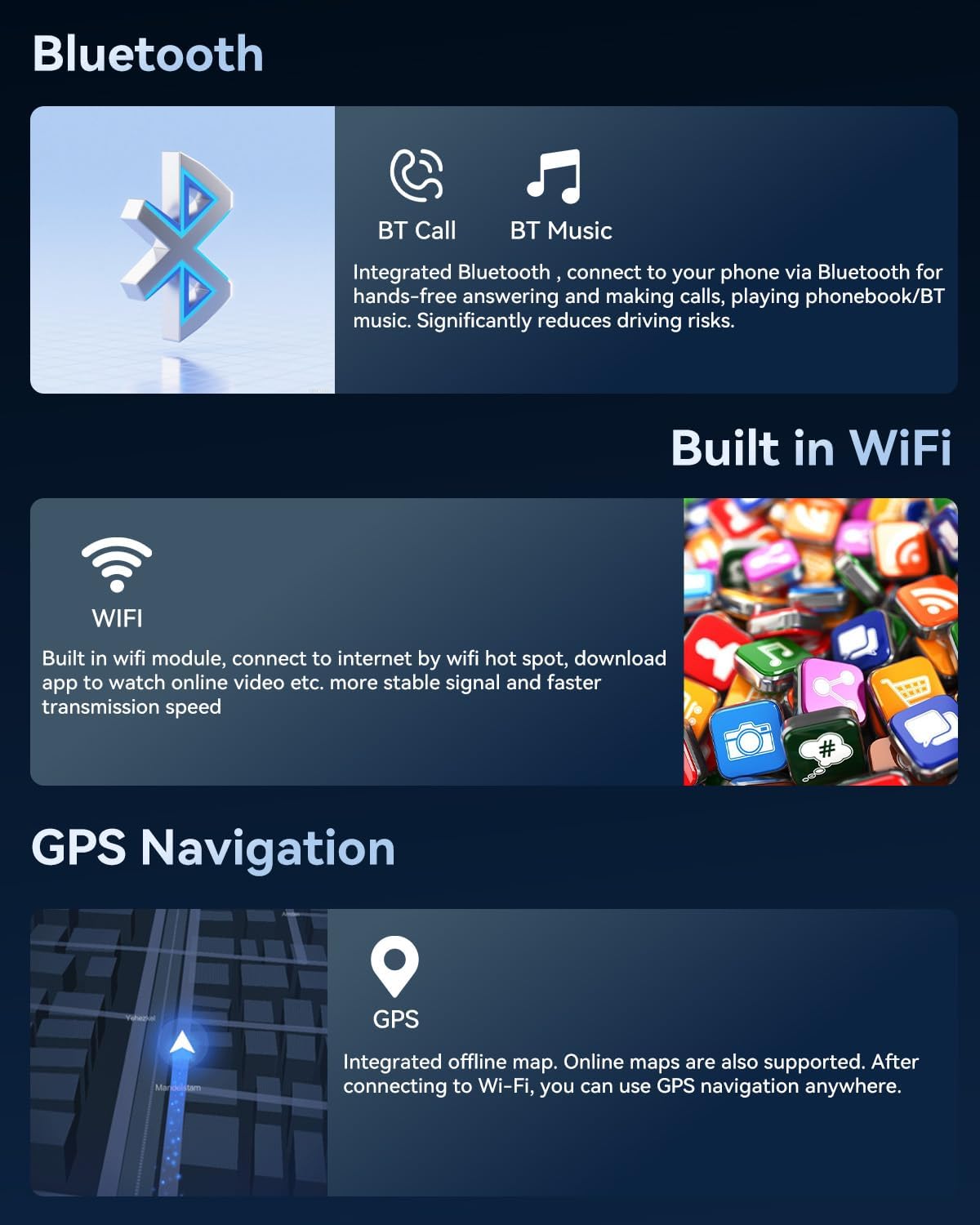
Image: This graphic explains the functionalities of Bluetooth 5.0 for calls and music, the built-in WiFi module for internet access, and integrated GPS for offline and online navigation.
4. Wi-Fi and GPS Navigation
- Wi-Fi: Connect to the internet via a Wi-Fi hotspot or your smartphone's shared connection. Stream content (YouTube, Netflix), download apps, and browse social media directly on the screen.
- GPS: The integrated GPS receiver supports online and offline maps (Google Maps, Waze, Sygic, TomTom GO). Download maps for offline use or navigate with real-time traffic updates when connected to Wi-Fi.

Image: A visual representation of the online/offline GPS navigation feature, showing a car driving on a road with distance and speed indicators, alongside a map interface on the car radio screen.
5. FM/RDS Radio
The FM/RDS radio provides real-time information on traffic, news, and weather forecasts while driving.
6. Sound Equalizer (EQ)
Adjust the equalizer settings to customize the audio output to your preferences and vehicle acoustics. Enhance bass, smooth treble, and enrich midrange frequencies for an optimal listening experience.
7. User Interface and Split Screen
- Multiple UI Options: Choose from a variety of user interface designs to personalize your display.
- Split Screen Function: Utilize the split-screen feature to run two applications simultaneously, such as navigation and music, for enhanced multitasking.

Image: A collage of screenshots demonstrating various features: the sound equalizer interface, FM/RDS radio display, the clarity of the In-Cell screen (1280*720), different user interface designs, and the split-screen functionality.
Maintenance
To ensure the longevity and optimal performance of your SIXWIN car radio, follow these maintenance guidelines:
- Cleaning: Use a soft, dry cloth to clean the screen and exterior. Avoid abrasive cleaners or solvents that could damage the surface.
- Temperature: Avoid exposing the unit to extreme temperatures, both hot and cold, for extended periods.
- Software Updates: Periodically check for software updates to ensure you have the latest features and performance enhancements. Connect the unit to Wi-Fi to download updates.
- Cable Connections: Ensure all cables are securely connected. Loose connections can lead to intermittent issues.
Troubleshooting
If you encounter any issues with your car radio, refer to the following common problems and solutions:
| Problem | Possible Cause | Solution |
|---|---|---|
| Unit does not power on | Loose power connection, blown fuse, vehicle battery issue | Check power cable connections. Inspect vehicle fuses. Ensure vehicle battery is charged. |
| No sound | Volume too low, incorrect audio source, speaker wiring issue | Increase volume. Select correct audio source. Check speaker connections. |
| Touch screen unresponsive | Software glitch, screen calibration issue | Restart the unit. If issue persists, perform a factory reset (refer to settings menu). |
| GPS not working | GPS antenna not connected, poor signal, outdated maps | Ensure GPS antenna is securely connected and has a clear view of the sky. Update maps if necessary. |
| CarPlay/Android Auto not connecting | Bluetooth/Wi-Fi off, phone compatibility, incorrect pairing | Ensure Bluetooth and Wi-Fi are enabled on both devices. Re-pair your phone. Check phone compatibility. |
If the problem persists after attempting these solutions, please contact SIXWIN customer support for further assistance.
Specifications
| Feature | Detail |
|---|---|
| Model | B0GHV7VMPK |
| Operating System | Android 15 |
| RAM | 4 GB |
| ROM (Storage) | 128 GB |
| Screen Size | 9 Inches |
| Screen Type | In-Cell LCD, Capacitive Touchscreen |
| Screen Resolution | 1280*720 |
| Bluetooth Version | 5.0 |
| Connectivity | Wi-Fi, GPS, Wireless CarPlay, Wireless Android Auto, Mirror Link |
| Radio | FM/RDS |
| Compatible Vehicle Type | Renault Megane 3 (2009-2014) |
| Dimensions (Unit) | Approx. 310mm (W) x 165mm (H) x 206mm (D) |
| Package Dimensions | 33.79 x 25.8 x 12.9 cm |
| Weight | 2.04 kg |
Support
For any questions, technical assistance, or warranty claims, please contact SIXWIN customer support. Refer to your purchase documentation for specific contact details or visit the official SIXWIN website.
Our customer service team is available to assist you with any inquiries regarding your new car audio system.
