
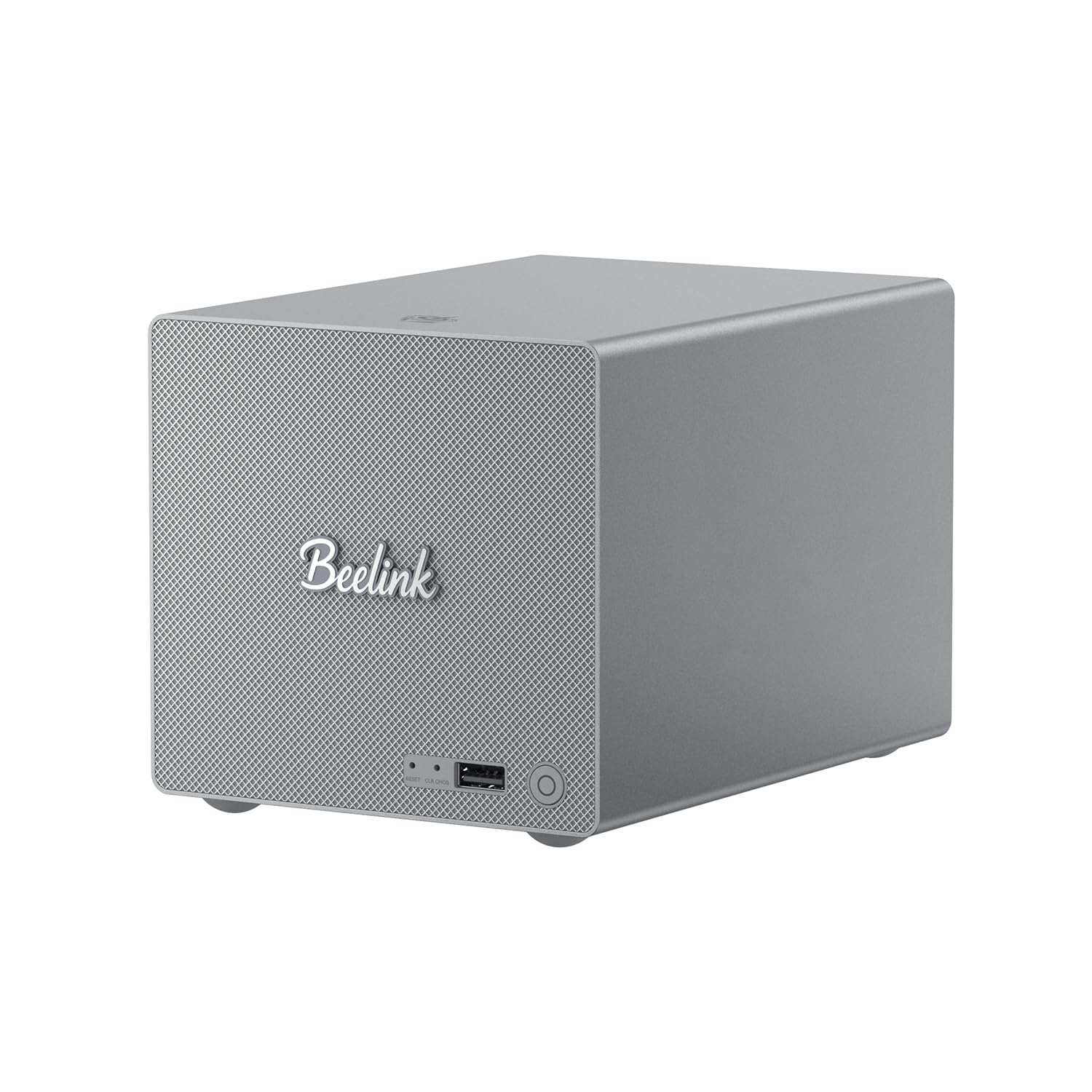
Figure 1: Beelink ME Pro Mini PC NAS
1. Introduction
The Beelink ME Pro Mini PC NAS is a versatile and compact network-attached storage solution designed for various applications, including file serving, private cloud storage, and home media centers. This manual provides detailed instructions for setting up, operating, and maintaining your device, ensuring optimal performance and longevity.
2. Product Overview
The Beelink ME Pro features a modular design for easy upgrades and maintenance. It includes multiple storage options and comprehensive connectivity ports.
2.1 Front and Rear Panel Layout

Figure 2: Front and Rear Panel Ports
The front panel includes a power button, a USB-A 10Gbps port, a CLR CMOS button, and a reset hole. The rear panel provides a DC power input, two LAN ports (2.5GE and 5GE), an HDMI port (4K 60Hz), two USB-A 480Mbps ports, a USB-C 10Gbps port (for data and video), and a 3.5mm audio jack.
3. Setup Instructions
3.1 Initial Power-On
- Connect the power adapter to the DC input port on the rear of the device.
- Connect a monitor to the HDMI port.
- Connect a keyboard and mouse to the USB-A ports.
- Press the power button on the front panel to turn on the device.
3.2 Operating System Installation (if applicable)
The Beelink ME Pro supports Windows and Linux operating systems. If your device did not come with a pre-installed OS or you wish to install a different one, follow the standard installation procedures for your chosen operating system.
Video: Instructions on how to install Windows 10 on a Beelink Mini PC. This video demonstrates the steps for OS setup.
4. Operating Instructions
Once the operating system is installed and configured, the Beelink ME Pro functions as a standard mini PC or NAS. You can access its features and manage your data through the installed OS interface.
- File Server: Utilize the large storage capacity to host and share files across your network.
- Media Center: Install applications like JellyFin, KODI, or Plex to stream 4K movies, music, and photos to various devices.
- Private Cloud: Set up a personal cloud solution for secure data access and sharing.
5. Storage Expansion
The Beelink ME Pro offers extensive storage expansion capabilities to meet your data needs.
5.1 M.2 SSD Slots
The device includes three M.2 2280 PCIe3.0 SSD slots. Each slot supports up to 4TB, providing a total of up to 12TB capacity for high-speed storage.
5.2 Hard Drive Bays
Two additional hard drive bays support 2.5-inch and 3.5-inch SATA drives, with each bay accommodating up to 30TB, for a total of up to 60TB.

Figure 3: M.2 SSD Slots and Hard Drive Bays
Video: A tutorial demonstrating the process of replacing an SSD in a Beelink Mini PC.
6. Network Configuration
The Beelink ME Pro is equipped with advanced networking features for optimal performance and connectivity.
- Dual LAN: Features two Ethernet ports (2.5GE and 5GE) supporting soft routing functionality, network performance optimization, and advanced network management.
- Wireless Connectivity: Built-in WiFi 6 and Bluetooth 5.4 enable high-speed wireless connections to various devices such as keyboards, mice, and printers.

Figure 4: Dual LAN Ports and Speed Comparison
7. Maintenance
Regular maintenance helps ensure the longevity and optimal performance of your Beelink ME Pro.
- Dust Removal: The modular, drawer-style design allows for quick and easy dust removal. Simply pull out the internal components for access.
- Software Updates: Keep your operating system and installed applications updated to ensure security and performance.

Figure 5: Magnetic Cooling Mesh Cover and Screwdriver Design
8. Troubleshooting
This section provides general guidance for common issues. For specific problems, refer to the Beelink support resources.
- No Power: Ensure the power adapter is securely connected to both the device and a working power outlet.
- No Display: Verify that the monitor is correctly connected to the HDMI port and is set to the correct input source. Try a different HDMI cable or monitor if available.
- Network Connectivity Issues: Check Ethernet cable connections. For Wi-Fi, ensure the device is within range of your router and the correct password is entered.
- System Unresponsive: Press and hold the power button for 5-10 seconds to force a shutdown, then restart the device. If issues persist, use the CLR CMOS button or reset hole.
9. Specifications
Key technical specifications for the Beelink ME Pro Mini PC NAS:
| Feature | Detail |
|---|---|
| Brand | Beelink |
| Model Name | ME Pro |
| CPU Model | Intel N95 (4C/4T, up to 3.4GHz) |
| RAM Memory | 12GB LPDDR5 |
| Internal Storage | 128GB SSD |
| M.2 SSD Slots | 3 x M.2 2280 PCIe3.0 (up to 4TB each) |
| Hard Drive Bays | 2 (2.5-inch/3.5-inch SATA, up to 30TB each) |
| Graphics Coprocessor | Intel UHD Graphics 630 |
| Video Output | HDMI (4K 60Hz), USB-C (Data & Video) |
| LAN Ports | 1 x 2.5GE, 1 x 5GE |
| Wireless Connectivity | WiFi 6, Bluetooth 5.4 |
| Operating System Support | Windows, Linux |
| Additional Features | Wake On LAN, RTC Wake, Auto Power On |
10. Warranty and Support
Beelink is committed to providing comprehensive support for your product.
- Warranty: The Beelink ME Pro comes with a 3-year warranty.
- Technical Support: Lifetime technical support is available.
- After-Sales Service: 24/7 after-sales service is provided.
- Certifications: All products have obtained FCC, RoHS, and CE Certifications.
For any questions or assistance, please contact Beelink customer service.
Video: Instructions on how to contact Beelink customer support for assistance.


