
1. Introduction
Thank you for choosing the IINE Mini Retro Game Controller. This compact, wireless controller is designed to enhance your mobile and PC gaming experience, offering versatile control options in a portable form factor. This manual provides detailed instructions on setup, operation, maintenance, and troubleshooting to ensure optimal use of your device.
2. Product Overview
The IINE Mini Retro Game Controller combines classic gaming aesthetics with modern functionality. Its pocket-sized design, complete with a keychain attachment, makes it ideal for gaming on the go. The controller features a D-pad, action buttons (A, B, X, Y), Capture, Home, and Pairing buttons, along with integrated motion control.

Image 2.1: Overview of the IINE Mini Retro Game Controller, showcasing its compact design and key features like multi-platform support, short video browsing, e-book reading, and mouse & keyboard modes.
Key Features:
- Pocket-Size Retro Design: Compact and nostalgic, inspired by classic game controllers.
- Wireless Connectivity: Connects wirelessly to various devices.
- Integrated Motion Control: Features a built-in 6-axis gyroscope for intuitive motion-based gameplay.
- Multi-Mode Support: Supports Single Joypad, Switch, Xinput, HID, Multimedia, Touch Control, Mouse, and Keyboard modes.
- Ultra-Portable with Keychain: Easily attaches to keys, backpacks, or bags for convenient travel.
3. Setup
3.1 Initial Charging
Before first use, ensure the controller is fully charged. Connect the controller to a USB power source using a compatible charging cable (not specified in product details, assume standard USB-C).
3.2 Pairing Instructions
The controller supports various pairing modes for different devices. The general pairing process involves holding the [Pairing] button along with a specific directional button.

Image 3.1: Game Controller Mode compatibility and pairing instructions for various platforms.
- Switch: Hold the [Pairing] + [Up] buttons.
- PC / iOS: Hold the [Pairing] + [Left] buttons.
- Android: Hold the [Pairing] + [Right] buttons.
3.3 Nintendo Switch (NS2) Wake-Up Steps
To wake up and connect to a Nintendo Switch 2 (NS2) console:
- On your NS2, select [Controller] → [Change Grip/Order].
- Press and hold the [Pairing] + [UP] buttons on the controller. Release the buttons when the indicator light flashes rapidly.
- After pairing is complete, remove both original Joypads from the NS2.
- Quickly reattach the original left and right Joypads to the NS2.
- Press and hold the [Home] button on the controller to wake up and reconnect.

Image 3.2: Step-by-step guide for waking up and connecting the controller to a Nintendo Switch 2.
4. Operating Instructions
4.1 Multi-Mode Functionality
The IINE Mini Retro Game Controller offers various modes to suit different applications and devices:
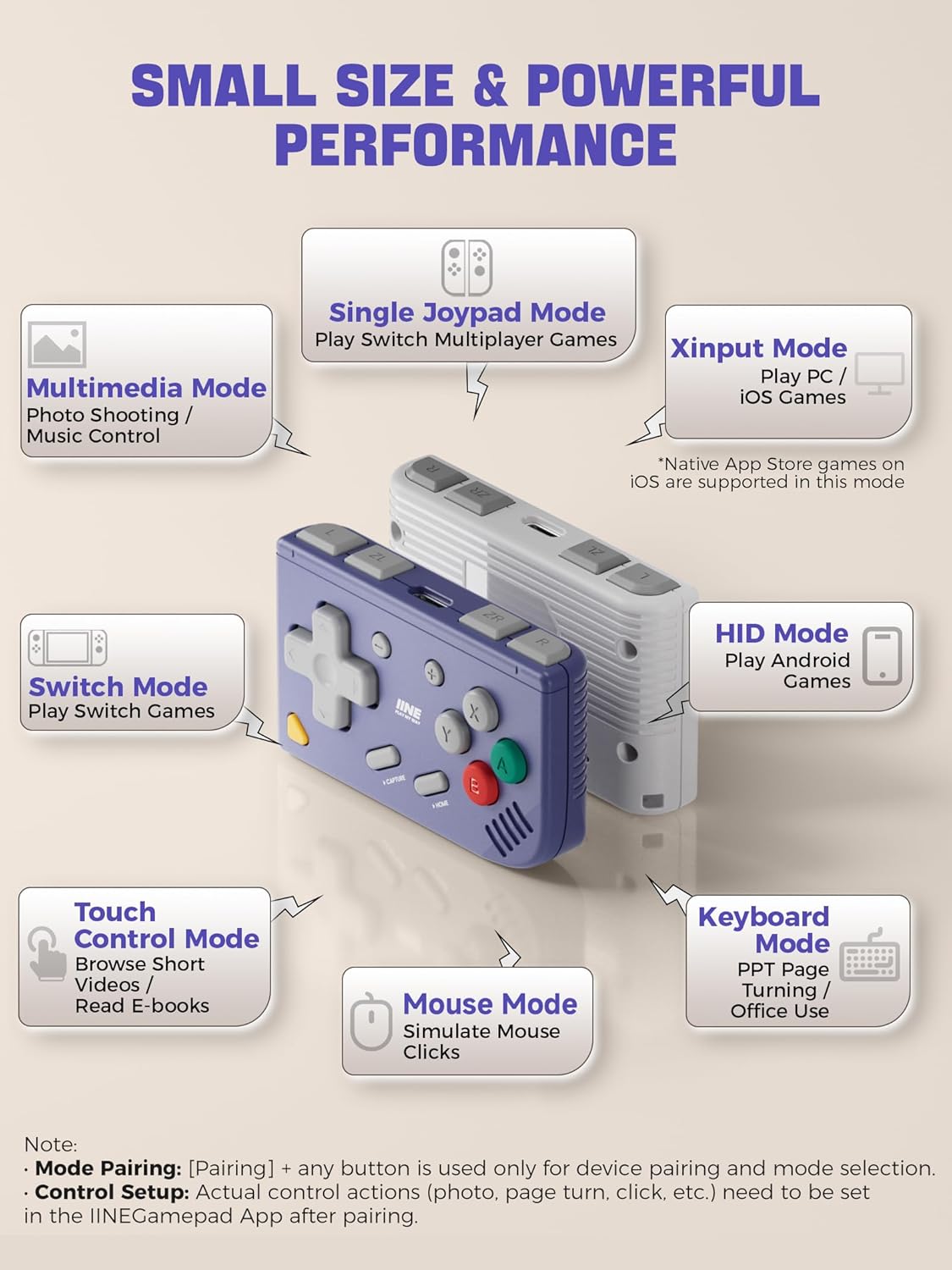
Image 4.1: Detailed breakdown of the controller's various operating modes and their primary uses.
- Single Joypad Mode: For multiplayer games on compatible consoles (right-side use only).
- Switch Mode: Play compatible Nintendo Switch games.
- Xinput Mode: Play PC and iOS games. (Native App Store games on iOS are supported in this mode).
- HID Mode: Play compatible Android games.
- Multimedia Mode: Control music playback and take photos remotely.
- Touch Control Mode: Navigate short videos or read e-books with hands-free control.
- Mouse Mode: Simulate mouse clicks for navigation.
- Keyboard Mode: For PPT page turning and office use.

Image 4.2: Visual representation of the controller's versatile functions, including Touch Mode for media, Gamepad Mode, Multimedia Mode, and Keyboard & Mouse Mode.
4.2 New Joypad Mode (Right-Side Only)
This mode allows you to enjoy motion games with friends on compatible consoles. It functions as a right-side Joypad and supports both horizontal and vertical layouts, compatible alongside the original Joypad.

Image 4.3: Instructions for setting up and using the new Joypad Mode, specifically for right-side use with Nintendo Switch.
4.3 6-Axis Motion Control
The controller is equipped with a built-in 6-axis gyroscope, enabling motion-controlled gameplay for a wide range of compatible games.

Image 4.4: Illustration highlighting the new 6-axis motion control feature for enhanced gameplay.
4.4 Turbo Function and Joystick/D-pad Switch
The controller includes a Turbo function for rapid button presses and a switch function to alternate between Joystick and D-pad inputs, offering flexibility in gameplay.
4.5 IINE App Support
The controller supports the IINE App, allowing for advanced customization such as button remapping, keyboard/mouse settings, multimedia controls, and touch control adjustments.
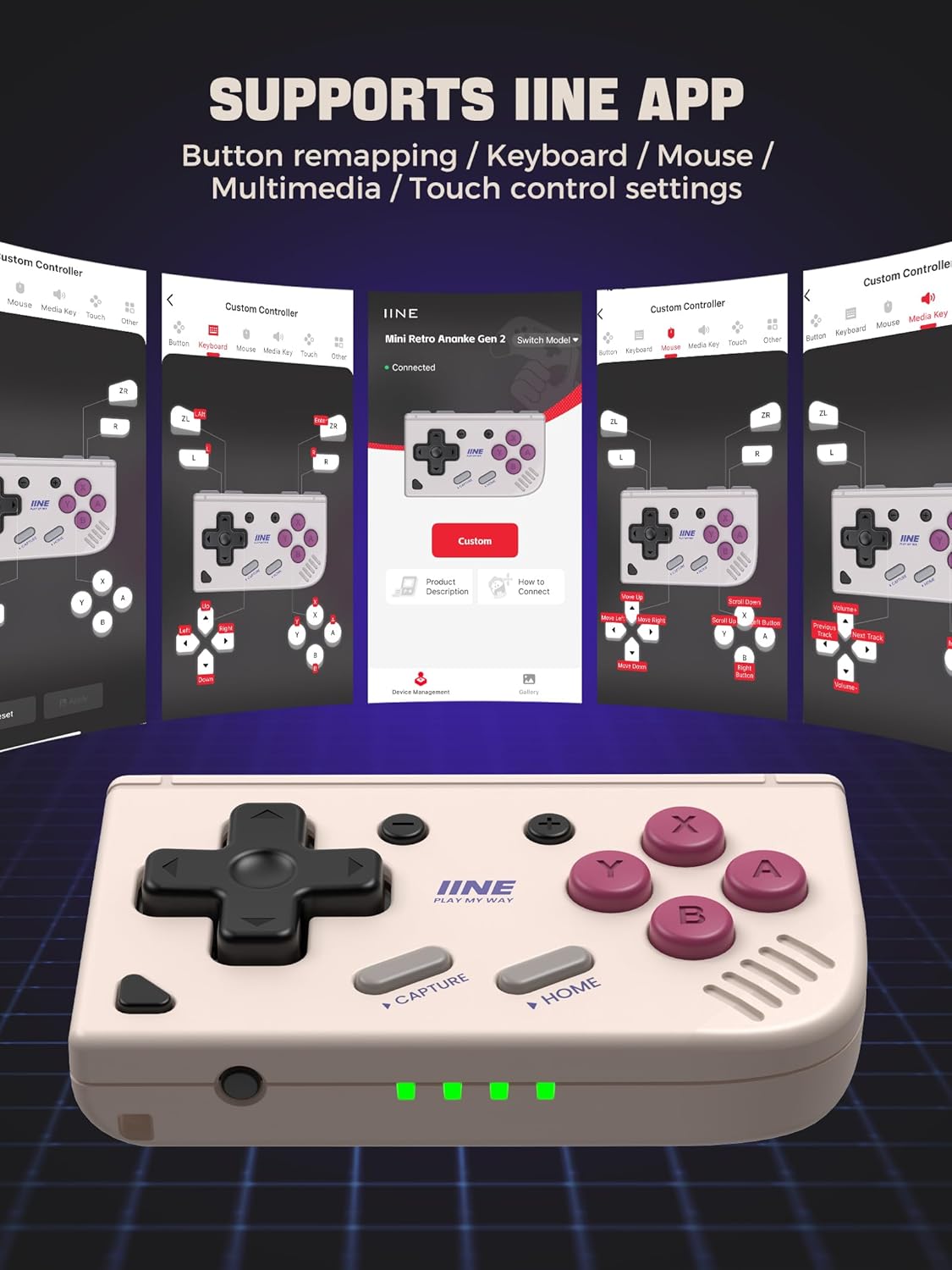
Image 4.5: Screenshots of the IINE App interface, demonstrating options for button remapping and various control settings.
5. Maintenance
To ensure the longevity and optimal performance of your IINE Mini Retro Game Controller, follow these maintenance guidelines:
- Cleaning: Use a soft, dry cloth to clean the controller. Avoid using harsh chemicals or abrasive materials.
- Storage: Store the controller in a cool, dry place away from direct sunlight and extreme temperatures.
- Battery Care: If not used for extended periods, charge the controller periodically to maintain battery health.
- Avoid Drops: Protect the controller from drops and impacts, which can damage internal components.
6. Troubleshooting
If you encounter issues with your IINE Mini Retro Game Controller, refer to the following common troubleshooting steps:
- Connection Issues: Ensure the controller is fully charged. Re-attempt the pairing process as described in Section 3.2. Make sure Bluetooth is enabled on your device.
- Unresponsive Buttons: Check if the controller is properly paired. If using the IINE App, verify button mappings.
- Motion Control Not Working: Ensure the game or application supports motion control and that the controller is in a compatible mode.
- Firmware/Driver Issues: For PC connectivity, ensure you have the latest drivers. Some users have reported differences in performance between different color variants (e.g., Purple vs. Grey) which may indicate slight hardware or driver variations. Check the manufacturer's website for firmware updates.
- Controller Not Powering On: Ensure the battery is charged. If the issue persists, contact support.
7. Specifications
- Batteries: 1 AAA battery required, included.
- Package Dimensions: 8.99 x 6.2 x 3.4 cm
- Weight: 68 g
- Release Date: November 13, 2024
- ASIN: B0GHQXSPQF
8. Warranty Information
Warranty information for the IINE Mini Retro Game Controller is not provided in the product details. Please refer to the retailer or manufacturer's official website for specific warranty terms and conditions.
9. Support
For further assistance, technical support, or inquiries regarding your IINE Mini Retro Game Controller, please contact the manufacturer directly through their official website or reach out to the retailer from whom you purchased the product.


