
1. Introduction
This manual provides essential information for the proper setup, operation, and maintenance of your Gawfolk 34-inch Ultrawide Curved 200Hz Gaming Monitor. Please read this manual thoroughly before using the product to ensure optimal performance and safety.
2. Safety Information
- Ensure the monitor is placed on a stable, level surface to prevent accidental falls.
- Do not expose the monitor to rain, moisture, or extreme temperatures.
- Avoid blocking ventilation openings to prevent overheating.
- Use only the power adapter supplied with the monitor.
- Disconnect the power cable from the outlet before cleaning or if the monitor will not be used for an extended period.
- Do not attempt to repair the monitor yourself. Refer all servicing to qualified personnel.
3. Package Contents
Verify that all items are present in the package:
- Gawfolk 34-inch Ultrawide Curved Gaming Monitor
- Monitor Stand (Base and Neck)
- Power Adapter and Cable
- DisplayPort (DP) Cable
- HDMI Cable
- User Manual
- Mounting Screws (for stand assembly)
4. Setup
4.1 Assembling the Stand
- Carefully remove the monitor from its packaging, keeping it protected.
- Attach the stand neck to the monitor panel using the provided screws.
- Connect the stand base to the stand neck, securing it with the designated screw.
- Place the assembled monitor on a stable desk.

Image: Monitor with stand assembled, ready for use.
4.2 Connecting Cables
Connect the necessary cables to the monitor and your computer/device.
- Power Cable: Connect the power adapter to the monitor's DC input, then plug the power cable into a wall outlet.
- DisplayPort (DP) Cable: For optimal performance (up to 200Hz refresh rate), connect the supplied DP cable from your computer's graphics card to the monitor's DP input.
- HDMI Cable: Alternatively, connect an HDMI cable from your computer to one of the monitor's HDMI inputs (supports up to 100Hz refresh rate).
- Audio Output: Connect external speakers or headphones to the 3.5mm audio output jack if desired.

Image: Detailed diagram of the monitor's rear interfaces and dimensions.
4.3 Wall Mounting (Optional)
The monitor is compatible with VESA 75x75mm wall mounts. Ensure you use appropriate screws and a compatible VESA bracket (not included) for secure installation. Refer to your wall mount's instructions for specific installation steps.
5. Operating Instructions
5.1 Power On/Off
Press the power button, usually located on the back or bottom of the monitor, to turn it on or off. The power indicator light will illuminate when the monitor is on.
5.2 On-Screen Display (OSD) Menu
The OSD menu allows you to adjust various monitor settings. Typically, buttons on the back or bottom of the monitor are used to navigate and select options within the OSD. Common settings include:
- Brightness/Contrast: Adjust display luminance and color difference.
- Color Settings: Modify color temperature, gamma, and individual RGB levels.
- Input Source: Manually select between DisplayPort and HDMI inputs.
- Audio: Adjust volume for built-in speakers or connected headphones.
- Picture Mode: Select preset display modes (e.g., Standard, Game, Movie).
- Refresh Rate: Ensure your computer's display settings are configured to match the monitor's maximum refresh rate (up to 200Hz via DP).
5.3 Adjusting Monitor Angle
The monitor stand allows for angle adjustment from -5° to 15° to optimize your viewing experience.
6. Features
6.1 34-inch 21:9 Ultrawide Curved Display
Experience an immersive viewing area with the 34-inch 1500R curved panel. The 21:9 aspect ratio and UWQHD (3440x1440) resolution provide a wider field of view, enhancing both gaming and productivity by displaying more content simultaneously.

Image: The 21:9 ultrawide display offers a significantly broader field of view compared to standard 16:9 monitors.

Image: The 1500R curvature provides an enveloping visual experience with a wide 178° viewing angle.
6.2 200Hz Refresh Rate and 1ms GTG Response Time
Enjoy fluid motion and reduced input lag with a high 200Hz refresh rate and a rapid 1ms Gray-to-Gray (GTG) response time. This combination minimizes motion blur and ghosting, crucial for fast-paced gaming.

Image: Visual comparison demonstrating the clarity of 200Hz 1ms response versus 75Hz.
6.3 Adaptive Sync Technology
Adaptive Sync (FreeSync/G-Sync compatible) synchronizes the monitor's refresh rate with your graphics card's frame rate, eliminating screen tearing and stuttering for a smoother gaming experience.
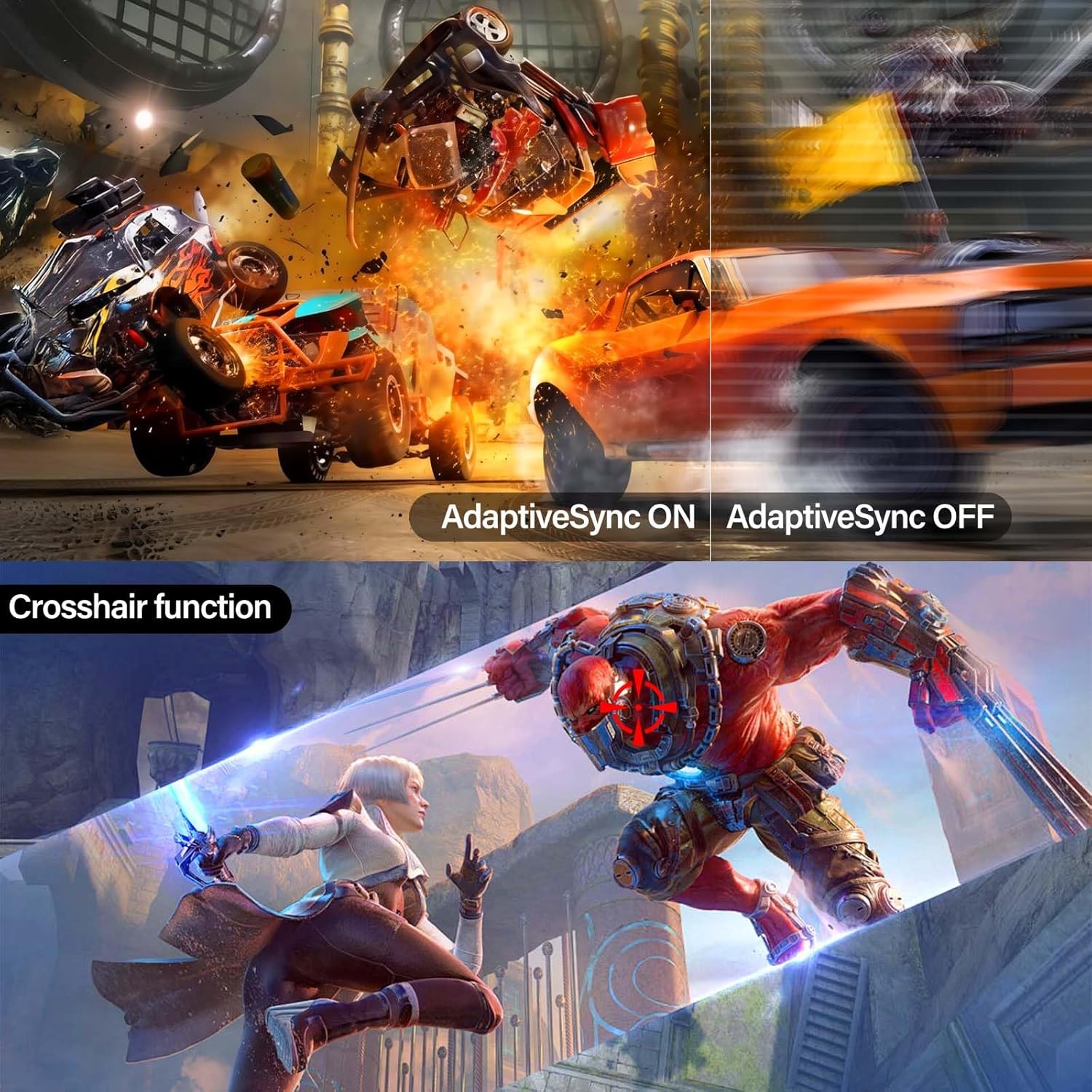
Image: Visual demonstration of Adaptive Sync preventing screen tearing and image errors.
6.4 Rich Color Reproduction
The monitor features 120% sRGB color gamut coverage, 8-bit color depth with FRC, and 1.07 billion colors, along with a 4000:1 contrast ratio and 310 nits brightness. This delivers vibrant, accurate colors and deep blacks for a visually rich display.

Image: Visual representation of the monitor's rich color capabilities and high contrast.
6.5 Low Blue Light and Flicker-Free Technology
Utilizing DC global dimming technology, the monitor provides a flicker-free viewing experience. Activating the low blue light mode helps reduce eye strain during prolonged use by filtering harmful short-wave blue light.

Image: Illustration of blue light reduction technology for comfortable viewing.
6.6 Built-in Speakers
The monitor includes integrated speakers, providing audio output without the need for external speakers. Volume can be adjusted via the OSD menu or your connected device.

Image: The monitor's built-in speakers provide convenient audio.
7. Specifications
| Feature | Specification |
|---|---|
| Brand | Gawfolk |
| Model Number | GFTY989 |
| Screen Size | 34 inches |
| Resolution | UWQHD (3440 x 1440 pixels) |
| Aspect Ratio | 21:9 |
| Curvature | 1500R |
| Refresh Rate | 200 Hz |
| Response Time | 1 ms |
| Display Technology | VA Panel |
| Brightness | 310 cd/m² |
| Contrast Ratio | 4000:1 |
| Color Gamut | 120% sRGB |
| Color Depth | 8-bit + FRC (1.07 billion colors) |
| Connectivity | 2x HDMI 2.0, 2x DisplayPort 1.4, 3.5mm Audio Out |
| Adaptive Sync | FreeSync, G-Sync Compatible |
| Special Features | Curved, Flicker-Free, Low Blue Light, Frameless, Built-in Speaker |
| VESA Compatibility | 75x75mm |
| Dimensions (D x W x H) | 10.56"D x 31.81"W x 18.61"H (with stand) |
| Weight | 4.91 kg |
8. Maintenance
8.1 Cleaning the Screen
Gently wipe the screen with a soft, lint-free cloth. For stubborn marks, lightly dampen the cloth with water or a non-abrasive screen cleaner. Never spray liquid directly onto the screen.
8.2 Cleaning the Casing
Use a soft, dry cloth to wipe the monitor casing. Avoid using strong detergents or solvents, as they may damage the surface.
8.3 Storage
If storing the monitor for an extended period, disconnect all cables and store it in a cool, dry place, preferably in its original packaging to protect it from dust and physical damage.
9. Troubleshooting
If you encounter issues with your monitor, refer to the following common problems and solutions:
| Problem | Possible Solution |
|---|---|
| No Power | Ensure the power cable is securely connected to the monitor and a working power outlet. Check if the power adapter is functioning correctly. |
| No Signal | Verify that the video cable (DP or HDMI) is securely connected to both the monitor and your computer. Select the correct input source via the OSD menu. Ensure your computer is powered on and not in sleep mode. |
| Flickering Screen | Check the video cable connection. Ensure your graphics card drivers are up to date. Disable Adaptive Sync temporarily to see if the issue persists. |
| Image Distortion/Blurry | Ensure the monitor's resolution is set to its native 3440x1440. Adjust display settings on your computer. |
| No Sound from Speakers | Check the volume settings in the OSD menu and on your computer. Ensure the correct audio output device is selected on your computer. |
If the problem persists after trying these solutions, please contact customer support.
10. Warranty and Support
10.1 Warranty Information
This Gawfolk monitor comes with a one-year warranty covering quality problems from the date of purchase. Please retain your proof of purchase for warranty claims.
10.2 Customer Support
For technical assistance, warranty claims, or any other inquiries, please contact Gawfolk customer support through the retailer where you purchased the product or visit the official Gawfolk website for contact information.


