
1. Introduction
This manual provides detailed instructions for the FiiO M21 Portable High-Resolution Music Player. It covers essential information regarding setup, operation, features, maintenance, and troubleshooting to ensure optimal use of your device. The FiiO M21 is equipped with Android 13, a Snapdragon 680 processor, and advanced DAC technology for a superior audio experience.
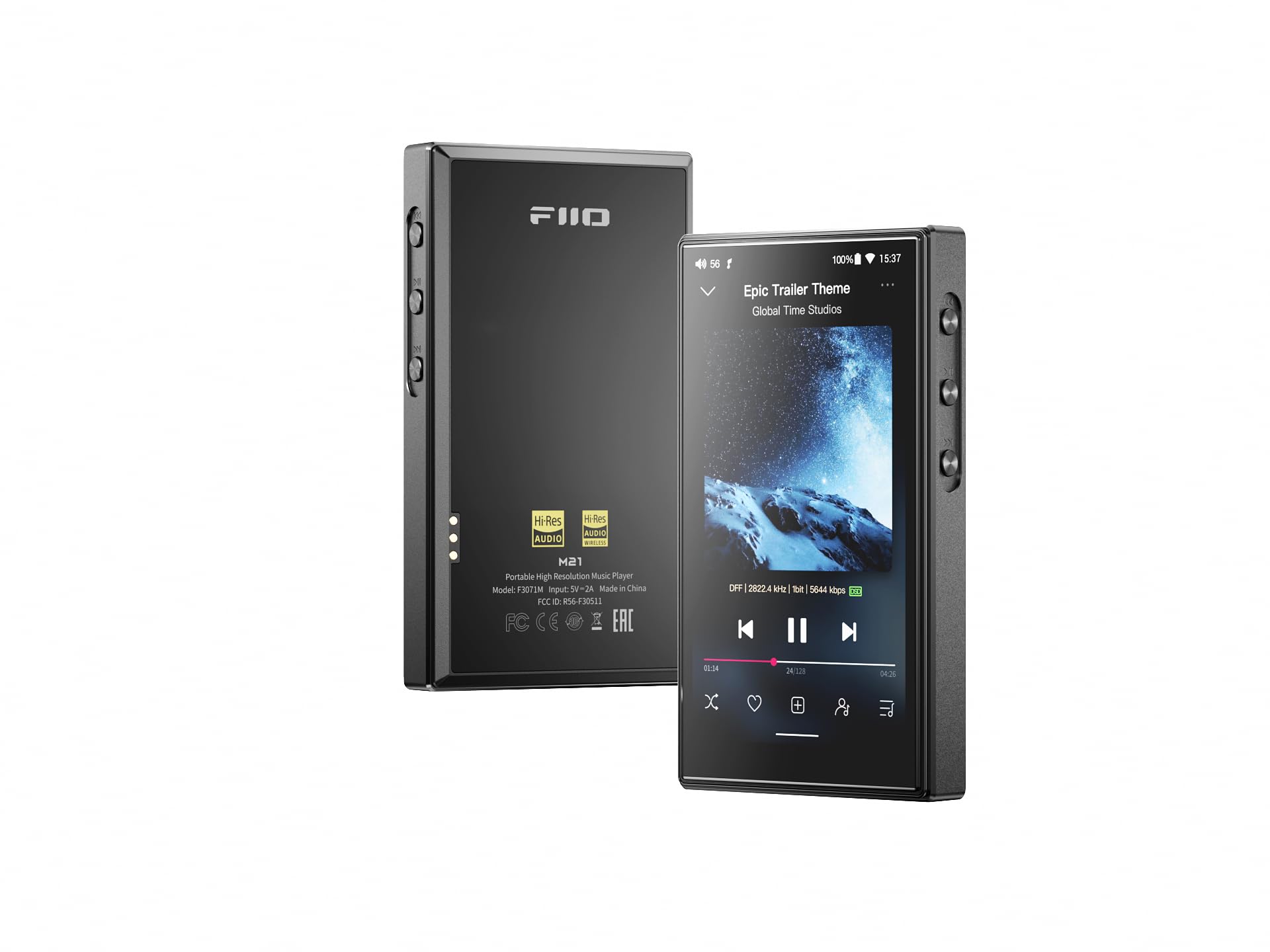
Figure 1: FiiO M21 Portable High-Resolution Music Player (Black variant).
2. Product Overview
2.1 Components and Controls
Familiarize yourself with the physical layout and controls of your FiiO M21 player.

Figure 2: Side view of the FiiO M21, highlighting the volume up/down, play/pause, previous track, next track, and multifunction buttons.
- Volume Up/Down: Adjusts the audio output level.
- Play/Pause: Controls media playback.
- Previous Track: Skips to the beginning of the current track or the previous track.
- Next Track: Skips to the next track.
- Multifunction Button: Customizable button for various functions.
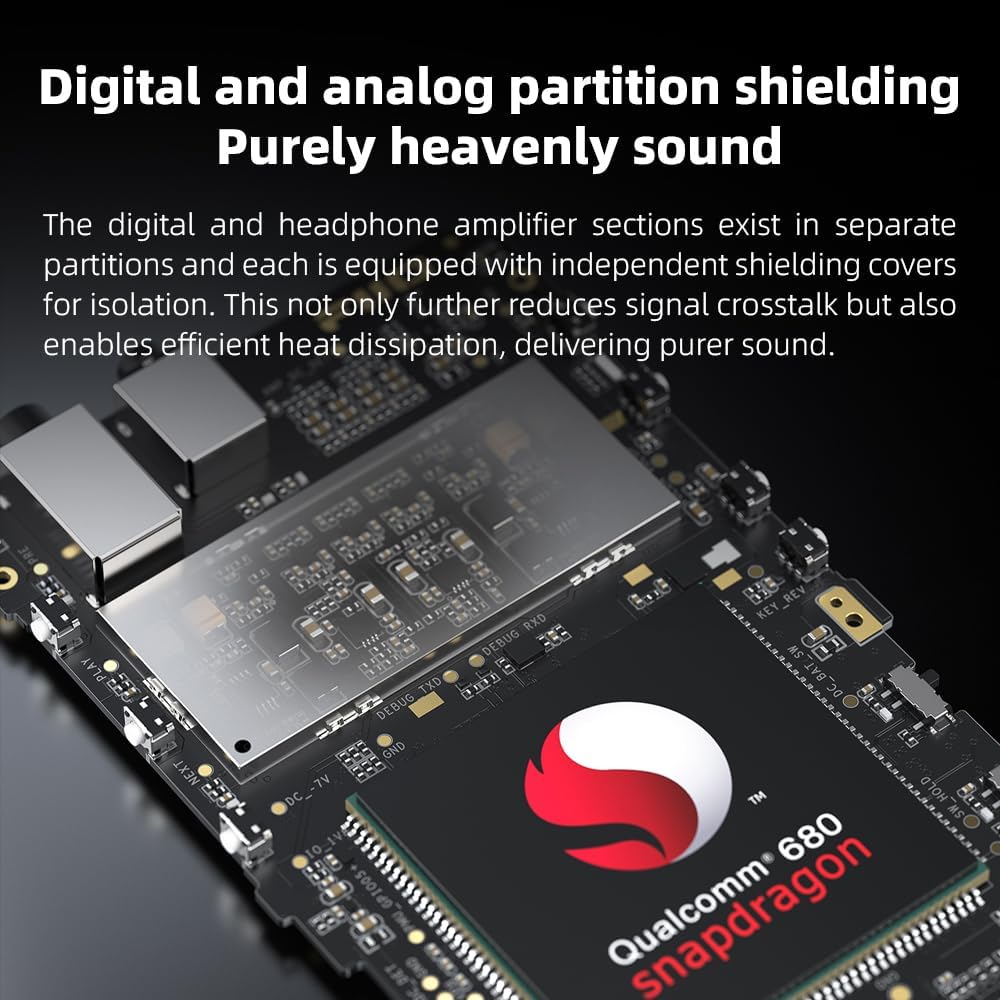
Figure 3: Bottom view of the FiiO M21, illustrating the dual Type-C ports for data transfer and charging, and a dedicated power input.
- Dual Type-C Ports: Used for data transfer, charging, and USB audio output.
- 3.5mm Headphone Output: Standard audio output for headphones.
- 4.4mm Balanced Headphone Output: Balanced audio output for compatible headphones.
- Micro SD Card Slot: For expandable storage of music files.
3. Setup
3.1 Initial Charging
Before first use, fully charge the FiiO M21 using the provided USB-C cable and a compatible power adapter. The device features a built-in battery.
3.2 Powering On/Off
- To Power On: Press and hold the Power button until the screen illuminates.
- To Power Off: Press and hold the Power button, then select 'Power Off' from the on-screen options.
- To Restart: Press and hold the Power button, then select 'Restart' from the on-screen options.
3.3 Inserting a Micro SD Card
Locate the Micro SD card slot on the device. Insert a compatible Micro SD card (up to 2TB, not included) with the gold contacts facing down until it clicks into place. This expands the device's storage capacity for music files.
3.4 Initial Android 13 Setup
Upon first power-on, follow the on-screen prompts to complete the initial Android 13 setup, including language selection, Wi-Fi connection, and Google account login (optional).
3.5 Connecting to Wi-Fi
Navigate to Settings > Network & internet > Wi-Fi. Select your desired Wi-Fi network and enter the password if prompted.
3.6 Connecting Bluetooth Devices
Navigate to Settings > Connected devices > Bluetooth. Turn on Bluetooth, then select 'Pair new device' and choose your Bluetooth headphones or other audio devices from the list.
4. Operating Instructions
4.1 Basic Navigation
The FiiO M21 features a 4.7-inch HD compact display with touchscreen functionality. Navigate the Android 13 interface by tapping, swiping, and pinching.
4.2 Music Playback
Use the pre-installed FiiO Music app or download your preferred music player from the Google Play Store. Browse your music library and tap on a track to begin playback.
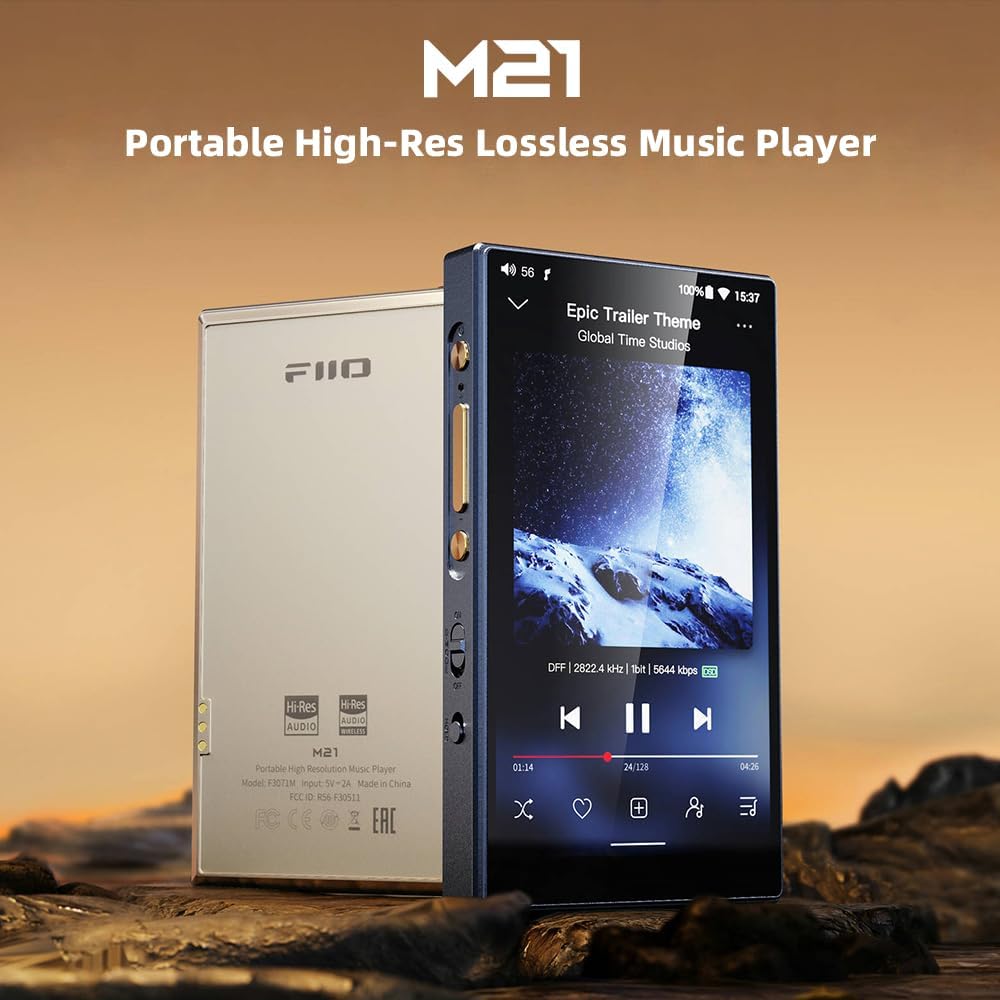
Figure 4: FiiO M21 screen showing the music playback interface with track information and controls.
4.3 Output Modes and Gain Settings
The M21 supports versatile output options and gain settings to match various headphones and listening preferences.
- Headphone Outputs: Utilize the 3.5mm single-ended or 4.4mm balanced outputs.
- Line Out (LO): Dedicated line-out functionality for connecting to external amplifiers.
- SPDIF Output: Digital audio output for connecting to external DACs or receivers.
- USB Audio Output: Connect to a computer or other USB DACs for digital audio transmission.
Adjust the gain setting (Super High, High, Medium, Low) via the device's settings menu to optimize power output for your headphones.

Figure 5: FiiO M21 screen showing the gain selection menu (Super High, High, Medium, Low) and a visual comparison of output power.
5. Desktop Mode
The FiiO M21 features a patented Desktop Mode designed to protect the internal battery during extended use with external power. When Desktop Mode is enabled, the M21 operates entirely on external power, bypassing the internal battery's charging and discharging cycles. This feature extends the lifespan of the built-in battery, making it ideal for use as a stationary audio source.

Figure 6: FiiO M21 illustrating the Desktop Mode switch and external power input, with patent information.
6. Audio Technology and Performance
6.1 Snapdragon 680 Processor
The M21 is powered by a Qualcomm Snapdragon 680 octa-core processor, built on a 6nm process. This processor provides efficient performance for smooth operation of Android 13 and various music applications.

Figure 7: Internal component view of the FiiO M21, highlighting the Snapdragon 680 processor and 4GB RAM + 64GB storage combination.
6.2 Quad CS43198 DACs and 2-Stage Amplification
The device incorporates four CS43198 DAC chips, arranged in an eight-channel fully differential output design. This configuration enhances dynamic range and noise immunity. The headphone amplifier section utilizes a 2-stage circuit design: the first stage handles voltage amplification, and the second stage provides current expansion, contributing to sound quality and detail.

Figure 8: Close-up internal view of the FiiO M21, showcasing the four CS43198 DAC chips.
6.3 Digital and Analog Partition Shielding
The digital and headphone amplifier sections are physically separated and equipped with independent shielding covers. This design minimizes signal crosstalk and aids in efficient heat dissipation, contributing to audio purity.

Figure 9: Internal view of the FiiO M21, demonstrating the separate shielded partitions for digital and analog components.
6.4 Supported Audio Formats
The FiiO M21 supports a wide range of high-resolution audio formats, including DSD, FLAC, WAV, APE, ALAC, and MQA.
7. Maintenance
7.1 Cleaning the Device
Use a soft, dry, lint-free cloth to clean the exterior of the M21. Avoid using harsh chemicals or abrasive materials, which can damage the finish or screen.
7.2 Battery Care
To prolong battery life, avoid fully discharging the device frequently. If storing the device for an extended period, charge it to approximately 50-60% before storage. Utilize Desktop Mode when using the device as a stationary player to reduce battery wear.
7.3 Software Updates
Periodically check for system updates to ensure optimal performance and access to the latest features. Navigate to Settings > About phone > System update to check for and install available updates.
7.4 Storage Management
Regularly manage your internal and Micro SD card storage. Delete unnecessary files or transfer them to a computer to free up space and maintain device performance.
8. Troubleshooting
If you encounter issues with your FiiO M21, refer to the following common problems and solutions:
| Problem | Possible Solution |
|---|---|
| Device does not power on. | Ensure the device is sufficiently charged. Connect it to a power source and try again. If unresponsive, perform a hard reset by holding the power button for 10-15 seconds. |
| No sound output. | Check headphone connections. Verify volume level. Ensure correct output mode (3.5mm/4.4mm/LO) is selected. Test with different headphones. |
| Bluetooth connection issues. | Ensure Bluetooth is enabled on both devices. Unpair and re-pair the device. Move closer to the M21 to reduce interference. |
| Device freezes or is unresponsive. | Press and hold the Power button for 10-15 seconds to force a restart. If issues persist, consider a factory reset (backup data first). |
| Micro SD card not recognized. | Ensure the card is inserted correctly. Try reinserting. Test with another Micro SD card. Format the card (this will erase all data). |
If problems persist after attempting these solutions, please contact FiiO customer support for further assistance.
9. Specifications
The following table outlines the key specifications of the FiiO M21 Portable High-Resolution Music Player:
| Feature | Specification |
|---|---|
| Brand | FiiO |
| Model Name | M21 |
| Operating System | Android 13 |
| Processor | Qualcomm Snapdragon 680 (6nm) |
| DAC Chips | 4x CS43198 |
| Memory Storage | 4 GB RAM + 64 GB Internal Storage (Expandable via Micro SD) |
| Connectivity Technology | Bluetooth, Wi-Fi |
| Screen Size | 4.7 Inches |
| Screen Technology | LCD |
| Compatible Devices | Headphones |
| Supported Media Types | Micro SD |
| Supported Audio Standards | DSD, FLAC, WAV, APE, ALAC, MQA |
| Item Weight | 245 Grams |
| Output Power | Up to 950mW (32Ω) in Super High Gain mode |
| Special Feature | High-Resolution Audio, Desktop Mode |
10. Warranty and Support
The FiiO M21 Portable High-Resolution Music Player comes with a standard manufacturer's warranty. For specific warranty terms, conditions, and duration, please refer to the warranty card included with your product or visit the official FiiO website.
For technical support, troubleshooting assistance beyond this manual, or service inquiries, please contact FiiO customer support through their official channels. Keep your purchase receipt and product serial number handy when contacting support.
Official FiiO Website: www.fiio.com


