
1. Introduction
This manual provides essential information for the installation, operation, maintenance, and troubleshooting of your PNY NVIDIA RTX PRO 4500 Graphic Card. This high-performance graphic card is designed to accelerate creative, engineering, and scientific workflows with advanced AI capabilities and neural rendering.
Key features include 5th Gen Tensor Cores, 4th Gen RT Cores, 10496 CUDA Cores, 32 GB GDDR7 memory, and support for multiple displays with a maximum digital resolution of 7680 x 4320.
2. Package Contents
Verify that all items listed below are present in your package:
- NVIDIA RTX PRO 4500 Blackwell Graphic Card
- 1 x Auxiliary Power Cable
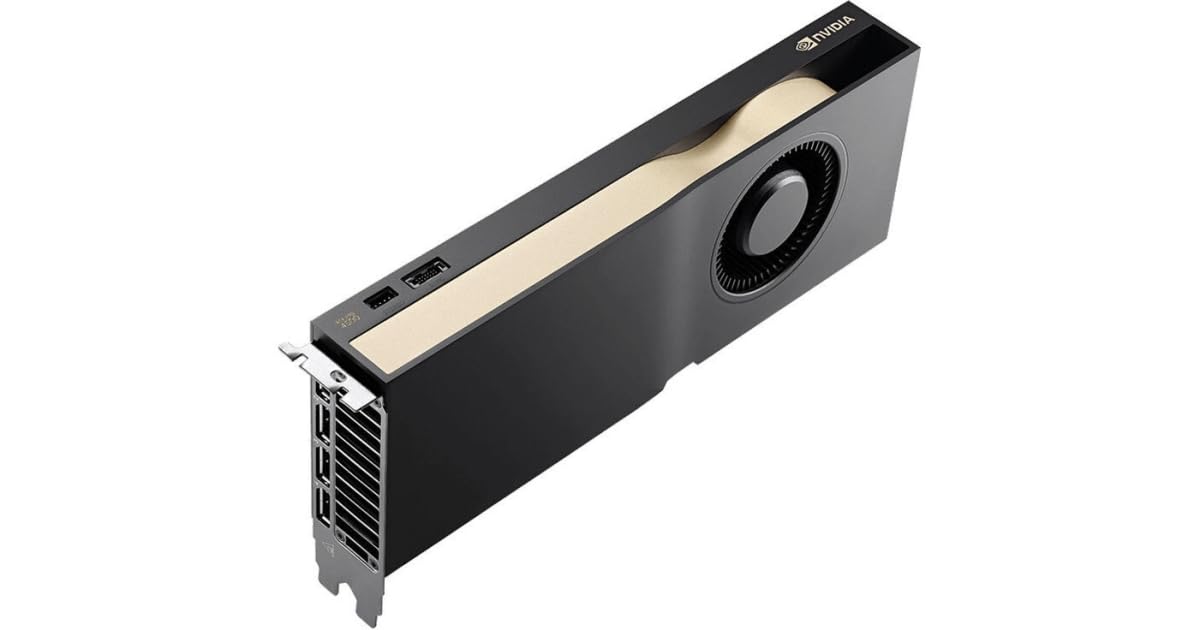
Image: PNY NVIDIA RTX PRO 4500 Graphic Card. This image displays the front view of the graphic card, highlighting its cooling solution and overall design.
3. Setup and Installation
Before proceeding with the installation, ensure your computer is powered off and disconnected from the power source. It is recommended to wear an anti-static wrist strap to prevent electrostatic discharge (ESD) damage.
- Prepare Your System: Power down your computer and unplug all cables. Open the computer case.
- Locate PCIe Slot: Identify an available PCI Express 5.0 x16 slot on your motherboard. This card requires a dual-slot space.
- Remove Slot Covers: Remove the two corresponding expansion slot covers from the back of your computer case.
- Insert Graphic Card: Carefully align the graphic card with the PCIe slot and press it firmly until it is fully seated. Ensure the retention clip on the PCIe slot locks into place.
- Secure Card: Secure the graphic card to the computer case using screws or the case's locking mechanism.
- Connect Power: Connect the provided 1x 16-pin auxiliary power cable from your power supply unit (PSU) to the graphic card. Ensure a secure connection.
- Close Case and Reconnect: Close your computer case, reconnect all cables, and power on your system.
- Install Drivers: Once your operating system loads, install the latest NVIDIA drivers for the RTX PRO 4500 from the official NVIDIA website. This is crucial for optimal performance and functionality.
4. Operating Instructions
After successful installation and driver setup, your PNY NVIDIA RTX PRO 4500 Graphic Card is ready for operation.
4.1. Display Connections
The graphic card features four DisplayPort outputs. Connect your monitors to these ports using DisplayPort cables. The card supports up to four monitors simultaneously with a maximum digital resolution of 7680 x 4320.
4.2. Software and API Support
The RTX PRO 4500 supports various graphics and compute APIs, ensuring compatibility with a wide range of professional applications:
- DirectX 12
- OpenGL 4.6
- Vulkan 1.3
- OpenCL 3.0
- DirectCompute
Ensure your applications and operating system are updated to leverage these technologies fully.
4.3. Supported Platforms
The graphic card is compatible with PC systems running various operating systems, including FreeBSD OS, Solaris, and Linux.
5. Maintenance
Proper maintenance ensures the longevity and optimal performance of your graphic card.
5.1. Cleaning
Periodically clean the graphic card to prevent dust buildup, which can hinder cooling performance. Use compressed air to gently clear dust from the fans and heatsink fins. Ensure the system is powered off and unplugged before cleaning.
5.2. Driver Updates
Regularly check for and install the latest NVIDIA drivers. Driver updates often include performance improvements, bug fixes, and compatibility enhancements for new software and games.
6. Troubleshooting
If you encounter issues with your graphic card, refer to the following common troubleshooting steps:
- No Display Output:
- Ensure the monitor is correctly connected to the graphic card and powered on.
- Verify the graphic card is fully seated in the PCIe slot.
- Check that the 16-pin auxiliary power cable is securely connected to both the card and the PSU.
- Test with a different display cable or monitor if possible.
- Driver Installation Issues:
- Download the latest drivers directly from the official NVIDIA website.
- Uninstall any previous graphic drivers using a utility like Display Driver Uninstaller (DDU) before attempting a fresh installation.
- Poor Performance or Instability:
- Ensure your system meets the minimum requirements for the applications you are running.
- Monitor the card's temperature using monitoring software. Overheating can lead to performance throttling.
- Verify your power supply unit (PSU) provides sufficient wattage for the graphic card and other system components.
7. Specifications
| Feature | Detail |
|---|---|
| Graphics Coprocessor | NVIDIA RTX PRO 4500 Blackwell |
| Brand | PNY |
| Graphics RAM Size | 32 GB |
| Video Output Interface | DisplayPort (4 outputs) |
| Graphics Processor Manufacturer | NVIDIA |
| Graphics RAM Type | GDDR7 |
| Compatible Devices | Desktop |
| Maximum Display Resolution | 7680x4320 |
| Graphics Card Interface | PCI-Express 5.0 x16 |
| Memory Clock Speed | 1.75 MHz |
| Card Dimensions (Length x Height) | 10.5" x 4.4" |
| Video Processor | NVIDIA |
| Model Name | VCNRTXPRO4500B-PB |
| Manufacturer | PNY |
| UPC | 751492796246 |
| Item Weight | 2.75 Pounds |
| API Supported | DirectX 12, OpenGL 4.6, Vulkan 1.3, OpenCL 3.0, DirectCompute |
| CUDA Cores | 10496 |
| AI-powered | Yes |
| Bus Width | 256 bit |
| Maximum Memory Bandwidth | 896 GB/s |
| Power Connector | 1x 16-pin |
| Slot Space Required | Dual |
| Form Factor | Plug-in Card, Full-length, Full-height |
| Cooler Type | Active Cooler |
| Supported Platforms | PC, FreeBSD OS, Solaris, Linux |
8. Warranty and Support
8.1. Limited Warranty
The PNY NVIDIA RTX PRO 4500 Graphic Card comes with a 3-Year Limited Warranty. Please retain your proof of purchase for warranty claims. For detailed warranty terms and conditions, refer to the official PNY website or contact PNY customer support.
8.2. Technical Support
For technical assistance, driver downloads, or further product information, please visit the official PNY support website. You can also contact PNY customer service directly for personalized support.
Note: Always refer to the latest information available on the manufacturer's official website for the most up-to-date drivers and support resources.


