
Motorola Motorola Pad 60 Neo
Motorola Pad 60 Neo User Manual
Model: Motorola Pad 60 Neo
1. Introduction
Welcome to the user manual for your new Motorola Pad 60 Neo. This guide provides essential information to help you set up, operate, maintain, and troubleshoot your device. The Motorola Pad 60 Neo is an 11-inch Wi-Fi-only tablet featuring a MediaTek Dimensity 6300 octa-core processor, 8 GB LPDDR5x RAM, and 128 GB UFS 3.1 storage, designed for entertainment and productivity.
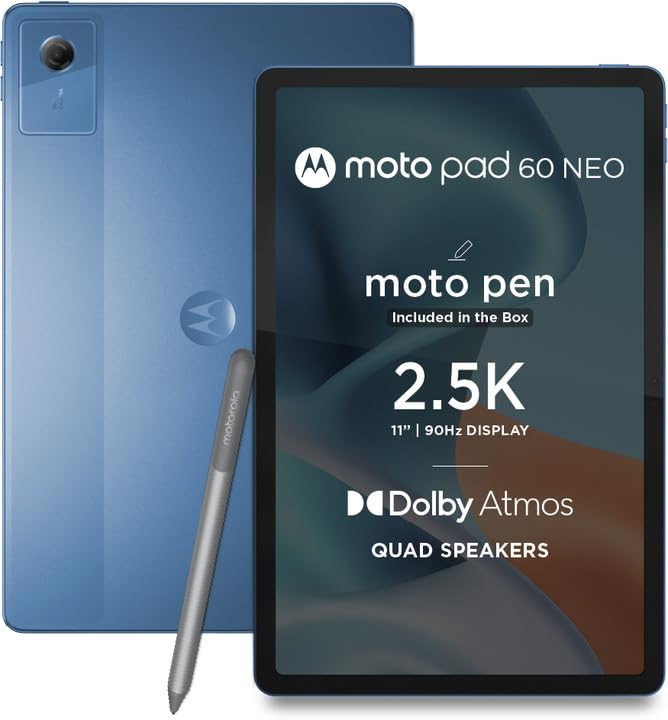
Image 1.1: Front view of the Motorola Pad 60 Neo tablet. This image shows the device's sleek design and large display, highlighting its suitability for media consumption and daily tasks.
2. Setup
2.1. What's in the Box
- Motorola Pad 60 Neo Tablet
- USB Type-C Cable
- Power Adapter
- Quick Start Guide (refer to this manual for detailed instructions)
- SIM Ejector Tool (if applicable for models with cellular connectivity, though this model is Wi-Fi only)
2.2. Initial Charging
Before first use, fully charge your tablet.
- Connect the USB Type-C cable to the tablet's charging port.
- Connect the other end of the cable to the power adapter.
- Plug the power adapter into a wall outlet.
- The charging indicator will appear on the screen. Allow the device to charge completely before disconnecting.
2.3. Powering On/Off
- To Power On: Press and hold the Power button until the Motorola logo appears.
- To Power Off: Press and hold the Power button until the power options appear on the screen, then select "Power off".
- To Restart: Press and hold the Power button until the power options appear, then select "Restart".
2.4. Initial Setup Wizard
Upon first power-on, the tablet will guide you through the initial setup process.
- Select your preferred language.
- Connect to a Wi-Fi network. This is crucial for downloading updates and accessing online services.
- Sign in with your Google Account or create a new one. This is required to download apps from the Google Play Store.
- Follow the on-screen prompts to set up security features (PIN, pattern, password, or fingerprint).
- Review and accept the terms and conditions.
2.5. Inserting a microSD Card (Optional)
The Motorola Pad 60 Neo supports expandable storage via a microSD card.
- Locate the SIM/microSD card tray on the side of the tablet.
- Insert the SIM ejector tool into the small hole next to the tray and press gently until the tray pops out.
- Place the microSD card into the designated slot on the tray, ensuring the gold contacts face down.
- Carefully push the tray back into the tablet until it clicks into place.
- The tablet will detect the new storage and may prompt you to format it for use.
3. Operating Your Tablet
3.1. Basic Navigation
- Touch: Tap an icon or option to select it.
- Touch and Hold: Press and hold an item to see available options.
- Swipe: Drag your finger across the screen to scroll or move between screens.
- Pinch: Use two fingers to zoom in or out on photos and web pages.
- Home Screen: Tap the Home button (usually a circle or square icon) to return to the main screen.
- Back: Tap the Back button (usually a triangle or arrow icon) to go back to the previous screen.
- Recent Apps: Tap the Recent Apps button (usually a square or three vertical lines icon) to view and switch between recently used applications.
3.2. Connecting to Wi-Fi
- Go to Settings > Network & internet > Wi-Fi.
- Toggle the Wi-Fi switch to the On position.
- Select your desired Wi-Fi network from the list of available networks.
- Enter the network password if prompted, then tap Connect.
3.3. App Management
- Installing Apps: Open the Google Play Store app, search for the desired app, and tap Install.
- Uninstalling Apps: Touch and hold the app icon on the home screen or app drawer, then drag it to the Uninstall option, or go to Settings > Apps, select the app, and tap Uninstall.
- Updating Apps: Open the Google Play Store, tap your profile icon, then select Manage apps & device to check for updates.
3.4. Display and Sound Settings
- Brightness: Adjust screen brightness from the Quick Settings panel (swipe down from the top of the screen) or via Settings > Display.
- Refresh Rate: The tablet supports a 120Hz refresh rate. You can usually adjust this in Settings > Display > Screen refresh rate for smoother visuals or to conserve battery.
- Volume: Use the physical volume buttons on the side of the tablet or adjust sound levels in Settings > Sound & vibration.
3.5. Camera Usage
The tablet includes front and rear cameras for photos and video calls.
- Open the Camera app.
- Tap the shutter button to take a photo.
- Switch between photo and video modes as needed.
- Use the on-screen icons to adjust settings like flash, timer, or switch between front and rear cameras.
4. Maintenance
4.1. Cleaning Your Device
- Use a soft, lint-free cloth to clean the screen and body of the tablet.
- For stubborn smudges, slightly dampen the cloth with water or a screen cleaner specifically designed for electronics.
- Avoid using harsh chemicals, abrasive materials, or excessive moisture.
- Ensure all ports are dry before charging or connecting accessories.
4.2. Battery Care
- Avoid extreme temperatures, as they can degrade battery life.
- Do not leave the tablet fully charged or fully discharged for extended periods.
- Use only the provided charger and cable or certified replacements.
- For optimal battery longevity, try to keep the charge level between 20% and 80%.
4.3. Software Updates
Regularly check for and install software updates to ensure your tablet has the latest features, security patches, and performance improvements.
- Go to Settings > System > System update.
- Tap Check for updates.
- If an update is available, follow the on-screen instructions to download and install it. Ensure your tablet is sufficiently charged or connected to power during the update process.
4.4. Storage Management
To maintain optimal performance, regularly manage your tablet's storage.
- Delete unnecessary apps, photos, and videos.
- Clear cache data for apps in Settings > Apps > (select app) > Storage & cache > Clear cache.
- Utilize cloud storage services for backups.
- Consider using a microSD card for additional storage if needed.
5. Troubleshooting
5.1. Common Issues and Solutions
| Issue | Solution |
|---|---|
| Tablet not powering on | Ensure the battery is charged. Connect to the charger for at least 30 minutes, then try powering on again. If unresponsive, perform a force restart by holding the Power button for 10-15 seconds. |
| Wi-Fi connection issues | Restart your Wi-Fi router. On the tablet, turn Wi-Fi off and then on again. Forget the network and reconnect. Ensure you are within range of the Wi-Fi signal. |
| Apps crashing or freezing | Close and reopen the app. Clear the app's cache (Settings > Apps > (select app) > Storage & cache > Clear cache). Update the app from the Google Play Store. If the issue persists, uninstall and reinstall the app. |
| Slow performance | Close unused apps. Clear cache data. Free up storage space. Restart the tablet. Check for system updates. |
| Screen unresponsive | Perform a force restart by holding the Power button for 10-15 seconds. If the issue persists, contact support. |
5.2. Factory Reset
A factory reset will erase all data from your tablet and restore it to its original factory settings. This can resolve persistent software issues but should be used as a last resort.
Warning: Back up all important data before performing a factory reset.- Go to Settings > System > Reset options.
- Select Erase all data (factory reset).
- Confirm your decision and enter your PIN/password if prompted.
- The tablet will restart and begin the reset process.
6. Specifications
| Feature | Detail |
|---|---|
| Model Name | Motorola Pad 60 Neo |
| Brand | Motorola |
| Operating System | Android |
| Processor | MediaTek Dimensity 6300 Octa-core |
| RAM | 8 GB LPDDR5x |
| Internal Storage | 128 GB UFS 3.1 |
| Expandable Storage | microSD (up to 2 TB, based on general specification, though 2TB is very high for a tablet) |
| Screen Size | 11 Inches |
| Display Type | AMOLED |
| Refresh Rate | 120 Hz |
| Battery Capacity | 7040 mAh Lithium Polymer |
| Connectivity | Wi-Fi, USB Type-C |
| Human Interface | Touchscreen |
| GTIN/UPC | 199272272700 |
7. Warranty and Support
7.1. Product Warranty
Your Motorola Pad 60 Neo comes with a standard manufacturer's warranty. Please refer to the warranty card included in your product packaging or visit the official Motorola website for detailed terms and conditions, including warranty duration and coverage. Keep your proof of purchase for warranty claims.
7.2. Customer Support
For technical assistance, service, or further inquiries, please contact Motorola customer support.
- Online Support: Visit the official Motorola support website for FAQs, troubleshooting guides, and contact options.
- Phone Support: Refer to the contact information provided in your product documentation or on the Motorola website for regional support numbers.
When contacting support, have your tablet's model number and serial number ready. This information can usually be found in Settings > About tablet.
Related documentsMotorola Pad 60 Neo


Ask a question about this manual
Ask about setup, troubleshooting, compatibility, parts, safety, or missing instructions. Manuals+ will review the question and use this page’s manual context to help answer it.