
1. Introduction
Thank you for choosing the UXD A5 Android Tablet. This manual provides essential information for setting up, operating, and maintaining your new device. Please read it thoroughly to ensure optimal performance and longevity of your tablet.
The UXD A5 is a versatile 10-inch Android 15 tablet featuring an Octa-Core CPU, 12GB RAM, and 512GB internal storage, designed for productivity and entertainment. It supports WiFi 6 and 4G LTE connectivity.
2. Package Contents
Please verify that all items are present in your package:
- UXD A5 Android Tablet
- Stylus
- Detachable Keyboard
- Precision Mouse
- Screen Protector (pre-applied or separate)
- OTG Adapter
- Foldable Case
- Charger
- USB Cable
3. Product Overview
The UXD A5 tablet features a 10-inch HD IPS display. Key components include:
- Front Camera: Typically located at the top center when held vertically, used for video calls and selfies. (5MP)
- Rear Camera: Located on the back of the tablet, used for high-resolution photography. (15MP)
- Power Button: Usually on the side, used to turn the tablet on/off or put it to sleep.
- Volume Buttons: Adjacent to the power button, used to adjust audio levels.
- USB-C Port: For charging and data transfer.
- SIM/MicroSD Card Slot: For inserting a 4G SIM card and expanding storage with a microSD card (up to 1TB).
- Speakers: For audio output.
- Microphone: For voice input.
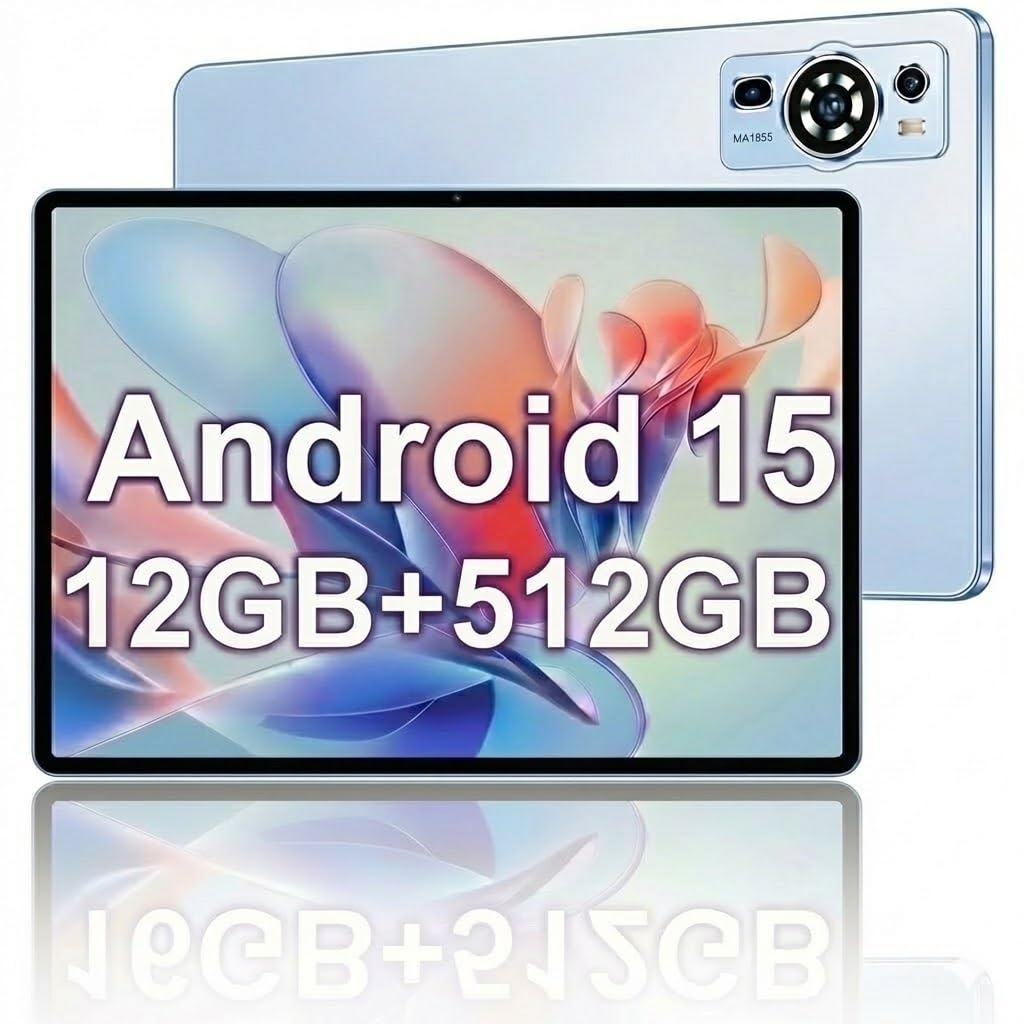
Image: The UXD A5 Android Tablet shown with its included accessories, such as the detachable keyboard, mouse, and stylus, highlighting its comprehensive package.
4. Setup
4.1 Initial Charging
Before first use, fully charge the tablet using the provided charger and USB cable. Connect the USB cable to the tablet's USB-C port and the charger to a power outlet. The battery indicator on the screen will show charging status.
4.2 Powering On/Off
- To Power On: Press and hold the Power button until the UXD logo appears.
- To Power Off: Press and hold the Power button until the power options appear, then select 'Power off'.
- To Sleep/Wake: Briefly press the Power button.
4.3 Connecting to Wi-Fi
- Go to Settings > Network & internet > Wi-Fi.
- Toggle Wi-Fi On.
- Select your desired Wi-Fi network from the list.
- Enter the password if prompted, then tap Connect.
4.4 Inserting SIM Card (4G LTE)
If your model supports 4G LTE, locate the SIM card slot on the side of the tablet. Use the provided SIM ejector tool (if applicable) to open the tray. Insert a nano-SIM card into the designated slot with the gold contacts facing down, then reinsert the tray. Ensure the tablet is powered off before inserting or removing a SIM card.
4.5 Expanding Storage with MicroSD Card
The tablet supports microSD cards up to 1TB. Locate the SIM/MicroSD card slot. Insert the microSD card into the appropriate slot with the gold contacts facing down. The tablet will detect the card and prompt you for formatting options if necessary.
4.6 Connecting Accessories
- Keyboard/Mouse: These typically connect via Bluetooth. Go to Settings > Connected devices > Bluetooth. Turn Bluetooth on, put the accessory in pairing mode, and select it from the list of available devices.
- Stylus: The stylus is generally passive or connects automatically via Bluetooth. Refer to the stylus's specific instructions for pairing if required.
- OTG Adapter: Connect the OTG adapter to the tablet's USB-C port to connect USB devices like flash drives.
5. Operating Instructions
5.1 Basic Navigation
The UXD A5 tablet uses a capacitive touchscreen. Use gestures such as tap, swipe, pinch-to-zoom, and long-press to navigate the interface, open apps, and interact with content.
5.2 Android 15 Operating System
Your tablet runs on Android 15, offering enhanced privacy features, improved notifications, and a refined user interface. Explore the Settings menu to customize your tablet's behavior, appearance, and security options.
5.3 Storage Management
The tablet comes with 512GB of internal storage. To manage your storage, go to Settings > Storage. Here you can view used space, free up space, and manage files on your internal storage and microSD card.
5.4 Camera Usage
Open the Camera app to take photos and videos. The tablet features a 5MP front camera and a 15MP rear camera. Tap the screen to focus, and use the on-screen shutter button to capture images. Switch between front and rear cameras using the icon on the screen.
5.5 Battery Optimization
The 6000mAh battery provides extended usage. To maximize battery life:
- Adjust screen brightness.
- Turn off Wi-Fi, Bluetooth, and GPS when not in use.
- Close unused applications running in the background.
- Enable Battery Saver mode in Settings > Battery.
6. Maintenance
6.1 Cleaning the Tablet
Use a soft, lint-free cloth to clean the screen and body of the tablet. For stubborn smudges, slightly dampen the cloth with water or a screen-cleaning solution. Avoid using harsh chemicals or abrasive materials.
6.2 Software Updates
Regularly check for software updates to ensure your tablet has the latest features and security patches. Go to Settings > System > System update to check for and install available updates.
6.3 Battery Care
To prolong battery lifespan, avoid extreme temperatures and do not let the battery completely drain frequently. It is recommended to keep the battery charge between 20% and 80% for optimal long-term health.
7. Troubleshooting
- Tablet not powering on: Ensure the tablet is charged. Connect the charger and wait a few minutes before attempting to power on again.
- Wi-Fi connectivity issues: Restart your tablet and your Wi-Fi router. Ensure you are within range of the Wi-Fi signal and have entered the correct password.
- Slow performance: Close unused apps, clear cache, or restart the tablet. Consider uninstalling rarely used applications to free up resources.
- Touchscreen unresponsive: Restart the tablet. If the issue persists, ensure the screen is clean and free of debris.
- Accessories not connecting: Ensure Bluetooth is enabled on the tablet and the accessory is in pairing mode. Check the accessory's battery level.
8. Specifications
| Brand | UXD |
| Model Name | A5 |
| Operating System | Android 15 |
| Screen Size | 10.1 Inches |
| Display Resolution | 1280x800 Pixels (HD IPS) |
| Processor | Octa-Core CPU |
| RAM Memory | 12 GB |
| Internal Storage | 512 GB |
| Expandable Storage | Up to 1 TB (MicroSD) |
| Wireless Technology | Wi-Fi 6, Bluetooth 5.0 |
| Cellular Technology | 4G LTE |
| Front Camera | 5 MP |
| Rear Camera | 15 MP |
| Battery Capacity | 6000 mAh (Lithium Polymer) |
| Battery Average Life | Up to 72 Hours (standby) |
| Dimensions (L x W x Th) | 9.4"L x 6.3"W x 2.7"Th |
| Color | Blue |
9. Warranty and Support
The UXD A5 Android Tablet comes with a 1-year limited warranty. For warranty claims or technical support, please refer to the contact information provided with your purchase or visit the official UXD support website.
Please retain your proof of purchase for warranty purposes.