
1. Product Overview
The Uciefy Tri-Mode Wireless Mouse (Model U8) offers versatile connectivity and advanced features for various computing needs. It supports three connection modes: 2.4GHz wireless, Bluetooth 5.0, and Bluetooth 5.1, allowing seamless switching between multiple devices. Key features include an integrated LED screen for real-time battery percentage, DPI setting, and connection mode display, four adjustable DPI levels (800/1200/1600/2400) for precision control, USB-C rechargeable battery with auto-sleep function, vibrant RGB lighting effects, and convenient built-in storage for the USB receiver.
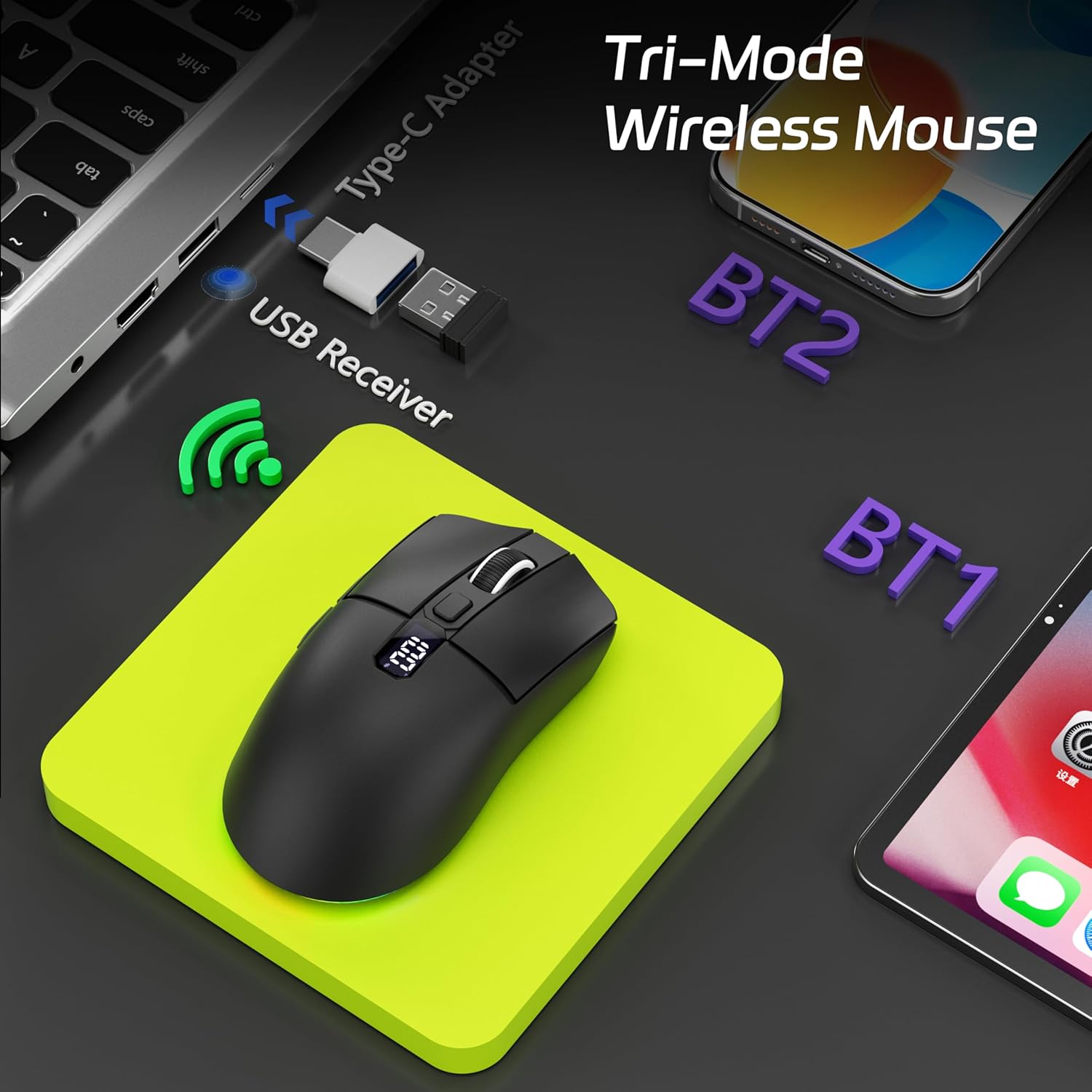
Figure 1: Uciefy Tri-Mode Wireless Mouse with multiple connection options.

Figure 2: LED screen display showing battery level and connection mode.

Figure 3: Product function diagram highlighting mouse components.
2. Package Contents
- 1 x Uciefy Tri-Mode Wireless Mouse
- 1 x USB Receiver (stored at the bottom of the mouse)
- 1 x Type-C Charging Cable
- 1 x User Manual
3. Setup
3.1 Charging the Mouse
Before first use, please fully charge the mouse. Connect the provided Type-C charging cable to the mouse's Type-C charging port and to a USB power source. The LED screen will display the battery percentage during charging.

Figure 4: USB-C rechargeable mouse connected for charging.
3.2 Connecting via 2.4GHz Wireless
- Take out the USB receiver from its storage slot at the bottom of the mouse.
- Turn on the mouse using the ON/OFF switch located on the bottom.
- Insert the USB receiver into an available USB-A port on your computer. If your computer only has USB-C ports, use the included USB-C adapter.
- Single tap the 'Mode Switch' button on the bottom of the mouse to select the 2.4G mode. The red light will indicate 2.4G mode.
- Allow a few seconds for the mouse to connect automatically. The mouse is now ready for use.

Figure 5: Visual guide for 2.4G USB connection.
Video 1: Unboxing the Uciefy Tri-Mode Wireless Mouse, showing the contents and how to locate the USB receiver.
3.3 Connecting via Bluetooth (BT1/BT2)
- Turn on the mouse using the ON/OFF switch located on the bottom.
- Single tap the 'Mode Switch' button on the bottom of the mouse to select either BT1 (Bluetooth 5.0) or BT2 (Bluetooth 5.1) mode. The blue or green light will indicate the selected Bluetooth mode.
- On your device (laptop, PC, Mac, iPad, smartphone), go to Bluetooth settings and enable Bluetooth.
- Search for available devices and select "BT Mouse 5.1" (for BT1) or "BT Mouse 5.0" (for BT2) to connect and pair.
- Once paired, the mouse is ready for use. You can switch between BT1 and BT2 to connect to two different Bluetooth devices.

Figure 6: Visual guide for Bluetooth connection.
Video 2: Demonstration of how to use the Tri-Mode Bluetooth Wireless Mouse, including switching between different connection modes.
4. Operating Instructions
4.1 Power On/Off and LED Control
- To turn the mouse ON or OFF, use the dedicated switch on the bottom of the mouse.
- To control the RGB lighting, use the LED ON/OFF switch on the bottom of the mouse. This allows you to enable or disable the RGB effects independently of the mouse's power.
4.2 Adjusting DPI Settings
The mouse features four adjustable DPI levels for varying cursor sensitivity:
- D1: 800 DPI
- D2: 1200 DPI
- D3: 1600 DPI
- D4: 2400 DPI
To cycle through these settings, press the DPI button located on the top of the mouse. The current DPI level (D1, D2, D3, or D4) will be displayed on the LED screen.

Figure 7: Visual representation of 4-level adjustable DPI settings.
4.3 RGB Lighting Effects
The mouse features vibrant RGB lighting effects. To switch between different multicolor and solid-color lighting modes, press and hold the DPI button for 3 seconds.

Figure 8: RGB lighting effects and control method.
4.4 Forward/Backward Buttons
The mouse is equipped with dedicated forward and backward buttons on the side for convenient navigation in web browsers and file explorers.

Figure 9: Forward and Backward navigation buttons.
5. Maintenance
5.1 Cleaning
To clean the mouse, use a soft, dry cloth. Avoid using harsh chemicals or abrasive materials that could damage the surface. For optical sensor cleaning, use a cotton swab lightly dampened with isopropyl alcohol.
5.2 Storage
When not in use, especially during travel, store the USB receiver in its dedicated slot at the bottom of the mouse to prevent loss. Store the mouse in a cool, dry place away from direct sunlight and extreme temperatures.
6. Troubleshooting
- Mouse not responding: Ensure the mouse is powered on and fully charged. Check the connection mode (2.4G or Bluetooth) and ensure it matches your device's connection. For 2.4G, verify the USB receiver is securely plugged in. For Bluetooth, ensure your device's Bluetooth is enabled and the mouse is paired.
- Intermittent connection: Move the mouse closer to your device to reduce interference. Ensure no other wireless devices are causing interference.
- Cursor movement is erratic: Clean the optical sensor at the bottom of the mouse. Ensure you are using the mouse on a suitable surface (not highly reflective or transparent). Adjust the DPI setting to a lower value if the cursor is too sensitive.
- LED screen not displaying: Ensure the mouse is powered on. If the screen is off, it might be in sleep mode; click any button to wake it up.
- RGB lights not working: Check the LED ON/OFF switch on the bottom of the mouse. Ensure it is in the 'ON' position.
7. Specifications
| Feature | Detail |
|---|---|
| Connectivity Technology | Bluetooth, 2.4G USB |
| DPI Settings | 800/1200/1600/2400 |
| Special Features | Tri-Mode (BT1/BT2+USB), LED Screen Display (Battery & DPI Level & Mode), 4 Adjustable DPI, USB-C Rechargeable, Ergonomic Design, Portable |
| Movement Detection Technology | Optical |
| Product Dimensions | 4.72 x 2.44 x 0.1 inches |
| Item Weight | 4.2 ounces |
| Batteries | 1 Product Specific battery required (included) |
8. Warranty and Support
This Uciefy product comes with a standard manufacturer's warranty. For detailed warranty information, product support, or to report any issues, please refer to the contact information provided in your product packaging or visit the official Uciefy website. Please retain your proof of purchase for warranty claims.