
Introduction
The Xech X-609/A is a versatile mini alarm clock designed for students and professionals. It features a digital display, dual alarm functionality, and an integrated Bluetooth speaker. This device is USB-C powered and includes a battery backup for uninterrupted performance. This manual provides detailed instructions for setting up, operating, and maintaining your Xech X-609/A alarm clock.

Figure 1: Xech X-609/A Mini Alarm Clock (Front View)
Package Contents
Please check the package for the following items:
- Xech X-609/A Mini Alarm Clock Unit
- USB-C Charging Cable
- User Manual
Product Layout and Controls
Familiarize yourself with the buttons and ports on your Xech X-609/A alarm clock.

Figure 2: Top Control Buttons
The top panel features several control buttons for various functions:
- Power Button: Turns the device on/off.
- Mode Button: Switches between time display, alarm settings, and Bluetooth mode.
- Volume Up/Next Track Button: Increases volume or skips to the next track in Bluetooth mode.
- Volume Down/Previous Track Button: Decreases volume or goes to the previous track in Bluetooth mode.
- Play/Pause Button: Plays or pauses music in Bluetooth mode.
- Alarm 1 Button: Activates/deactivates and sets Alarm 1.
- Alarm 2 Button: Activates/deactivates and sets Alarm 2.
The rear panel typically includes the USB-C charging port.
Setup
1. Powering On
- Connect the provided USB-C cable to the charging port on the back of the alarm clock and plug the other end into a compatible USB power adapter (not included).
- Press and hold the Power Button on the top panel to turn on the device. The digital display will illuminate.
- The device has an internal battery backup, providing up to 8 hours of operation without external power once fully charged.
2. Initial Time Setting (Auto-Set via Smartphone)
The Xech X-609/A features an auto-set time function when paired with a smartphone via Bluetooth.
- Ensure your alarm clock is powered on.
- Activate Bluetooth on your smartphone.
- Search for available Bluetooth devices and select "Xech X-609/A" (or similar name) to pair.
- Once successfully paired, the alarm clock will automatically synchronize its time with your smartphone's time.
Operating Instructions
1. Adjusting Display Brightness
The display brightness can be adjusted to suit your preference:
- While the time is displayed, short press the Mode Button to cycle through different brightness levels.
2. Setting Alarms (Dual Alarm)
The device supports two independent alarms.
- To Set Alarm 1: Press and hold the Alarm 1 Button until the hour digits start flashing.
- Use the Volume Up/Down Buttons to adjust the hour. Press the Alarm 1 Button again to confirm the hour and move to minute setting.
- Use the Volume Up/Down Buttons to adjust the minutes. Press the Alarm 1 Button again to confirm the minutes.
- The alarm icon for Alarm 1 will appear on the display, indicating it is active.
- To Set Alarm 2: Follow the same steps using the Alarm 2 Button.
- To Deactivate an Alarm: Short press the corresponding Alarm Button (Alarm 1 or Alarm 2) when the alarm is not sounding. The alarm icon will disappear from the display.
- Snooze Function: When an alarm sounds, short press any button (except the Power button) to activate snooze. The alarm will sound again after a few minutes.
- Stop Alarm: To stop an alarm completely, press and hold the corresponding Alarm Button when it is sounding.
3. Using the Bluetooth Speaker
The Xech X-609/A can play music wirelessly from your smartphone or other Bluetooth-enabled devices.
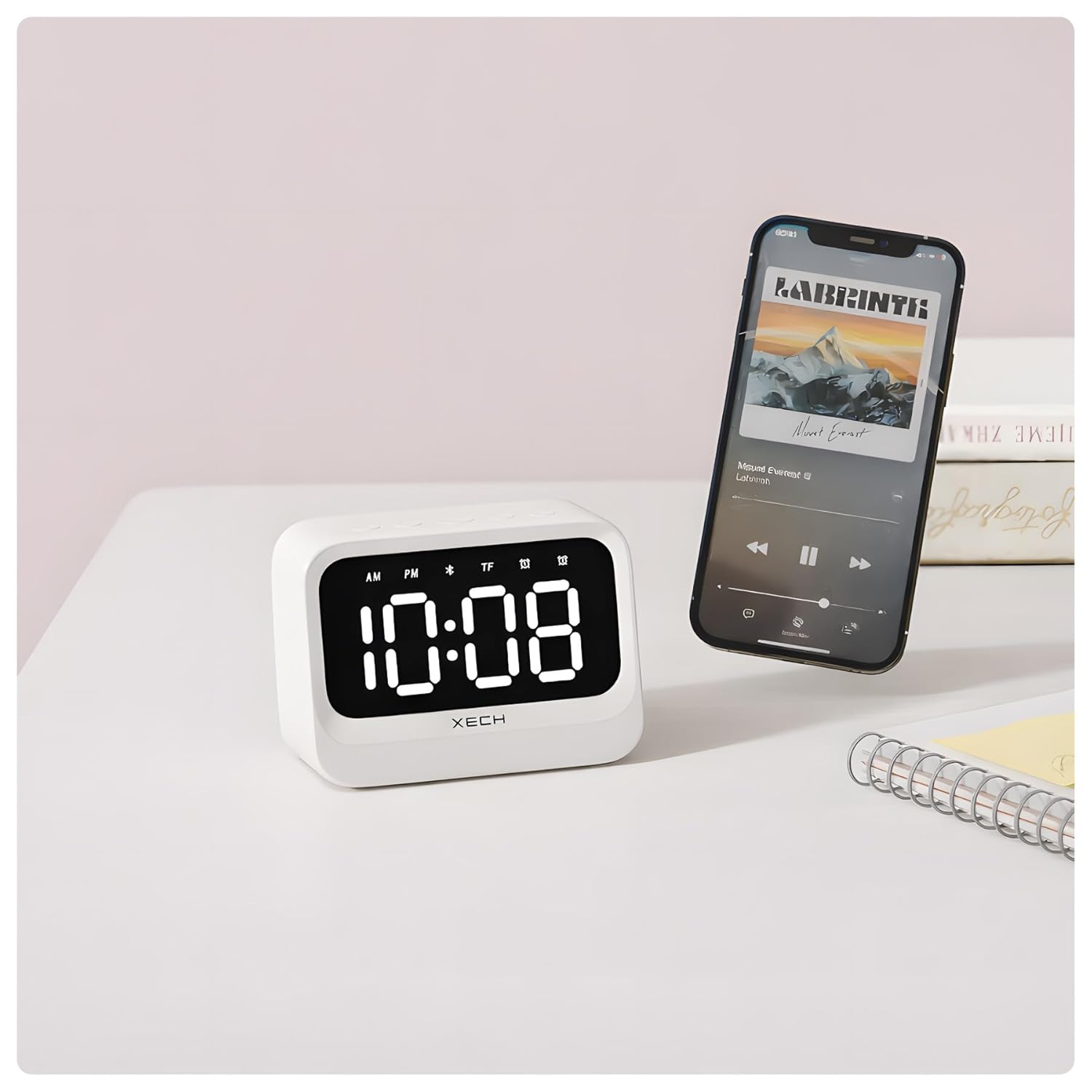
Figure 3: Bluetooth Speaker Functionality
- Press the Mode Button repeatedly until the Bluetooth icon appears on the display. The device is now in pairing mode.
- On your smartphone, go to Bluetooth settings and select "Xech X-609/A" to connect.
- Once connected, you can play audio from your smartphone through the alarm clock's speaker.
- Use the Play/Pause Button to control playback.
- Use the Volume Up/Down Buttons to adjust the volume or skip tracks (long press for volume, short press for track change).
Maintenance
To ensure the longevity and optimal performance of your Xech X-609/A alarm clock, follow these maintenance guidelines:
- Cleaning: Use a soft, dry cloth to wipe the surface of the device. Do not use abrasive cleaners, solvents, or chemical sprays, as these can damage the finish.
- Avoid Water: This device is not waterproof. Keep it away from water, high humidity, and liquids.
- Temperature: Store and operate the device in a moderate temperature environment. Avoid extreme heat or cold.
- Charging: Use only the provided USB-C cable for charging. Avoid overcharging the device for extended periods.
Troubleshooting
If you encounter issues with your Xech X-609/A, refer to the following common problems and solutions:
| Problem | Possible Cause | Solution |
|---|---|---|
| Device does not turn on. | Low battery or no power connection. | Connect the USB-C cable to a power source and ensure it is properly plugged in. Allow some time for charging if the battery is completely drained. |
| Alarm does not sound. | Alarm is not activated or volume is too low. | Ensure the alarm icon is visible on the display. Check the volume level. |
| Bluetooth cannot connect. | Device is not in pairing mode, or smartphone Bluetooth is off. | Press the Mode Button until the Bluetooth icon flashes. Ensure Bluetooth is enabled on your smartphone and try re-pairing. Move devices closer. |
| Time is incorrect. | Not paired with a smartphone or manual adjustment needed. | Pair the device with your smartphone via Bluetooth for automatic time synchronization. If manual adjustment is preferred, refer to the operating instructions. |
Specifications
| Feature | Detail |
|---|---|
| Brand | Xech |
| Model Number | X-609/A |
| Colour | White |
| Display Type | Digital |
| Special Features | Adjustable Brightness, Dual Alarm, Bluetooth Speaker |
| Product Dimensions | 10.8W x 7.8H Centimeters |
| Power Source | Battery Powered (USB-C) |
| Battery Type | 1 Nonstandard Battery (included) |
| Item Weight | 250 Grams |
Warranty and Support
Xech products are manufactured with quality and reliability in mind. For warranty information and customer support, please refer to the warranty card included with your product or visit the official Xech website.
You can also visit the Xech Store on Amazon for more information and support resources.
