
WSTER WS-267BT
WSTER WS-267BT Mini Bus Bluetooth Speaker User Manual
Model: WS-267BT | Brand: WSTER
1. Introduction
Thank you for purchasing the WSTER WS-267BT Mini Bus Bluetooth Speaker. This manual provides essential information for the safe and efficient operation of your new speaker. Please read it thoroughly before use and retain it for future reference.
2. Safety Information
- Do not expose the device to extreme temperatures, direct sunlight, or high humidity.
- Avoid dropping or subjecting the speaker to strong impacts.
- Keep the speaker away from water or other liquids.
- Do not attempt to disassemble or repair the device yourself. Contact qualified service personnel.
- Use only the provided charging cable.
3. Package Contents
- WSTER WS-267BT Mini Bus Bluetooth Speaker
- Power Cable
4. Product Overview
The WSTER WS-267BT is a portable Bluetooth speaker designed in a unique mini bus shape, featuring LED lights and multiple playback options.

Figure 4.1: Front view of the WSTER WS-267BT Mini Bus Bluetooth Speaker.
Controls and Ports

Figure 4.2: Rear panel with various ports and control buttons.
- Power Button: Long press to turn on/off. Short press to change modes.
- Volume/Track Control: Buttons for adjusting volume and skipping tracks.
- Microphone: For hands-free calling.
- USB Port: For USB flash drive playback.
- TF Card Slot: For TF (MicroSD) card playback.
- Auxiliary Input: For wired audio connection.
- Charging Port: Micro USB port for charging.
- LED Light Switch: To turn the LED lights on or off.
- Antenna: Extend for better FM radio reception.
5. Setup
5.1 Charging the Speaker
- Connect the provided power cable to the charging port on the speaker.
- Connect the other end of the cable to a USB power adapter (not included) or a computer's USB port.
- The LED indicator will show charging status (refer to product for specific indicator behavior).
- Once fully charged, disconnect the cable.
5.2 Powering On/Off
- To Power On: Long press the Power button until you hear an audible prompt and the LED lights activate.
- To Power Off: Long press the Power button again until you hear an audible prompt and the LED lights turn off.
6. Operating Instructions
6.1 Bluetooth Pairing

Figure 6.1: Speaker connected via Bluetooth to a mobile device.
- Ensure the speaker is powered on and in Bluetooth mode (indicated by an audible prompt or display).
- On your mobile device, enable Bluetooth and search for available devices.
- Select "WS-267BT" from the list of devices.
- Once paired, you will hear a confirmation sound.
6.2 TWS (True Wireless Stereo) Pairing

Figure 6.2: Two speakers connected for True Wireless Stereo experience.
- Ensure both WS-267BT speakers are powered on and in Bluetooth mode, but not yet paired to any device.
- On one of the speakers (this will be the primary speaker), long press the Mode button (or a dedicated TWS button if available, refer to product for exact button).
- The speakers will attempt to pair with each other. A confirmation sound will indicate successful TWS pairing.
- Now, pair your mobile device to the primary speaker via Bluetooth as described in Section 6.1. Audio will play through both speakers in stereo.
6.3 FM Radio Mode
- Extend the antenna for optimal reception.
- Short press the Power button to cycle through modes until you reach FM Radio mode.
- Use the Volume/Track control buttons to scan for stations or manually tune.
6.4 USB/TF Card Playback
- Insert a USB flash drive or a TF (MicroSD) card with MP3 audio files into the respective port.
- The speaker should automatically switch to USB or TF card mode and begin playback. If not, short press the Power button to cycle modes.
- Use the Volume/Track control buttons to manage playback.
6.5 Hands-free Calls
- When connected via Bluetooth to a smartphone, the built-in microphone allows for hands-free calling.
- An incoming call will pause music playback. Press the Play/Pause button (often integrated with the Power button) to answer or end a call.
6.6 LED Light Control
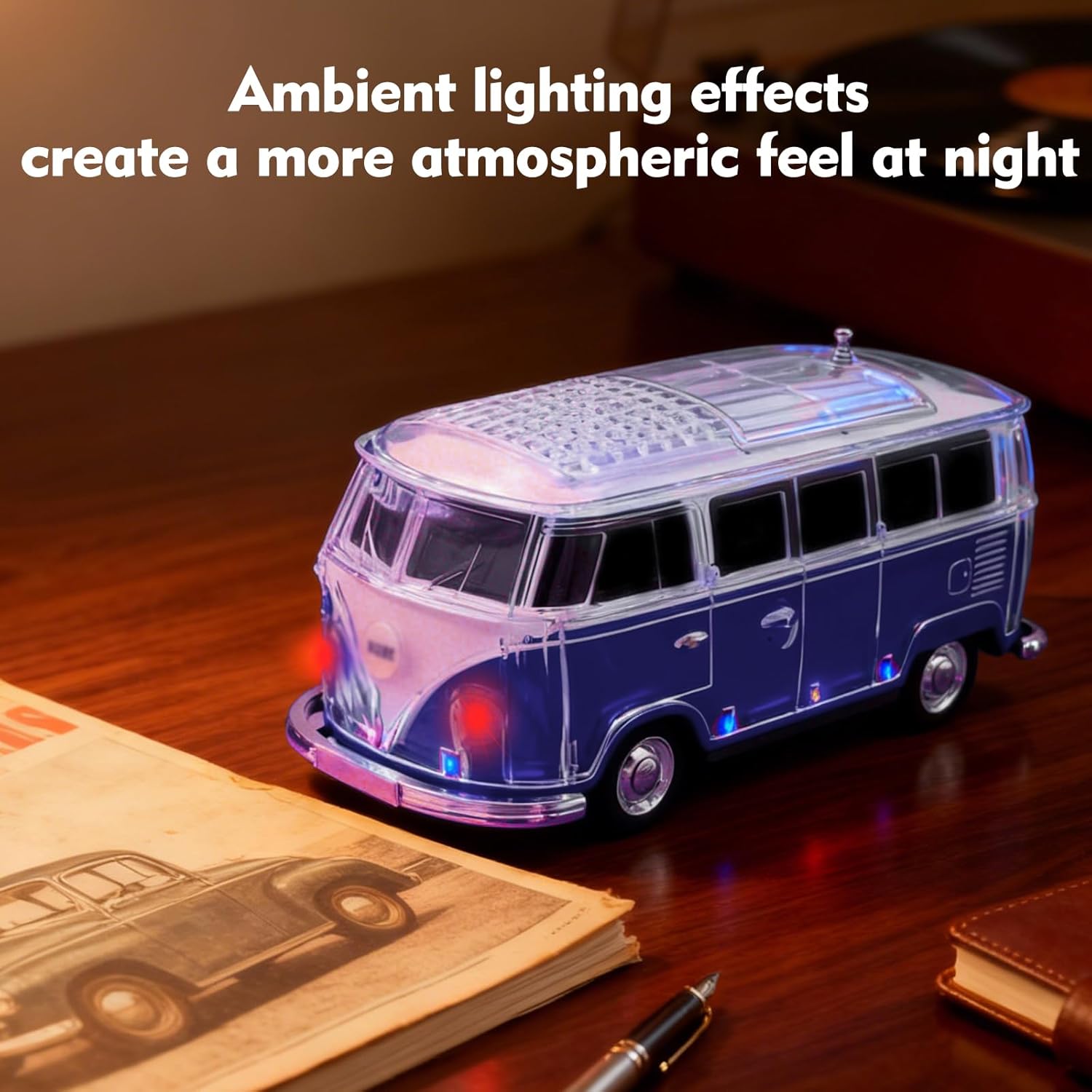
Figure 6.3: Speaker displaying its ambient LED lighting effects.
- Use the dedicated LED Light Switch on the speaker to toggle the colorful ambient lights on or off.
6.7 Product Videos
Video 6.4: Official product video demonstrating the WSTER WS-267BT Mini Bus Bluetooth Speaker's LED lights and sound.
Video 6.5: A short demonstration of the WSTER Mini Bus Bluetooth Speaker's features and design.
7. Maintenance
- Clean the speaker with a soft, dry cloth. Do not use abrasive cleaners or solvents.
- Store the speaker in a cool, dry place when not in use.
- Avoid prolonged exposure to direct sunlight or extreme temperatures.
8. Troubleshooting
| Problem | Possible Solution |
|---|---|
| Speaker does not power on. | Ensure the battery is charged. Connect to power and try again. |
| No sound. | Check volume levels on both the speaker and the connected device. Ensure correct mode is selected (Bluetooth, FM, USB, TF). |
| Bluetooth pairing fails. | Ensure the speaker is in Bluetooth pairing mode. Turn off and on Bluetooth on your device. Move closer to the speaker. |
| Poor FM radio reception. | Extend the antenna fully. Try moving to a different location. |
9. Specifications

Figure 9.1: Product dimensions for the WSTER WS-267BT speaker.
| Feature | Detail |
|---|---|
| Model Name | WS-267BT |
| Item Model Number | WL07X-267BT |
| Brand | WSTER |
| Connectivity Technology | Bluetooth |
| Speaker Type | Portable Speaker |
| Special Feature | Portable |
| Audio Output Mode | Stereo |
| Speaker Maximum Output Power | 6 Watts |
| Frequency Response | 18 KHz |
| Material | Acrylonitrile Butadiene Styrene (ABS) |
| Product Dimensions | 8.5"D x 3.7"W x 4"H |
| Number of Batteries | 1 Nonstandard Battery (included) |
| Color | Blue |
10. Warranty and Support
For warranty information or technical support, please refer to the product packaging or contact the retailer where the product was purchased. Keep your proof of purchase for any warranty claims.
Ask a question about this manual
Ask about setup, troubleshooting, compatibility, parts, safety, or missing instructions. Manuals+ will review the question and use this page’s manual context to help answer it.