
1. Introduction
The ZIYOU LANG M104 is a versatile full-size 104-key keyboard designed for various computing environments. It offers triple-mode connectivity (2.4G wireless, Bluetooth, and USB Type-C wired), RGB backlighting, and a durable aluminum alloy construction. This manual provides instructions for setting up, operating, and maintaining your keyboard.
2. Package Contents
- ZIYOU LANG M104 RGB Wireless Keyboard
- USB Type-C Cable
- 2.4G USB Receiver
- User Manual (this document)
3. Product Overview
The ZIYOU LANG M104 keyboard features a full 104-key layout, including a numeric keypad. It is equipped with low-profile membrane keys for quiet operation and a spill-resistant design.

Image 1: Overview of the ZIYOU LANG M104 keyboard highlighting its full-size layout, quiet buttons, triple connection modes, RGB backlight, 4000mAh battery, Win & Mac system compatibility, and ergonomic design.

Image 2: The keyboard demonstrating its three connection modes: Type-C Wired (plug and play), Bluetooth (Fn+2/@/3/#/4/$), and 2.4G Wireless (USB dongle).

Image 3: A top-down view of the 104-key full-size layout, including the numeric keypad, with dimensions indicated (430mm/16.93in length, 135mm/5.31in width).

Image 4: A close-up view of the floating low-profile keys, illustrating the double-shot waterproof keys and membrane structure designed for silent typing.
4. Setup and Connectivity
4.1 Wired Connection (USB Type-C)
- Connect the provided USB Type-C cable to the keyboard's Type-C port.
- Connect the other end of the cable to an available USB port on your computer.
- The keyboard will be automatically recognized and ready for use.
4.2 2.4G Wireless Connection
- Locate the 2.4G USB receiver (usually stored in a compartment on the keyboard or included separately).
- Plug the 2.4G USB receiver into an available USB port on your computer.
- Turn on the keyboard. It should automatically connect to the receiver.
4.3 Bluetooth Connection
The keyboard supports up to three Bluetooth devices. Use the following steps to pair:
- Turn on the keyboard.
- Press Fn + 2/@, Fn + 3/#, or Fn + 4/$ to select a Bluetooth channel. The indicator light for the selected channel will flash, indicating it's in pairing mode.
- On your device (PC, laptop, tablet, smartphone), open Bluetooth settings and search for new devices.
- Select "ZIYOU LANG M104" (or similar name) from the list of available devices to pair.
- Once paired, the indicator light will stop flashing and remain solid.
- To switch between paired Bluetooth devices, press Fn + 2/@, Fn + 3/#, or Fn + 4/$.
5. Operating Instructions
5.1 RGB Backlight Control
The keyboard features 15 customizable backlight modes and 16 million colors.
- Change Lighting Mode: Press Fn + Ins to cycle through the 15 available RGB backlight modes.
- Adjust Brightness: Press Fn + PgUp to increase brightness, and Fn + PgDn to decrease brightness.
- Adjust Speed: Press Fn + - to decrease lighting effect speed, and Fn + = to increase lighting effect speed.
- Cycle Color: Press Fn + Del to cycle through different colors within certain lighting modes.
- Reset Backlight: Press Fn + Esc to reset the backlight settings to default.

Image 5: The keyboard displaying various RGB backlight effects, with controls for brightness (Fn+PgUp/PgDn), speed (Fn+/-/=), color cycle (Fn+Del), and reset (Fn+Esc) indicated.
5.2 System Compatibility Switching
The keyboard is compatible with Windows, macOS, iOS, Android, and Linux operating systems.
- To switch between Windows and Mac modes, press Fn + N (for Windows) or Fn + M (for Mac). This optimizes key functions for the respective operating system.

Image 6: The keyboard in use with a computer, illustrating its wide compatibility and the Fn+N/Fn+M function to switch between Windows and Mac modes.
6. Battery and Charging
The ZIYOU LANG M104 keyboard features a built-in 4000mAh rechargeable battery.
- Charging: Connect the keyboard to a USB power source using the provided USB Type-C cable. The charging indicator light will show the charging status.
- Battery Life: A full charge can provide extended usage. The keyboard has an auto-sleep function after 2 minutes of inactivity to conserve power.
- Low Battery Indicator: The keyboard will indicate low battery status (e.g., flashing light) when charging is required.
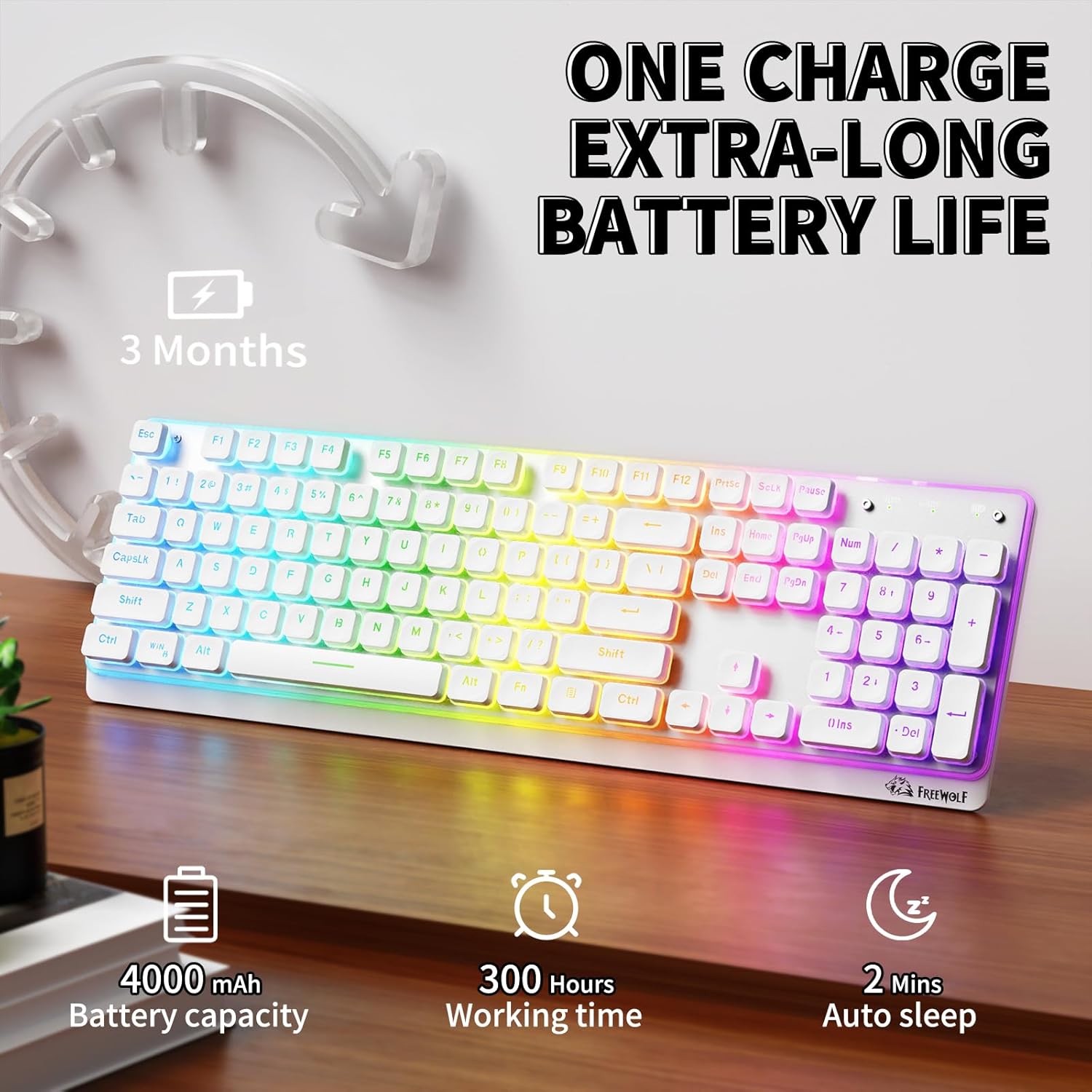
Image 7: Information regarding the keyboard's 4000mAh battery capacity, 300 hours working time, and 2 minutes auto-sleep feature, suggesting an extra-long battery life of up to 3 months.
7. Maintenance
- Cleaning: Use a soft, dry cloth to clean the keyboard surface. For stubborn dirt, a slightly damp cloth can be used, ensuring no liquid enters the key switches.
- Spill Resistance: The keyboard has a spill-resistant design. In case of accidental spills, immediately disconnect the keyboard and allow it to dry completely before reuse. Do not immerse the keyboard in liquid.
- Storage: Store the keyboard in a cool, dry place away from direct sunlight and extreme temperatures.
- Keycap Removal: While the keycaps are double-shot, avoid frequent removal unless necessary for deep cleaning. Use a keycap puller if available to prevent damage.
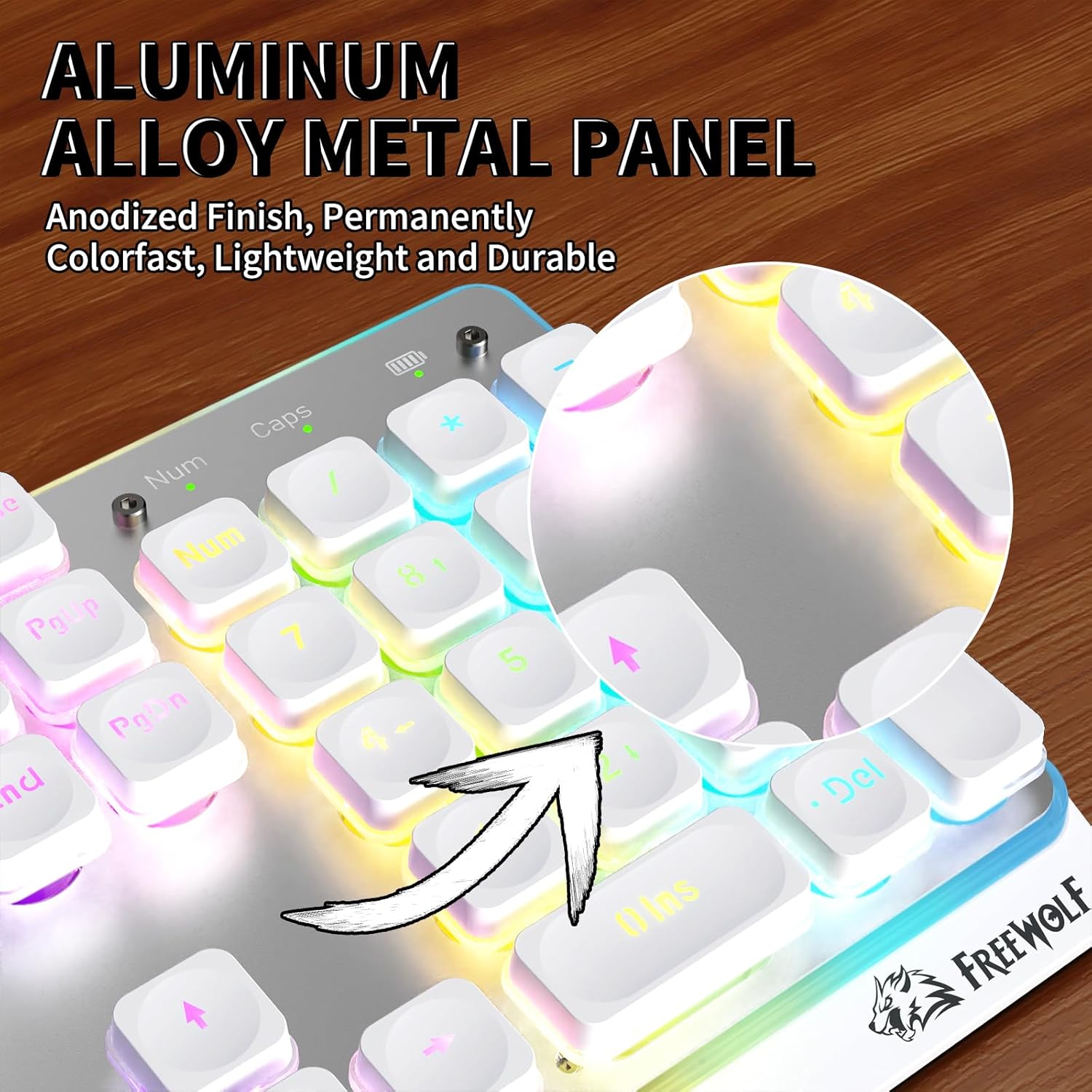
Image 8: A close-up view of the keyboard's aluminum alloy metal panel, highlighting its anodized finish for durability and resistance to wear.
8. Troubleshooting
| Problem | Possible Cause | Solution |
|---|---|---|
| Keyboard not responding (Wired) | Loose cable connection; Faulty USB port; Driver issue. | Ensure USB-C cable is securely connected. Try a different USB port. Restart your computer. |
| Keyboard not responding (2.4G Wireless) | Receiver not plugged in; Low battery; Interference. | Ensure 2.4G receiver is plugged in. Charge the keyboard. Move closer to the receiver or reduce interference sources. |
| Keyboard not responding (Bluetooth) | Not paired; Incorrect channel selected; Low battery; Bluetooth on device is off. | Ensure Bluetooth is enabled on your device. Re-pair the keyboard (Fn+2/3/4). Select the correct Bluetooth channel. Charge the keyboard. |
| RGB backlight not working | Backlight turned off; Low battery. | Press Fn + Ins to cycle modes. Adjust brightness with Fn + PgUp. Charge the keyboard. |
| Keys are sticky or unresponsive | Dirt or debris under keycap; Liquid spill residue. | Clean the keyboard. If a spill occurred, ensure it is completely dry. |
9. Specifications
- Model: M104
- Keys: 104-key Full-Size Layout
- Key Type: Low-Profile Membrane
- Connectivity: 2.4G Wireless, Bluetooth, USB Type-C Wired
- Battery: 4000mAh Rechargeable
- Backlight: RGB with 15+ effects
- Material: Aluminum Alloy Top Cover
- Compatibility: Windows, macOS, iOS, Android, Linux
- Dimensions: Approximately 430mm x 135mm (16.93in x 5.31in)
10. Warranty and Support
For warranty information and technical support, please refer to the official ZIYOU LANG website or contact your retailer. Keep your purchase receipt for warranty claims.