
Introduction
This manual provides detailed instructions for the installation, operation, maintenance, and troubleshooting of your litillbuly Android 13 Car Stereo. This unit is designed for Chevy Silverado and GMC Sierra models from 2014 to 2018. It features a 10.1-inch touchscreen, Android 13 operating system, wireless CarPlay/Android Auto, Bluetooth, GPS, FM radio, steering wheel control support, and physical keys.

Image: The litillbuly Android 13 Car Stereo with its 10.1-inch display, integrated into a vehicle dashboard.
Setup and Installation
Proper installation is crucial for optimal performance. Ensure your vehicle is compatible with this unit (Chevy Silverado/GMC Sierra 2014-2018). Professional installation is recommended.
Compatibility Notes
- If your original car has a BOSE or other premium audio system, the standard wiring harness may not be compatible.
- This unit does not support vehicles with optical fiber audio output.
Wiring Diagrams
Refer to the following diagrams for connecting the car stereo. These diagrams illustrate the wiring for different radio configurations and the RCA cable connections.
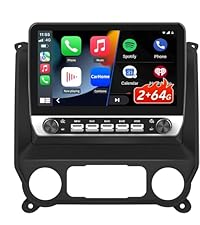
Image: Wiring diagram for vehicles equipped with a 7-inch IOB radio, showing connections for antenna, GPS, microphone, Can Bus, backup camera, speakers, and ISO wiring harness.

Image: Wiring diagram for vehicles equipped with a 4-inch or 8-inch IOB radio, detailing connections for GPS module, microphone, AUX inputs, speaker harnesses, USB ports, and Can Bus.

Image: Diagram illustrating the RCA cable connections, including AUX output, video input, audio input, subwoofer output, and microphone port.
Special Wiring Considerations
Certain vehicle configurations may require additional components or specific wiring adjustments.

Image: A comparison of vehicle plugs and interfaces. If your car's plug and interface match the photo, an alternative power harness may be required. Contact support for assistance.

Image: A note regarding Bose audio systems. If your car has a Bose sound system and the power cord interface has only two cables, a separate decoder box (ASIN: B0D86PV15X) is needed.
Installation Overview
Video: This video provides a brief overview of the radio's compatibility and appearance when installed in a Chevrolet Silverado or GMC Sierra.
Video: Detailed instructions on how to connect the car stereo if your vehicle is equipped with a Bose audio system.
Operating Instructions
The litillbuly Android 13 Car Stereo offers a range of features for an enhanced in-car experience.
User Interface and Physical Controls
The unit combines a responsive 10.1-inch HD IPS touchscreen with dedicated physical buttons for frequently used functions, allowing for convenient and safe operation while driving.

Image: A visual comparison showing the vehicle's dashboard before and after the installation of the litillbuly Android 13 Car Stereo.
Wireless CarPlay and Android Auto
Connect your smartphone wirelessly to access navigation, music, calls, and messages directly on the car's display. Voice control via Siri or Voice Assistant is supported for hands-free operation.

Image: The CarPlay and Android Auto interface displayed on the 10.1-inch screen, showing various app icons for phone, music, maps, and messages.
GPS Navigation and Wi-Fi Connectivity
The unit includes a dedicated GPS antenna for reliable offline navigation. Built-in Wi-Fi allows for internet access, enabling real-time traffic updates and the download of various applications.

Image: A GPS navigation map showing a route and nearby points of interest on the car stereo display.
Steering Wheel Control (SWC)
Maintain control of audio functions and calls without removing your hands from the steering wheel. The system fully supports existing steering wheel controls.

Image: An illustration of steering wheel controls and how they map to functions like volume adjustment, track skipping, and call management on the car stereo interface.
Bluetooth 5.0 and FM/RDS Radio
Bluetooth 5.0 ensures stable audio streaming and clear hands-free calls with both built-in and external microphones. The FM/AM radio with RDS provides real-time traffic, news, and weather updates.

Image: The car stereo screen displaying Wi-Fi connectivity and Bluetooth audio streaming, along with various application icons.
Split Screen Functionality
Utilize the split-screen feature to run two applications simultaneously, such as navigation and music playback, enhancing operational efficiency.

Image: The split-screen feature in action, displaying a navigation map on one side and music playback controls on the other.
Video: A demonstration of how to operate the split-screen function on the car stereo, allowing two applications to run concurrently.
Customizing UI and Homepage
The Android 13 operating system allows for customization of the user interface and homepage layout to suit your preferences.
Video: Instructions on how to change the user interface (UI) and customize the homepage of the car stereo.
Maintenance
Regular maintenance helps ensure the longevity and optimal performance of your car stereo.
- Screen Cleaning: Use a soft, lint-free cloth to gently wipe the touchscreen. For stubborn smudges, slightly dampen the cloth with water or a screen-safe cleaner. Avoid harsh chemicals or abrasive materials.
- Software Updates: Periodically check for available software updates via the unit's Wi-Fi connection. Updates can improve performance, add new features, and fix bugs. Follow on-screen prompts for installation.
- General Care: Keep the unit free from dust and debris. Avoid exposing it to extreme temperatures or direct sunlight for extended periods.
Troubleshooting
If you encounter issues with your car stereo, refer to the following common troubleshooting steps:
| Problem | Possible Cause | Solution |
|---|---|---|
| No Power | Incorrect wiring; Blown fuse; Vehicle battery issue. | Check power connections and fuses. Ensure vehicle battery is charged. Consult a professional if unsure. |
| No Sound | Speaker wiring issue; Volume too low; Mute activated; Incorrect audio source. | Verify speaker connections. Increase volume. Check if mute is active. Select correct audio input source. |
| Bluetooth Connectivity Issues | Device not paired; Bluetooth off on phone/stereo; Interference. | Ensure Bluetooth is enabled on both devices. Re-pair the device. Move closer to the stereo. |
| GPS Signal Loss | GPS antenna obstruction; Poor satellite coverage. | Ensure GPS antenna has a clear view of the sky. Move to an open area. |
| Touchscreen Unresponsive | Software glitch; Screen dirty. | Restart the unit. Clean the screen. If issue persists, perform a factory reset (data will be lost). |
Specifications
Key technical specifications for the litillbuly Android 13 Car Stereo:
- Brand: litillbuly
- Model Name: Android 13
- Operating System: Android 13
- Screen Size: 10.1 Inches
- Display Type: LED, Capacitive Touchscreen
- Memory Storage Capacity: 64 GB
- RAM: 2GB
- Connectivity Technology: Wi-Fi, Bluetooth 5.0
- Special Features: Wireless CarPlay, Wireless Android Auto, Built-in Wi-Fi, Touchscreen, Physical Keys
- GPS: Supported Satellite Navigation System (North America Map Type)
- Human-Interface Input: Microphone, Touch
- Included Components: Microphone
- Vehicle Service Type: Car (Chevy Silverado/GMC Sierra 2014-2018)
- Item Weight: 2.61 Kilograms
- UPC: 735851448090
Warranty Information
This product comes with a manufacturer's warranty. For specific details regarding warranty coverage, duration, and claims process, please refer to the documentation included with your purchase or contact litillbuly customer support directly.
Support
For technical assistance, installation queries, or any other support needs, please contact litillbuly customer service. You can typically find contact information on the product packaging, the manufacturer's official website, or through your point of purchase.