
1. Introduction
This manual provides detailed instructions for the installation, operation, and maintenance of your Jufodrca 10.1-inch 8-Core Car Radio. This advanced head unit is designed to enhance your driving experience with its high-resolution touchscreen, powerful processor, and integrated smart features. Please read this manual thoroughly before installation and use to ensure proper function and safety.

Figure 1: Jufodrca 10.1-inch 8-Core Car Radio main unit.
2. Compatibility
This Jufodrca car radio is specifically designed for the Honda Accord 9th EX-L models manufactured between 2013 and 2015. It is compatible with vehicles equipped with an Auto A/C system and includes a Canbus for seamless integration.
Important Compatibility Notes:
- Not Supported: OEM Multimedia Control, OEM Side Camera, Dynamic Guide Lines, OEM Subwoofer.
- Not Fit: Original radios with Manual A/C or a Full Touch Screen.
Please confirm your vehicle's radio type and CD plug configuration before proceeding with installation to ensure proper fitment and functionality.

Figure 2: Visual guide for compatible and incompatible Honda Accord dashboard configurations.
3. Key Features
- High-Performance 8-Core Processor: Equipped with an 8-core processor, 4GB RAM, and 64GB internal storage for fast boot-up, seamless multitasking, and quick app switching.
- Wireless CarPlay & Android Auto: Built-in wireless connectivity for Apple CarPlay and Android Auto, enabling access to navigation, calls, messages, and music via voice control (Siri/Google Assistant).
- GPS Navigation & 5G WiFi: Features built-in GPS with support for online and offline maps. Connect to 5G WiFi for real-time traffic updates, accurate route planning, and app downloads.
- FM/AM DSP Radio & HiFi Sound: Elevate your audio experience with FM AM RDS radio and a 36-band EQ DSP for optimal sound customization and HiFi-level sound quality.
- 1080P Rear View Camera & SWC: Includes a 1080P AHD backup camera with night vision, water resistance, and a 170° wide viewing angle. Supports original steering wheel controls (SWC) for hands-free operation.
- 10.1-inch 2.5D 1280*800 HD Touch Screen: A vibrant and responsive display for clear visuals and intuitive control.
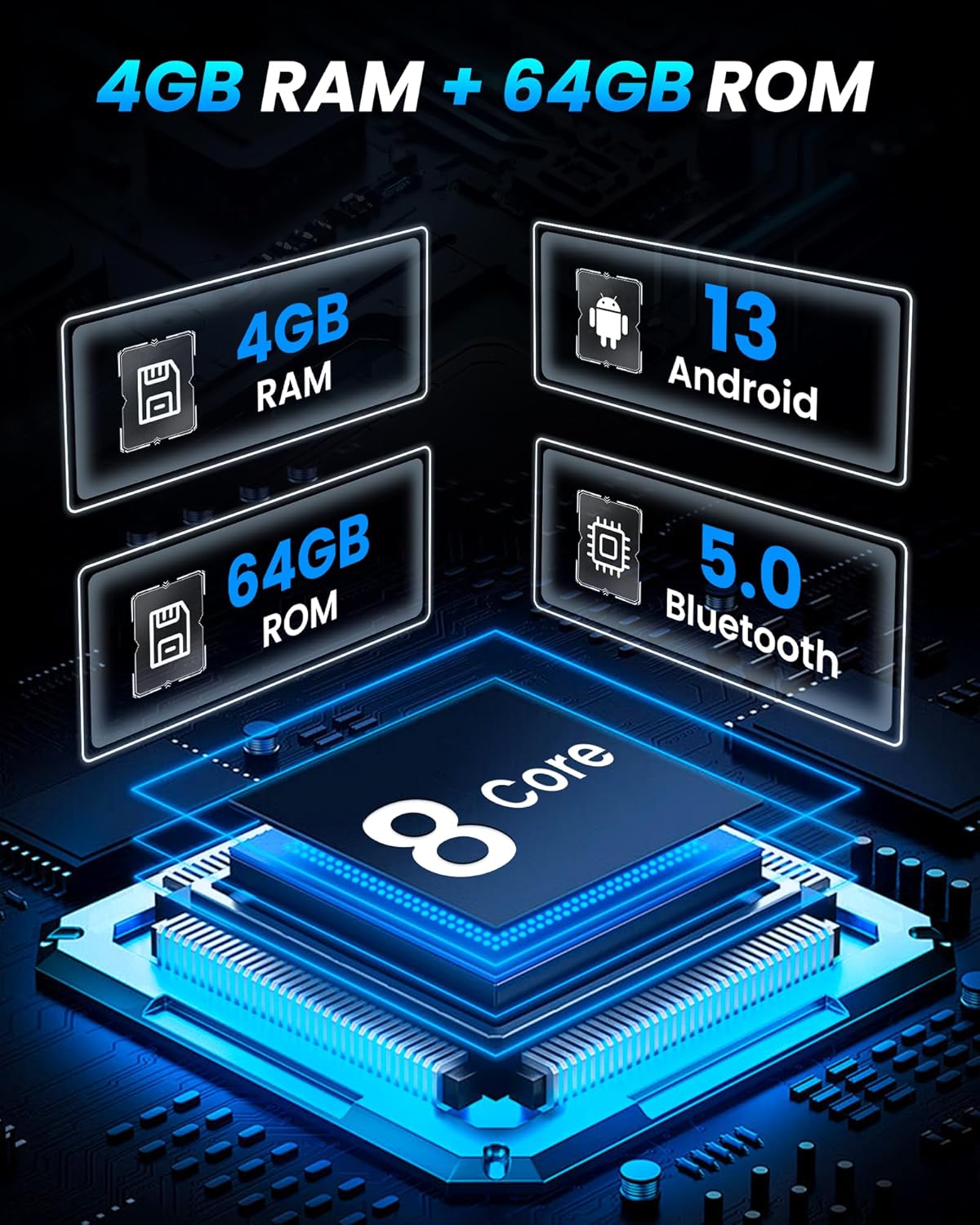
Figure 3: Core specifications of the Jufodrca car radio.
4. Setup and Installation
Installation of the Jufodrca car radio requires careful attention to wiring and vehicle-specific components. It is recommended that installation be performed by a qualified professional. Ensure the vehicle's battery is disconnected before beginning any electrical work.
4.1. Preparation
- Verify Compatibility: Double-check that your Honda Accord 9th EX-L (2013-2015) has Auto A/C and is not equipped with an incompatible OEM system as described in Section 2.
- Gather Tools: You will need standard automotive tools, including screwdrivers, trim removal tools, and wire cutters/strippers.
- Disconnect Battery: For safety, disconnect the negative terminal of your car battery.
4.2. Removal of Factory Radio
Carefully remove the existing factory radio and dashboard trim. Refer to your vehicle's service manual for specific instructions on trim panel removal to avoid damage.
4.3. Wiring Connections
The Jufodrca unit comes with a dedicated wiring harness and Canbus for plug-and-play installation in compatible Honda Accord models. Connect all necessary cables:
- Main Power Harness: Connect to the vehicle's power supply.
- Canbus Decoder: Ensure the Canbus is correctly connected to enable steering wheel controls and other vehicle data integration.
- GPS Antenna: Mount the GPS antenna in a location with a clear view of the sky, typically on the dashboard or under the windshield.
- WiFi Antenna: Connect the WiFi antenna for optimal signal reception.
- USB Cables: Route the USB extension cables to an accessible location for connecting external devices.
- Backup Camera Input: Connect the included 1080P AHD backup camera to its dedicated input.
- External Microphone (Optional): If using an external microphone, connect it to the designated 3.5mm input.
Video 1: Installation overview for the Jufodrca Car Radio in a Honda Accord 2013-2015. This video demonstrates the general steps for connecting the wiring harness and components.
4.4. Mounting the Head Unit
Secure the Jufodrca head unit into the dashboard opening. Ensure all cables are neatly tucked away and not pinched. Reinstall the dashboard trim panels.
4.5. Initial Power-Up
Reconnect the car battery. Turn on the ignition. The unit should power on and display the boot screen. Follow any on-screen prompts for initial setup.
5. Operating Instructions
5.1. Basic Operation
- Power On/Off: Press and hold the power button on the unit or use the vehicle's ignition.
- Volume Control: Adjust using the physical buttons on the unit, steering wheel controls, or the on-screen interface.
- Touchscreen Navigation: Swipe left/right to navigate between home screens, tap icons to open applications.
5.2. Wireless CarPlay & Android Auto
- Ensure Bluetooth and Wi-Fi are enabled on your smartphone.
- On the car radio, open the CarPlay or Android Auto application.
- Search for your car radio's Bluetooth name on your phone and pair.
- Confirm the pairing on both devices. CarPlay/Android Auto should launch automatically.

Figure 4: Wireless CarPlay and Android Auto interface.
5.3. GPS Navigation
The unit supports both online and offline navigation. Pre-installed map data for North America is available. For online maps, ensure the unit is connected to 5G WiFi or a mobile hotspot.
- Open the Navigation app.
- Enter your destination using the on-screen keyboard or voice command.
- Select your preferred route and start navigation.
5.4. FM/AM RDS Radio
- Open the Radio application.
- Use the scan function to find available stations or manually tune to a frequency.
- Press and hold a preset button to save your favorite stations.
5.5. Bluetooth Connectivity
Pair your smartphone or other Bluetooth devices for hands-free calling and audio streaming.
- Go to the Bluetooth settings on the car radio.
- Enable Bluetooth on your device and search for the car radio.
- Select the car radio from the list and confirm the pairing code.
5.6. 5G WiFi
Connect to a Wi-Fi network to access online features, download apps, and receive OTA updates.
- Navigate to the Settings menu and select Wi-Fi.
- Turn on Wi-Fi and select your desired network from the list.
- Enter the password if prompted.
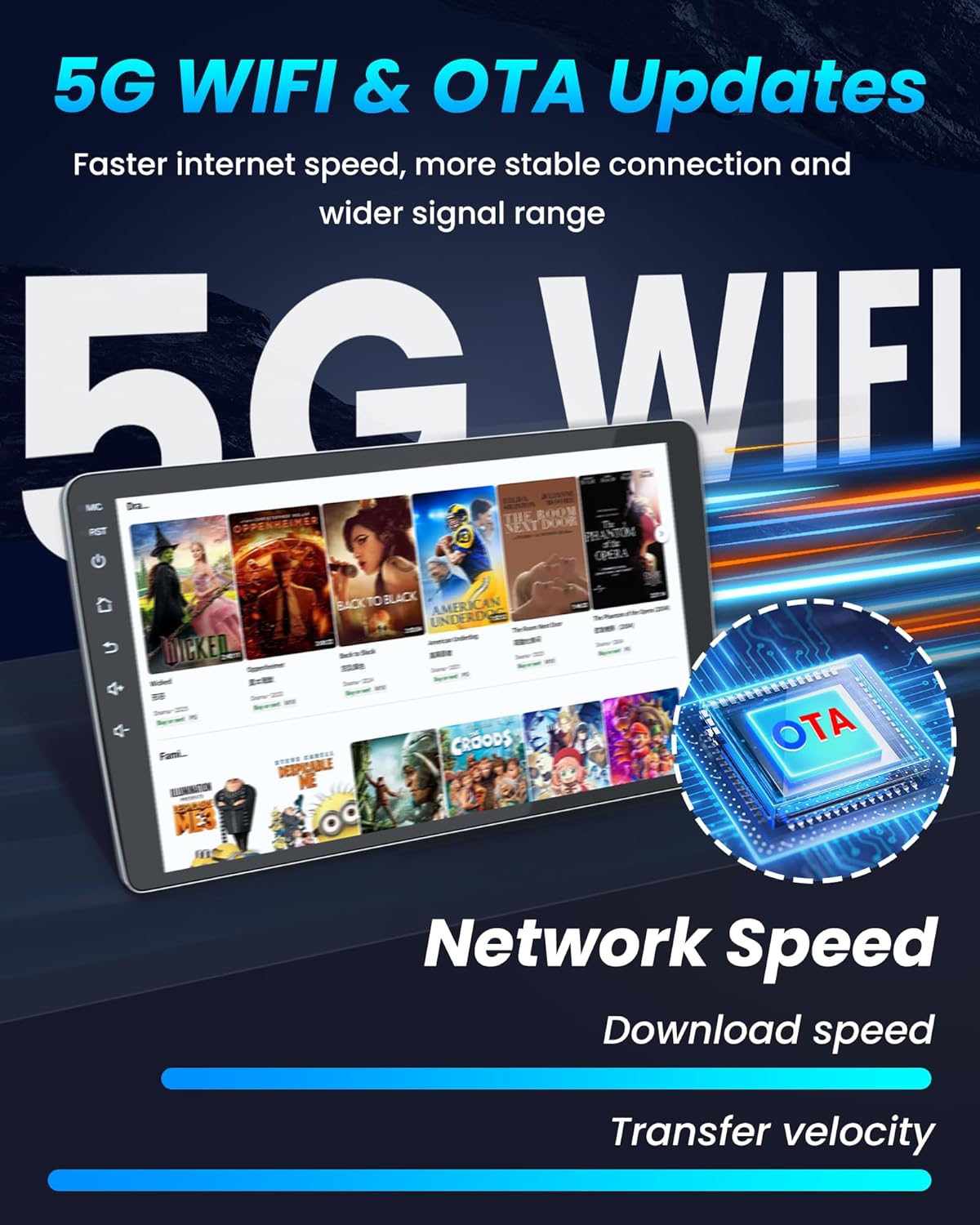
Figure 5: 5G WiFi connectivity and app access.
5.7. Split Screen Functionality
The split-screen feature allows you to run two applications simultaneously, such as navigation and music playback.
- Open the first application.
- Press and hold the recent apps button or drag from the side (depending on UI) to activate split-screen mode.
- Select the second application to display alongside the first.

Figure 6: Split-screen display for multitasking.
5.8. Mirror Link
Mirror Link allows you to display your smartphone's screen directly on the car radio's display.
- Open the Mirror Link application on the car radio.
- Follow the on-screen instructions to connect your smartphone via USB or Wi-Fi.
5.9. Steering Wheel Control (SWC)
The unit supports your vehicle's original steering wheel controls. Configuration may be required after installation.
- Go to the Settings menu and find the SWC or Steering Wheel Control section.
- Follow the on-screen instructions to program each button on your steering wheel to the desired function on the radio.
5.10. Backup Camera
When the vehicle is shifted into reverse, the 1080P AHD backup camera automatically displays the rear view on the screen, providing parking guidelines.

Figure 7: 1080P Backup Camera display with parking assistance.
Video 2: Demonstration of the Jufodrca Car Radio's features and user interface in a Honda Accord 2013-2015.
6. Maintenance
6.1. Cleaning the Screen
Use a soft, lint-free cloth to gently wipe the touchscreen. For stubborn smudges, slightly dampen the cloth with water or a screen-safe cleaner. Avoid abrasive materials or harsh chemicals.
6.2. Software Updates (OTA)
The unit supports Over-The-Air (OTA) updates to ensure your software is always current and secure. When an update is available, a notification will appear on the screen. Connect to a stable Wi-Fi network and follow the prompts to download and install the update.
6.3. General Care
- Avoid exposing the unit to extreme temperatures or direct sunlight for prolonged periods.
- Do not attempt to disassemble or repair the unit yourself. Contact customer support for assistance.
7. Troubleshooting
If you encounter issues with your Jufodrca car radio, refer to the following common problems and solutions:
| Problem | Possible Cause | Solution |
|---|---|---|
| Unit does not power on | Loose power connection, blown fuse, incorrect wiring. | Check all power connections. Inspect vehicle fuses and the unit's fuse. Ensure wiring is correct as per installation guide. |
| No sound | Volume too low, mute activated, speaker wiring issue, incorrect audio source. | Increase volume. Check if mute is active. Verify speaker connections. Select correct audio source. |
| Bluetooth connection issues | Bluetooth not enabled, device not paired, interference. | Ensure Bluetooth is enabled on both devices. Re-pair the device. Try connecting manually if auto-connect fails. Move away from other wireless devices. |
| GPS signal lost or inaccurate | GPS antenna obstructed or improperly installed, weak signal. | Ensure GPS antenna has a clear view of the sky. Check antenna connection. Try updating map data. |
| Steering Wheel Controls not working | Canbus not connected, SWC not configured. | Verify Canbus connection. Go to SWC settings and program the buttons. |
| Backup camera not displaying | Camera not connected, reverse trigger wire issue. | Check camera video input and power connections. Ensure the reverse trigger wire is correctly connected to the vehicle's reverse light signal. |
| System is slow or unresponsive | Too many apps running, low storage, software glitch. | Close unnecessary applications. Clear cache. Perform a system restart. Ensure sufficient storage space. |
If the problem persists after attempting these solutions, please contact Jufodrca customer support for further assistance.
8. Specifications
| Feature | Detail |
|---|---|
| Brand | Jufodrca |
| Model Name | Jufodrca |
| Vehicle Service Type | Car |
| Screen Size | 10.1 Inches |
| Display Type | Touch Screen (Capacitive) |
| Resolution | 1280 x 800 |
| Processor | 8-Core |
| Memory (RAM) | 4 GB |
| Storage (ROM) | 64 GB |
| Operating System | Android 15 (as per feature bullet, though some reviews mention Android 13, we'll use the product's claim) |
| Connectivity Technology | Bluetooth, USB, Wi-Fi (5G) |
| Bluetooth Version | 5.0 |
| Special Features | Wireless CarPlay / Android Auto, 1080P Rear View Camera, GPS Navigation, 5G WiFi, FM AM RDS Radio, Mirror Link, Split-screen, SWC, DSP Sound |
| Map Type | North America |
| Audio Output Mode | Stereo |
| Product Dimensions (L x W x H) | 3.3" x 6.3" x 16.4" |
| Item Weight | 4 Pounds |
| UPC | 754175630226 |
9. Warranty & Support
9.1. Warranty Information
Jufodrca products are covered by a manufacturer's warranty against defects in materials and workmanship. The specific terms and duration of your warranty may vary. Please retain your proof of purchase for warranty claims.
9.2. Customer Support
For technical assistance, troubleshooting beyond this manual, or warranty inquiries, please contact Jufodrca customer support through the retailer where the product was purchased or visit the official Jufodrca website for contact information.
When contacting support, please have the following information ready:
- Product Model: 8Core 4G+64G 10.1 Inch
- ASIN: B0GFW4PQGG
- Date of Purchase
- Detailed description of the issue
