
7KEYS TW1867Pro
7KEYS TW1867Pro Wireless Retro Typewriter Keyboard User Manual
Model: TW1867Pro
1. Introduction
Thank you for choosing the 7KEYS TW1867Pro Wireless Retro Typewriter Keyboard. This keyboard combines vintage aesthetics with modern technology, offering a unique typing experience. It features multiple connection modes, hot-swappable mechanical switches, and broad compatibility across various operating systems. This manual provides detailed instructions for setup, operation, and maintenance to ensure optimal performance and longevity of your device.
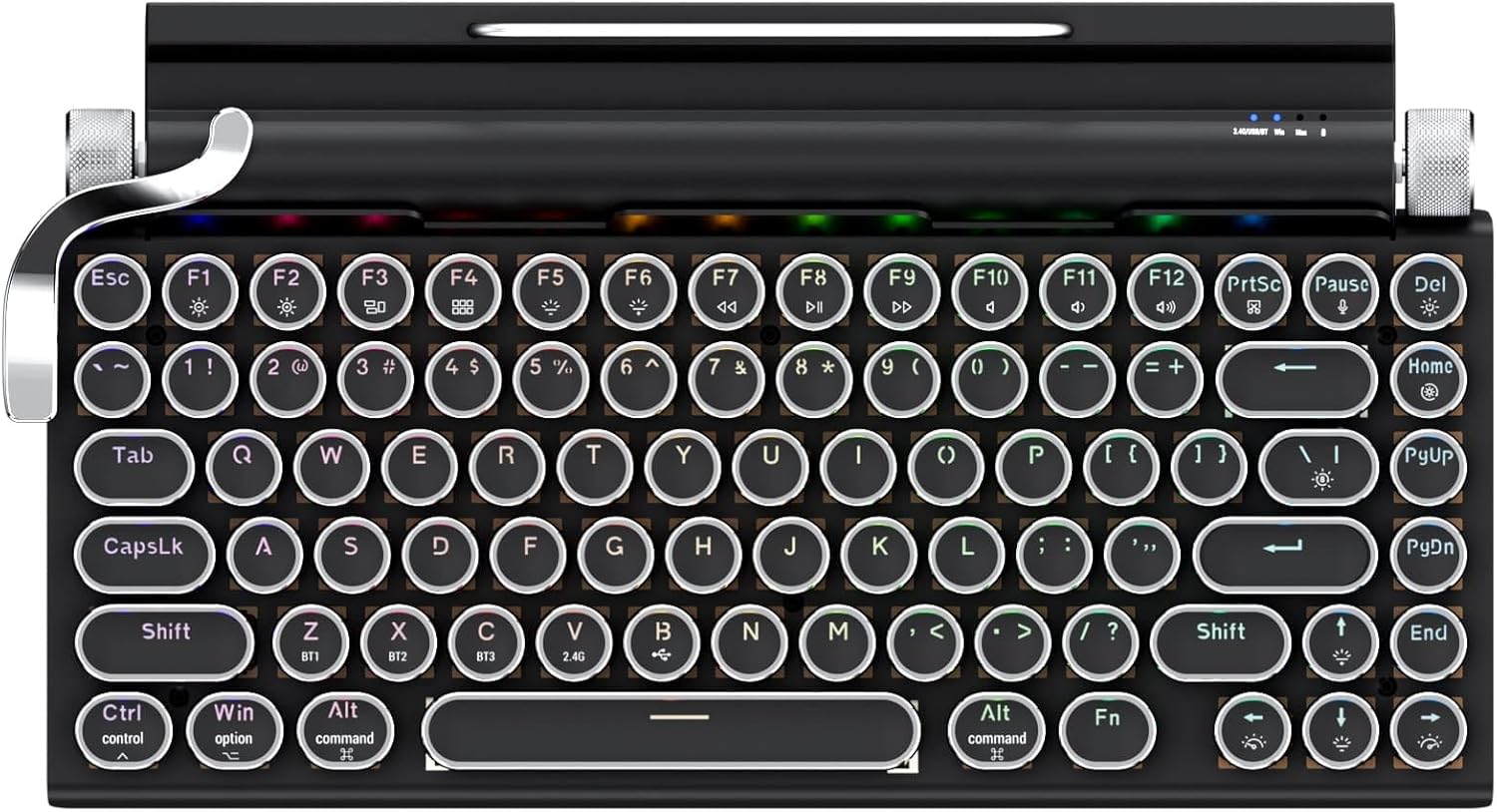
Image: The 7KEYS TW1867Pro keyboard showcasing its retro design and illuminated keys.
2. Package Contents
Please verify that all items are present in your package:
- 1 x 7KEYS TW1867Pro Wireless Retro Typewriter Keyboard
- 1 x Palm Rest
- 1 x User Manual
- 4 x Spare Mechanical Switches
- 1 x 2.4G Wireless Receiver
- 1 x Type-C (USB-A) Charging Cable

Image: Visual representation of the keyboard, palm rest, cables, spare switches, and user manual included in the box.
3. Specifications
| Feature | Detail |
|---|---|
| Model | TW1867Pro |
| Dimensions (L x W x H) | 12.8" x 6.6" x 1.6" (32.5cm x 16.9cm x 4.3cm) |
| Weight | 1.78 Pounds (727.6g) |
| Number of Keys | 83 |
| Battery Capacity | 3000mAh |
| Working Current | <135mA |
| Working Voltage | DC3.7V |
| Connectivity | Bluetooth 5.0, 2.4G Wireless, USB-C Wired |
| Compatibility | Windows, macOS, iOS, Android |
| Key Switch Type | Hot-Swappable Clicky Mechanical Switches |
| Backlighting | RGB, Adjustable Brightness and Modes |
| Material | Aluminum, Metal, Plastic |

Image: Detailed product specifications including dimensions, weight, and battery capacity.
4. Setup
4.1 Charging the Keyboard
Before initial use, fully charge the keyboard using the provided Type-C USB cable. Connect the Type-C end to the keyboard's charging port and the USB-A end to a power source (e.g., computer USB port, USB wall adapter). The charging indicator light will show the charging status.
4.2 Power On/Off
Locate the power switch on the back of the keyboard. Slide it to the 'ON' position to power on the device. Slide it to 'OFF' to conserve battery when not in use.
4.3 Connection Modes
The keyboard supports three connection modes: Bluetooth 5.0, 2.4G Wireless, and USB-C Wired.

Image: The three connection modes: Bluetooth, 2.4G Wireless, and USB-C Wired.
4.3.1 Bluetooth Connection
- Ensure the keyboard is powered on.
- Press and hold the Fn + BT1, Fn + BT2, or Fn + BT3 key combination for 3-5 seconds until the corresponding indicator light flashes rapidly. This indicates pairing mode.
- On your device (PC, tablet, phone), enable Bluetooth and search for "7KEYS Keyboard" or a similar name.
- Select the keyboard from the list of available devices to pair. The indicator light will stop flashing once connected.
- You can pair up to three Bluetooth devices and switch between them using Fn + BT1/BT2/BT3.
4.3.2 2.4G Wireless Connection
- Ensure the keyboard is powered on.
- Insert the 2.4G wireless receiver into a USB port on your computer.
- Press the Fn + 2.4G key combination. The keyboard will automatically connect to the receiver.
4.3.3 USB-C Wired Connection
- Connect the keyboard to your computer using the provided Type-C USB cable.
- The keyboard will automatically switch to wired mode and function without needing battery power.
5. Operating Instructions
5.1 System Compatibility Switch
The keyboard is compatible with Android, Windows, iOS, and Mac OS systems. To optimize key functions for your operating system, use the switch on the back of the keyboard to select between Windows/Mac mode.

Image: The system compatibility switch located on the rear of the keyboard.
5.2 Backlight Control
The keyboard features adjustable white LED backlighting with various modes.
- Lever (Functional Toggle): Pull the lever on the left side of the keyboard to cycle through different backlight modes.
- Left Knob: Rotate the left knob to adjust the brightness of the backlight.
5.3 Volume Control
- Right Knob: Rotate the right knob to adjust the system volume of your connected device.

Image: The functional toggle lever and control knobs for backlight modes, brightness, and volume.
6. Maintenance
6.1 Cleaning
To clean the keyboard, power it off and disconnect any cables. Use a soft, dry cloth to wipe the surface. For keycaps, they can be removed for deeper cleaning. Avoid using harsh chemicals or abrasive materials.
6.2 Keycap Removal and Replacement
The keyboard features removable keycaps for easy cleaning and customization.
- Use a keycap puller (not included, but commonly available) to gently remove keycaps by pulling straight up.
- To replace, align the keycap with the switch stem and press down firmly until it clicks into place.

Image: Demonstrating the removal of a keycap from the keyboard.
6.3 Hot-Swappable Switch Replacement
The TW1867Pro keyboard features hot-swappable mechanical switches, allowing for easy replacement without soldering.
- Use the provided switch puller to carefully grip the switch and pull it straight up.
- Align the pins of the new switch with the holes on the PCB. Ensure the pins are straight before inserting.
- Gently press the new switch into place until it is seated firmly. Do not force it.

Image: A close-up view of a hot-swappable mechanical switch being replaced on the keyboard.
7. Troubleshooting
7.1 Keyboard Not Connecting
- Ensure the keyboard is powered on.
- Check the battery level and charge if necessary.
- For Bluetooth, ensure the keyboard is in pairing mode and your device's Bluetooth is enabled. Try re-pairing.
- For 2.4G wireless, ensure the receiver is properly inserted and the keyboard is set to 2.4G mode.
- For wired connection, ensure the USB-C cable is securely connected to both the keyboard and the computer.
7.2 Keys Not Responding
- Check the connection as described above.
- If specific keys are not responding, the switch might be faulty. Try replacing the switch using the hot-swappable feature.
- Ensure no debris is lodged under the keycaps.
7.3 Backlight Not Working
- Ensure the keyboard is powered on and has sufficient battery.
- Pull the functional toggle lever to cycle through backlight modes.
- Rotate the left knob to adjust brightness.
8. Warranty and Support
The 7KEYS TW1867Pro keyboard comes with a 12-month manufacturer's warranty from the date of purchase. This warranty covers defects in materials and workmanship under normal use. It does not cover damage caused by misuse, accidents, unauthorized modifications, or normal wear and tear.
For technical support, warranty claims, or any inquiries, please contact 7KEYS customer service through the retailer where you purchased the product or visit the official 7KEYS website for contact information.
Related documentsTW1867Pro

Ask a question about this manual
Ask about setup, troubleshooting, compatibility, parts, safety, or missing instructions. Manuals+ will review the question and use this page’s manual context to help answer it.