
NIIMBOT B2 PRO
NIIMBOT B2 PRO Label Maker User Manual
Model: B2 PRO
1. Introduction
Welcome to the NIIMBOT B2 PRO Label Maker user manual. This guide provides detailed instructions for setting up, operating, and maintaining your 300DPI HD thermal label printer. Please read this manual thoroughly to ensure proper use and optimal performance of your device.
2. Package Contents
Please verify that all items are present in your package:
- NIIMBOT B2 PRO Label Maker
- 1 Roll of 50x30mm Black-on-White Thermal Label Paper (pre-installed)
- USB Data Cable
- User Manual

Image: Contents of the NIIMBOT B2 PRO package, including the label maker, box, USB cable, and user manual.
3. Product Overview & Key Features
The NIIMBOT B2 PRO is a versatile 300DPI high-resolution thermal label printer designed for various labeling needs, offering advanced features for efficiency and customization.
- 300DPI HD Printing: Delivers exceptionally clear text, images, and barcodes. Supports optional red-black dual-color printing (with compatible labels).
- Standalone Function Key: Allows one-touch printing for real-time timestamp, reprinting the last label, or custom templates without a mobile device or PC.
- Wide Label Compatibility: Supports print widths from 0.78'' - 1.96'' (20 - 50mm) and lengths from 0.3'' - 13'' (8 - 350mm). Compatible with standard thermal, photo, and two-color thermal papers.
- Multi-Device Compatibility: Works with iOS/Android devices and PCs (PC requires official driver).
- NIIMBOT App: Offers extensive customization with fonts, languages, borders, symbols, barcodes, QR codes, timestamp, photo, and OCR printing.
- Compact & Durable Design: Portable and suitable for home, business, and office organization.

Image: Comparison showing the superior clarity of 300 DPI printing on the B2 PRO compared to 203 DPI.
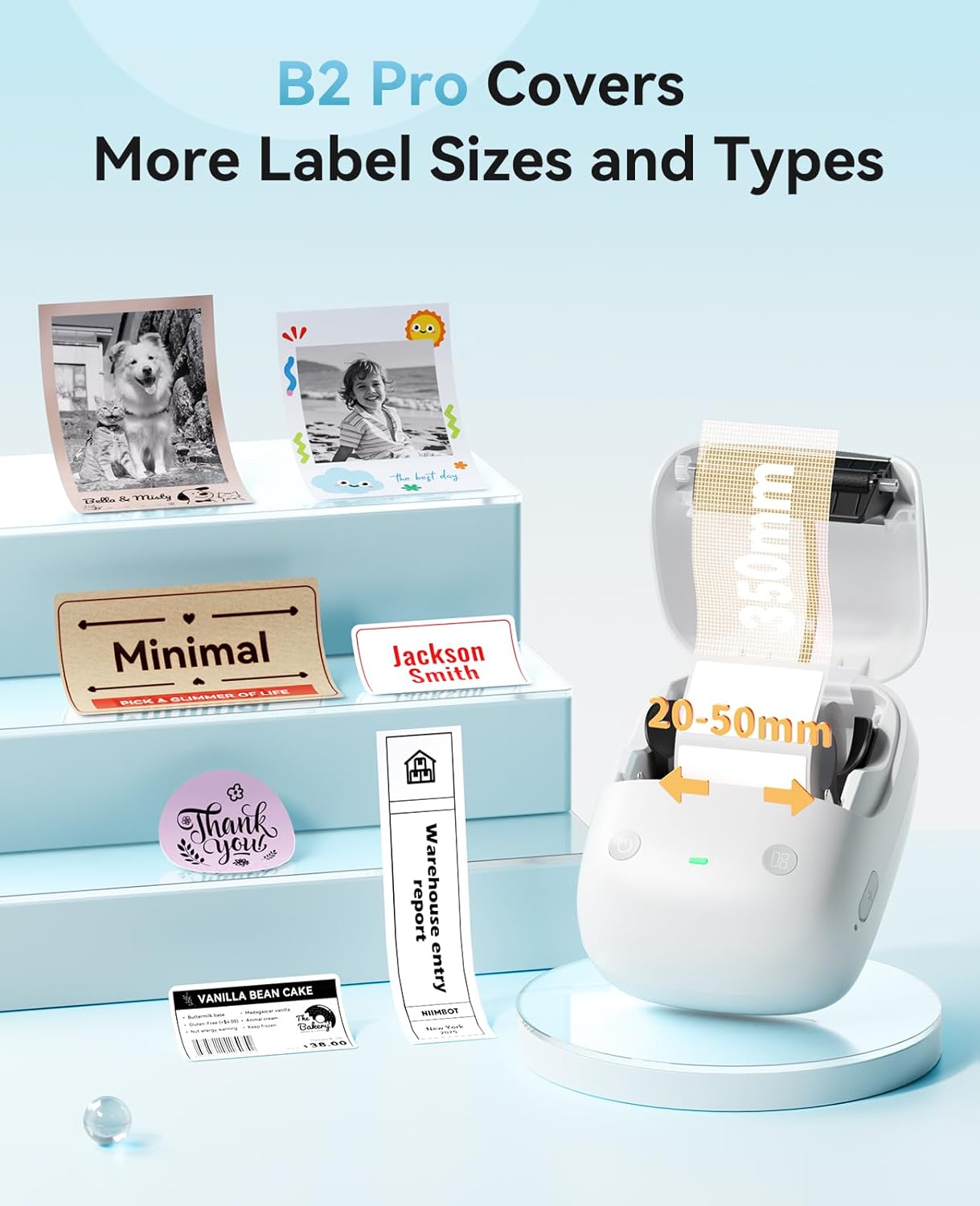
Image: The B2 PRO label maker demonstrating its compatibility with a wide range of label sizes and types, from small tags to photo labels.
4. Setup
4.1. Charging the Device
Before first use, fully charge the NIIMBOT B2 PRO using the provided USB data cable and a compatible USB power adapter (not included). The indicator light will show the charging status and turn solid when fully charged.
4.2. Loading Label Paper
- Open the label compartment cover by gently pushing the release button or lifting the lid.
- Insert the label roll with the printing surface facing up, ensuring the label feeds smoothly through the output slot.
- Close the cover firmly until it clicks into place.
- The printer will automatically detect the label size and type, and feed a small portion of the label.
5. Operating Instructions
5.1. App Installation
Download the official "NIIMBOT" app from your device's app store:
- iOS Devices: Apple App Store
- Android Devices: Google Play Store
For PC connectivity, download the official driver from the NIIMBOT website.
5.2. Bluetooth Connection
- Turn on the NIIMBOT B2 PRO by long-pressing the power button until the indicator light illuminates.
- Enable Bluetooth on your mobile device.
- Open the NIIMBOT app and search for your printer. Select "B2 PRO" from the list of available devices to connect.
- The indicator light on the printer will confirm a successful connection (usually a solid blue light).

Image: The NIIMBOT B2 PRO label maker wirelessly connected to a smartphone, ready for printing.
5.3. Printing Modes
The B2 PRO offers both app-controlled and standalone printing capabilities.
Standalone Function Key Modes
The standalone function key allows one-touch printing without a connected device. These modes are configurable via the NIIMBOT app:
- Real-time Timestamp: Prints the current date and time.
- Reprint Last Label: Prints the most recently created label.
- Custom Template Printing: Prints a pre-set template that you have designated in the app.
To configure these modes, use the NIIMBOT app to assign your preferred function to the standalone key.
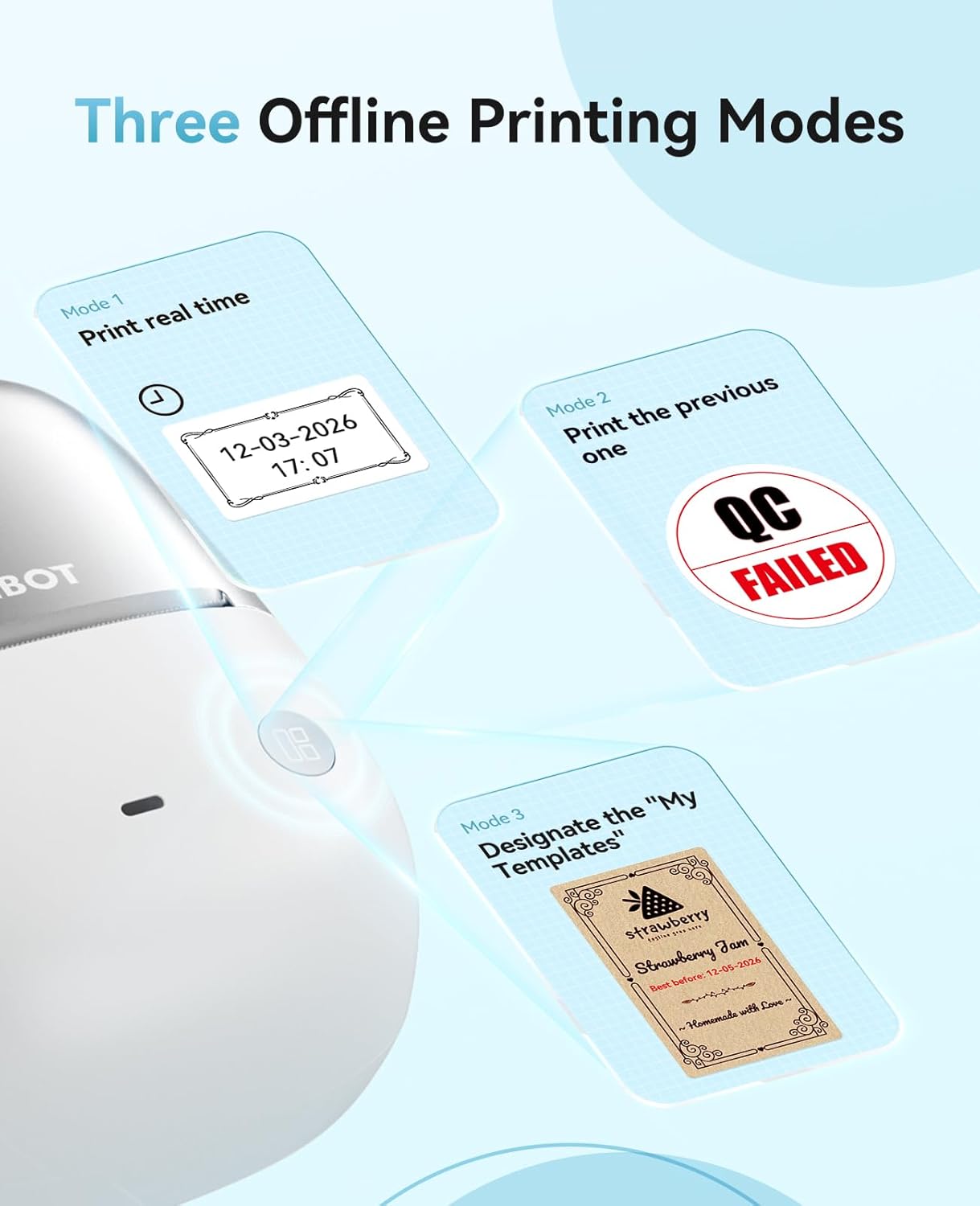
Image: Visual representation of the three offline printing modes: Print real-time, Print the previous one, and Designate "My Templates".
App-Controlled Printing
Use the NIIMBOT app to design and print labels with full customization. After designing your label, tap the print icon in the app to send it to the B2 PRO.
Video: Demonstration of the NIIMBOT B2 PRO label maker's features, including app usage and printing capabilities.
5.4. Label Customization (via App)
The NIIMBOT app provides extensive tools for creating custom labels:
- Select from various fonts, sizes, and styles.
- Add borders, symbols, and icons from a vast library.
- Insert barcodes, QR codes, timestamps, and images.
- Utilize OCR (Optical Character Recognition) to convert text from images into editable text.
- Save custom templates for quick access and future use.
6. Maintenance
6.1. Cleaning the Print Head
If print quality degrades or lines appear on labels, clean the print head:
- Turn off the printer and open the label compartment cover.
- Gently wipe the print head with a cotton swab lightly dampened with isopropyl alcohol. Avoid touching the print head with bare hands.
- Allow the print head to dry completely (approximately 5 minutes) before closing the cover and using the printer.
6.2. Storage
Store the printer in a cool, dry place away from direct sunlight, high humidity, and extreme temperatures. If storing for extended periods, it is recommended to remove the label roll to prevent dust accumulation and ensure the battery is partially charged (not fully depleted or fully charged) to prolong its lifespan.
7. Troubleshooting
7.1. Bluetooth Connection Issues (Android)
If you experience Bluetooth connection problems with Android phones, it is recommended to upgrade the printer's Bluetooth firmware.
Firmware Upgrade Procedure:
- Connect the printer to an iOS device or a PC.
- Open the NIIMBOT app (on iOS) or the PC cloud printing software.
- Follow the on-screen prompts within the app/software to update the Bluetooth firmware.
- After the upgrade is complete, double-press the printer's power button to print a self-test page. Verify that the Bluetooth version displayed is 7470, confirming a successful upgrade.

Image: Step-by-step guide for upgrading the NIIMBOT B2 PRO's Bluetooth firmware using an iOS device.

Image: Step-by-step guide for upgrading the NIIMBOT B2 PRO's Bluetooth firmware using a PC.
7.2. Poor Print Quality
- Ensure the label roll is inserted correctly with the printing surface facing up.
- Check if the label paper is compatible with the B2 PRO.
- Clean the print head as described in the Maintenance section.
- Ensure the printer battery is sufficiently charged.
7.3. Printer Not Responding
- Check the battery level and charge if necessary.
- Restart the printer by turning it off and then on again.
- Re-establish the Bluetooth connection from your device.
8. Specifications
| Feature | Detail |
|---|---|
| Brand | NIIMBOT |
| Model Name | B2PRO-S |
| Connectivity Technology | Bluetooth |
| Printing Technology | Thermal |
| Resolution | 300 x 300 DPI |
| Max Print Speed Monochrome | 40 pages_per_minute |
| Print Width Range | 0.78'' - 1.96'' (20 - 50mm) |
| Print Length Range | 0.3'' - 13'' (8 - 350mm) |
| Product Dimensions | 5"D x 3.6"W x 2.6"H |
| Item Weight | 352 g |
| Compatible Devices | Android Phone, iPhone, PC, Smartphones |
| Power Consumption | 5 watts |
| Special Features | Offline Printing, Bluetooth Multi-Connection, Handheld & Portable, Multi-Size Label Support, Red & Black Printing, Grayscale Photo Printing, Auto Label Recognition, No First-Label Waste |
9. Warranty and Support
9.1. Warranty Information
The NIIMBOT B2 PRO Label Maker comes with a 2-year limited manufacturer warranty. Please retain your proof of purchase for any warranty claims. The warranty covers defects in materials and workmanship under normal use.
9.2. Customer Support
For further assistance, technical support, or warranty inquiries, please visit the official NIIMBOT website or contact their customer service through the provided channels.
Official NIIMBOT Store: Visit NIIMBOT Store on Amazon
Related documentsB2 PRO


Ask a question about this manual
Ask about setup, troubleshooting, compatibility, parts, safety, or missing instructions. Manuals+ will review the question and use this page’s manual context to help answer it.