
1. Introduction
This manual provides essential information for the safe and efficient operation of your LMYYDES Commercial POS System. Please read this manual thoroughly before using the device and retain it for future reference. This system is designed for various commercial environments, including retail stores, restaurants, cafes, and supermarkets.
1.1 Package Contents
Upon unpacking, verify that all items listed below are present and undamaged:
- 1 x LMYYDES Commercial POS System (Main Unit with 15.6-inch Touch Screen and Integrated 58mm Thermal Printer)
- 1 x Handheld Barcode Scanner
- 1 x Power Adapter (12V/5A)
- 1 x Power Cable
- 1 x Cash Drawer (Five-grid, three-speed lock electric)
- 1 x 101-key Cash Register Keyboard
- 1 x User Manual (This document)
2. Safety Information
Observe the following safety precautions to prevent damage to the device or injury to yourself and others:
- Power Supply: Use only the provided power adapter and cable. Ensure the voltage matches the system's requirements (110~220V 50~60HZ AC).
- Environment: Operate the system in a stable, dry environment. Avoid exposure to extreme temperatures (storage temperature: 0-60°C), direct sunlight, dust, and moisture.
- Ventilation: Do not block ventilation openings. Ensure adequate airflow around the unit to prevent overheating.
- Cleaning: Disconnect power before cleaning. Use a soft, dry cloth. Avoid liquid cleaners directly on the screen or components.
- Handling: Handle the unit with care. Avoid dropping or subjecting it to strong impacts.
- Servicing: Do not attempt to open or repair the unit yourself. Refer all servicing to qualified personnel.
3. Product Features
The LMYYDES Commercial POS System is an all-in-one solution designed for efficient point-of-sale operations. Key features include:
- Integrated Design: Combines a 15.6-inch touch screen, 58mm thermal receipt printer, cash drawer, and barcode scanner into a single compact unit.
- Powerful Performance: Equipped with an i5 processor, 8GB DDR3 RAM, and a 128GB SSD for fast and stable operation, running on Windows 10.
- High-Speed Thermal Printer: Built-in 58mm thermal printer for quick, quiet, and clear receipt printing.
- Adjustable Touch Screen: The 15.6-inch capacitive touch screen offers multi-angle rotation for comfortable viewing and reduced fatigue. It is designed to be waterproof, oilproof, and dustproof.
- Extensive Connectivity: Features 6 USB ports, LAN, VGA, serial, and audio ports for connecting various peripherals like scales and customer displays.
- Customer Display: An 8-digit LED customer display provides clear transaction information to customers.
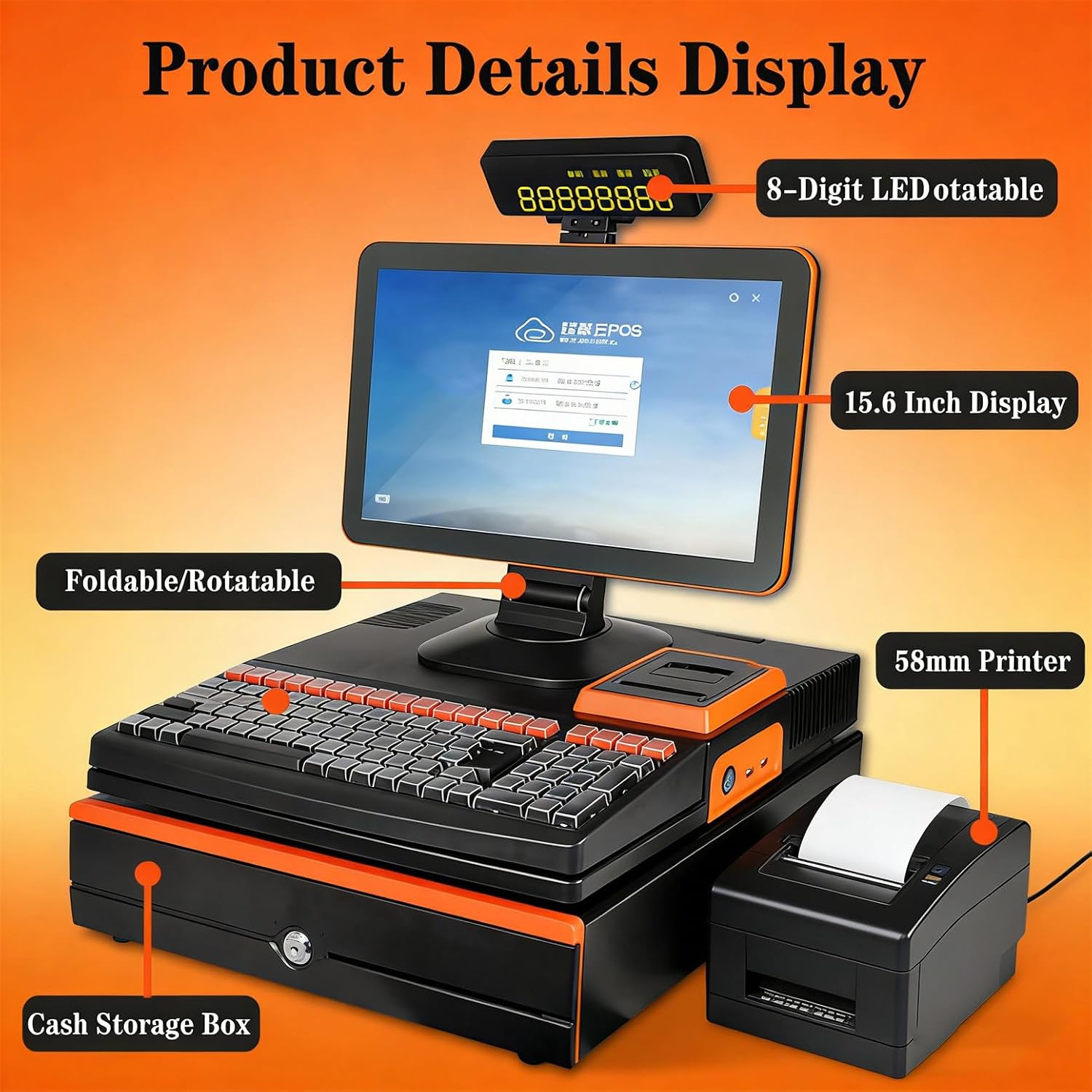
Figure 3.1: Overview of the LMYYDES Commercial POS System components, including the 15.6-inch display, 8-digit LED customer display, 58mm printer, and cash storage box.

Figure 3.2: The 15.6-inch main screen is designed to be waterproof, oilproof, and dustproof, featuring an A+ grade LED panel for high brightness and durability.
4. Setup
4.1 Unpacking and Placement
- Carefully remove all components from the packaging.
- Place the main POS unit on a stable, flat surface with adequate space for ventilation.
- Ensure the cash drawer is positioned securely.
4.2 Connecting Power
- Connect the power adapter to the DC 12V/5A input port on the rear of the POS system.
- Plug the power cable into a grounded electrical outlet.
4.3 Connecting Peripherals
- Barcode Scanner: Connect the handheld scanner to an available USB port.
- Keyboard: Connect the 101-key cash register keyboard to an available USB port.
- Network: For wired internet, connect an Ethernet cable to the LAN port. The system also supports Wi-Fi.
- External Display (Optional): If using a secondary VGA display, connect it to the VGA port.
4.4 Initial Power-On and Screen Adjustment
- Press the power button, usually located on the side or front of the main unit.
- The system will boot into Windows 10. Follow any on-screen prompts for initial setup.
- Adjust the main screen to your preferred viewing angle. The screen supports multi-angle rotation for ergonomic use.
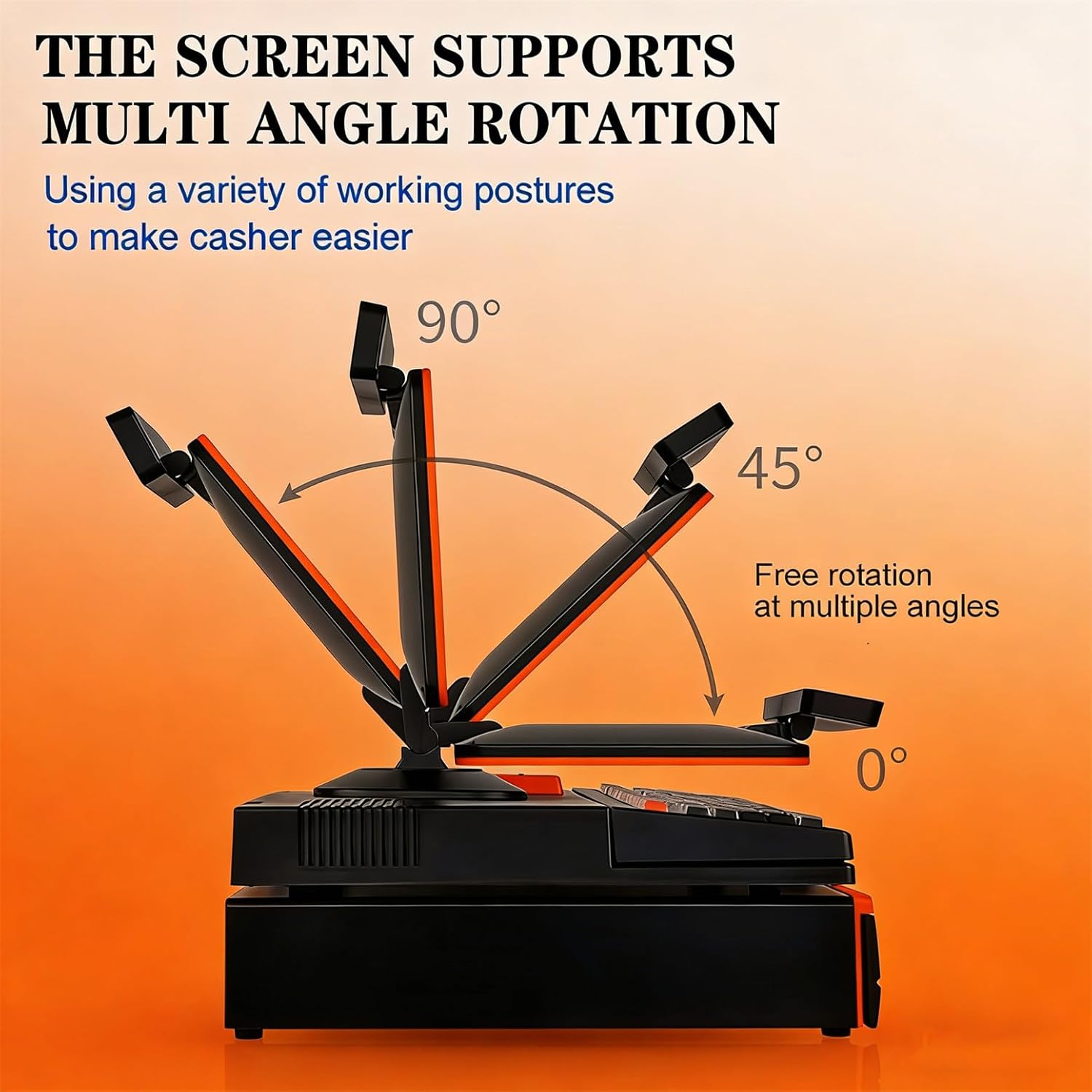
Figure 4.1: The main display screen can be freely rotated and adjusted to various angles (0°, 45°, 90°) to optimize viewing comfort for the user.
5. Operating Instructions
5.1 Power On/Off
- Power On: Press the power button once. The system will start.
- Power Off: To shut down, use the Windows 10 'Shut down' option from the Start Menu. Avoid direct power-off unless necessary to prevent data loss.
5.2 Touch Screen Operation
The 15.6-inch capacitive touch screen functions like a standard Windows touch interface. Use your finger for navigation, selection, and input. Ensure your hands are clean and dry for optimal responsiveness.
5.3 Using the Integrated 58mm Thermal Printer
The built-in thermal printer is designed for quick receipt generation.
- Ensure thermal paper is loaded correctly (refer to Maintenance section for paper loading).
- Initiate printing from your POS software. The printer will automatically print the receipt.

Figure 5.1: The integrated 58mm thermal printer provides simple operation and quick, clear paper output for receipts.
5.4 Cash Drawer Operation
The electric cash drawer is typically controlled by your POS software.
- The cash drawer will automatically open upon completing a transaction or when manually triggered by the POS software.
- To manually open the cash drawer in case of power failure or software issue, use the key provided.

Figure 5.2: Detailed view of the cash storage box, featuring a panel curve design, plastic banknote holders, a safety lock, and a super long check slot for efficient space utilization.
5.5 Using the Handheld Barcode Scanner
The included handheld barcode scanner connects via USB and is plug-and-play.
- Ensure the scanner is connected to a USB port.
- Point the scanner at a barcode and press the trigger button. The scanned data will appear in the active input field of your POS software.
5.6 Customer Display (8-Digit LED)
The 8-digit LED customer display shows transaction totals and change to the customer.
- The display automatically updates with relevant information as transactions proceed.
- The display can be rotated 360 degrees for optimal visibility.

Figure 5.3: The LED8N customer display provides clear, convenient, and practical information to customers, with a 360-degree flip capability for flexible viewing.
6. Maintenance
6.1 Cleaning
- Screen: Use a soft, lint-free cloth slightly dampened with water or a screen-specific cleaning solution. Do not spray liquid directly onto the screen.
- Exterior: Wipe the exterior surfaces with a soft, dry cloth. Avoid abrasive cleaners or solvents.
- Printer: Periodically clean the thermal print head with a specialized thermal printer cleaning pen or isopropyl alcohol on a cotton swab. Ensure the printer is off and cooled before cleaning.
6.2 Replacing Printer Paper
- Open the printer cover by pressing the release latch.
- Remove the old paper roll core, if any.
- Insert a new 58mm thermal paper roll, ensuring the paper feeds from the bottom of the roll towards the front.
- Pull a small amount of paper out past the cutting edge.
- Close the printer cover firmly until it latches.
7. Troubleshooting
If you encounter issues with your POS system, refer to the following common problems and solutions:
| Problem | Possible Cause | Solution |
|---|---|---|
| System does not power on | Power cable loose; Power adapter faulty; Power outlet issue | Check power cable connections; Try a different power outlet; Contact support if adapter is suspected faulty. |
| Printer not printing | No paper; Paper loaded incorrectly; Printer driver issue; Printer cover not closed | Replace paper roll; Re-load paper correctly; Ensure printer cover is latched; Check printer settings in Windows. |
| Touch screen unresponsive | Software freeze; Calibration issue; Physical damage | Restart the system; Re-calibrate touch screen (if option available in Windows); Contact support. |
| Barcode scanner not working | USB connection loose; Scanner faulty; Driver issue | Ensure scanner is firmly connected to a USB port; Try a different USB port; Restart system. |
| Cash drawer not opening | Software command issue; Cable connection loose; Lock mechanism jammed | Check POS software settings; Ensure cash drawer cable is connected; Use manual key if necessary; Contact support. |
8. Specifications
Detailed technical specifications for the LMYYDES Commercial POS System:
| Feature | Specification |
|---|---|
| Product Name | Intelligent Touch Cashier All-in-One Machine |
| Model Number | asdfwe-1000180 |
| Processor | i5 (Quad-core, Optional Core i3/Core i7) |
| RAM | 8GB DDR3 (Optional 4GB) |
| Hard Drive | 128GB SSD (Optional 64GB/256GB/512GB) |
| Operating System | Windows 10 |
| Main Screen | 15.6-inch LCD, Capacitive Touchscreen |
| Main Screen Resolution | 1366*768 (Optional 1920*1080) |
| Secondary Screen (Customer Display) | 8-digit LED digital display |
| Printer | Built-in 58mm Thermal Printer |
| Cash Box | Five-grid, three-speed lock electric cash box |
| Keyboard | 101-key Cash Register Keyboard |
| Speaker | 3W |
| Network | Ethernet / WiFi |
| Connectivity Ports | 6 x USB, 1 x LAN, 1 x VGA, Serial, Audio |
| Storage Temperature | 0-60°C |
| Operating Voltage | 110~220V 50~60HZ AC, DC12V/5A |
| Item Weight | 29.3 pounds (approx. 13.3 kg) |
| Package Dimensions | 3.94 x 3.94 x 3.94 inches (approx. 10 x 10 x 10 cm) |

Figure 8.1: Physical dimensions of the LMYYDES Commercial POS System, showing measurements for height, width, and depth of the main unit and cash drawer.
9. Warranty and Support
Your LMYYDES Commercial POS System comes with a standard manufacturer's warranty. Please refer to the warranty card included in your package for specific terms and conditions, including warranty duration and coverage details.
9.1 Technical Support
For technical assistance, troubleshooting beyond this manual, or warranty claims, please contact LMYYDES customer support. Contact information can typically be found on the product packaging, the official LMYYDES website, or your purchase documentation.