
1. Introduction
This manual provides essential information for the safe and efficient use of your HKC 40-inch FHD Smart TV (Model H40Q1F-V). Please read these instructions carefully before operating the television and retain them for future reference.
Safety Information
Always follow basic safety precautions when using this product to reduce the risk of fire, electric shock, and injury. Do not expose the TV to rain or moisture. Do not open the cabinet; refer all servicing to qualified personnel. Ensure proper ventilation and avoid blocking ventilation openings. Keep the TV away from heat sources and direct sunlight.
2. Package Contents
Carefully unpack your HKC Smart TV and check that all items listed below are present and undamaged. If any items are missing or damaged, contact your retailer.
- HKC 40-inch FHD Smart TV
- Remote Control
- AAA Batteries (2x)
- TV Stand (2 pieces)
- Instruction Manual
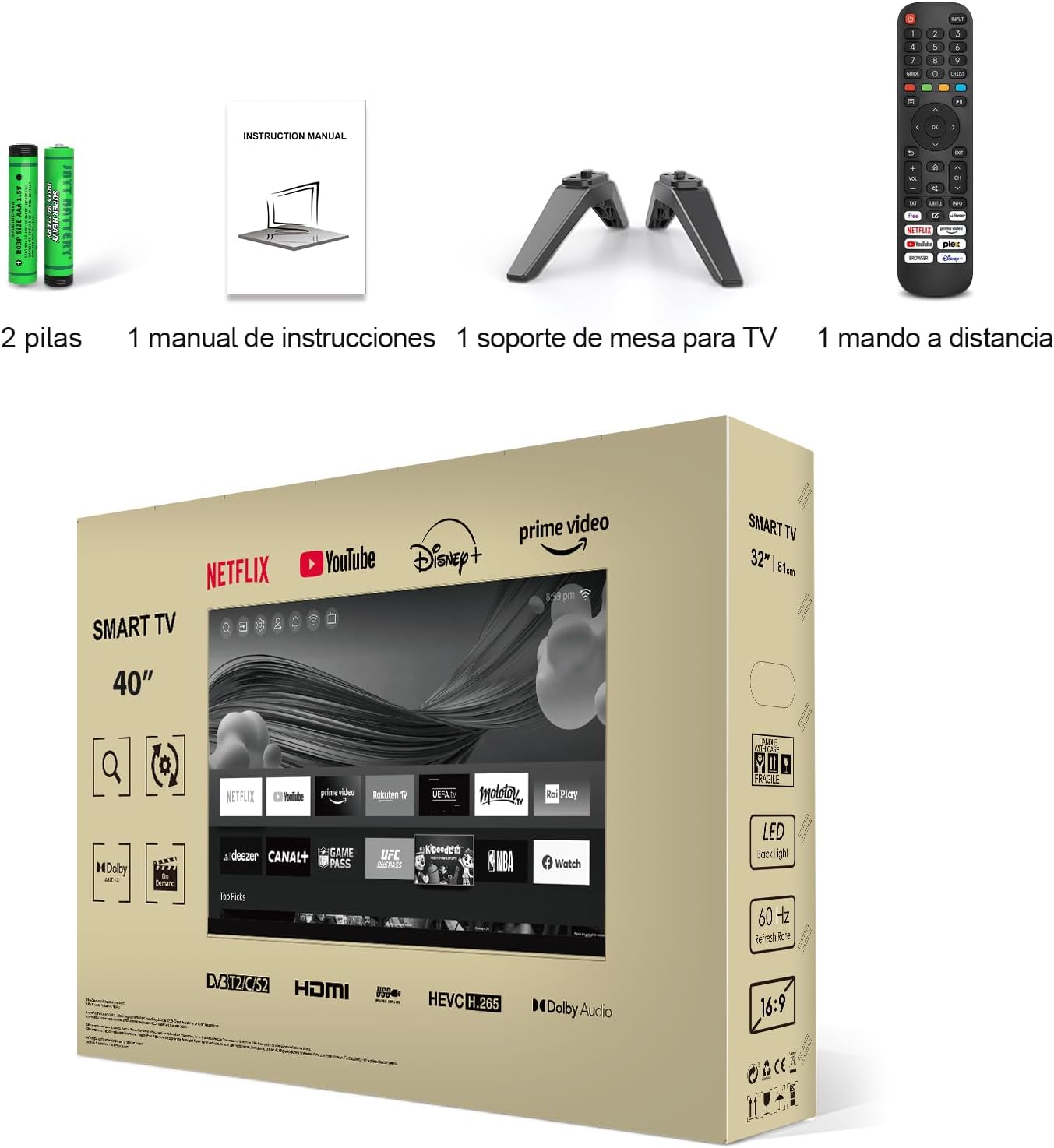
Figure 2.1: Included accessories: batteries, instruction manual, TV stand components, and remote control.
3. Assembly and Installation
Attaching the TV Stand
To attach the stand to your TV:
- Place the TV face down on a soft, flat surface to prevent screen damage.
- Align each stand piece with the corresponding slots on the bottom of the TV.
- Secure each stand piece with the provided screws. Ensure they are tightened firmly.

Figure 3.1: Front view of the TV with the stand assembled.

Figure 3.2: Rear view of the TV with the stand assembled.
Wall Mounting (Optional)
Your TV supports VESA standard wall mounts. The VESA mounting pattern for this model is 200 x 200 mm. Use M6 screws (not included) with a length appropriate for your wall mount bracket. Always consult a professional for wall mounting to ensure safety.

Figure 3.3: TV dimensions and VESA mounting information (Note: VESA is 200x200mm for this model, diagram may show a different size).
4. Connections
Your HKC Smart TV offers various ports for connecting external devices. Refer to the diagram below for port locations and types.
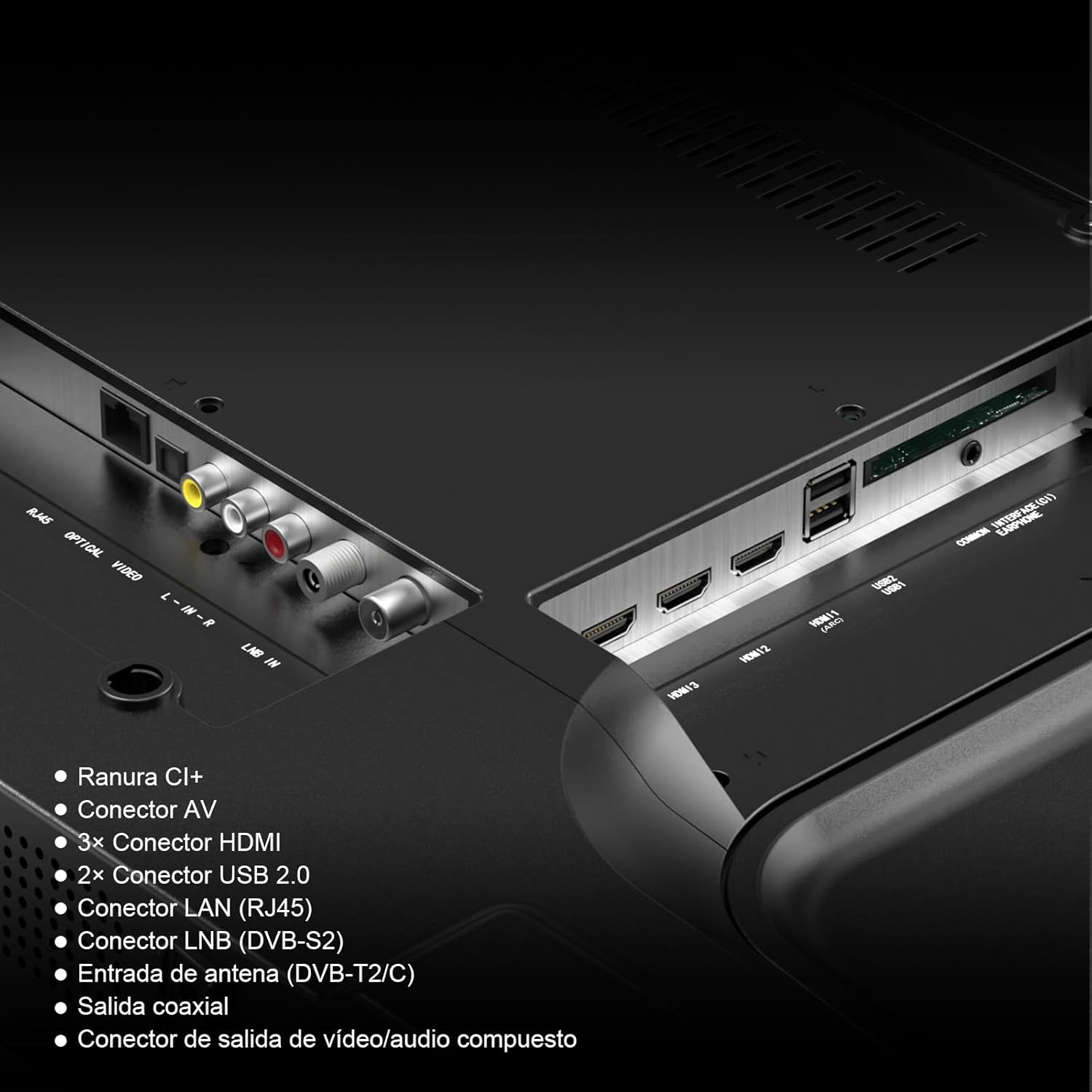
Figure 4.1: Rear panel connections.
- CI+ Slot: For inserting a Conditional Access Module (CAM) and smart card to access encrypted digital channels.
- AV Connector: For connecting older devices using composite video and stereo audio cables.
- HDMI Ports (3x): For connecting high-definition devices such as Blu-ray players, game consoles, or set-top boxes.
- USB 2.0 Ports (2x): For connecting USB storage devices to play media files or for software updates.
- LAN (RJ45): For a wired internet connection.
- LNB (DVB-S2): For connecting a satellite dish for DVB-S/S2 digital satellite television.
- Antenna (DVB-T2/C): For connecting a terrestrial antenna or cable TV signal for DVB-T/T2/C digital television.
- Coaxial Output: For digital audio output to an external audio system.
- Composite Video/Audio Output: For connecting to external display or audio systems.
Connecting Digital Tuners
Your TV supports various digital tuner types. Connect your antenna or satellite dish to the appropriate input.

Figure 4.2: Digital tuner and external device connections.
5. Initial Setup
First Power-On
After connecting the TV to a power outlet, press the power button on the remote control or on the TV itself. The TV will guide you through the initial setup process, including language selection, country, and network configuration.
Network Connection
To access Smart TV features, connect your TV to the internet:
- Wi-Fi: Select your Wi-Fi network from the list and enter the password.
- LAN (Wired): Connect an Ethernet cable from your router to the LAN port on the TV.
Channel Scanning
During initial setup, the TV will prompt you to scan for available channels. Select your broadcast type (Antenna, Cable, or Satellite) and follow the on-screen instructions to complete the scan.
6. Operating the TV
Remote Control Functions
The remote control allows you to navigate menus, change channels, adjust volume, and access Smart TV features directly.
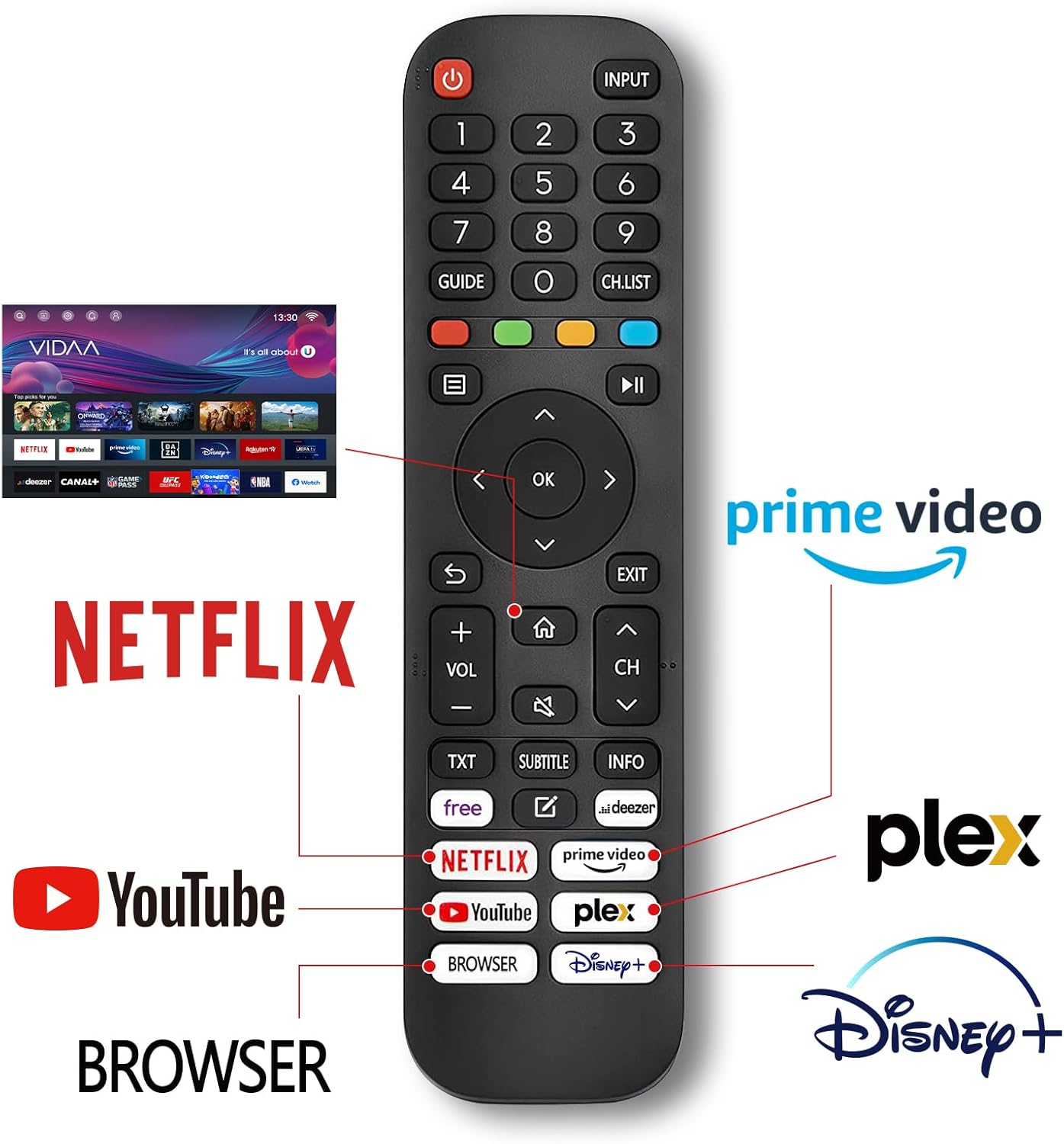
Figure 6.1: Remote control layout with quick access buttons for streaming services.
- Power Button: Turns the TV on/off.
- Input: Selects input source (HDMI, AV, Tuner).
- Number Buttons: Direct channel selection.
- Navigation Buttons (Up/Down/Left/Right/OK): For menu navigation and selection.
- Volume Up/Down: Adjusts volume.
- Channel Up/Down: Changes channels.
- Smart TV App Buttons: Direct access to services like Prime Video, Netflix, YouTube, Disney+, etc.
Smart TV Features (VIDAA OS)
Your HKC Smart TV runs on the VIDAA operating system, providing access to a wide range of streaming services and applications.

Figure 6.2: VIDAA Smart TV interface with available applications.
- App Store: Download and install additional applications.
- Pre-installed Apps: Enjoy popular services like Prime Video, Netflix, YouTube, DAZN, Disney+, and Pluto TV.
AirPlay Functionality
With Apple AirPlay, you can stream movies, music, games, and photos directly from your iPhone, iPad, or Mac to your TV.

Figure 6.3: AirPlay feature for casting content from Apple devices.
Hotel Mode
The Hotel Mode feature allows you to configure your TV settings in batches, which is useful for commercial environments or multiple TV installations.
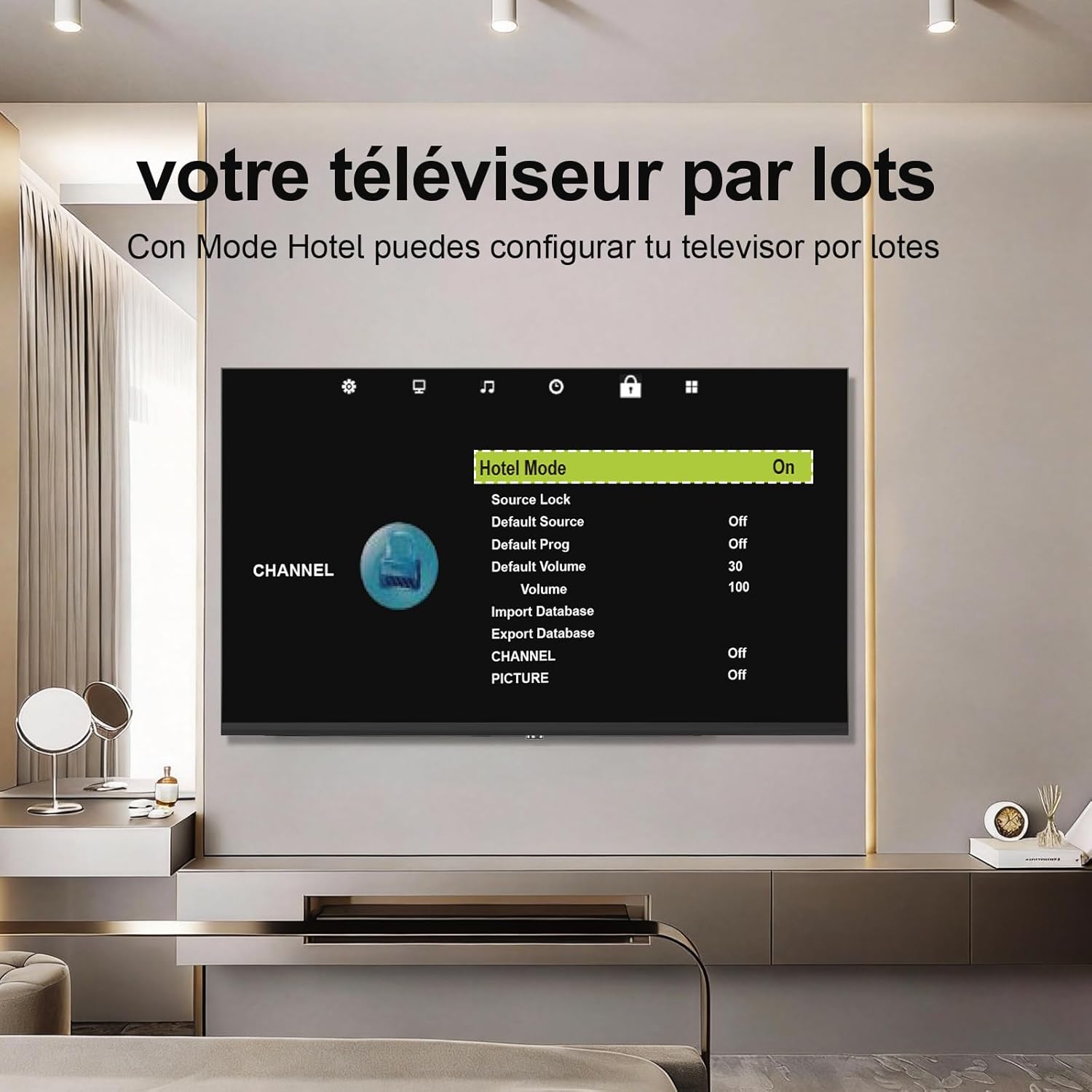
Figure 6.4: Hotel Mode menu for batch configuration.
7. Maintenance
Cleaning the TV
Always unplug the TV before cleaning. Use a soft, dry cloth to wipe the screen and cabinet. For stubborn marks, lightly dampen the cloth with water or a mild, non-abrasive cleaner specifically designed for electronics. Never spray cleaner directly onto the TV.
Care and Storage
Avoid placing heavy objects on the TV. Do not expose the TV to extreme temperatures or humidity. If storing the TV for an extended period, cover it to protect against dust and store it in a dry, cool place.
8. Troubleshooting
If you encounter issues with your TV, refer to the following common problems and solutions before contacting support.
| Problem | Possible Cause / Solution |
|---|---|
| No power | Ensure the power cord is securely plugged into both the TV and a working electrical outlet. Check if the power outlet is active. |
| No picture, but sound is present | Check the input source. Ensure external devices are powered on and connected correctly. |
| No sound, but picture is present | Check the volume level and mute status. Ensure external audio systems are connected and configured correctly. |
| Remote control not working | Replace the batteries. Ensure there are no obstructions between the remote and the TV's IR sensor. |
| Cannot connect to Wi-Fi | Ensure your Wi-Fi router is on and within range. Re-enter the Wi-Fi password carefully. Try restarting your router and TV. |
| Smart TV apps not loading | Check your internet connection. Try restarting the TV. Ensure the TV's software is up to date. |
9. Specifications
Below are the technical specifications for the HKC 40-inch FHD Smart TV (Model H40Q1F-V).
| Feature | Detail |
|---|---|
| Model Number | H40Q1F-V |
| Screen Size | 40 Inches |
| Display Technology | LED |
| Resolution | 1080p (Full HD) |
| Refresh Rate | 60 Hz |
| Operating System | VIDAA |
| Connectivity Technology | HDMI, USB, Wi-Fi, LAN |
| HDMI Ports | 3 |
| USB Ports | 2 |
| Supported Internet Services | Prime Video, Netflix, Youtube, DAZN, Disney+, Pluto TV |
| VESA Mounting Standard | 200 x 200 mm |
| Product Dimensions (D x W x H) | 9.6 x 95.1 x 57 cm (with stand) |
| Product Weight | 5 kg |
| Audio Channels | 2.0 |
| Video Encoding | HEVC, VP9 |
10. Warranty and Support
Warranty Information
Your HKC Smart TV comes with a limited warranty. Please refer to the warranty card included in your package for specific terms, conditions, and duration. Keep your purchase receipt as proof of purchase for warranty claims.
Customer Support
For technical assistance, troubleshooting beyond this manual, or warranty inquiries, please contact HKC customer support. Contact details can typically be found on the manufacturer's website or on the warranty card.


