
1. Introduction
This manual provides detailed instructions for the installation, operation, and maintenance of your Rosewill VNG 650W ATX 3.1 Power Supply. Please read this manual thoroughly before installation and keep it for future reference. The Rosewill VNG 650W is an 80+ Gold Certified, non-modular power supply compatible with ATX 3.0 & 3.1 standards, featuring a 450W PCIe 5.1 12V-2x6 connector for modern graphics cards.
2. Safety Information
- Always disconnect the power cord from the wall outlet before installing, removing, or cleaning the power supply.
- Do not open the power supply unit. High voltages are present inside, and there are no user-serviceable parts. Opening the unit will void the warranty.
- Ensure the power supply is installed in a well-ventilated area, away from heat sources, direct sunlight, and moisture.
- Use only the cables provided with your power supply. Using third-party cables may cause damage to your system and void the warranty.
- Connect the power supply to a grounded power outlet.
- Do not force connectors. Ensure proper orientation before plugging in any cables.
3. Package Contents
Verify that all components are present in your package:
- Rosewill VNG 650W Power Supply Unit
- AC Power Cord
- Mounting Screws
- User Manual
- Cable Ties (for cable management)

Figure 3.1: Rosewill VNG 650W Power Supply with its bundled, non-modular cables.
4. Setup and Installation
Follow these steps to install your Rosewill VNG 650W Power Supply:
- Prepare Your System: Ensure your computer case is open and accessible. Disconnect all power from your existing power supply and remove it if necessary.
- Mount the Power Supply: Carefully slide the Rosewill VNG 650W into the power supply bay of your computer case. Secure it with the provided mounting screws.
- Connect Motherboard Power: Connect the 24-pin ATX motherboard power cable to your motherboard.
- Connect CPU Power: Connect the 4+4 pin CPU power cable(s) to your motherboard.
- Connect Graphics Card Power: For modern graphics cards, use the dedicated PCIe 5.1 12V-2x6 connector. For older or less demanding cards, use the 6+2 pin PCIe connectors. Ensure all necessary power connectors for your graphics card(s) are securely attached.
- Connect Peripherals: Connect SATA power cables to your storage drives (HDDs/SSDs) and Molex connectors to any other peripherals requiring them.
- Cable Management: Organize the non-modular cables using the included cable ties to improve airflow and aesthetics within your case.
- Connect AC Power: Once all internal connections are made, connect the AC power cord to the power supply and then to a grounded wall outlet.
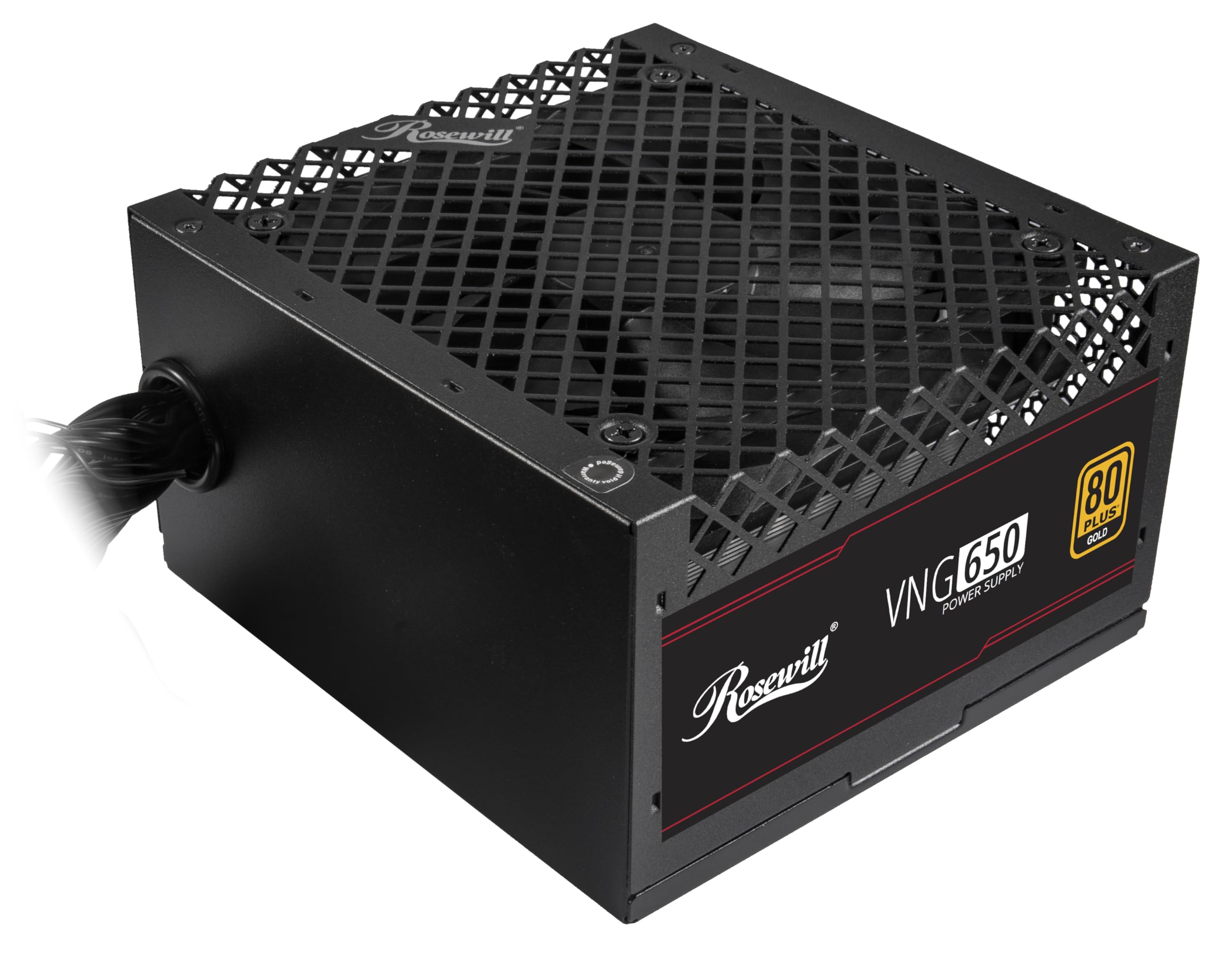
Figure 4.1: Rosewill VNG 650W Power Supply overview.

Figure 4.2: Rear panel with power switch and AC input.

Figure 4.3: Available Power Supply Connectors.
5. Operating Instructions
Once installed, the Rosewill VNG 650W Power Supply operates automatically. Its 80 PLUS Gold certification ensures high efficiency, converting more AC power into usable DC power and reducing wasted heat. The low-noise design helps maintain a quiet computing environment. The power supply is designed to handle power excursions up to 235% and GPU power excursions up to 300%, providing stable power delivery for demanding components.

Figure 5.1: Top view showing the cooling fan.
6. Maintenance
To ensure optimal performance and longevity of your Rosewill VNG 650W Power Supply:
- Keep it Clean: Periodically clean the exterior of the power supply and the fan grill with a soft, dry cloth. Use compressed air to gently remove dust from the fan and internal components, ensuring the system is powered off and unplugged before cleaning.
- Ensure Proper Airflow: Make sure there is adequate space around the power supply for proper ventilation. Avoid blocking the intake or exhaust vents.
- Check Connections: Occasionally check that all power cables are securely connected to the power supply and your components.
7. Troubleshooting
If you encounter issues with your Rosewill VNG 650W Power Supply, refer to the following common troubleshooting steps:
- No Power:
- Ensure the AC power cord is securely plugged into both the power supply and a working wall outlet.
- Check that the power switch on the back of the PSU is in the 'ON' position.
- Verify all internal power connections (24-pin, CPU, PCIe) are firmly seated.
- Test the wall outlet with another device to confirm it has power.
- System Instability/Crashes:
- Ensure your system's power requirements do not exceed the 650W capacity of the PSU.
- Check for loose power connections to components.
- Monitor system temperatures to ensure components are not overheating.
- Unusual Noise:
- A slight fan noise is normal during operation. If the noise is excessive or unusual, ensure the fan is not obstructed by dust or cables.
- If the noise persists, contact customer support.
If these steps do not resolve your issue, please refer to the Support section.
8. Specifications

Figure 8.1: Electrical Specifications Label.
| Feature | Description |
|---|---|
| Model Name | VNG650 |
| Brand | Rosewill |
| Compatible Devices | Personal Computer |
| Connector Type | ATX |
| Output Wattage | 650 Watts |
| Form Factor | Mini ITX |
| Cooling Method | Air |
| Item Dimensions (L x W x H) | 5.9 x 5.51 x 3.38 inches |
| Item Weight | 2.8 Pounds |
| Power Supply Design | Non-Modular |
| Maximum Input Voltage | 240 Volts (AC) |
| Minimum Input Voltage | 240 Volts (AC) |
| System Bus Connector Type | ATX |
| UPC | 840951136676 |
| Mfr Part Number | VNG650 |
9. Warranty Information
The Rosewill VNG 650W Power Supply comes with a 5 Year Manufacturer Warranty. Please retain your proof of purchase for warranty claims. For detailed terms and conditions, refer to the official Rosewill website or contact customer support.
10. Support
For technical assistance, warranty claims, or further inquiries, please visit the official Rosewill website or contact their customer support team. You can often find FAQs and additional resources online.
Rosewill Official Website: www.rosewill.com