
1. Introduction
Thank you for choosing the EJEAS X10 Bluetooth Mesh Helmet Intercom Headset. This device is designed to enhance your riding experience by providing clear communication, music playback, and GPS navigation. Please read this manual carefully before use to ensure proper operation and to maximize the product's performance and longevity.

Figure 1: EJEAS X10 Intercom highlighting Mesh 4.0 technology.
Video 1: An overview of the EJEAS X10 Motorcycle Bluetooth Intercom features and design.
2. Product Features
- Advanced CVC Noise Reduction: Ensures clear hands-free calls and intercom communication even at high speeds.
- Flexible Long-Distance Intercom: Supports up to 10 riders with a 1.5km open area range via Mesh. 5G mode (via APP) extends communication over 5000km+. Automatic switching between Mesh and 5G for seamless connectivity.
- Bluetooth Music & GPS Multitasking: Stream music, receive GPS directions, listen to FM radio, and activate voice assistants (Siri/Google Assistant) simultaneously.
- Professional IP67 Waterproofing: Designed for submersion in 1m water for 30 minutes, dustproof, and corrosion-resistant for reliable performance in all weather conditions.
- Long-Lasting Battery & Fast Charging: 910mAh battery provides 15 hours of Mesh/Bluetooth intercom, 18 hours of music, and 48 hours standby. Fully charges in 2 hours via USB Type-C.

Figure 2: Key features including voice control, noise reduction, and Bluetooth 5.1.
3. Package Contents
Verify that all items are present in your package:
- EJEAS X10 Intercom Unit
- USB Type-C Charging Cable
- User Manual
- Eartips
- Helmet Mounting Bracket
- Microphone and Speakers

Figure 3: Included components in the EJEAS X10 package.
4. Product Overview and Controls
Familiarize yourself with the main components and control buttons of your EJEAS X10 unit:
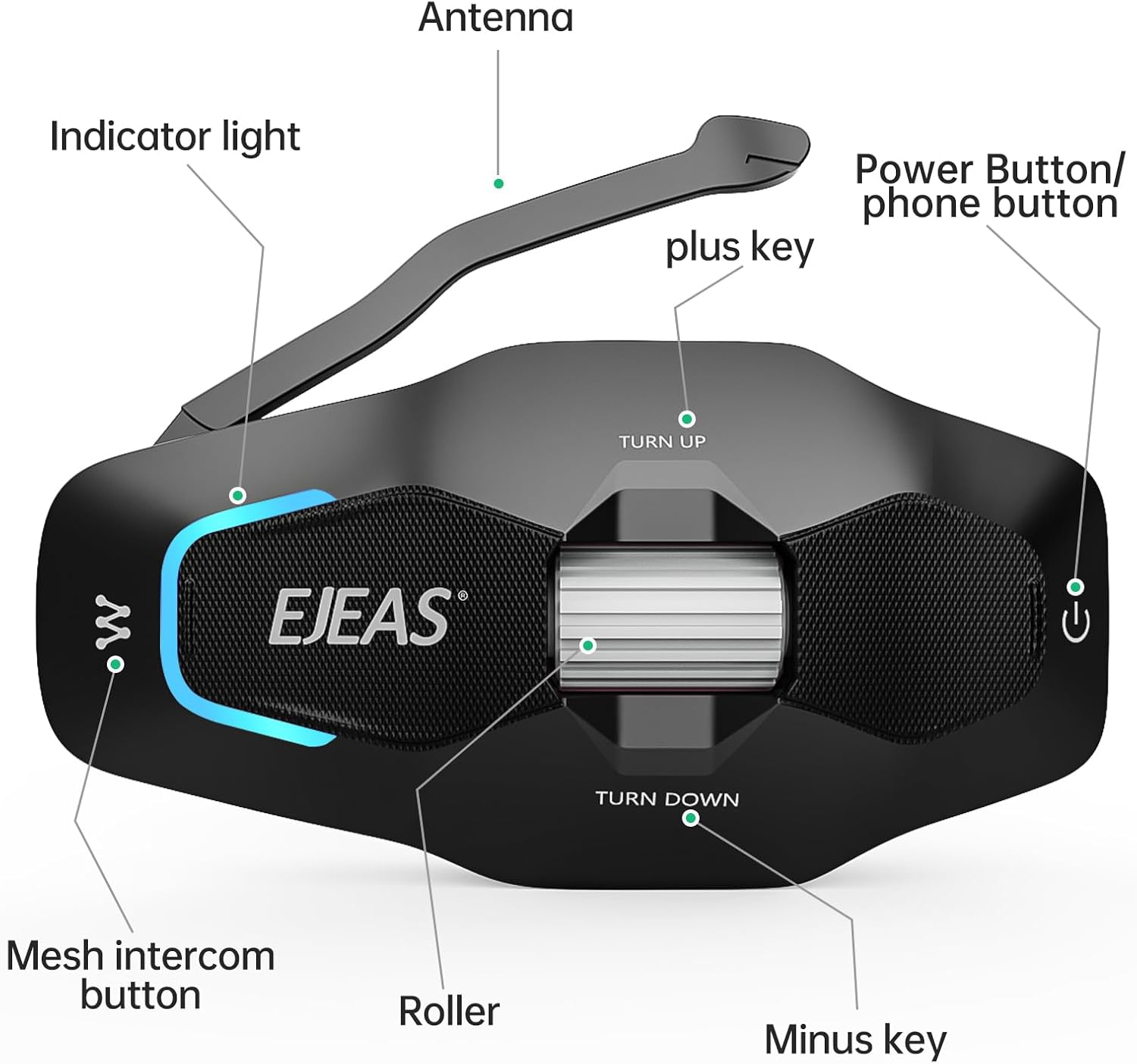
Figure 4: Labeled diagram of the EJEAS X10 Intercom unit.
- Antenna: For Mesh intercom signal.
- Indicator Light: Displays device status (pairing, connected, charging).
- Mesh Intercom Button: Activates and manages Mesh intercom.
- Roller: Multi-function control for volume adjustment and navigation.
- Minus Key (-): Decreases volume or navigates menus.
- Plus Key (+): Increases volume or navigates menus.
- Power Button/Phone Button: Powers the unit on/off, answers/ends calls.
5. Setup and Installation
5.1 Charging the Device
Before first use, fully charge the EJEAS X10. Connect the provided USB Type-C cable to the charging port on the unit and to a USB power source. The indicator light will show charging status and turn off when fully charged.

Figure 5: Type-C charging for the EJEAS X10.
5.2 Helmet Installation
The EJEAS X10 features an air mount for easy installation. Stick the base onto your helmet. The intercom unit then snaps onto the base with powerful magnets, ensuring a secure fit even on bumpy rides. To remove, simply lift the unit.

Figure 6: Magnetic air mount for easy helmet installation.
5.3 Power On/Off
- Power On: Press and hold the Power Button until the indicator light illuminates.
- Power Off: Press and hold the Power Button until the indicator light turns off.
5.4 Bluetooth Pairing (for Phone)
- With the unit powered off, press and hold the Power Button for approximately 5 seconds until the indicator light flashes red and blue alternately. This indicates Bluetooth pairing mode.
- On your mobile phone, enable Bluetooth and search for "EJEAS X10".
- Select "EJEAS X10" from the list of available devices to connect. Once connected, the indicator light will change.
5.5 Mesh Intercom Pairing
To establish a Mesh intercom group, follow these steps:
Video 2: Instructions for Mesh Intercom Pairing between EJEAS X10 units.
- Ensure all units are powered on.
- On each unit, press and hold the Mesh Intercom Button for 3 seconds until the indicator lights flash red and green. This puts them into Mesh pairing mode.
- Click the Mesh Intercom Button on any one of the main units to initiate pairing. The units will connect automatically.
- The EJEAS X10 supports up to 10 riders in a Mesh group.
6. Operating Instructions
6.1 Basic Controls
- Volume Adjustment: Rotate the Roller up (+) to increase volume, down (-) to decrease volume.
- Music Play/Pause: Short press the Power Button.
- Next Track: Rotate the Roller up (+) and hold.
- Previous Track: Rotate the Roller down (-) and hold.
6.2 Phone Calls
- Answer Call: Short press the Power Button.
- End Call: Short press the Power Button during a call.
- Reject Call: Press and hold the Power Button for 2 seconds when a call comes in.
- Redial Last Number: Double-press the Power Button.
6.3 Voice Assistant
Activate your phone's voice assistant (Siri or Google Assistant) by pressing the Power Button three times. You can use voice commands for various functions.

Figure 7: Examples of voice commands for the EJEAS X10.
6.4 Mesh Intercom Usage
- Start Mesh Intercom: After pairing, a short press of the Mesh Intercom Button will initiate communication with the group.
- End Mesh Intercom: Short press the Mesh Intercom Button again.
- Automatic Reconnection: If a unit goes out of range, it will automatically reconnect within 5 milliseconds when back in range.

Figure 8: Mesh intercom network for multiple riders.
6.5 Connecting with Other Brands
The EJEAS X10 supports connection with other brands of Bluetooth intercoms. Refer to the video below for detailed instructions on how to pair your X10 with non-EJEAS devices.
Video 3: Guide on connecting the EJEAS X10 with other brands of intercom systems.
7. Maintenance
- Cleaning: Wipe the unit with a soft, damp cloth. Do not use harsh chemicals or abrasive cleaners.
- Water Resistance: While IP67 rated, ensure the USB port cover is securely closed before exposure to water.
- Storage: Store the device in a cool, dry place when not in use. Avoid extreme temperatures.
- Battery Care: For optimal battery life, charge the device regularly and avoid fully discharging it for extended periods.
8. Troubleshooting
| Problem | Possible Cause | Solution |
|---|---|---|
| Device does not power on. | Low battery. | Charge the device for at least 2 hours. |
| Cannot pair with phone. | Device not in pairing mode; Bluetooth off on phone. | Ensure device is in red/blue flashing pairing mode. Enable Bluetooth on phone and retry. |
| Mesh intercom not connecting. | Units not in Mesh pairing mode; out of range. | Ensure all units are in red/green flashing Mesh pairing mode. Move closer to other units. |
| Poor audio quality/noise. | Microphone placement; high wind noise. | Adjust microphone position. The CVC noise reduction is active, but extreme conditions may affect clarity. |
| Short battery life. | Frequent use at high volume; aging battery. | Reduce volume. Ensure full charge before use. Contact support if battery life significantly degrades. |
9. Specifications
| Model Name | X10 |
| Brand | EJEAS |
| Connectivity Technology | Wireless (Bluetooth 5.1, MESH) |
| Water Resistance Level | IP67 |
| Battery Capacity | 910mAh |
| Charging Time | Approx. 2 hours (USB Type-C) |
| Mesh Intercom Talk Time | Up to 15 hours |
| Music Playback Time | Up to 18 hours |
| Standby Time | Up to 48 hours |
| Mesh Intercom Range (Open Area) | Up to 1.5 km |
| Mesh Intercom Range (Obstructed) | Up to 800 meters |
| Max Mesh Group Size | 10 riders |
| Noise Control | CVC Noise Cancellation, Wind Noise Reduction |
| Control Method | App, Touch, Voice (Hey EJEAS) |
| Material | Acrylonitrile Butadiene Styrene (ABS) |
10. Warranty and Support
The EJEAS X10 comes with a 1-year warranty from the date of purchase. This warranty covers manufacturing defects. Please retain your proof of purchase for warranty claims.
For technical support, troubleshooting assistance, or warranty inquiries, please contact EJEAS customer service through their official website or the retailer where you purchased the product.
You can also visit the official EJEAS store on Amazon for more information and support: EJEAS Store


