
1. Introduction
This manual provides essential information for setting up, operating, maintaining, and troubleshooting your GMKtec K15 AI Mini PC. The K15 is a compact, high-performance barebone mini computer featuring an Intel Ultra 5 125U processor, designed for a wide range of applications from home entertainment to professional workloads.
Please read this manual thoroughly before using the device to ensure proper operation and to maximize its lifespan.
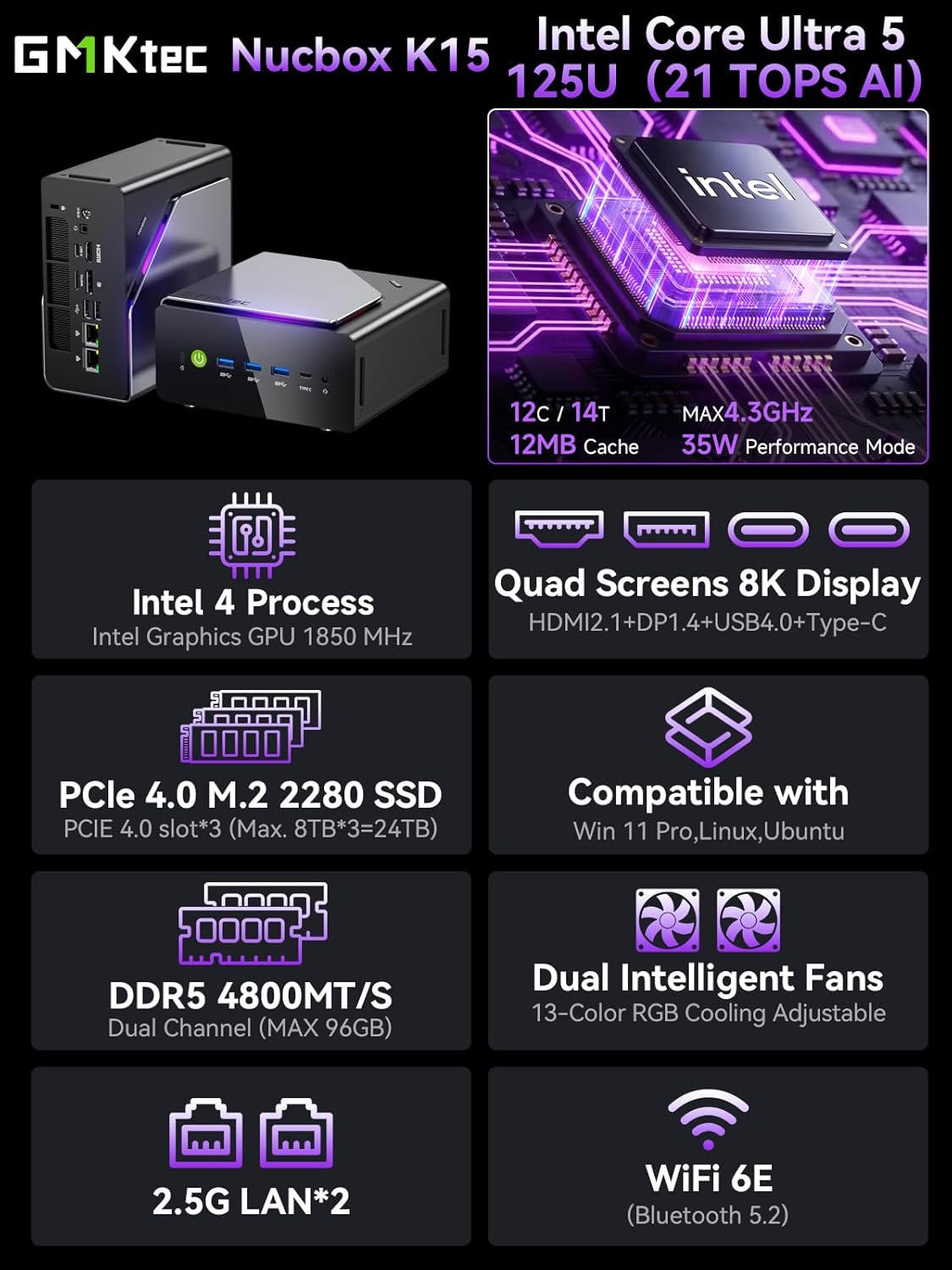
Image 1.1: Overview of GMKtec K15 Mini PC features, including Intel Ultra 5 125U CPU, 8K display support, PCIe 4.0 SSD, DDR5 RAM, dual intelligent fans, 2.5G LAN, and WiFi 6E.
2. Package Contents
Verify that all items are present in the package:
- 1 x GMKtec Nucbox K15 Mini PC
- 1 x Power Adapter
- 1 x VESA Mount with Screws
- 1 x HDMI Cable
- 1 x User Manual (this document)
3. Physical Overview
Familiarize yourself with the ports and components of your GMKtec K15 Mini PC.

Image 3.1: Detailed diagram showing the front and rear I/O ports of the GMKtec K15 Mini PC.
Front Panel
- Power Button: To turn the device on or off.
- USB 3.2 Gen2 Ports (x3): For connecting high-speed USB devices.
- Full-Function Type-C Port (USB4): Supports data transfer, video output (DP1.4), and power delivery (PD3.0).
- 3.5mm Audio Jack: For headphones or speakers.
- Reset Button: For system reset (use a pin).
Rear Panel
- DC Power Input: Connect the included power adapter.
- Kensington Lock Slot: For security locking.
- 3.5mm Audio Jack: For audio output.
- USB4 Port: Supports data transfer and video output.
- HDMI Port (2.1): For connecting to a display.
- OCuLink Port: High-speed direct connection for external graphics or 10G NICs.
- DisplayPort (1.4): For connecting to a display.
- USB 2.0 Ports (x2): For connecting standard USB devices.
- 2.5G Ethernet Ports (x2): For high-speed wired network connections.
- Fan Mode Button: To adjust fan speed/mode.

Image 3.2: The OCuLink port on the GMKtec K15 Mini PC, designed for high-speed external graphics card connections.
4. Setup Guide
The GMKtec K15 is a barebone system, meaning RAM, SSD, and operating system are not pre-installed. Follow these steps to prepare your Mini PC for first use.
4.1 Installing RAM and SSD
The K15 supports dual-channel DDR5-4800MHz RAM (up to 128GB) and three PCIe 4.0 x4 M.2 2280 SSDs (up to 24TB total storage).
- Power Off: Ensure the Mini PC is powered off and disconnected from the power adapter.
- Open Chassis: Carefully open the Mini PC chassis. Refer to the specific instructions provided with your device for opening the case.
- Install RAM: Locate the DDR5 SO-DIMM slots. Align the RAM module notch with the slot key and insert it firmly at a 45-degree angle. Push down until the clips on both sides lock the module in place.
- Install SSD: Locate the M.2 2280 PCIe 4.0 x4 slots. Insert the M.2 SSD into the slot at a slight angle, then gently push it down and secure it with the provided screw.
- Close Chassis: Carefully close the Mini PC chassis, ensuring all connections are secure.

Image 4.1: Internal layout of the GMKtec K15 Mini PC, illustrating the locations for DDR5 RAM and three M.2 2280 PCIe 4.0 x4 SSDs.
4.2 Connecting Peripherals
- Display: Connect your monitor(s) to the HDMI, DisplayPort, or USB4 Type-C ports using appropriate cables. The K15 supports up to four displays simultaneously.
- Keyboard & Mouse: Connect your USB keyboard and mouse to any available USB ports.
- Network: For wired internet, connect an Ethernet cable to one of the 2.5G LAN ports. For wireless, ensure your WiFi 6E router is configured.
- Power: Connect the power adapter to the DC Power Input port on the rear panel, then plug the adapter into a power outlet.
4.3 Operating System Installation
Since the K15 is a barebone system, an operating system (OS) is not included. You will need to install your preferred OS (e.g., Windows 11 Pro, Linux, Ubuntu) from a bootable USB drive. Refer to the OS manufacturer's instructions for installation.
5. Operation
5.1 Power On/Off
- Power On: Press the power button on the front panel.
- Power Off: From within your operating system, select the shutdown option. Alternatively, press and hold the power button for 5 seconds to force a shutdown (use only when necessary).
5.2 Display Configuration
The K15 supports up to four simultaneous displays via HDMI 2.1 (8K@60Hz), DisplayPort 1.4 (8K@30Hz), and dual USB4 Type-C ports (DP1.4/PD3.0). Configure your display settings within your operating system to extend, duplicate, or use only one screen.

Image 5.1: A GMKtec K15 Mini PC setup demonstrating connection to multiple 4K/8K displays for enhanced multitasking.
5.3 Network Connectivity
- Wired: The dual 2.5GbE LAN ports provide high-speed wired network access.
- Wireless: Integrated Wi-Fi 6E offers fast and stable wireless connectivity. Configure Wi-Fi settings through your operating system.
- Bluetooth: Bluetooth 5.2 allows connection to wireless peripherals such as keyboards, mice, and audio devices.
5.4 AI Processing with NPU
The Intel Ultra 5 125U processor includes a dedicated Neural Processing Unit (NPU) for accelerating AI tasks. This NPU enhances performance for machine learning applications, real-time analytics, and AI-driven creative workloads, reducing CPU load and improving efficiency.

Image 5.2: Visual representation of the K15's Intel AI Boost with Dedicated NPU, highlighting its benefits for AI-enhanced creativity and efficient computing.
6. Maintenance
- Cleaning: Regularly clean the exterior of the Mini PC with a soft, dry cloth. Use compressed air to clear dust from vents and ports. Ensure the device is powered off before cleaning.
- Software Updates: Keep your operating system, drivers, and applications updated to ensure optimal performance and security.
- Ventilation: Ensure the Mini PC is placed in a well-ventilated area to prevent overheating. Do not block the air vents.
7. Troubleshooting
If you encounter issues with your GMKtec K15 Mini PC, refer to the following common solutions:
| Problem | Possible Solution |
|---|---|
| No power / Device does not turn on | Check power adapter connection. Ensure the power outlet is functional. Press the power button firmly. |
| No display output | Verify monitor connection and input source. Try a different HDMI/DP cable or port. Ensure RAM and SSD are correctly installed. |
| Slow performance | Check for background processes. Ensure sufficient RAM and SSD space. Update drivers. Monitor system temperature. |
| Network connectivity issues | For wired: Check Ethernet cable and router. For wireless: Verify Wi-Fi password, router status, and signal strength. Update network drivers. |
| Peripheral not recognized | Try a different USB port. Reinstall device drivers. Restart the Mini PC. |
If the problem persists, please contact customer support.
8. Specifications
Detailed technical specifications for the GMKtec K15 AI Mini PC:
| Feature | Detail |
|---|---|
| Brand | GMKtec |
| Model Name | K15 |
| CPU Model | Intel Core Ultra 5 125U (12 Cores/14 Threads) |
| CPU Speed | Up to 4.3 GHz |
| Graphics | Integrated Intel Graphics GPU (Max 1.85GHz) |
| RAM Type | DDR5 RAM (Dual-channel, 4800 MHz) |
| Max RAM Capacity | 128 GB |
| Storage | 3x M.2 2280 PCIe 4.0 x4 SSD slots (Max 24TB total) |
| Video Output | HDMI 2.1 (8K@60Hz), DisplayPort 1.4 (8K@30Hz), 2x USB4 Type-C (DP1.4/PD3.0) |
| Network | 2x 2.5GbE LAN, Wi-Fi 6E, Bluetooth 5.2 |
| USB Ports | 3x USB 3.2 Gen2, 2x USB 2.0, 2x USB4 Type-C |
| Other Ports | OCuLink, 2x 3.5mm Audio Jack, Kensington Lock |
| Operating System | None (Barebone) |
| Color | Iron Gray |
9. Warranty Information
The GMKtec K15 AI Mini PC comes with a 1-year warranty from the date of purchase. This warranty covers manufacturing defects and hardware malfunctions under normal use. It does not cover damage caused by misuse, accidents, unauthorized modifications, or improper installation of components.
Please retain your proof of purchase for warranty claims.
10. Customer Support
For technical assistance, warranty claims, or any questions regarding your GMKtec K15 AI Mini PC, please contact our support team:
- Email Support: support@gmktec.com (Available 24/7)
- Amazon Support: For purchases made on Amazon, you can also contact support through your Amazon account. Navigate to "Your Orders" and select "Ask Product Question" for the GMKtec K15.
11. Product Video
Watch this official video for a visual overview of the GMKtec K15 AI Mini PC, highlighting its features and capabilities.
Video 11.1: Official product video showcasing the GMKtec K15 AI Mini PC Intel Ultra 5 125U with Oculink port and other features.


