
1. Introduction
This manual provides detailed instructions for the installation, operation, and maintenance of your Loddery Android 14 2 DIN Car Radio. This unit is designed for VW Caddy models from 2003 to 2020, offering advanced features such as wireless CarPlay, Android Auto, GPS navigation, Bluetooth connectivity, FM/RDS radio, and support for a rear view camera.
The system runs on Android 14 with 2GB RAM and 32GB ROM, providing a responsive and versatile user experience. Please read this manual thoroughly before use to ensure proper installation and optimal performance.
2. Product Overview
The Loddery Android 14 Car Radio features a 7-inch 1024x600 IPS capacitive touchscreen with a 178° viewing angle. It is powered by a Cortex A7 1.5 GHz x4 processor. Key functionalities include:
- Wireless CarPlay / Android Auto: Seamless integration with your smartphone for navigation, calls, messages, and music.
- GPS Navigation: Built-in module supporting online and offline maps (GPS/Beidou/Galileo/Glonass).
- WiFi Connectivity: Access to online apps and browsing.
- Bluetooth 5.0: Hands-free calling and wireless audio streaming.
- FM/RDS Radio: Real-time traffic, news, and weather information.
- Steering Wheel Control (SWC): Convenient control of radio functions without touching the screen.
- Rear View Camera Support: Automatic display when parking for enhanced safety.
- Mirror Link & Split Screen: Sync smartphone screen and run two apps simultaneously.
- Audio Output: MOSFET amplifier 4 x 45W, EQ adjustment.
3. Setup and Installation
3.1 Compatibility
This car radio is designed for VW Caddy models from 2003-2020. Installation is plug-and-play for compatible vehicles. Please verify your vehicle's compatibility before installation.
Incompatibility List: This unit is not suitable for the following VW models:
- VW Passat: 2004, 2007 2.0L M/T; 2004, 2005 2.8L V6; 2005 1.8T M/T, A/T; 2007 2.0L A/T
- VW CC: 2012 3.0FSI V6
- VW Lavida: 2008 1.6L/2.0L A/T; 2010, 2011 1.4TSI; 2008 1.6L/2.0L M/T; 2009, 2011 2.0L A/T; 2013 1.6L M/T, A/T; 2011 1.4TSI M/T, 1.6L A/T; 2011 1.4TSI DSG
- VW Tiguan: 2016 2.0TSI/GTE
- VW Golf V: 2004 1.6; 2005 1.8; 2004 1.6 A/T; 2008 1.6 A/T, M/T

Figure 3.1: Visual guide for checking compatibility by examining the center console and existing connectors.
3.2 Package Contents
Ensure all items are present in the package:
- 1x Car Radio Unit
- 1x Camera
- 2x Power Cables
- 1x GPS Antenna
- 1x Camera Input Cable
- 1x User Manual
- 1x RCA Input/Output Cable
- 2x USB Cables
- 1x Canbus Box
- 1x Radio Adapter
3.3 Initial Configuration
After physical installation, power on the unit. The Android 14 system will boot up. Follow the on-screen prompts for initial setup, including language selection and time zone. The unit comes with 2GB RAM and 32GB ROM for system operations and app storage.
4. Operating Instructions
4.1 Wireless CarPlay / Android Auto
The car radio supports both wireless CarPlay and Android Auto. Connect your smartphone via USB cable or Bluetooth. Once connected, you can access navigation apps (e.g., Waze), make calls, send messages, and stream music (e.g., Spotify). Voice control via Siri or Google Assistant is also supported for safer driving.

Figure 4.1: Wireless CarPlay and Android Auto functionality with voice control examples.
4.2 GPS Navigation
The unit has a built-in GPS module. You can use pre-installed navigation software or download your preferred navigation apps from the app store. It supports both online and offline maps, utilizing GPS, Beidou, Galileo, and Glonass for fast and accurate positioning.

Figure 4.2: GPS Navigation interface showing route details and map applications.
4.3 WiFi Connection
Connect the car radio to a WiFi network or a mobile hotspot to browse the internet, access web pages, and download various applications from the app store (e.g., Waze, YouTube, TikTok).
Figure 4.3: WiFi connectivity enabling access to online applications.
4.4 Bluetooth & FM/RDS Radio
Utilize Bluetooth 5.0 for wireless audio streaming and hands-free calling. The FM radio with RDS (Radio Data System) provides station information, real-time traffic updates, news broadcasts, and weather forecasts.
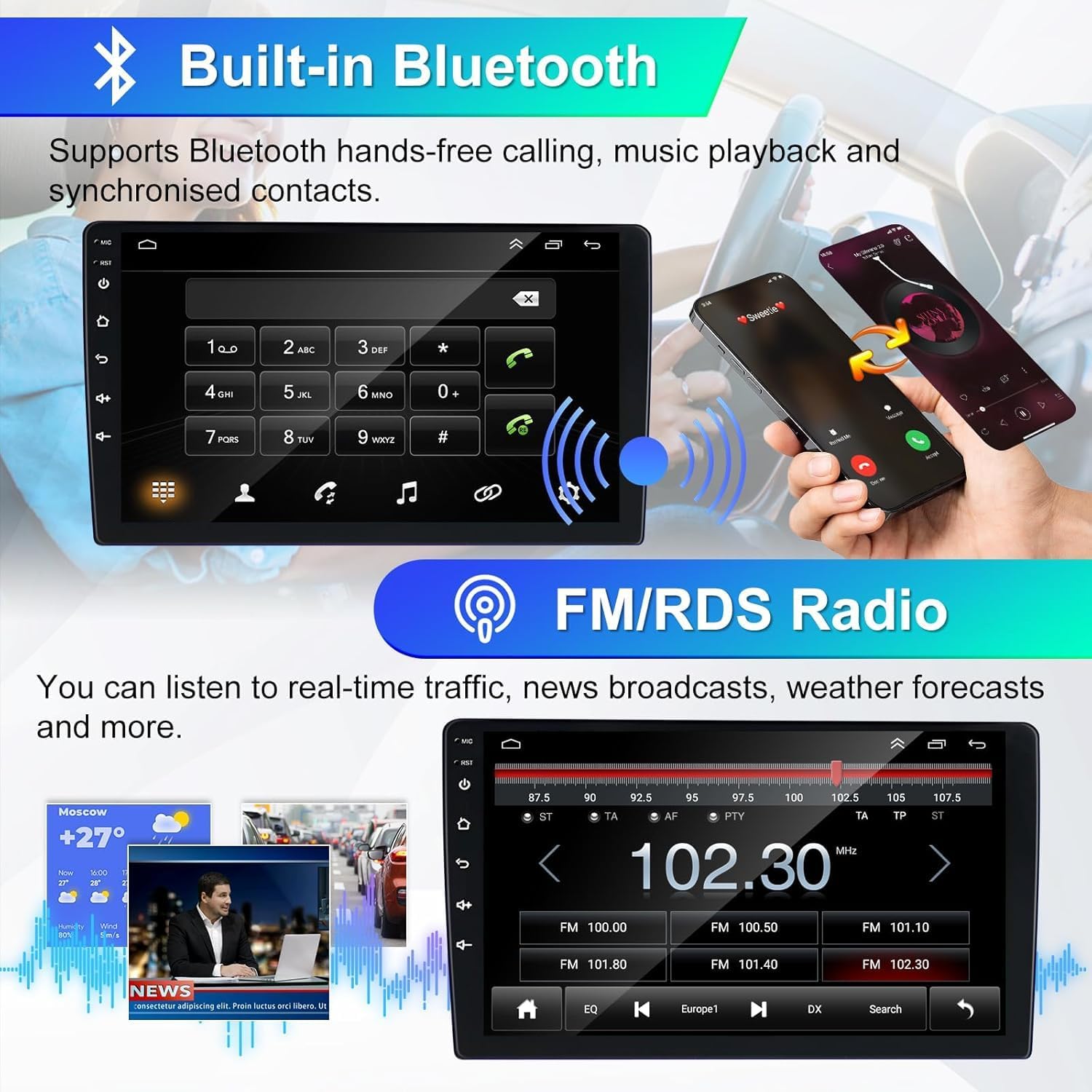
Figure 4.4: Bluetooth hands-free calling and FM/RDS radio interface.
4.5 Steering Wheel Control (SWC)
Control the car radio directly from your steering wheel. This feature allows you to manage navigation, music, and calls, enhancing driving safety and convenience by minimizing screen interaction.

Figure 4.5: Steering Wheel Control functionality and setup options.
4.6 Rear View Camera
When reversing, the car radio automatically displays the feed from the connected rear view camera, providing increased visibility and making parking safer and easier.
Figure 4.6: Rear View Camera display with parking assistance.
4.7 Mirror Link & Split Screen
Mirror Link allows you to sync your smartphone screen to the car radio, enabling you to enjoy navigation maps, videos, and other content directly on the larger display. The Split Screen function allows you to operate two applications simultaneously, such as listening to music while navigating.

Figure 4.7: Mirror Link and Split Screen capabilities for enhanced multitasking.
5. Maintenance
To ensure the longevity and optimal performance of your car radio, follow these maintenance guidelines:
- Cleaning: Use a soft, dry cloth to clean the screen and exterior. Avoid abrasive cleaners or solvents.
- Temperature: Avoid exposing the unit to extreme temperatures, direct sunlight for prolonged periods, or high humidity.
- Software Updates: Periodically check for and install available software updates to ensure system stability and access to new features.
- Connections: Ensure all cables and connections are secure and free from damage.
6. Troubleshooting
If you encounter issues with your car radio, refer to the following common troubleshooting steps:
- No Power: Check power cable connections and vehicle's fuse box. Ensure the ignition is on.
- No Sound: Verify volume settings, audio source selection, and speaker connections. Check if the mute function is active.
- Touchscreen Unresponsive: Try restarting the unit. If the issue persists, a factory reset might be necessary (refer to system settings).
- GPS Signal Loss: Ensure the GPS antenna is properly installed and has a clear view of the sky.
- Bluetooth Pairing Issues: Ensure Bluetooth is enabled on both the car radio and your device. Delete previous pairings and try again.
- CarPlay/Android Auto Connection Failure: Check USB cable integrity or Bluetooth connection. Ensure your phone's software is up to date.
For persistent issues, please contact customer support.
7. Specifications
| Brand | Loddery |
| Model Number | YI-EU-01-QA1524X-CX41 |
| System | Android 14 |
| RAM | 2 GB |
| ROM | 32 GB |
| Screen | 7-inch IPS Capacitive Touchscreen, 1024 x 600 resolution, 178° viewing angle |
| Processor | Cortex A7 1.5 GHz x4 |
| Bluetooth | Version 5.0 |
| Radio Band | FM (87.5 M-108 M) with RDS (RT, AF, TA) |
| Amplifier | MOSFET 4 x 45 W Max Power |
| Audio Formats | MP3, FLAC, APE, WMA, WAV, AAC, AMR |
| Video Formats | AVI, ASF, MP4, MOV, MPG, MPEG1/2/4, VOB, MKV, FLV, TS, WMV, RMVB, 3GP |
| USB Ports | 2 (one for CarPlay, one for data transfer/USB input) |
| Special Features | Wireless Apple CarPlay/Android Auto/Mirror Link, Wi-Fi, GPS Navigation (online/offline), EQ Audio Adjustment, DSP, Steering Wheel Control, Rear View Camera Support, Voice Control |
8. Warranty and Support
Your Loddery car radio comes with comprehensive support:
- 1 Year After-Sales Support: Assistance with product issues and inquiries for one year from the date of purchase.
- 30-Day Refund Service: Eligibility for a refund within 30 days of purchase, subject to terms and conditions.
- 7*24 Hours Technical Support: Round-the-clock technical assistance for any operational or technical difficulties you may encounter.
Figure 8.1: Overview of available support and warranty services.
For support, please refer to the contact information provided with your purchase or on the Loddery official website.