
Introduction
This manual provides essential information for the safe and efficient operation, maintenance, and troubleshooting of your Redroad Robot Vacuum Cleaner. Featuring 10,000Pa HyperForce suction, precise LiDAR navigation, and intelligent obstacle avoidance, this robot vacuum is designed to clean various floor types, including hard floors and carpets, for up to 150 minutes on a single charge. It supports control via a mobile application, remote control, and voice commands through Alexa or Google Assistant.
1. Setup
1.1 Unboxing and Placement
Carefully remove all components from the packaging. Place the charging dock against a wall in an open area, ensuring there are no obstacles within 1 meter (3 feet) to the front and 0.5 meters (1.5 feet) to the sides. Connect the power adapter to the charging dock and plug it into a power outlet.

Image: The Redroad Robot Vacuum Cleaner with its charging dock and various accessories, including side brushes and filters.
1.2 Initial Charging
Place the robot vacuum onto the charging dock. Ensure the charging contacts on the robot align with those on the dock. The indicator light on the robot will illuminate to show it is charging. For first-time use, fully charge the robot for approximately 4-5 hours before operation.
1.3 App Connection
Download the companion mobile application (e.g., 'Smart Life' app) from your device's app store. Follow the in-app instructions to connect your robot vacuum to your home Wi-Fi network. This enables advanced features like scheduling, cleaning mode selection, and real-time mapping.
2. Operating Instructions
2.1 Starting and Stopping Cleaning
Press the power button on the robot or use the mobile app/remote control to start a cleaning cycle. The robot will automatically begin cleaning in Auto mode. To pause or stop cleaning, press the power button again or use the app/remote.
2.2 Cleaning Modes
- Auto Cleaning: The robot intelligently navigates and cleans your entire home.
- Spot Cleaning: Directs the robot to clean a specific small area with concentrated suction.
- Edge Cleaning: The robot cleans along walls and furniture edges.
- Zigzag Cleaning: Cleans in a systematic zigzag pattern.
- Random Cleaning: Cleans in a random pattern, suitable for smaller, less complex areas.

Image: An illustration showing the Redroad Robot Vacuum Cleaner performing various cleaning modes, including Spot, Edge, Zigzag, and Random cleaning.
2.3 Smart Navigation and Obstacle Avoidance
The robot utilizes LiDAR navigation to create a detailed map of your home, ensuring systematic and efficient cleaning paths. Its advanced sensors detect and avoid obstacles, preventing collisions with furniture and other objects. It also features smart drop sensing to prevent falls from stairs.

Image: The Redroad Robot Vacuum Cleaner navigating around various household items, demonstrating its precise obstacle detection and avoidance capabilities.
2.4 Carpet Detection
The UltraIR sensor technology automatically detects carpets and adjusts suction power to an enhanced mode for deeper cleaning. AutoGuard technology prevents carpets from getting caught in the machine.

Image: The Redroad Robot Vacuum Cleaner transitioning from hard floor to carpet, with an overlay indicating increased suction power for carpet cleaning.
2.5 Self-Charging
When the battery level is low (below 15%), the robot vacuum will automatically return to its charging dock. After recharging, it will resume cleaning from where it left off to complete the task.
2.6 Control Options
- Mobile App: Full control over cleaning modes, schedules, and mapping features.
- Remote Control: Basic control for starting, stopping, and directing the robot.
- Voice Control: Compatible with Alexa and Google Assistant for hands-free operation.
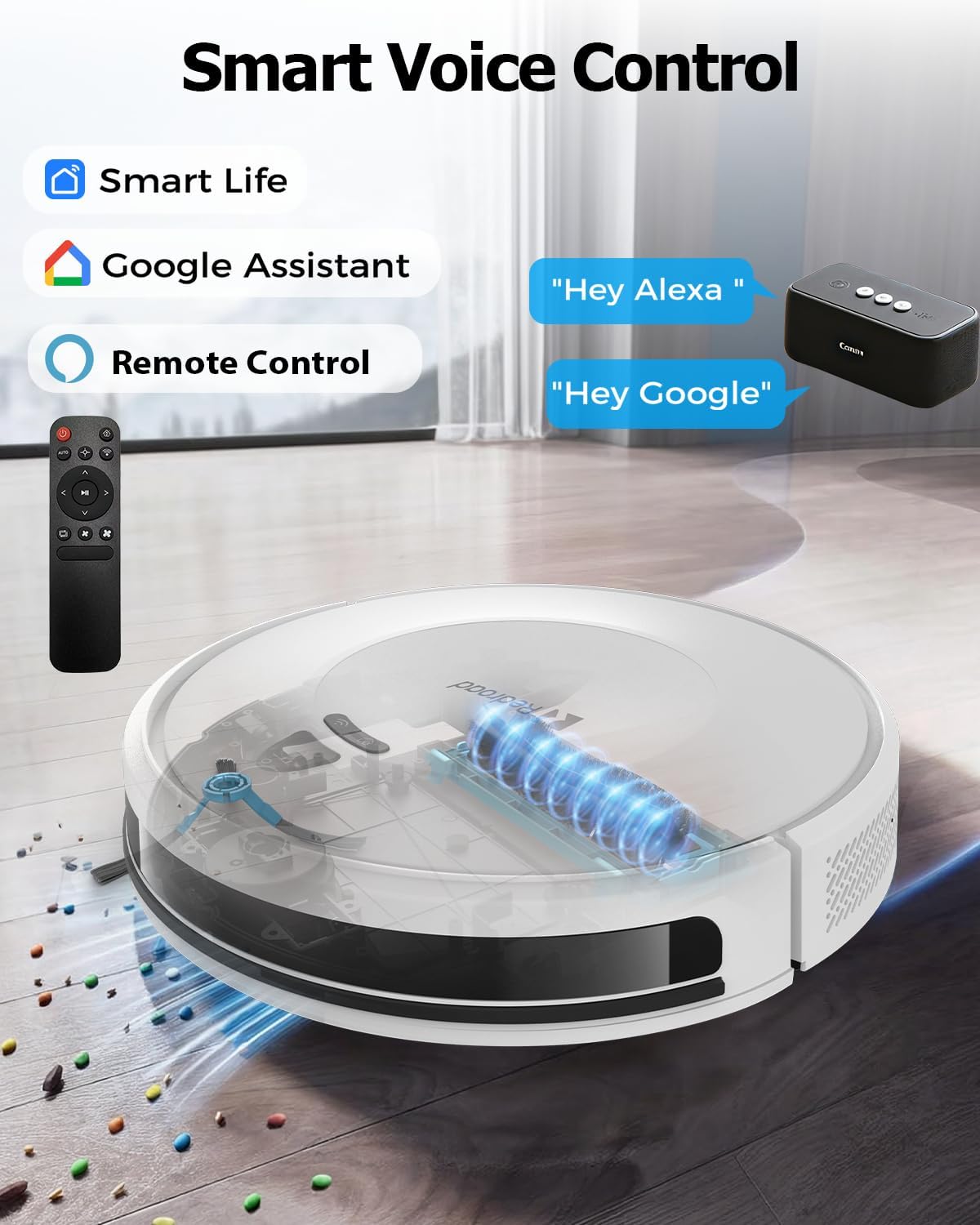
Image: The Redroad Robot Vacuum Cleaner shown with icons for Smart Life app, Google Assistant, and a remote control, illustrating its multiple control methods.
Video: An official product video demonstrating the Redroad Robot Vacuum Cleaner's features, including app control, LiDAR navigation, carpet detection, and obstacle avoidance.
3. Maintenance
Regular maintenance ensures optimal performance and extends the lifespan of your robot vacuum.
3.1 Emptying the Dustbin
The robot vacuum is equipped with a 660ml dustbin. It is recommended to empty the dustbin after each cleaning cycle, especially in homes with pets or high traffic. Open the top cover of the robot, remove the dustbin, and discard collected debris.
3.2 Cleaning Brushes
Periodically check the main brush and side brushes for tangled hair or debris. Use the cleaning tool provided to cut and remove any tangled hair. Ensure the brushes are free to rotate.
3.3 Cleaning Filters
The high-efficiency filter inside the dustbin should be cleaned regularly. Tap the filter to remove dust or rinse it with water if necessary. Allow the filter to air dry completely before reinserting it into the dustbin. Replace filters every 3-6 months, depending on usage.
3.4 Cleaning Sensors and Charging Contacts
Wipe the sensors (LiDAR, anti-drop, obstacle avoidance) and charging contacts on both the robot and the charging dock with a clean, dry cloth to ensure proper functionality.
4. Troubleshooting
If you encounter issues with your Redroad Robot Vacuum Cleaner, refer to the following common solutions:
| Problem | Possible Cause | Solution |
|---|---|---|
| Robot does not start or respond. | Low battery; power switch off; robot stuck. | Ensure robot is fully charged. Check if the main power switch is on. Clear any obstructions. |
| Poor cleaning performance. | Full dustbin; clogged brushes/filters; dirty sensors. | Empty dustbin. Clean main brush, side brushes, and filters. Wipe all sensors. |
| Robot cannot find charging dock. | Charging dock obstructed; dirty charging contacts. | Ensure charging dock is in an open area. Clean charging contacts on both robot and dock. |
| Robot gets stuck frequently. | Too many obstacles; loose cables/rugs. | Clear the cleaning area of small objects and loose cables. Use virtual walls if available. |
| App connection issues. | Incorrect Wi-Fi password; router issues; robot too far from router. | Verify Wi-Fi password. Restart router. Move robot closer to router during setup. |
For further assistance, please contact Redroad customer support.
5. Specifications
| Feature | Detail |
|---|---|
| Brand | Redroad |
| Model Number | Robot Vacuum |
| Suction Power | 10,000 Pa |
| Battery Capacity | 8*3800mAh (Total 30400mAh) |
| Max Runtime | Up to 150 minutes |
| Dustbin Capacity | 0.6 Liters (660ml) |
| Navigation Type | LiDAR Navigation |
| Obstacle Avoidance | Yes, with 23 high-precision sensors |
| Control Methods | Mobile App, Remote Control, Voice Control (Alexa/Google Assistant) |
| Surface Recommendation | Hard Floor, Carpet |
| Product Dimensions (L x W x H) | 10"L x 10"W x 3"H (approx. 25.4cm x 25.4cm x 7.6cm) |
| Item Weight | 3.5 Kilograms |
6. Warranty and Customer Support
Redroad is committed to your satisfaction. This product comes with a comprehensive 2-year warranty. For any questions, issues, or technical support, our dedicated customer service team is available 24/7.

Image: Details on Redroad's customer service, including a 2-year warranty and 24/7 online support.
Please refer to the contact information provided in your product packaging or on the official Redroad website for support.


