
1. Introduction
Thank you for choosing the Bcofo Wireless Gaming Controller. This manual provides detailed instructions for setting up, operating, maintaining, and troubleshooting your controller. Please read this manual carefully before use to ensure optimal performance and longevity of your device.
Package Contents:
- 1 x Bcofo Wireless Gaming Controller
- 1 x 2.4G USB Dongle
- 1 x USB-C Charging Cable
- 1 x User Manual (this document)
2. Product Overview
The Bcofo Wireless Gaming Controller is designed for multi-platform compatibility, supporting Switch, iOS, Android, Windows PC, and PS3. It features Hall effect triggers and joysticks for precise control, dual motor vibration for immersive feedback, customizable buttons, and adjustable RGB lighting.

Image: The Bcofo Wireless Gaming Controller, showcasing its ergonomic design, RGB lighting, and included phone clip.
3. Setup and Connection
3.1 Charging the Controller
Before first use, fully charge the controller. Connect the supplied USB-C cable to the controller's charging port and the other end to a USB power source (e.g., PC, USB wall adapter). Charging typically takes 2-3 hours. The RGB indicator lights will show charging status and turn off or change color when fully charged.

Image: The controller's USB-C charging port and internal 1000mAh battery, indicating charging time and runtime.
3.2 Connecting to Devices
The controller supports multiple connection modes: NS (Nintendo Switch), Bluetooth, and 2.4G wireless via USB dongle. Use the mode switch on the controller to select the desired connection type.
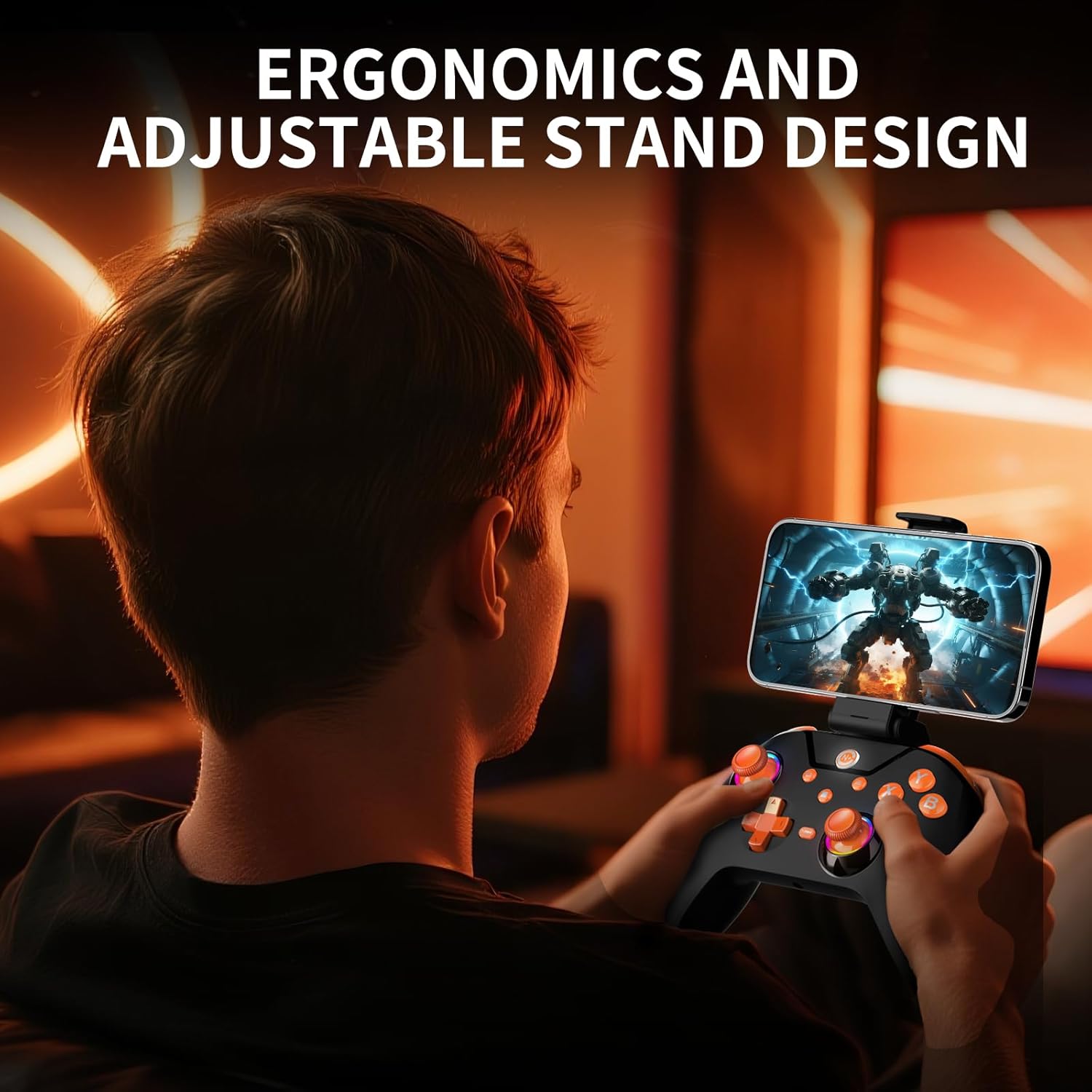
Image: Visual representation of the controller's wide compatibility across various platforms including PC, PS3, Switch, Android, and iOS.
3.2.1 2.4G Wireless Connection (PC/PS3)
- Set the mode switch on the controller to '2.4G'.
- Insert the 2.4G USB dongle into an available USB port on your PC or PS3.
- Press the Home button on the controller. The controller will automatically pair with the dongle. The indicator lights will stabilize once connected.
3.2.2 Bluetooth Connection (Switch/iOS/Android/PC)
- Set the mode switch on the controller to 'Bluetooth' or 'NS' for Nintendo Switch.
- On your device (Switch, iOS, Android, or PC), go to Bluetooth settings and search for new devices.
- Select 'Bcofo Controller' (or similar name) from the list of available devices to pair. The indicator lights will stabilize upon successful connection.
3.2.3 Wired Connection (PC/PS3)
Connect the controller directly to your PC or PS3 using the USB-C cable. The controller will be recognized automatically and can be used immediately.
4. Operating Instructions
4.1 Basic Controls
The controller features standard gaming buttons including A, B, X, Y, D-pad, Left/Right Joysticks, L/R shoulder buttons, and ZL/ZR triggers. Refer to in-game instructions for specific button functions.
4.2 Programmable Buttons
The controller includes four programmable back buttons (M1, M2, N1, N2) that can be assigned functions from other buttons (A, B, X, Y, L, R, ZL, ZR, etc.) to optimize gameplay.
- Press and hold the 'Set' button for 3 seconds to enter programming mode.
- Press the programmable button (M1/M2/N1/N2) you wish to assign.
- Press the button whose function you want to copy (e.g., 'A' button).
- Press the 'Set' button again to exit programming mode. The function is now assigned.

Image: The back of the controller, showing the four programmable buttons (M1, M2, N1, N2) and the 'Set' button for customization.
4.3 Turbo Function
The Turbo function allows for continuous rapid firing of a button with a single press. There are 3 adjustable turbo speeds: 8 shots/s, 15 shots/s, and 25 shots/s.
- To activate Turbo: Press and hold the 'Turbo' button, then press the desired action button (e.g., 'Y').
- To adjust Turbo speed: While Turbo is active, press 'Turbo' + 'Up' (D-pad) to increase speed, or 'Turbo' + 'Down' (D-pad) to decrease speed.
- To deactivate Turbo: Press and hold the 'Turbo' button, then press the action button again.

Image: The controller's 'Turbo' button and visual indicators for adjusting between 8, 15, and 25 shots per second.
4.4 Vibration Adjustment
The dual motor vibration feedback can be adjusted to five intensity levels: 0%, 25%, 50% (default), 75%, and 100%.
- To adjust vibration: Press and hold the 'Vibration' button (if available, or a designated combination like 'Turbo' + 'L1'/'R1') and use the D-pad Up/Down to cycle through intensity levels.

Image: Diagram showing the dual motor vibration system within the controller and the five adjustable vibration intensity levels.
4.5 RGB Lighting
The controller features RGB indicator lights with 9 adjustable colors.
- To change RGB color: Press the 'Light' button (or a designated combination) to cycle through the available colors.

Image: Close-up of a controller joystick with dynamic RGB lighting, illustrating the 9 available color options.
4.6 Screenshot Function
Press the dedicated 'Screenshot' button (if available, or a designated combination) to capture a screenshot of your gameplay.
4.7 One-Click Wake Up
When the controller is connected to a compatible device (e.g., Nintendo Switch), pressing the Home button can wake up the device from sleep mode.
4.8 Using the Phone Clip
The included phone clip allows you to attach your smartphone to the controller for mobile gaming. It is designed to accommodate smartphones between 2.5-4.15 inches in width.

Image: A user holding the controller with a smartphone securely mounted in the adjustable phone clip, demonstrating mobile gaming ergonomics.
5. Maintenance
Proper maintenance ensures the longevity and performance of your controller.
- Cleaning: Use a soft, dry cloth to wipe the controller. For stubborn dirt, slightly dampen the cloth with water. Avoid using harsh chemicals or abrasive cleaners.
- Storage: Store the controller in a cool, dry place away from direct sunlight and extreme temperatures.
- Battery Care: To preserve battery life, avoid fully discharging the controller frequently. If storing for an extended period, charge the battery to about 50% and recharge every few months.
- Avoid Impact: Do not drop or subject the controller to strong impacts, as this can damage internal components.
6. Troubleshooting
If you encounter issues with your controller, refer to the following common solutions:
6.1 Controller Not Connecting
- Ensure the controller is charged.
- Verify the mode switch is set correctly for your device (2.4G, Bluetooth, NS).
- For 2.4G, ensure the USB dongle is properly inserted.
- For Bluetooth, ensure your device's Bluetooth is enabled and the controller is in pairing mode. Try removing previous pairings and re-pairing.
- Try connecting the controller via USB-C cable to see if it functions in wired mode.
6.2 Buttons or Joysticks Unresponsive
- Check if the controller's battery is low.
- Ensure the controller is properly connected to your device.
- Perform a factory reset: Locate the small 'Reset' button (often a pinhole) on the back or bottom of the controller and press it with a thin object (e.g., paperclip).
- If using programmable buttons, ensure they are configured correctly.
6.3 Vibration Not Working or Incorrect
- Check the vibration intensity settings (refer to Section 4.4).
- Ensure the game you are playing supports vibration feedback.
7. Specifications
| Model Number | 6T59 (B0GDWJW5W5) |
| Material | ABS Resin |
| Connectivity | Bluetooth, 2.4G Wireless, USB-C Wired |
| Compatible Platforms | Nintendo Switch, iOS, Android, Windows PC, PS3 |
| Battery Capacity | 1000mAh |
| Battery Life | Approx. 10-12 hours (depending on usage) |
| Charging Time | Approx. 2-3 hours |
| Wireless Range | Up to 10 meters |
| Polling Rate | 1000Hz (wired) |
| Input Voltage | DC 5V |
| Special Features | Hall Effect Joysticks & Triggers, Dual Vibration, 6-axis Gyro, Turbo, Macro, 4 Programmable Buttons, RGB Lighting, Screenshot, One-Click Wake Up |
8. Warranty and Support
Bcofo is committed to providing high-quality products and customer satisfaction. All wireless Bluetooth controllers undergo strict inspection before shipment to ensure quality.
8.1 Customer Support
For any questions, concerns, or technical assistance regarding your Bcofo Wireless Gaming Controller, please contact our customer service team. We are always here to assist you with before-sale and after-sale queries.
Please refer to the contact information provided with your purchase or visit the official Bcofo website for support details.