
Introduction
Thank you for choosing the Surpixo S10 Wireless Headset. This manual provides essential information for setting up, operating, and maintaining your headset. The S10 is designed for clear communication in various environments, featuring an Environmental Noise Cancelling (ENC) microphone, dual-mode connectivity (Bluetooth 6.0 and 2.4GHz USB dongle), and a comfortable, lightweight design for extended use.
What's in the Box
- Surpixo S10 Wireless Headset
- USB Wireless Adapter (Dongle)
- USB-C Charging Cable
- User Manual

Image: Contents of the Surpixo S10 package.
Product Overview
Familiarize yourself with the various components and controls of your Surpixo S10 headset.

Image: Surpixo S10 Wireless Headset.
Controls and Indicators

Image: Noise-cancelling microphone detail.

Image: Simple and intuitive operation controls.
- Power Button: Turns the headset on/off.
- Volume Up/Down Buttons: Adjusts audio volume.
- Mode Switch Button (M): Toggles between Bluetooth 6.0 and 2.4GHz USB dongle modes.
- Microphone Mute Button: Mutes and unmutes the microphone.
- USB-C Port: For charging the headset.
- LED Indicator: Displays connection status and battery level.
Setup
1. Charging the Headset
Before first use, fully charge your headset. A full charge takes approximately 2 hours and provides up to 50 hours of talk time.
- Connect the supplied USB-C charging cable to the headset's USB-C port.
- Connect the other end of the cable to a USB power source (e.g., computer USB port, wall adapter).
- The LED indicator will show charging status. It will flash red when the battery drops below 10%.

Image: Headset charging and battery life.
2. Connecting via 2.4GHz USB Dongle
This mode offers low latency connectivity, ideal for PC, laptops, and gaming consoles like PS4/PS5.
- Plug the USB Wireless Adapter (dongle) into an available USB port on your device.
- Power on the Surpixo S10 headset.
- The headset will automatically connect to the dongle. The LED indicator will show a stable light when connected.
Note: For PS4/PS5, use the 2.4GHz USB dongle. Bluetooth mode is not supported for these consoles.
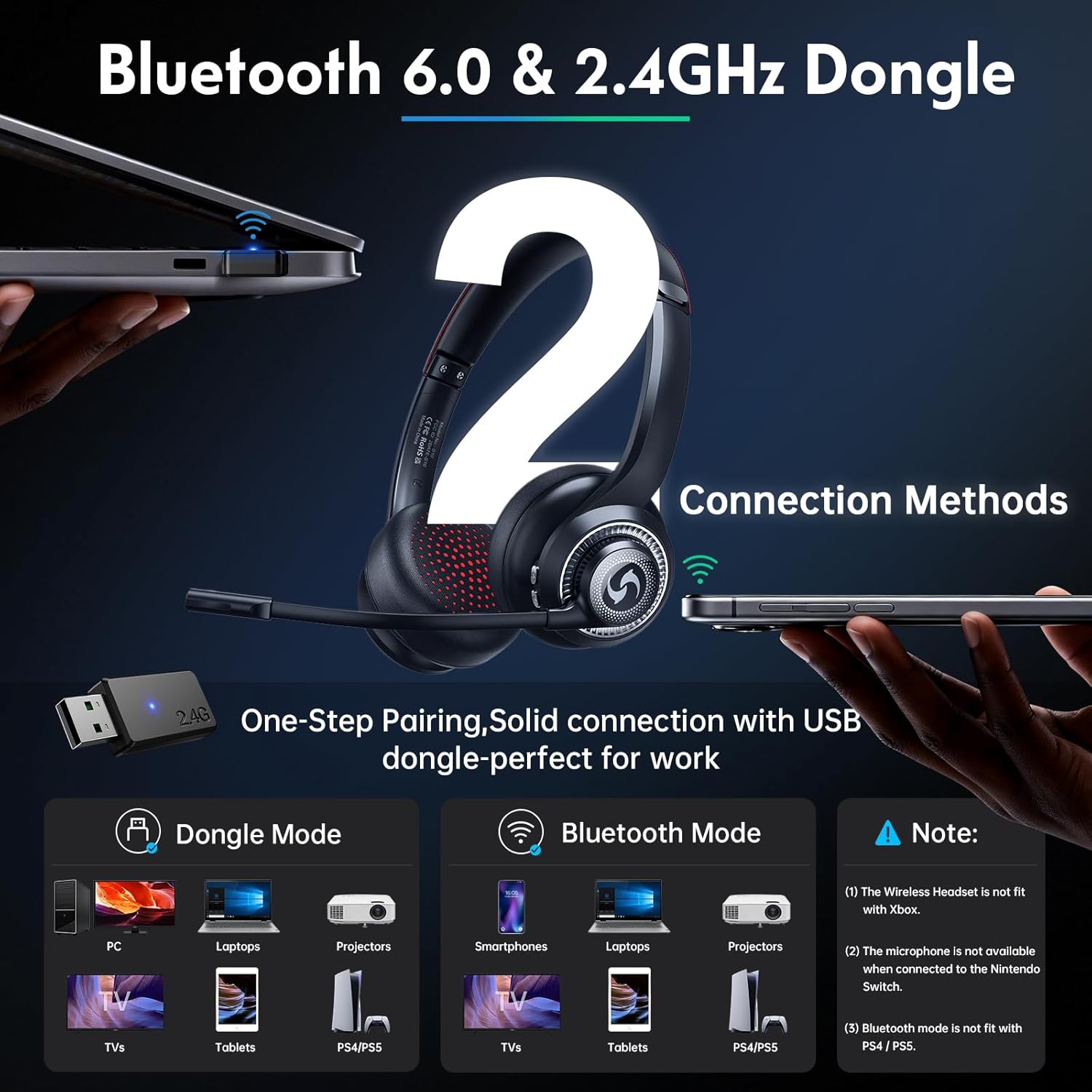
Image: Dual-mode connection methods.
3. Connecting via Bluetooth 6.0
This mode is suitable for mobile phones, laptops, and other Bluetooth-enabled devices.
- Power on the Surpixo S10 headset.
- Press and hold the Mode Switch (M) button until the LED indicator flashes, indicating pairing mode.
- On your device, enable Bluetooth and search for available devices. Select "Surpixo S10" from the list.
- Once connected, the LED indicator will show a stable light.
Note: The microphone is not available when connected to Nintendo Switch via Bluetooth. This headset is not compatible with Xbox.
Image: Bluetooth and 2.4GHz dongle connection setup.
Operating Instructions
Power On/Off
- To power on, press and hold the Power button until the LED indicator lights up.
- To power off, press and hold the Power button until the LED indicator turns off.
Volume Control
- Press the Volume Up (+) button to increase the audio volume.
- Press the Volume Down (-) button to decrease the audio volume.
Microphone Mute
- Press the Microphone Mute button to mute your microphone during a call or meeting.
- Press it again to unmute the microphone.
Switching Wireless Modes
- Press the Mode Switch (M) button to toggle between Bluetooth 6.0 and 2.4GHz USB dongle connection modes.
Wearing the Headset
Adjust the headband for a comfortable fit. The microphone is rotatable 270 degrees, allowing you to position it on either side of your head for optimal voice pickup.

Image: 270-degree rotatable microphone.

Image: Flexible and adjustable headband.
Maintenance
Proper care ensures the longevity of your Surpixo S10 headset.
- Cleaning: Use a soft, dry cloth to clean the headset. Avoid using harsh chemicals or abrasive materials.
- Storage: Store the headset in a cool, dry place away from direct sunlight and extreme temperatures.
- Battery Care: To preserve battery life, avoid fully discharging the headset frequently. Charge it regularly, even if not in use for extended periods.
- Water Resistance: The headset is not water-resistant. Avoid exposure to liquids.
Troubleshooting
If you encounter issues with your headset, refer to the following common solutions:
| Problem | Solution |
|---|---|
| Headset does not power on. | Ensure the headset is fully charged. Connect it to a power source using the USB-C cable. |
| No audio or low volume. | Check the headset's volume levels using the +/- buttons. Verify the headset is correctly connected to your device. Ensure your device's audio output is set to the headset. |
| Microphone is not working. | Ensure the microphone is not muted. Check your device's audio input settings to confirm the headset microphone is selected. Note that the microphone is not available when connected to Nintendo Switch via Bluetooth. |
| Cannot connect via Bluetooth or 2.4GHz dongle. | Ensure the headset is in the correct pairing mode (Bluetooth) or the dongle is properly inserted (2.4GHz). Try restarting both the headset and your device. Clear previous Bluetooth connections on your device and re-pair. |
| Poor audio clarity during calls. | Ensure the microphone is positioned close to your mouth. Minimize background noise in your environment. Check for potential wireless interference. |
Specifications
| Feature | Detail |
|---|---|
| Brand | Surpixo |
| Model Number | S10 |
| Connectivity Technology | Wireless (Bluetooth 6.0, 2.4GHz USB Dongle) |
| Bluetooth Range | Up to 50 feet |
| Talk Time | Up to 50 hours |
| Charge Time | Approximately 2 hours |
| Weight | 5.2 oz |
| Noise Control | Environmental Noise Cancellation (ENC) |
| Compatible Devices | Laptops, Desktops, Tablets, Telephones, Smart Speaker, Television, Projectors, PS4, PS5, Nintendo Switch (audio only) |
| Microphone | 270° Rotatable |
Official Product Videos
Video: Demonstrates the 50ft stability range of the Surpixo S10 headset.
Video: A brief overview of the Surpixo S10 Wireless Headset with Mic for Work.
Warranty & Support
The Surpixo S10 Wireless Headset is backed by a 2-year warranty from the date of purchase. This warranty covers manufacturing defects and ensures peace of mind for your product. For any product issues, technical assistance, or warranty claims, please contact Surpixo customer support.
You can find more information and support on the official Surpixo Brand Store.