
1. Introduction
The ASHATA Hands-Free USB Wired 1D/2D Barcode Scanner is a high-performance desktop scanning platform designed for efficient and accurate barcode reading. It features advanced decoding technology, soft LED illumination, and multiple feedback methods for an enhanced user experience. Its robust design ensures durability in various environments.
This scanner is capable of reading both 1D and 2D/QR barcodes from labels, paper, and digital displays, including damaged or distorted codes. Its omnidirectional design allows for hands-free operation, making it ideal for supermarkets, retail stores, warehouses, and POS systems.
2. Package Contents
- 1 x ASHATA Barcode Scanning Platform
- 1 x User Manual
3. Setup
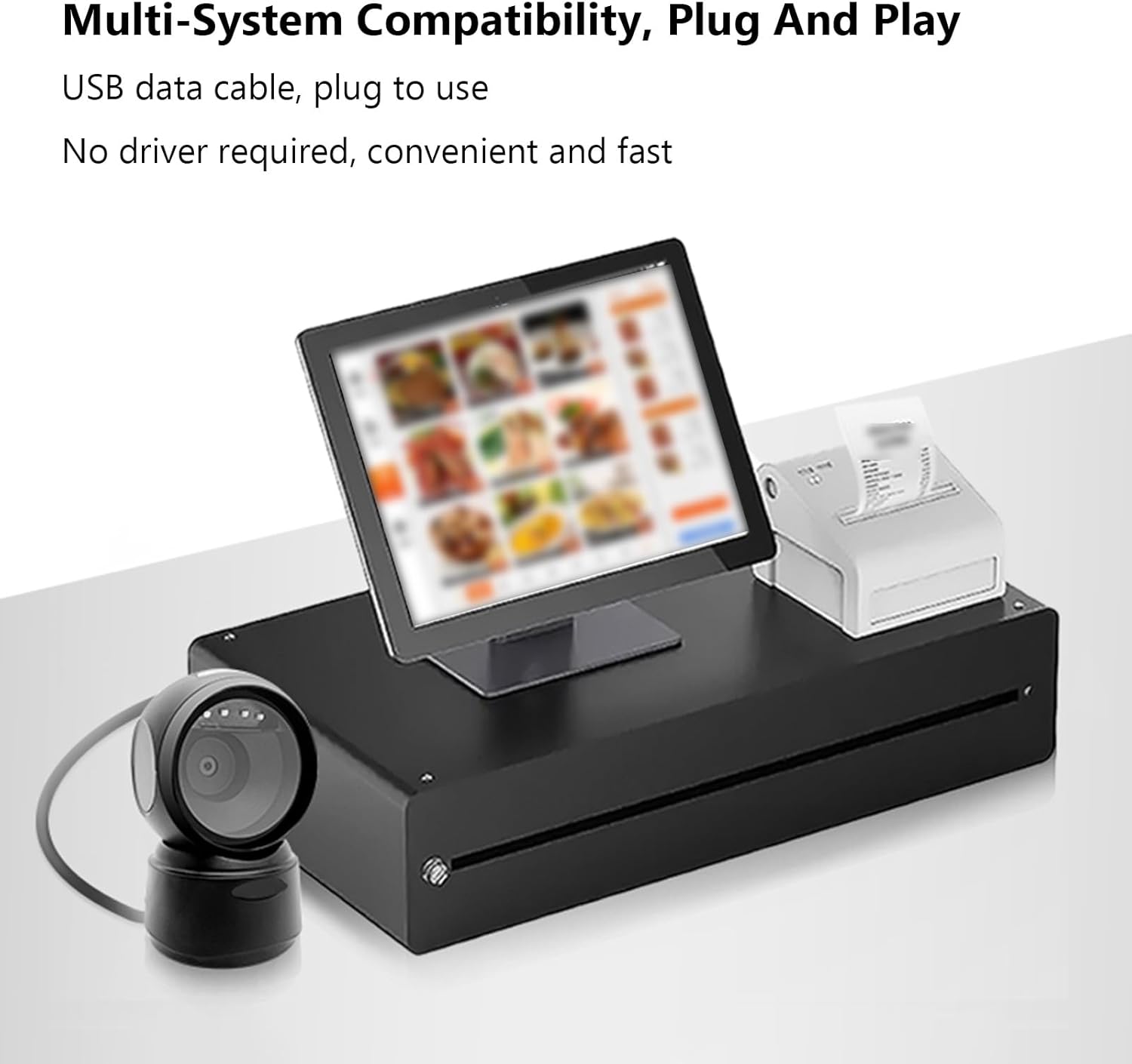
The ASHATA Barcode Scanner is designed for simple plug-and-play operation, requiring no additional driver installation.
- Unpack the Scanner: Carefully remove the barcode scanning platform and user manual from the packaging.
- Connect to Device: Insert the USB data cable from the barcode scanner into an available USB port on your computer or POS system.
- System Recognition: The operating system will automatically detect and install the necessary drivers. This process may take a few moments.
- Placement: Place the scanner on a stable, flat surface. The anti-slip base ensures stability during operation.
4. Operating Instructions
The scanner offers hands-free, omnidirectional scanning for various barcode types.
4.1 Scanning Barcodes
Simply present the barcode to the scanner's window. The scanner will automatically detect and decode the barcode. A buzzer sound and LED indicator lights will provide feedback upon successful scanning.

4.2 Intelligent Sensing
The scanner features an intelligent sensing mode:
- Automatic Sleep Mode: Upon inactivity, the scanner enters an automatic sleep mode to conserve power.
- Smart Wake-up: The scanner automatically wakes up and becomes active when a barcode is presented for scanning.

4.3 Applicable Scenarios
This scanner is suitable for a wide range of applications, including:
- Supermarkets
- Shopping Malls
- Cosmetic Stores
- Retail Industry
- Banks
- Warehouses
- Bookstores
- POS Systems

5. Maintenance
To ensure optimal performance and longevity of your ASHATA Barcode Scanner, follow these maintenance guidelines:
- Cleaning: Gently wipe the scanner's window and exterior with a soft, dry, lint-free cloth. Avoid using abrasive cleaners, solvents, or excessive moisture, as these can damage the device.
- Handling: Although the scanner has a sturdy ABS structure and is IP42 rated, capable of withstanding drops from heights up to 1.5 meters, handle it with care to prevent unnecessary impact.
- Storage: Store the scanner in a cool, dry place away from direct sunlight and extreme temperatures when not in use.
- Cable Care: Avoid bending or twisting the USB cable excessively to prevent internal damage.
6. Troubleshooting
If you encounter issues with your ASHATA Barcode Scanner, please refer to the following common troubleshooting steps:
- Scanner Not Responding:
- Ensure the USB cable is securely connected to both the scanner and the host device.
- Try connecting the scanner to a different USB port on your device.
- Restart your computer or POS system.
- Unable to Read Barcodes:
- Ensure the barcode is clean, undamaged, and clearly visible.
- Verify that the barcode is within the scanner's reading depth of field.
- Check if the scanner's window is clean and free from obstructions.
- Confirm that the barcode type is supported by the scanner (refer to Specifications).
- No Feedback (Buzzer/LED):
- If the scanner is in sleep mode, present a barcode to wake it up.
- Ensure the scanner is properly connected and powered.
If these steps do not resolve the issue, please contact customer support for further assistance.
7. Specifications
| Item Type | 1D/2D Barcode Scanner Platform |
| Light Source Type | 625nm LED Supplementary Light |
| Scanning Principle | Image CMOS |
| Trigger Mode | Induction Mode / Continuous Mode / Instruction Mode |
| Scanning Angle | Tilt Angle 65°, Rotate Angle 360°, Skew Angle 75° |
| Scanning Accuracy | >4.5mil |
| Reading Depth of Field | 5mil (Code39): 2cm-13cm UPC-13mil: 2cm-28cm 20mil (Code39): 2cm-35cm 20mil QR Code: 2cm-24cm |
| Cable Length | 1.5m / 4.92ft |
| Product Size | 13.6 x 8.3 x 8 cm / 5.35 x 3.27 x 3.15 in |
| Product Weight | 224g / 7.9oz |
| Connectivity | USB, RS232 |
| Durability | IP42 rated, withstands drops up to 1.5 meters |
| Supported Decoding Capabilities | QRCode, PDF417, MaxiCode, Aztec, DataMatrix(ECC200), Micro QR, Hanxin Code, Micro PDF417, EAN13, EAN8, UPC-A, UPC-E, Code128, Code39, Code93, CodaBar, Interleaved 2 of 5, Industrial 25, Codel1MSIPlessey, Standard 2 of 5, Plessey, ChinaPost 25, etc. |
8. Warranty and Support
For warranty information or technical support, please refer to the documentation included with your purchase or contact ASHATA customer service through your retailer. Keep your purchase receipt for warranty claims.